


 Home
HomeUpscayl: Free AI Image Upscaling Guide
Are you frustrated by blurry, low-quality images? Do you wish to revitalize old photographs or enhance your digital artwork? You don't require costly software or complex methods. Upscayl, the free and open-source AI image upscaler, provides a robust and easy-to-use solution. This comprehensive guide will take you through downloading, installing, and using Upscayl to effortlessly increase your image resolution and achieve impressive results. We will examine the various AI models, settings, and batch processing features to help you maximize the potential of this remarkable tool. Bid farewell to pixelation and welcome crisp, high-definition images with Upscayl!
Key Points
Upscayl is a free and open-source AI image upscaler.
It utilizes sophisticated AI algorithms to boost image resolution and improve details.
Upscayl is compatible with Windows, macOS, and Linux.
The software is straightforward to use, featuring a simple and intuitive interface.
Users can upscale individual images or process multiple files in batches.
It provides various AI models optimized for different types of images.
Upscayl enables users to customize output settings, including file format and scale.
A GPU is recommended for faster processing speeds.
Introduction to Upscayl: Your Free AI Image Upscaler
What is Upscayl?
Upscayl
is a transformative tool in the field of image enhancement. It is free, open-source software that employs artificial intelligence to upscale images, increasing their resolution while aiming to preserve or even improve detail. Unlike conventional resizing techniques that often produce blurry or pixelated results, Upscayl uses advanced AI algorithms to intelligently reconstruct and add detail, yielding remarkably sharp and clear outcomes. This makes it perfect for various applications, from restoring old photos and refining digital art to preparing images for printing or display on high-resolution screens. Best of all, Upscayl is available for Windows, macOS, and Linux, making it accessible to a broad audience. The software is designed to be user-friendly, even for those with minimal image editing experience. Its intuitive interface and simple workflow allow for quick and efficient image upscaling without the need for complicated settings or technical expertise. Upscayl stands out as a powerful yet approachable tool for anyone seeking to enhance their image quality without investing in expensive software or learning intricate techniques. With its AI-driven upscaling, cross-platform availability, and user-friendly design, Upscayl is an essential tool for photographers, artists, designers, and anyone who appreciates high-quality imagery.
Troubleshooting Common Upscayl Issues
Addressing Potential Problems and Solutions
While Upscayl is generally easy to use, you may occasionally encounter issues. Here are some common problems and their potential solutions:
- Slow Processing Times:
- Problem: The upscaling process is taking an excessively long time.
- Solution: Verify that a dedicated GPU is enabled. Close other applications to free up system resources. Consider using a faster AI model (such as "Fast Real-ESRGAN") if top-tier quality is not essential.
- Out of Memory Errors:
- Problem: Upscayl crashes or shows an "Out of Memory" error.
- Solution: Reduce the image dimensions or use a smaller scale factor. Close other memory-intensive programs. If you have a dedicated GPU, confirm it has adequate memory.
- Unexpected Results:
- Problem: The upscaled image appears distorted or unnatural.
- Solution: Test different AI models. Certain models may be better suited for specific image types. Also, try lowering the scale factor.
- Program Freezes or Crashes:
- Problem: Upscayl freezes or crashes during upscaling.
- Solution: Restart Upscayl. Reboot your computer to clear temporary files and free system resources. Update your graphics drivers. If the issue continues, attempt reinstalling Upscayl.
- Incompatible Image Format:
- Problem: Upscayl cannot open or process a particular image file.
- Solution: Ensure the image format is supported (JPG, PNG, WebP). Try converting the image to a different format using another image editor before upscaling. The option to save the image as PNG or JPG is located in the settings. It is also possible to adjust the desired upscaling amount. By following these troubleshooting suggestions, you can resolve most common issues and enjoy a smooth upscaling experience with Upscayl.
Step-by-Step Guide: How to Upscale Your Images with Upscayl
Step 1: Downloading and Installing Upscayl
Before you can begin upscaling your images, you need to download and install Upscayl. Here is the process:
Navigate to the Upscayl Website:
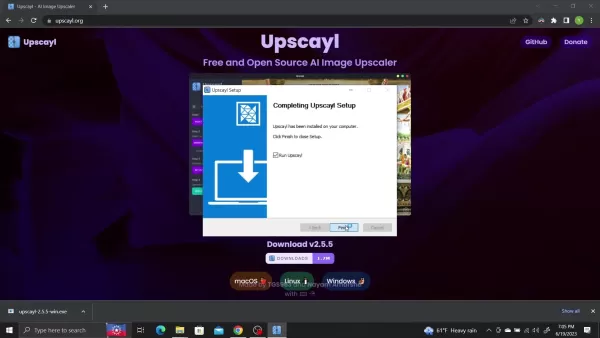
Open your web browser and visit upscayl.org. Ensure you are on the official website to avoid downloading potentially unsafe software. The official site will always host the latest version and security updates.
Choose Your Operating System:On the Upscayl website, you will find download links for various operating systems: macOS, Linux, and Windows. Select the download link that matches your operating system. If you are unsure which version to pick, most users will select the Windows or macOS version based on their computer.
Download the Installer: Click the appropriate download button (e.g., "Windows," "macOS," or "Linux"). The installer file will start downloading to your computer. The download size is relatively small, so it should complete quickly, even with a slower internet connection.
Locate the Downloaded File:After the download finishes, go to your computer's "Downloads" folder (or the directory where your browser saves downloads). You should see the Upscayl installer file (for example, upscayl-2.5.5-win.exe for Windows).
Run the Installer:Double-click the installer file to start the installation. Windows users might see a security prompt requesting permission to run the application. Click "Yes" to continue.
Follow the Installation Wizard: The Upscayl installation wizard will guide you through the remaining steps. You may be asked to choose an installation location. The default location is typically suitable, but you can select a different folder if desired. Click "Install" to begin the installation.
Complete the Installation: Once installation is finished, you will see a confirmation message. Ensure the "Run Upscayl" option is checked (it usually is by default) and click "Finish" to launch the application.
Step 2: Selecting an Image to Upscale
With Upscayl installed and running, you are ready to upscale your first image. Here is how to select an image:
Launch Upscayl: If Upscayl did not open after installation, find it in your applications menu or desktop shortcut and start the program.
Click "Select Image":In the Upscayl window, you will see a button labeled "Select Image" in step 1. Click this button to open a file selection dialog.
Browse Your Files: Navigate to the folder containing the image you wish to upscale. Upscayl supports various image formats, including JPG, PNG, and WebP.
Choose Your Image:Select the image file you want to upscale and click "Open." The image will now appear in the Upscayl window.
Step 3: Choosing an Upscaling Model
Upscayl provides different AI models, each optimized for specific image types. Selecting the appropriate model can greatly affect the final outcome. Here is how to choose a model:
Locate the "Select Upscaling Type" Section:
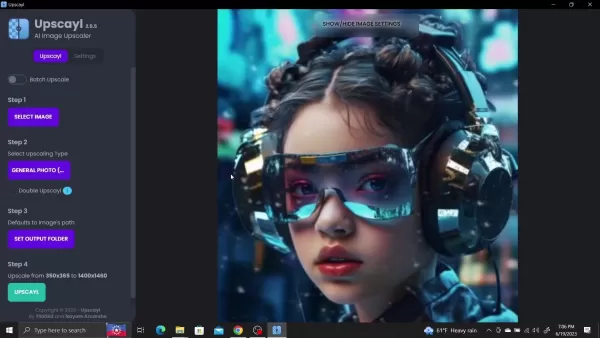
In the Upscayl window, find the section labeled "Select Upscaling Type" (step 2).
Explore Available Models: Click on "General Photo" to reveal a list of available models. These might include:
- General Photo (Real-ESRGAN):A reliable all-purpose model suitable for most general images.
- General Photo (Fast Real-ESRGAN):A quicker version of Real-ESRGAN, trading some quality for speed.
- General Photo (Remacri):Designed to enhance facial details and portraits.
- General Photo (Ultramix Balanced):Another alternative for general-purpose upscaling
Select a Model: Choose the model that best fits your image. For instance, if you are upscaling a portrait, the "Remacri" model could be a good option. For general landscape photos, "Real-ESRGAN" often delivers excellent results. Remember that different models produce different outcomes, so experiment to find your preference.
Consider the double upscayl option to further increase the image resolution.
Step 4: Setting the Output Folder and Upscaling
Before starting the upscaling process, you need to specify where to save the enhanced image. Here is what to do:
Locate the "Set Output Folder" Section:
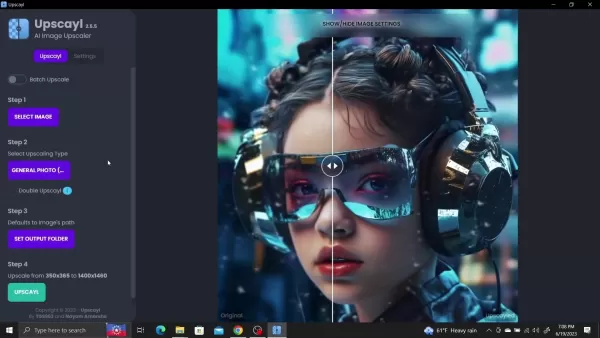
Find the section labeled "Set Output Folder" (step 3) in the Upscayl window.
Click "Set Output Folder": Click this button to open a folder selection dialog.
Choose a Folder:Navigate to the folder where you want to save the upscaled image and click "Select Folder."
Click “Upscayl”:After selecting the output folder, click the “Upscayl” button (step 4) to begin the upscaling process.
Monitor the Progress:
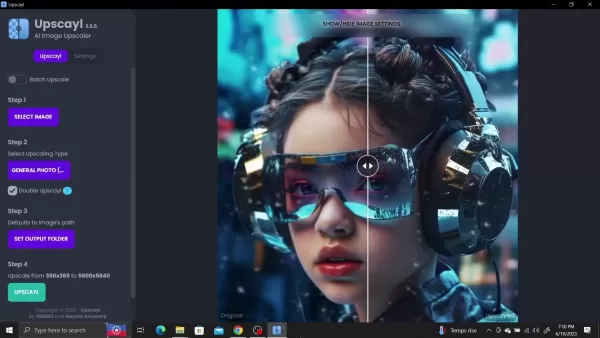
Upscayl will now use the chosen AI model to upscale your image. A progress bar will show the status of the process. Depending on the image size and your computer's capability, this may take from a few seconds to several minutes.
Review the Results:Once upscaling is complete, Upscayl will display a before-and-after comparison of the image. You can use the slider to compare the original with the upscaled version and evaluate the quality of the results.
Step 5: Batch Upscaling Multiple Images
Upscayl also supports batch upscaling, allowing you to process multiple images simultaneously. Here is how:
Enable Batch Upscale:
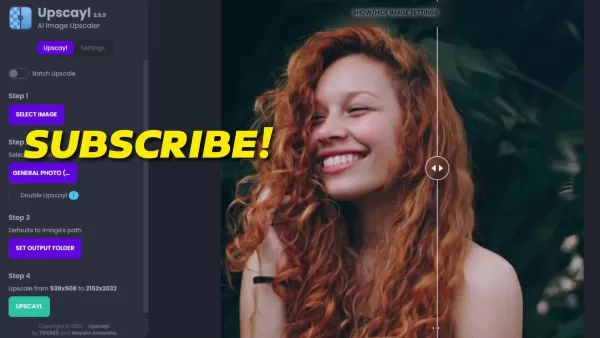
Activate Batch Upscale by clicking the toggle in the left sidebar.
Click "Select Folder":In the Upscayl window, you will see a button labeled "Select Folder". Click this button to open a folder selection dialog.
Choose a Folder:Navigate to the folder containing the images you want to upscale and click "Select Folder."
Set the Output Folder:Specify where to save the processed images.
Click "Upscayl":Run the model to upscale the images.
Upscayl Pricing: Completely Free!
Enjoy Image Upscaling Without Any Cost
One of the most appealing features of Upscayl is its pricing: it is entirely free! As an open-source project, Upscayl is available for anyone to download and use without subscription fees or hidden charges. This makes it an exceptionally accessible tool for individuals and organizations of all sizes who need to upscale images but have limited budgets.
Upscayl Pros and Cons: Weighing the Advantages and Disadvantages
Pros
Completely free and open-source
User-friendly interface
Batch processing capabilities
Multiple AI models for different image types
Cross-platform compatibility
Constantly updated and improved by the community
Cons
Upscaling quality can vary depending on the image and AI model used
Requires a decent GPU for optimal performance
Experimental features may be unstable
Upscayl Core Features: Powerful AI at Your Fingertips
Key Features That Make Upscayl Stand Out
Upscayl boasts a range of impressive features that make it a compelling choice for image upscaling:
- AI-Powered Upscaling:The core of Upscayl is its AI-powered upscaling algorithm, which intelligently analyzes images and adds details during the upscaling process. This results in significantly sharper and more realistic outcomes compared to traditional methods.
- Multiple AI Models:Upscayl offers various AI models optimized for different image types, such as photos, digital art, and anime. This allows you to fine-tune the upscaling process and achieve the best possible results for each image.
- User-Friendly Interface:Upscayl features a clean and intuitive interface that is easy to navigate, even for beginners. The straightforward workflow makes upscaling images simple.
- Batch Processing:Upscayl supports batch processing, enabling you to upscale multiple images at once. This is a significant time-saver for those needing to process large image collections.
- Cross-Platform Compatibility: Upscayl is available for Windows, macOS, and Linux, ensuring accessibility for a wide range of users.
- Open-Source Nature: As an open-source project, Upscayl benefits from community contributions and continuous improvements. It also guarantees transparency and freedom from vendor lock-in.
Upscayl Use Cases: Unleash the Potential of Your Images
Where Can Upscayl Make a Difference?
Upscayl is a versatile tool that can be used in various scenarios:
- Enhancing Old Photos: Restore faded or low-resolution photos to their former glory by upscaling them with Upscayl.
- Improving Digital Art: Increase the resolution of your digital paintings or drawings for printing or online display.
- Preparing Images for Printing: Ensure your images appear sharp and detailed when printed by upscaling them before sending them to the printer.
- Web Design: Enhance the quality of images used on websites for a more professional and visually appealing appearance.
- Game Development: Improve textures and other image assets for games to achieve higher visual fidelity.
- Enlarging Anime and Cartoons: Upscale anime and cartoon images while preserving their sharp lines and vibrant colors.
Frequently Asked Questions (FAQ) About Upscayl
Is Upscayl really free?
Yes, Upscayl is completely free to download and use. It is an open-source project, meaning there are no subscription fees or hidden costs.
What operating systems does Upscayl support?
Upscayl is compatible with Windows, macOS, and Linux.
Do I need a powerful computer to use Upscayl?
While Upscayl can run on less powerful computers, a dedicated GPU is highly recommended for optimal performance, especially when upscaling large images.
What image formats does Upscayl support?
Upscayl supports various image formats, including JPG, PNG, and WebP.
Can I upscale multiple images at once with Upscayl?
Yes, Upscayl supports batch processing, allowing you to upscale multiple images simultaneously.
How do I choose the right AI model for my image?
Experimentation is key! Try different models and see which one produces the best results for your specific image type. The "General Photo" model is a good starting point for most images.
Related Questions About AI Image Upscaling
Are there any online AI image upscalers?
Yes, several online AI image upscalers are available, some free and others requiring a subscription. However, using online services may raise privacy concerns, especially with sensitive images. Upscayl offers a secure, local alternative.
Can AI image upscaling really improve image quality?
Yes, AI image upscaling can significantly improve image quality, especially compared to traditional upscaling methods. AI algorithms can intelligently reconstruct and add details that would otherwise be lost, resulting in sharper and more realistic images.
What is the best AI image upscaler?
The "best" AI image upscaler depends on individual needs and preferences. Upscayl is a strong contender due to its free and open-source nature, user-friendly interface, and powerful AI algorithms. However, other options exist, each with its own strengths and weaknesses.
Is AI upscaling ethical?
AI upscaling, like any technology, raises ethical considerations. It is important to be transparent about using AI to enhance images, especially in contexts where authenticity is crucial. Additionally, it is vital to respect copyright and avoid using AI to upscale images without permission.
Related article
 DeepMind CEO Hassabis: I sleep six hours a day, usually feel energetic around 1 a.m.
Fortune recently featured an interview with Demis Hassabis, CEO of Google DeepMind, revealing his unconventional approach to rest and productivity. Hassabis disclosed that he sleeps very little, structuring his waking hours into two distinct work blo
OpenAI, Anthropic Vie for Market Share Despite Revenue Shortfalls
Despite recent reports suggesting OpenAI missed revenue targets, creating pressure on tech stocks this Tuesday, private AI lab investors remain resilient. Seasoned backers have confirmed they will not reduce investment despite negative media coverage
California AV Compliance: A New Era of Tickets, Geofences, and 1M Miles
Guident operates an AuveTech shuttle in South Florida, managing a four-mile route in West Palm Beach and a one-mile route in Boca Raton using its remote monitoring technology. | Credit: GuidentCalifornia is redefining the regulatory landscape for dri
Related Special Topic Recommendations
Music composition
DeepMind CEO Hassabis: I sleep six hours a day, usually feel energetic around 1 a.m.
Fortune recently featured an interview with Demis Hassabis, CEO of Google DeepMind, revealing his unconventional approach to rest and productivity. Hassabis disclosed that he sleeps very little, structuring his waking hours into two distinct work blo
OpenAI, Anthropic Vie for Market Share Despite Revenue Shortfalls
Despite recent reports suggesting OpenAI missed revenue targets, creating pressure on tech stocks this Tuesday, private AI lab investors remain resilient. Seasoned backers have confirmed they will not reduce investment despite negative media coverage
California AV Compliance: A New Era of Tickets, Geofences, and 1M Miles
Guident operates an AuveTech shuttle in South Florida, managing a four-mile route in West Palm Beach and a one-mile route in Boca Raton using its remote monitoring technology. | Credit: GuidentCalifornia is redefining the regulatory landscape for dri
Related Special Topic Recommendations
Music composition
 AI Stem Separation Tools for Remix Production, Sampling Prep, and Karaoke Masters
2026 Latest Best Top-rated AI Stem Separation Tools Curated for Remix Production, Sampling Prep, and Karaoke Masters. These powerful game-changing tools offer real-world tests to deliver precise audio isolation, boosting productivity significantly. XIX.AI provides a weekly updated free vs paid comparison guide to help you find the must-try solution that suits your needs. Explore now to unlock your AI edge.
 8 tools
 xix.ai
Data Analysis
AI SQL Copilots for Revenue Dashboards, Funnel Analysis, and Product Metrics
xix.ai
Data Analysis
AI SQL Copilots for Revenue Dashboards, Funnel Analysis, and Product Metrics
2026 Latest Best AI SQL Copilots Ranked Top-Rated! XIX.AI curates a powerful game-changing collection for weekly updated real-world tests. These must-try tools help you generate accurate revenue dashboards, analyze sales funnels, and track product metrics swiftly, boosting productivity massively. Explore now to Discover your perfect tool for data-driven decision making! 238 characters
9 tools
xix.ai
Music composition
Best AI Melody Writing Tools for Song Drafts
2026 Latest Best Top-Rated AI Melody Writing Tools for Song Drafts! XIX.AI has curated a highly powerful game-changing collection that goes through rigorous real-world tests to deliver the best writing experience. You can find detailed free vs paid comparisons, accurate rankings, and must-try options designed to help you create stunning song drafts effortlessly and boost your creative productivity significantly. Explore now to discover your perfect tool!
8 tools
xix.ai
chatbot
Best AI Conversation Trainer Tools for Interview Practice
2026 Latest Best Top-rated AI Conversation Trainer Tools for Interview Practice are here on XIX.AI! This curated collection features powerful, game-changing tools that go through rigorous real-world tests to deliver accurate feedback. You’ll find a free vs paid comparison and detailed rankings to help you choose the must-try option that boosts your confidence and skills. Explore now to Discover your perfect tool for interview success!
12 tools
xix.ai
Design & Art
Best AI Style Transfer Tools for Creative Experiments
2026 Latest Best Top-rated AI Style Transfer Tools for Creative Experiments! XIX.AI has curated a powerful, game-changing collection of must-try tools that deliver exceptional results through real-world tests and rigorous rankings. These top solutions help creatives boost productivity significantly by accelerating content creation and unlocking endless creative possibilities. Explore now to discover your perfect tool and start creating today!
9 tools
xix.ai
Comic Creation
Best AI Dialogue Bubble Tools for Visual Storytelling
2026 Latest Best Top-Rated AI Dialogue Bubble Tools for Visual Storytelling are here on XIX.AI! This curated collection features powerful, game-changing tools that help creators boost productivity and overcome creative bottlenecks. Get a free vs paid comparison, see real-world tests, and check the latest rankings to find the must-try solutions perfect for crafting engaging visual narratives. Explore now to discover your ideal tool!
10 tools
xix.ai

 Comments (0)
0/500
Comments (0)
0/500
Are you frustrated by blurry, low-quality images? Do you wish to revitalize old photographs or enhance your digital artwork? You don't require costly software or complex methods. Upscayl, the free and open-source AI image upscaler, provides a robust and easy-to-use solution. This comprehensive guide will take you through downloading, installing, and using Upscayl to effortlessly increase your image resolution and achieve impressive results. We will examine the various AI models, settings, and batch processing features to help you maximize the potential of this remarkable tool. Bid farewell to pixelation and welcome crisp, high-definition images with Upscayl!
Key Points
Upscayl is a free and open-source AI image upscaler.
It utilizes sophisticated AI algorithms to boost image resolution and improve details.
Upscayl is compatible with Windows, macOS, and Linux.
The software is straightforward to use, featuring a simple and intuitive interface.
Users can upscale individual images or process multiple files in batches.
It provides various AI models optimized for different types of images.
Upscayl enables users to customize output settings, including file format and scale.
A GPU is recommended for faster processing speeds.
Introduction to Upscayl: Your Free AI Image Upscaler
What is Upscayl?
Upscayl
is a transformative tool in the field of image enhancement. It is free, open-source software that employs artificial intelligence to upscale images, increasing their resolution while aiming to preserve or even improve detail. Unlike conventional resizing techniques that often produce blurry or pixelated results, Upscayl uses advanced AI algorithms to intelligently reconstruct and add detail, yielding remarkably sharp and clear outcomes. This makes it perfect for various applications, from restoring old photos and refining digital art to preparing images for printing or display on high-resolution screens. Best of all, Upscayl is available for Windows, macOS, and Linux, making it accessible to a broad audience. The software is designed to be user-friendly, even for those with minimal image editing experience. Its intuitive interface and simple workflow allow for quick and efficient image upscaling without the need for complicated settings or technical expertise. Upscayl stands out as a powerful yet approachable tool for anyone seeking to enhance their image quality without investing in expensive software or learning intricate techniques. With its AI-driven upscaling, cross-platform availability, and user-friendly design, Upscayl is an essential tool for photographers, artists, designers, and anyone who appreciates high-quality imagery.
Troubleshooting Common Upscayl Issues
Addressing Potential Problems and Solutions
While Upscayl is generally easy to use, you may occasionally encounter issues. Here are some common problems and their potential solutions:
- Slow Processing Times:
- Problem: The upscaling process is taking an excessively long time.
- Solution: Verify that a dedicated GPU is enabled. Close other applications to free up system resources. Consider using a faster AI model (such as "Fast Real-ESRGAN") if top-tier quality is not essential.
- Out of Memory Errors:
- Problem: Upscayl crashes or shows an "Out of Memory" error.
- Solution: Reduce the image dimensions or use a smaller scale factor. Close other memory-intensive programs. If you have a dedicated GPU, confirm it has adequate memory.
- Unexpected Results:
- Problem: The upscaled image appears distorted or unnatural.
- Solution: Test different AI models. Certain models may be better suited for specific image types. Also, try lowering the scale factor.
- Program Freezes or Crashes:
- Problem: Upscayl freezes or crashes during upscaling.
- Solution: Restart Upscayl. Reboot your computer to clear temporary files and free system resources. Update your graphics drivers. If the issue continues, attempt reinstalling Upscayl.
- Incompatible Image Format:
- Problem: Upscayl cannot open or process a particular image file.
- Solution: Ensure the image format is supported (JPG, PNG, WebP). Try converting the image to a different format using another image editor before upscaling. The option to save the image as PNG or JPG is located in the settings. It is also possible to adjust the desired upscaling amount. By following these troubleshooting suggestions, you can resolve most common issues and enjoy a smooth upscaling experience with Upscayl.
Step-by-Step Guide: How to Upscale Your Images with Upscayl
Step 1: Downloading and Installing Upscayl
Before you can begin upscaling your images, you need to download and install Upscayl. Here is the process:
Navigate to the Upscayl Website:
Open your web browser and visit upscayl.org. Ensure you are on the official website to avoid downloading potentially unsafe software. The official site will always host the latest version and security updates.
Choose Your Operating System:On the Upscayl website, you will find download links for various operating systems: macOS, Linux, and Windows. Select the download link that matches your operating system. If you are unsure which version to pick, most users will select the Windows or macOS version based on their computer.
Download the Installer: Click the appropriate download button (e.g., "Windows," "macOS," or "Linux"). The installer file will start downloading to your computer. The download size is relatively small, so it should complete quickly, even with a slower internet connection.
Locate the Downloaded File:After the download finishes, go to your computer's "Downloads" folder (or the directory where your browser saves downloads). You should see the Upscayl installer file (for example,
upscayl-2.5.5-win.exefor Windows).Run the Installer:Double-click the installer file to start the installation. Windows users might see a security prompt requesting permission to run the application. Click "Yes" to continue.
Follow the Installation Wizard: The Upscayl installation wizard will guide you through the remaining steps. You may be asked to choose an installation location. The default location is typically suitable, but you can select a different folder if desired. Click "Install" to begin the installation.
Complete the Installation: Once installation is finished, you will see a confirmation message. Ensure the "Run Upscayl" option is checked (it usually is by default) and click "Finish" to launch the application.
Step 2: Selecting an Image to Upscale
With Upscayl installed and running, you are ready to upscale your first image. Here is how to select an image:
Launch Upscayl: If Upscayl did not open after installation, find it in your applications menu or desktop shortcut and start the program.
Click "Select Image":In the Upscayl window, you will see a button labeled "Select Image" in step 1. Click this button to open a file selection dialog.
Browse Your Files: Navigate to the folder containing the image you wish to upscale. Upscayl supports various image formats, including JPG, PNG, and WebP.
Choose Your Image:Select the image file you want to upscale and click "Open." The image will now appear in the Upscayl window.
Step 3: Choosing an Upscaling Model
Upscayl provides different AI models, each optimized for specific image types. Selecting the appropriate model can greatly affect the final outcome. Here is how to choose a model:
Locate the "Select Upscaling Type" Section:
In the Upscayl window, find the section labeled "Select Upscaling Type" (step 2).
Explore Available Models: Click on "General Photo" to reveal a list of available models. These might include:
- General Photo (Real-ESRGAN):A reliable all-purpose model suitable for most general images.
- General Photo (Fast Real-ESRGAN):A quicker version of Real-ESRGAN, trading some quality for speed.
- General Photo (Remacri):Designed to enhance facial details and portraits.
- General Photo (Ultramix Balanced):Another alternative for general-purpose upscaling
Select a Model: Choose the model that best fits your image. For instance, if you are upscaling a portrait, the "Remacri" model could be a good option. For general landscape photos, "Real-ESRGAN" often delivers excellent results. Remember that different models produce different outcomes, so experiment to find your preference.
Consider the double upscayl option to further increase the image resolution.
Step 4: Setting the Output Folder and Upscaling
Before starting the upscaling process, you need to specify where to save the enhanced image. Here is what to do:
Locate the "Set Output Folder" Section:
Find the section labeled "Set Output Folder" (step 3) in the Upscayl window.
Click "Set Output Folder": Click this button to open a folder selection dialog.
Choose a Folder:Navigate to the folder where you want to save the upscaled image and click "Select Folder."
Click “Upscayl”:After selecting the output folder, click the “Upscayl” button (step 4) to begin the upscaling process.
Monitor the Progress:
Upscayl will now use the chosen AI model to upscale your image. A progress bar will show the status of the process. Depending on the image size and your computer's capability, this may take from a few seconds to several minutes.
Review the Results:Once upscaling is complete, Upscayl will display a before-and-after comparison of the image. You can use the slider to compare the original with the upscaled version and evaluate the quality of the results.
Step 5: Batch Upscaling Multiple Images
Upscayl also supports batch upscaling, allowing you to process multiple images simultaneously. Here is how:
Enable Batch Upscale:
Activate Batch Upscale by clicking the toggle in the left sidebar.
Click "Select Folder":In the Upscayl window, you will see a button labeled "Select Folder". Click this button to open a folder selection dialog.
Choose a Folder:Navigate to the folder containing the images you want to upscale and click "Select Folder."
Set the Output Folder:Specify where to save the processed images.
Click "Upscayl":Run the model to upscale the images.
Upscayl Pricing: Completely Free!
Enjoy Image Upscaling Without Any Cost
One of the most appealing features of Upscayl is its pricing: it is entirely free! As an open-source project, Upscayl is available for anyone to download and use without subscription fees or hidden charges. This makes it an exceptionally accessible tool for individuals and organizations of all sizes who need to upscale images but have limited budgets.
Upscayl Pros and Cons: Weighing the Advantages and Disadvantages
Pros
Completely free and open-source
User-friendly interface
Batch processing capabilities
Multiple AI models for different image types
Cross-platform compatibility
Constantly updated and improved by the community
Cons
Upscaling quality can vary depending on the image and AI model used
Requires a decent GPU for optimal performance
Experimental features may be unstable
Upscayl Core Features: Powerful AI at Your Fingertips
Key Features That Make Upscayl Stand Out
Upscayl boasts a range of impressive features that make it a compelling choice for image upscaling:
- AI-Powered Upscaling:The core of Upscayl is its AI-powered upscaling algorithm, which intelligently analyzes images and adds details during the upscaling process. This results in significantly sharper and more realistic outcomes compared to traditional methods.
- Multiple AI Models:Upscayl offers various AI models optimized for different image types, such as photos, digital art, and anime. This allows you to fine-tune the upscaling process and achieve the best possible results for each image.
- User-Friendly Interface:Upscayl features a clean and intuitive interface that is easy to navigate, even for beginners. The straightforward workflow makes upscaling images simple.
- Batch Processing:Upscayl supports batch processing, enabling you to upscale multiple images at once. This is a significant time-saver for those needing to process large image collections.
- Cross-Platform Compatibility: Upscayl is available for Windows, macOS, and Linux, ensuring accessibility for a wide range of users.
- Open-Source Nature: As an open-source project, Upscayl benefits from community contributions and continuous improvements. It also guarantees transparency and freedom from vendor lock-in.
Upscayl Use Cases: Unleash the Potential of Your Images
Where Can Upscayl Make a Difference?
Upscayl is a versatile tool that can be used in various scenarios:
- Enhancing Old Photos: Restore faded or low-resolution photos to their former glory by upscaling them with Upscayl.
- Improving Digital Art: Increase the resolution of your digital paintings or drawings for printing or online display.
- Preparing Images for Printing: Ensure your images appear sharp and detailed when printed by upscaling them before sending them to the printer.
- Web Design: Enhance the quality of images used on websites for a more professional and visually appealing appearance.
- Game Development: Improve textures and other image assets for games to achieve higher visual fidelity.
- Enlarging Anime and Cartoons: Upscale anime and cartoon images while preserving their sharp lines and vibrant colors.
Frequently Asked Questions (FAQ) About Upscayl
Is Upscayl really free?
Yes, Upscayl is completely free to download and use. It is an open-source project, meaning there are no subscription fees or hidden costs.
What operating systems does Upscayl support?
Upscayl is compatible with Windows, macOS, and Linux.
Do I need a powerful computer to use Upscayl?
While Upscayl can run on less powerful computers, a dedicated GPU is highly recommended for optimal performance, especially when upscaling large images.
What image formats does Upscayl support?
Upscayl supports various image formats, including JPG, PNG, and WebP.
Can I upscale multiple images at once with Upscayl?
Yes, Upscayl supports batch processing, allowing you to upscale multiple images simultaneously.
How do I choose the right AI model for my image?
Experimentation is key! Try different models and see which one produces the best results for your specific image type. The "General Photo" model is a good starting point for most images.
Related Questions About AI Image Upscaling
Are there any online AI image upscalers?
Yes, several online AI image upscalers are available, some free and others requiring a subscription. However, using online services may raise privacy concerns, especially with sensitive images. Upscayl offers a secure, local alternative.
Can AI image upscaling really improve image quality?
Yes, AI image upscaling can significantly improve image quality, especially compared to traditional upscaling methods. AI algorithms can intelligently reconstruct and add details that would otherwise be lost, resulting in sharper and more realistic images.
What is the best AI image upscaler?
The "best" AI image upscaler depends on individual needs and preferences. Upscayl is a strong contender due to its free and open-source nature, user-friendly interface, and powerful AI algorithms. However, other options exist, each with its own strengths and weaknesses.
Is AI upscaling ethical?
AI upscaling, like any technology, raises ethical considerations. It is important to be transparent about using AI to enhance images, especially in contexts where authenticity is crucial. Additionally, it is vital to respect copyright and avoid using AI to upscale images without permission.








 DeepMind CEO Hassabis: I sleep six hours a day, usually feel energetic around 1 a.m.
Fortune recently featured an interview with Demis Hassabis, CEO of Google DeepMind, revealing his unconventional approach to rest and productivity. Hassabis disclosed that he sleeps very little, structuring his waking hours into two distinct work blo
DeepMind CEO Hassabis: I sleep six hours a day, usually feel energetic around 1 a.m.
Fortune recently featured an interview with Demis Hassabis, CEO of Google DeepMind, revealing his unconventional approach to rest and productivity. Hassabis disclosed that he sleeps very little, structuring his waking hours into two distinct work blo
 OpenAI, Anthropic Vie for Market Share Despite Revenue Shortfalls
Despite recent reports suggesting OpenAI missed revenue targets, creating pressure on tech stocks this Tuesday, private AI lab investors remain resilient. Seasoned backers have confirmed they will not reduce investment despite negative media coverage
California AV Compliance: A New Era of Tickets, Geofences, and 1M Miles
Guident operates an AuveTech shuttle in South Florida, managing a four-mile route in West Palm Beach and a one-mile route in Boca Raton using its remote monitoring technology. | Credit: GuidentCalifornia is redefining the regulatory landscape for dri
OpenAI, Anthropic Vie for Market Share Despite Revenue Shortfalls
Despite recent reports suggesting OpenAI missed revenue targets, creating pressure on tech stocks this Tuesday, private AI lab investors remain resilient. Seasoned backers have confirmed they will not reduce investment despite negative media coverage
California AV Compliance: A New Era of Tickets, Geofences, and 1M Miles
Guident operates an AuveTech shuttle in South Florida, managing a four-mile route in West Palm Beach and a one-mile route in Boca Raton using its remote monitoring technology. | Credit: GuidentCalifornia is redefining the regulatory landscape for dri
2026 Latest Best Top-rated AI Stem Separation Tools Curated for Remix Production, Sampling Prep, and Karaoke Masters. These powerful game-changing tools offer real-world tests to deliver precise audio isolation, boosting productivity significantly. XIX.AI provides a weekly updated free vs paid comparison guide to help you find the must-try solution that suits your needs. Explore now to unlock your AI edge.
8 tools
xix.ai
2026 Latest Best AI SQL Copilots Ranked Top-Rated! XIX.AI curates a powerful game-changing collection for weekly updated real-world tests. These must-try tools help you generate accurate revenue dashboards, analyze sales funnels, and track product metrics swiftly, boosting productivity massively. Explore now to Discover your perfect tool for data-driven decision making! 238 characters
9 tools
xix.ai

2026 Latest Best Top-Rated AI Melody Writing Tools for Song Drafts! XIX.AI has curated a highly powerful game-changing collection that goes through rigorous real-world tests to deliver the best writing experience. You can find detailed free vs paid comparisons, accurate rankings, and must-try options designed to help you create stunning song drafts effortlessly and boost your creative productivity significantly. Explore now to discover your perfect tool!
8 tools
xix.ai

2026 Latest Best Top-rated AI Conversation Trainer Tools for Interview Practice are here on XIX.AI! This curated collection features powerful, game-changing tools that go through rigorous real-world tests to deliver accurate feedback. You’ll find a free vs paid comparison and detailed rankings to help you choose the must-try option that boosts your confidence and skills. Explore now to Discover your perfect tool for interview success!
12 tools
xix.ai

2026 Latest Best Top-rated AI Style Transfer Tools for Creative Experiments! XIX.AI has curated a powerful, game-changing collection of must-try tools that deliver exceptional results through real-world tests and rigorous rankings. These top solutions help creatives boost productivity significantly by accelerating content creation and unlocking endless creative possibilities. Explore now to discover your perfect tool and start creating today!
9 tools
xix.ai

2026 Latest Best Top-Rated AI Dialogue Bubble Tools for Visual Storytelling are here on XIX.AI! This curated collection features powerful, game-changing tools that help creators boost productivity and overcome creative bottlenecks. Get a free vs paid comparison, see real-world tests, and check the latest rankings to find the must-try solutions perfect for crafting engaging visual narratives. Explore now to discover your ideal tool!
10 tools
xix.ai












