


 Home
HomePremiere Pro Integrates AI Transcription to Accelerate Video Editing
Video editing often demands significant time, but emerging AI-powered tools are transforming the workflow. Adobe Premiere Pro now includes a transcription feature that lets you edit your video by modifying its text transcript. This innovative method can drastically accelerate your process and make editing more intuitive. This guide examines how to leverage this tool effectively to improve your video projects.
Key Points
Adobe Premiere Pro's AI transcription enables text-based video editing.
The tool analyzes and transcribes dialogue from video clips.
Edits made to the text transcript are applied directly to the video timeline.
This approach significantly accelerates the editing workflow.
The feature can identify and distinguish between different speakers.
Access requires the latest version of Adobe Premiere Pro.
Editing is simplified by allowing direct deletion of text sections.
Understanding AI Transcription in Premiere Pro
What is AI Transcription and Why Use It?
AI Transcription in Adobe Premiere Pro
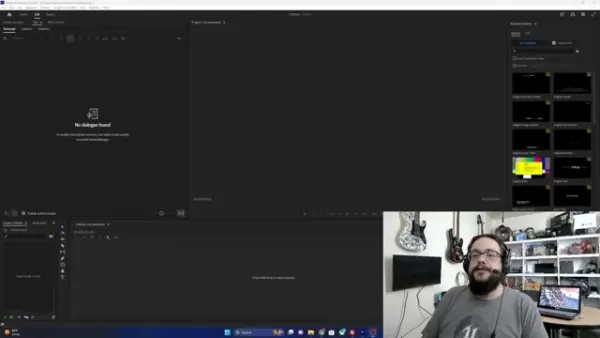
is a revolutionary feature that uses artificial intelligence to automatically convert the audio from your video footage into text. This creates a written transcript of all spoken content, introducing a novel approach to video editing.
Traditionally, editors had to manually scrub through footage, listening to audio to find edit points—a tedious process, especially for long-form or dialogue-heavy projects.
AI Transcription simplifies this by providing a textual representation of the audio. Instead of listening, you can read the transcript to pinpoint exact moments for edits, making the process as straightforward as editing a document. This intuitive method benefits both professionals and hobbyists, fundamentally changing video editing workflows.
Key Benefits:
- Time Savings: Drastically reduces time spent searching through footage.
- Increased Accuracy: Helps pinpoint exact edit points, minimizing errors.
- Enhanced Accessibility: Creates a text version of your video, aiding viewers who are deaf or hard of hearing.
- Intuitive Editing: Makes editing video as simple as editing text.
Accessing the Transcription Feature
To use the AI transcription feature in Adobe Premiere Pro, ensure you have the latest software version.
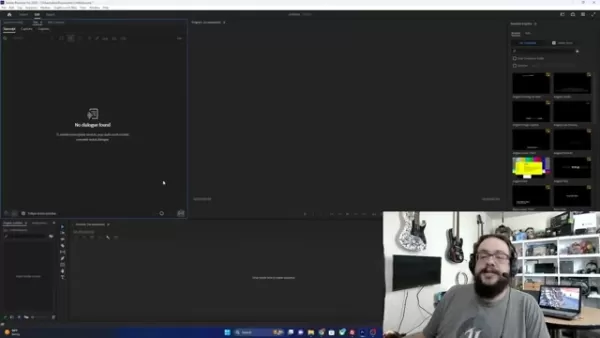
Older versions may not support this function. Once updated, follow these steps to open the transcription panel:
- Open Adobe Premiere Pro: Launch the application and open your project.
- Navigate to the Text Workspace: Go to the “Window” menu, select “Workspaces,” and choose “Text” to open the Text panel.
- Transcription Tab: Inside the Text panel, you'll find “Captions,” “Graphics,” and “Transcript.” Select “Transcript” to reveal the transcription tools.
The panel will initially be empty. After importing a video clip, you'll see an option to start the transcription process. This tool enhances both video creation and editing efficiency.
AI's role in enhancing video editing speed
Enhancing Efficiency
AI has significantly improved video editing workflows. From basic text-to-clip features to processing hours of footage and presenting it in novel ways, AI offers accurate transcription and intelligent suggestions. This boosts overall efficiency, allowing even beginners to produce content for platforms like YouTube and TikTok more easily.
The speed of AI-powered functions makes it essential for content creators, filmmakers, and editors. Features like 'auto reframe' help videographers adapt landscape videos for portrait orientation without manual cropping, saving countless hours. Integrating AI into your process is highly recommended.
A Step-by-Step Guide to Using the Transcription Feature
Step 1: Importing Your Video Footage
The first step is to import your video into Adobe Premiere Pro. You can do this by:
- Selecting 'Import Media to Start': Click the 'Import media to start' button in the 'Project' panel.
- Drag and Drop: Locate your video file and drag it directly into the “Project” panel—the easiest method.
- Locating Your Video: Select the specific file you wish to transcribe to load it into your project. Verify the video is visible before proceeding.
Step 2: Creating a Sequence and Adding Your Clip to the Timeline
Once footage is imported, create a timeline for the clip.
- Drag and Drop: Drag your video from the “Project” panel onto the timeline to add it to a sequence.
- New Sequence: Dragging the clip typically creates a new sequence automatically, ready for editing with the transcription tools discussed here.
After this, you should see and be able to manipulate your clip on the timeline, setting the stage for transcription.
Step 3: Transcribing the Video Clip
With the clip on the timeline, you can now transcribe it using Premiere Pro's AI.
Select Transcript: In the upper left panel, click “Transcript” to access the transcription tools.
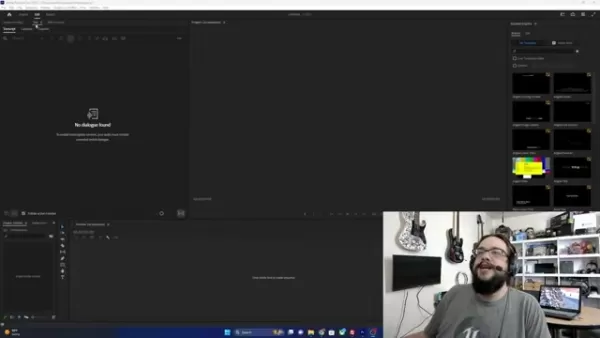
Click Transcribe: In the transcribe menu, select the clip you want transcribed, then click 'Transcribe.'
Premiere Pro will then analyze the video and transcribe the dialogue. The duration depends on video length and audio complexity; progress is shown in the transcription panel. This user-friendly feature is accessible to editors of all skill levels.
Step 4: Editing the Video Using the Transcript
The core benefit is editing video via the transcript. Once transcription is complete, review and edit the text directly in the panel. To remove sections of video:
- Highlight Text: Use your cursor to select the exact text portion you want to remove from the timeline.
- Delete: With the text selected, press the 'delete' key or right-click and choose 'delete.'
The AI transcription tool is remarkably straightforward. Mastering it can transform your editing workflow, saving considerable time and effort.
Step 5: Fine-Tuning Your Edits
While highly accurate, AI transcription isn't perfect and can be affected by accents, speech impediments, or background music.
- Manual Corrections: Correct any errors directly in the transcription panel.
- Playback and Review: After editing, play the video to ensure cuts are clean and the flow is natural.
- Audio Levels: Since AI cuts lack transitions, you may need to fine-tune audio levels and add transitions manually.
Step 6: Exporting your Final Video
After finalizing edits, export your video.
- Select Export: Ensure your timeline is complete, then go to File>Export>Media.
- Export Settings: Configure optimal settings for your target platform (e.g., YouTube).
- Export: Click 'Export' to let Premiere Pro process the footage for final output.
Adobe Premiere Pro Pricing
Understanding Subscription Plans
Adobe Premiere Pro is part of the Creative Cloud suite, available via subscription. Pricing varies for individuals, businesses, and students.
Individual Plans:
- Single App Subscription: Provides access only to Adobe Premiere Pro, ideal for dedicated video editing. As of 2025, this costs approximately $20.99 USD monthly with an annual commitment.
- All Apps Subscription: Grants access to over 20 Creative Cloud apps, including Photoshop and After Effects, for about $54.99 USD monthly with an annual commitment.
Business Plans:
- Adobe offers tailored business plans with features like centralized administration, advanced support, and collaboration tools.
Student and Teacher Plans:
- Discounted rates are available for students and teachers, offering significant savings over standard individual plans.
AI Transcription Tool Review
Pros
Saves significant time in video editing workflows
Enhances accuracy in identifying edit points
Improves accessibility with text-based editing
Streamlines captioning and subtitling processes
Supports multiple languages
Cons
Requires a subscription to Adobe Premiere Pro
Transcription accuracy can be affected by audio quality
Manual corrections may be necessary
Advanced features may require additional training
Relies on stable internet connection
Key Features of Adobe Premiere Pro's AI Transcription Tool
Accurate Transcription
The AI-powered engine accurately transcribes spoken dialogue, supporting multiple languages, various accents, and different speaking styles.
Feature Details:
- Language Support: Transcribes in multiple languages, catering to a global audience.
- Adaptable to Accents: Effectively handles diverse accents to serve creators worldwide.
- Noise Reduction: Built-in noise reduction filters background sounds to focus on dialogue.
Speaker Identification
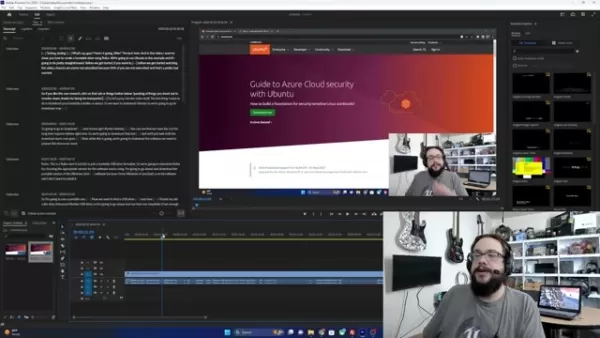
The AI identifies different speakers, simplifying the editing of interviews, panels, and podcasts.
Feature Details:
- Multi-Speaker Support: Automatically detects and labels different speakers.
- Customizable Labels: Allows you to rename speaker labels for easier tracking.
Text-Based Editing
Edit videos as easily as editing text. Select, cut, copy, and paste text to make corresponding video edits.
Feature Details:
- Precise Cutting: Remove video sections by highlighting the relevant text, saving hours.
- Text Navigation: Search for specific words or phrases in the transcript to jump to video segments.
Automated Workflow
The feature streamlines the entire editing process, automating tedious tasks so you can focus on creativity.
Feature Details:
- Timecode Integration: Syncs transcript with video timecode for precise edits.
- Batch Transcription: Transcribe multiple clips simultaneously, ideal for large projects.
Creative Applications of the AI Transcription Feature
Documentary Filmmaking
This feature is a game-changer for documentary filmmakers, enabling quick transcription of interviews and narration to find compelling sound bites and build a cohesive narrative. Edit video as effortlessly as text.
Application Details:
- Interview Transcription: Rapidly transcribe interviews for easy review.
- Narrative Structuring: Extract key quotes to shape the story.
- Keyword Search: Locate specific moments by searching for keywords.
Online Course Creation
For online course creators, the tool helps produce accessible, high-quality content. Transcribe lectures to easily generate captions, subtitles, and supplementary materials. Edit quickly by deleting transcript sections.
Application Details:
- Lecture Transcription: Provide written notes for students.
- Captioning and Subtitling: Make content accessible to a wider audience.
- Course Material Creation: Generate written transcripts and summaries from video.
Podcast Production
Podcasters can create video versions of audio content. Transcribe episodes to generate captions, highlight key moments, and create social media clips. Edit by manipulating the text transcript.
Application Details:
- Video Podcast Creation: Convert audio podcasts into engaging video.
- Social Media Promotion: Create short, captioned clips for promotion.
- SEO Optimization: Use transcripts to improve search engine visibility.
Journalism and News Reporting
Journalists can quickly transcribe interviews and press conferences, facilitating information analysis, quote extraction, and accurate reporting. Achieve precise reporting with the transcription tool.
Application Details:
- Interview Analysis: Rapidly analyze recordings for insights.
- Quote Extraction: Easily pull quotes for articles and reports.
- Archival Purposes: Create accurate transcripts for archives.
Frequently Asked Questions
What if the AI transcription is inaccurate?
While highly accurate, AI transcription is not infallible. Background noise, mumbling, accents, or other audio issues can cause errors. Adobe Premiere Pro allows manual correction directly within the transcript panel. Simply edit the text as needed to fix any inaccuracies.
How to change speakers in the AI transcript?
The process is simple, but exercise care when adjusting speakers. If the AI misidentifies a speaker, you can manually correct it. Locate the speaker's dialogue in the transcript, select the speaker's name, and rename it as desired.
How to accurately import clips to Adobe Premiere Pro timeline?
When adding clips, ensure your sequence settings match your clip settings (e.g., 4K clip with a 4K sequence). Mismatched settings can force the program to convert the clip, potentially causing editing issues or export problems later.
Other Video Editing Platforms that Use AI Transcription
What other video editing platforms are using AI transcription functions?
Several other platforms integrate AI transcription to streamline editing, enhancing efficiency and accessibility. Notable examples include:Descript: Known for its innovative text-based editing, Descript allows editing via transcript. It also features tools like Overdub for correcting speech and Studio Sound for audio enhancement.Otter.ai: Primarily an audio transcription service, Otter.ai integrates with video workflows by providing accurate, speaker-identified transcripts ideal for interviews and webinars.Filmora: This user-friendly software includes AI transcription for automatic subtitle generation, along with other AI tools like smart rendering and audio sync.VEED.IO: An online editor offering AI-driven transcription, supporting multiple languages and customizable captions for social media and marketing content.Happy Scribe: A transcription and translation service that provides time-coded transcripts for creating subtitles and summaries, with translation options for international audiences.
Related article
 OpenAI Launches Open-Source Codex Security CLI to Uncover Vulnerabilities in CI
On July 29, OpenAI introduced a specialized security scanning tool for code repositories. Named Codex Security CLI, this open-source command-line utility is designed to help developers scan codebases, detect and verify security vulnerabilities, and s
Anthropic Hits $1.5B Copyright Deal to Compensate 500,000 Works
On Monday, a U.S. federal court granted final approval for a $1.5 billion class-action settlement between Anthropic and a coalition of authors and publishers, as reported by Reuters. The deal resolves ongoing litigation regarding Anthropic’s alleged
WeChat WeMM-Embedding Powers Moments Search and Video Highlights With 1 Billion Daily Calls
On September 4, WeChat AI announced the open-source release of its general multimodal embedding model, WeMM-Embedding. Available in 2B, 4B, and 9B versions, the model supports text, images, videos, visual documents, and any interleaved multimodal inp
Related Special Topic Recommendations
Design & Art
OpenAI Launches Open-Source Codex Security CLI to Uncover Vulnerabilities in CI
On July 29, OpenAI introduced a specialized security scanning tool for code repositories. Named Codex Security CLI, this open-source command-line utility is designed to help developers scan codebases, detect and verify security vulnerabilities, and s
Anthropic Hits $1.5B Copyright Deal to Compensate 500,000 Works
On Monday, a U.S. federal court granted final approval for a $1.5 billion class-action settlement between Anthropic and a coalition of authors and publishers, as reported by Reuters. The deal resolves ongoing litigation regarding Anthropic’s alleged
WeChat WeMM-Embedding Powers Moments Search and Video Highlights With 1 Billion Daily Calls
On September 4, WeChat AI announced the open-source release of its general multimodal embedding model, WeMM-Embedding. Available in 2B, 4B, and 9B versions, the model supports text, images, videos, visual documents, and any interleaved multimodal inp
Related Special Topic Recommendations
Design & Art
 Top AI Illustration Tools: Create Editorial Scenes and Cover Art Faster
2026 Latest Top-rated AI Illustration Tools: Our curated list features the best powerfully designed tools for creating stunning editorial scenes and eye-catching cover art quickly. Each option has gone through rigorous real-world tests, offering a free vs paid comparison to help you find the perfect match for your workflow. Try these must-try solutions today to unlock your AI edge and boost your creative productivity. Explore now at XIX.AI.
 10 tools
 xix.ai
Education and Learning
Top AI Tutors for Exam Prep: Practice Math, Science, and English
xix.ai
Education and Learning
Top AI Tutors for Exam Prep: Practice Math, Science, and English
2026 Latest Top-Rated Best AI Tutors for Exam Prep are here on XIX.AI! Our curated list features powerful game-changing tools that offer free vs paid comparison, real-world tests, and weekly updated rankings. They help boost your writing efficiency, simplify complex topic learning, and unlock your academic potential. Explore now to Discover your perfect exam prep tool and Start creating today to Unlock your AI edge!
10 tools
xix.ai
Finance
AI Budget Planning Tools for Personal Money Management
2026 Latest Best Top-Rated AI Budget Planning Tools for Personal Money Management are here on XIX.AI! This curated collection features powerful, game-changing solutions that help you conduct real-world tests, understand spending habits, and create personalized plans to boost productivity. Enjoy a free vs paid comparison along with detailed rankings. Must-try tools designed to simplify money management and unlock your AI edge. Explore now!
11 tools
xix.ai
Health & Wellness
AI Sleep Tracking Assistants: Improve Recovery with Better Bedtime Habits
2026 Latest Best Top-Rated AI Sleep Tracking Assistants curated for ultimate recovery. This fully updated weekly guide features powerful tools that deliver real-world tests, free vs paid comparison, and detailed rankings to help you find the must-try solution that boosts sleep quality and supports better bedtime habits. Explore now at XIX.AI to Unlock your AI edge.
10 tools
xix.ai
Data Analysis
AI SQL Copilots for Product and Revenue Analytics
2026 Latest Best Top-Rated AI SQL Copilots for Product and Revenue Analytics! XIX.AI has curated a powerful, game-changing collection of must-try tools that undergo real-world tests through weekly updated rankings. These tools help users boost productivity significantly by accelerating data analysis, streamlining complex queries, and generating accurate insights to drive smarter business decisions. Explore now to Discover your perfect tool for unlocking your AI edge!
14 tools
xix.ai
Education and Learning
Best AI Homework Helpers That Teach: Learn Concepts, Not Just Answers
2026 Latest Best Top-Rated AI Homework Helpers That Teach Core Concepts Not Just Answers Powerful Tools for Students Must-Try Curated List Weekly Updated Free vs Paid Comparison Real-World Tests Accurate Rankings to Help You Unlock Your Full Learning Potential Explore now to Discover your perfect tool for smarter studying.
10 tools
xix.ai

 Comments (2)
0/500
Comments (2)
0/500
![GeorgeMartinez]()
Premiere ProにAI文字起こし機能が追加されたんですね。これで動画編集がかなり楽になりそう。特にインタビュー動画とか、文字起こしが一番時間かかるから助かるな。でも、AIの精度ってどうなんだろう?専門用語が多い分野だと誤変換が多そうで少し心配。まあ、試してみる価値はありそう!😊
![RichardWhite]()
这功能太需要了!每次剪辑都要手动对齐时间轴,现在能直接改文字就能调视频,简直是手残党的福音😭。不过Adobe现在才加这个功能是不是有点迟了?其他软件早就有类似功能了。AI转录的准确度怎么样?方言或者专业术语能识别吗?如果能支持多语言混剪就更好了。
Video editing often demands significant time, but emerging AI-powered tools are transforming the workflow. Adobe Premiere Pro now includes a transcription feature that lets you edit your video by modifying its text transcript. This innovative method can drastically accelerate your process and make editing more intuitive. This guide examines how to leverage this tool effectively to improve your video projects.
Key Points
Adobe Premiere Pro's AI transcription enables text-based video editing.
The tool analyzes and transcribes dialogue from video clips.
Edits made to the text transcript are applied directly to the video timeline.
This approach significantly accelerates the editing workflow.
The feature can identify and distinguish between different speakers.
Access requires the latest version of Adobe Premiere Pro.
Editing is simplified by allowing direct deletion of text sections.
Understanding AI Transcription in Premiere Pro
What is AI Transcription and Why Use It?
AI Transcription in Adobe Premiere Pro
is a revolutionary feature that uses artificial intelligence to automatically convert the audio from your video footage into text. This creates a written transcript of all spoken content, introducing a novel approach to video editing.
Traditionally, editors had to manually scrub through footage, listening to audio to find edit points—a tedious process, especially for long-form or dialogue-heavy projects.
AI Transcription simplifies this by providing a textual representation of the audio. Instead of listening, you can read the transcript to pinpoint exact moments for edits, making the process as straightforward as editing a document. This intuitive method benefits both professionals and hobbyists, fundamentally changing video editing workflows.
Key Benefits:
- Time Savings: Drastically reduces time spent searching through footage.
- Increased Accuracy: Helps pinpoint exact edit points, minimizing errors.
- Enhanced Accessibility: Creates a text version of your video, aiding viewers who are deaf or hard of hearing.
- Intuitive Editing: Makes editing video as simple as editing text.
Accessing the Transcription Feature
To use the AI transcription feature in Adobe Premiere Pro, ensure you have the latest software version.
Older versions may not support this function. Once updated, follow these steps to open the transcription panel:
- Open Adobe Premiere Pro: Launch the application and open your project.
- Navigate to the Text Workspace: Go to the “Window” menu, select “Workspaces,” and choose “Text” to open the Text panel.
- Transcription Tab: Inside the Text panel, you'll find “Captions,” “Graphics,” and “Transcript.” Select “Transcript” to reveal the transcription tools.
The panel will initially be empty. After importing a video clip, you'll see an option to start the transcription process. This tool enhances both video creation and editing efficiency.
AI's role in enhancing video editing speed
Enhancing Efficiency
AI has significantly improved video editing workflows. From basic text-to-clip features to processing hours of footage and presenting it in novel ways, AI offers accurate transcription and intelligent suggestions. This boosts overall efficiency, allowing even beginners to produce content for platforms like YouTube and TikTok more easily.
The speed of AI-powered functions makes it essential for content creators, filmmakers, and editors. Features like 'auto reframe' help videographers adapt landscape videos for portrait orientation without manual cropping, saving countless hours. Integrating AI into your process is highly recommended.
A Step-by-Step Guide to Using the Transcription Feature
Step 1: Importing Your Video Footage
The first step is to import your video into Adobe Premiere Pro. You can do this by:
- Selecting 'Import Media to Start': Click the 'Import media to start' button in the 'Project' panel.
- Drag and Drop: Locate your video file and drag it directly into the “Project” panel—the easiest method.
- Locating Your Video: Select the specific file you wish to transcribe to load it into your project. Verify the video is visible before proceeding.
Step 2: Creating a Sequence and Adding Your Clip to the Timeline
Once footage is imported, create a timeline for the clip.
- Drag and Drop: Drag your video from the “Project” panel onto the timeline to add it to a sequence.
- New Sequence: Dragging the clip typically creates a new sequence automatically, ready for editing with the transcription tools discussed here.
After this, you should see and be able to manipulate your clip on the timeline, setting the stage for transcription.
Step 3: Transcribing the Video Clip
With the clip on the timeline, you can now transcribe it using Premiere Pro's AI.
Select Transcript: In the upper left panel, click “Transcript” to access the transcription tools.
Click Transcribe: In the transcribe menu, select the clip you want transcribed, then click 'Transcribe.'
Premiere Pro will then analyze the video and transcribe the dialogue. The duration depends on video length and audio complexity; progress is shown in the transcription panel. This user-friendly feature is accessible to editors of all skill levels.
Step 4: Editing the Video Using the Transcript
The core benefit is editing video via the transcript. Once transcription is complete, review and edit the text directly in the panel. To remove sections of video:
- Highlight Text: Use your cursor to select the exact text portion you want to remove from the timeline.
- Delete: With the text selected, press the 'delete' key or right-click and choose 'delete.'
The AI transcription tool is remarkably straightforward. Mastering it can transform your editing workflow, saving considerable time and effort.
Step 5: Fine-Tuning Your Edits
While highly accurate, AI transcription isn't perfect and can be affected by accents, speech impediments, or background music.
- Manual Corrections: Correct any errors directly in the transcription panel.
- Playback and Review: After editing, play the video to ensure cuts are clean and the flow is natural.
- Audio Levels: Since AI cuts lack transitions, you may need to fine-tune audio levels and add transitions manually.
Step 6: Exporting your Final Video
After finalizing edits, export your video.
- Select Export: Ensure your timeline is complete, then go to File>Export>Media.
- Export Settings: Configure optimal settings for your target platform (e.g., YouTube).
- Export: Click 'Export' to let Premiere Pro process the footage for final output.
Adobe Premiere Pro Pricing
Understanding Subscription Plans
Adobe Premiere Pro is part of the Creative Cloud suite, available via subscription. Pricing varies for individuals, businesses, and students.
Individual Plans:
- Single App Subscription: Provides access only to Adobe Premiere Pro, ideal for dedicated video editing. As of 2025, this costs approximately $20.99 USD monthly with an annual commitment.
- All Apps Subscription: Grants access to over 20 Creative Cloud apps, including Photoshop and After Effects, for about $54.99 USD monthly with an annual commitment.
Business Plans:
- Adobe offers tailored business plans with features like centralized administration, advanced support, and collaboration tools.
Student and Teacher Plans:
- Discounted rates are available for students and teachers, offering significant savings over standard individual plans.
AI Transcription Tool Review
Pros
Saves significant time in video editing workflows
Enhances accuracy in identifying edit points
Improves accessibility with text-based editing
Streamlines captioning and subtitling processes
Supports multiple languages
Cons
Requires a subscription to Adobe Premiere Pro
Transcription accuracy can be affected by audio quality
Manual corrections may be necessary
Advanced features may require additional training
Relies on stable internet connection
Key Features of Adobe Premiere Pro's AI Transcription Tool
Accurate Transcription
The AI-powered engine accurately transcribes spoken dialogue, supporting multiple languages, various accents, and different speaking styles.
Feature Details:
- Language Support: Transcribes in multiple languages, catering to a global audience.
- Adaptable to Accents: Effectively handles diverse accents to serve creators worldwide.
- Noise Reduction: Built-in noise reduction filters background sounds to focus on dialogue.
Speaker Identification
The AI identifies different speakers, simplifying the editing of interviews, panels, and podcasts.
Feature Details:
- Multi-Speaker Support: Automatically detects and labels different speakers.
- Customizable Labels: Allows you to rename speaker labels for easier tracking.
Text-Based Editing
Edit videos as easily as editing text. Select, cut, copy, and paste text to make corresponding video edits.
Feature Details:
- Precise Cutting: Remove video sections by highlighting the relevant text, saving hours.
- Text Navigation: Search for specific words or phrases in the transcript to jump to video segments.
Automated Workflow
The feature streamlines the entire editing process, automating tedious tasks so you can focus on creativity.
Feature Details:
- Timecode Integration: Syncs transcript with video timecode for precise edits.
- Batch Transcription: Transcribe multiple clips simultaneously, ideal for large projects.
Creative Applications of the AI Transcription Feature
Documentary Filmmaking
This feature is a game-changer for documentary filmmakers, enabling quick transcription of interviews and narration to find compelling sound bites and build a cohesive narrative. Edit video as effortlessly as text.
Application Details:
- Interview Transcription: Rapidly transcribe interviews for easy review.
- Narrative Structuring: Extract key quotes to shape the story.
- Keyword Search: Locate specific moments by searching for keywords.
Online Course Creation
For online course creators, the tool helps produce accessible, high-quality content. Transcribe lectures to easily generate captions, subtitles, and supplementary materials. Edit quickly by deleting transcript sections.
Application Details:
- Lecture Transcription: Provide written notes for students.
- Captioning and Subtitling: Make content accessible to a wider audience.
- Course Material Creation: Generate written transcripts and summaries from video.
Podcast Production
Podcasters can create video versions of audio content. Transcribe episodes to generate captions, highlight key moments, and create social media clips. Edit by manipulating the text transcript.
Application Details:
- Video Podcast Creation: Convert audio podcasts into engaging video.
- Social Media Promotion: Create short, captioned clips for promotion.
- SEO Optimization: Use transcripts to improve search engine visibility.
Journalism and News Reporting
Journalists can quickly transcribe interviews and press conferences, facilitating information analysis, quote extraction, and accurate reporting. Achieve precise reporting with the transcription tool.
Application Details:
- Interview Analysis: Rapidly analyze recordings for insights.
- Quote Extraction: Easily pull quotes for articles and reports.
- Archival Purposes: Create accurate transcripts for archives.
Frequently Asked Questions
What if the AI transcription is inaccurate?
While highly accurate, AI transcription is not infallible. Background noise, mumbling, accents, or other audio issues can cause errors. Adobe Premiere Pro allows manual correction directly within the transcript panel. Simply edit the text as needed to fix any inaccuracies.
How to change speakers in the AI transcript?
The process is simple, but exercise care when adjusting speakers. If the AI misidentifies a speaker, you can manually correct it. Locate the speaker's dialogue in the transcript, select the speaker's name, and rename it as desired.
How to accurately import clips to Adobe Premiere Pro timeline?
When adding clips, ensure your sequence settings match your clip settings (e.g., 4K clip with a 4K sequence). Mismatched settings can force the program to convert the clip, potentially causing editing issues or export problems later.
Other Video Editing Platforms that Use AI Transcription
What other video editing platforms are using AI transcription functions?
Several other platforms integrate AI transcription to streamline editing, enhancing efficiency and accessibility. Notable examples include:Descript: Known for its innovative text-based editing, Descript allows editing via transcript. It also features tools like Overdub for correcting speech and Studio Sound for audio enhancement.Otter.ai: Primarily an audio transcription service, Otter.ai integrates with video workflows by providing accurate, speaker-identified transcripts ideal for interviews and webinars.Filmora: This user-friendly software includes AI transcription for automatic subtitle generation, along with other AI tools like smart rendering and audio sync.VEED.IO: An online editor offering AI-driven transcription, supporting multiple languages and customizable captions for social media and marketing content.Happy Scribe: A transcription and translation service that provides time-coded transcripts for creating subtitles and summaries, with translation options for international audiences.








 OpenAI Launches Open-Source Codex Security CLI to Uncover Vulnerabilities in CI
On July 29, OpenAI introduced a specialized security scanning tool for code repositories. Named Codex Security CLI, this open-source command-line utility is designed to help developers scan codebases, detect and verify security vulnerabilities, and s
OpenAI Launches Open-Source Codex Security CLI to Uncover Vulnerabilities in CI
On July 29, OpenAI introduced a specialized security scanning tool for code repositories. Named Codex Security CLI, this open-source command-line utility is designed to help developers scan codebases, detect and verify security vulnerabilities, and s
 Anthropic Hits $1.5B Copyright Deal to Compensate 500,000 Works
On Monday, a U.S. federal court granted final approval for a $1.5 billion class-action settlement between Anthropic and a coalition of authors and publishers, as reported by Reuters. The deal resolves ongoing litigation regarding Anthropic’s alleged
Anthropic Hits $1.5B Copyright Deal to Compensate 500,000 Works
On Monday, a U.S. federal court granted final approval for a $1.5 billion class-action settlement between Anthropic and a coalition of authors and publishers, as reported by Reuters. The deal resolves ongoing litigation regarding Anthropic’s alleged
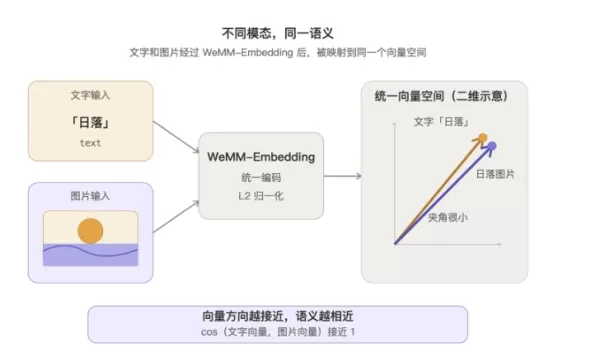 WeChat WeMM-Embedding Powers Moments Search and Video Highlights With 1 Billion Daily Calls
On September 4, WeChat AI announced the open-source release of its general multimodal embedding model, WeMM-Embedding. Available in 2B, 4B, and 9B versions, the model supports text, images, videos, visual documents, and any interleaved multimodal inp
WeChat WeMM-Embedding Powers Moments Search and Video Highlights With 1 Billion Daily Calls
On September 4, WeChat AI announced the open-source release of its general multimodal embedding model, WeMM-Embedding. Available in 2B, 4B, and 9B versions, the model supports text, images, videos, visual documents, and any interleaved multimodal inp
2026 Latest Top-rated AI Illustration Tools: Our curated list features the best powerfully designed tools for creating stunning editorial scenes and eye-catching cover art quickly. Each option has gone through rigorous real-world tests, offering a free vs paid comparison to help you find the perfect match for your workflow. Try these must-try solutions today to unlock your AI edge and boost your creative productivity. Explore now at XIX.AI.
10 tools
xix.ai
2026 Latest Top-Rated Best AI Tutors for Exam Prep are here on XIX.AI! Our curated list features powerful game-changing tools that offer free vs paid comparison, real-world tests, and weekly updated rankings. They help boost your writing efficiency, simplify complex topic learning, and unlock your academic potential. Explore now to Discover your perfect exam prep tool and Start creating today to Unlock your AI edge!
10 tools
xix.ai
2026 Latest Best Top-Rated AI Budget Planning Tools for Personal Money Management are here on XIX.AI! This curated collection features powerful, game-changing solutions that help you conduct real-world tests, understand spending habits, and create personalized plans to boost productivity. Enjoy a free vs paid comparison along with detailed rankings. Must-try tools designed to simplify money management and unlock your AI edge. Explore now!
11 tools
xix.ai
2026 Latest Best Top-Rated AI Sleep Tracking Assistants curated for ultimate recovery. This fully updated weekly guide features powerful tools that deliver real-world tests, free vs paid comparison, and detailed rankings to help you find the must-try solution that boosts sleep quality and supports better bedtime habits. Explore now at XIX.AI to Unlock your AI edge.
10 tools
xix.ai
2026 Latest Best Top-Rated AI SQL Copilots for Product and Revenue Analytics! XIX.AI has curated a powerful, game-changing collection of must-try tools that undergo real-world tests through weekly updated rankings. These tools help users boost productivity significantly by accelerating data analysis, streamlining complex queries, and generating accurate insights to drive smarter business decisions. Explore now to Discover your perfect tool for unlocking your AI edge!
14 tools
xix.ai

2026 Latest Best Top-Rated AI Homework Helpers That Teach Core Concepts Not Just Answers Powerful Tools for Students Must-Try Curated List Weekly Updated Free vs Paid Comparison Real-World Tests Accurate Rankings to Help You Unlock Your Full Learning Potential Explore now to Discover your perfect tool for smarter studying.
10 tools
xix.ai

Premiere ProにAI文字起こし機能が追加されたんですね。これで動画編集がかなり楽になりそう。特にインタビュー動画とか、文字起こしが一番時間かかるから助かるな。でも、AIの精度ってどうなんだろう?専門用語が多い分野だと誤変換が多そうで少し心配。まあ、試してみる価値はありそう!😊
这功能太需要了!每次剪辑都要手动对齐时间轴,现在能直接改文字就能调视频,简直是手残党的福音😭。不过Adobe现在才加这个功能是不是有点迟了?其他软件早就有类似功能了。AI转录的准确度怎么样?方言或者专业术语能识别吗?如果能支持多语言混剪就更好了。












