


 Home
HomeMaster DALL-E Inpainting: Your Guide to Precision Image Editing
DALL-E's inpainting tool empowers users to enhance and modify AI-generated images with precision. This guide provides a detailed, step-by-step approach to leveraging this feature, exploring practical techniques and creative uses to elevate your image editing skills. Whether you're making subtle refinements or bold transformations, you'll discover actionable insights to streamline your process and achieve impressive outcomes.
Key Highlights
Inpainting Overview: Inpainting enables targeted edits to specific sections of AI-generated images by re-prompting selected areas.
Accessing the Feature: DALL-E's inpainting tool is available to all users, catering to both hobbyists and professionals.
Editing Process: Master the art of selecting and re-prompting image sections for precise modifications.
Prompt Enhancement: Learn how DALL-E automatically refines prompts to optimize image generation.
Aspect Ratio Adjustments: Modify image ratios (e.g., 16:9) to align with various creative or display requirements.
Iterative Refinement: Inpainting supports multiple rounds of edits for greater control over the final image.
Understanding Limits: Recognize challenges, such as complex edits requiring experimentation.
Alternative Options: Explore other AI tools like Leonardo AI and Midjourney for unique editing capabilities.
Introduction to DALL-E Inpainting
What is DALL-E Inpainting?
DALL-E's inpainting,
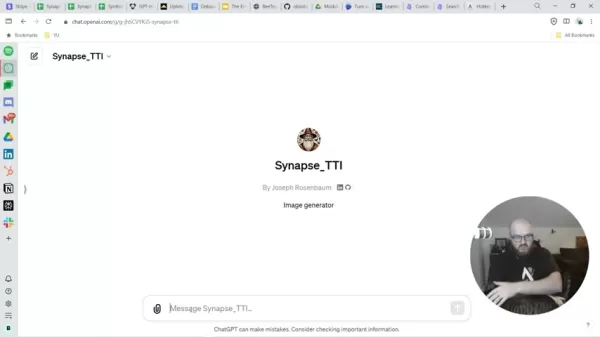
also referred to as targeted image editing, allows users to adjust specific parts of an AI-generated image. Instead of creating a new image from scratch, you can focus on altering a selected area. By highlighting a section and providing a new prompt, DALL-E updates only that portion, blending it seamlessly with the rest of the image. This is ideal for refining details while keeping the overall composition intact.
This feature offers several advantages. It saves time by eliminating the need to generate multiple full images. It also provides precise control, often lacking in standard AI image generation, enabling you to align results with your creative vision. Additionally, inpainting unlocks a range of creative possibilities, allowing iterative experimentation to perfect your ideas.
This guide will walk you through the core aspects of DALL-E’s inpainting, from basic functionality to advanced techniques. We’ll explore practical examples, provide clear instructions, and share tips for crafting effective prompts to achieve optimal results. Let’s dive in!
Core Advantages of Inpainting:
- Reduces time and resource demands.
- Offers precise control over edits.
- Supports iterative improvements.
- Expands creative opportunities.
Accessing and Setting Up DALL-E for Inpainting
To use inpainting, you’ll need access to DALL-E via OpenAI. If you’re an existing user, getting started is simple. Here’s how:
- Sign into your OpenAI account: Ensure you have an active account and are logged in.
- Locate DALL-E: Access the DALL-E interface through your OpenAI dashboard.
- Create or Upload an Image: Generate a new image with a text prompt or upload one for editing.
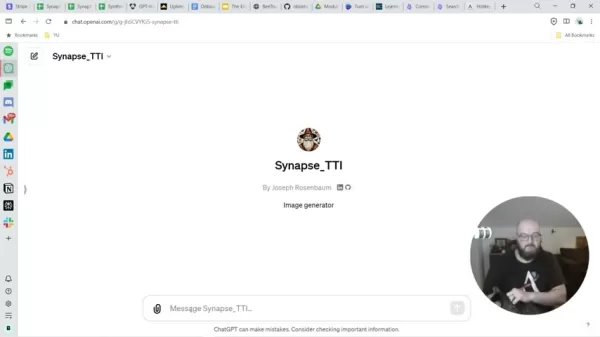
For this guide, we’ll assume you have an initial image ready.
Once your image is prepared, you can begin inpainting. The quality of your starting image and the clarity of your prompts will greatly impact the final output, as DALL-E enhances prompts to improve generation results.
Practical Examples and Creative Uses
Example: Superhero Cat
A fun application of DALL-E’s inpainting is creating images of your pets. Here’s how:
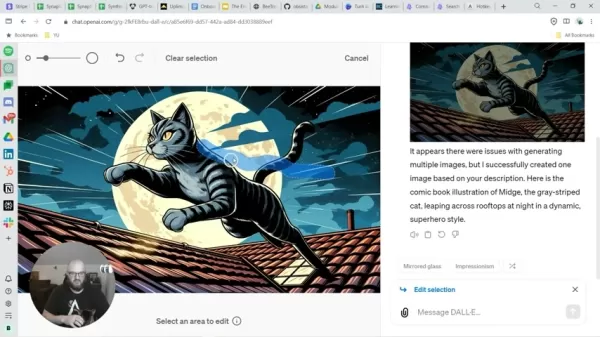
- Generate a base image with a prompt. For example, use: "Picture a superhero cat named Midge - a gray striped cat, highly agile, loves comic book adventures, details are up to you!"
- After generating the image, download it for further editing.
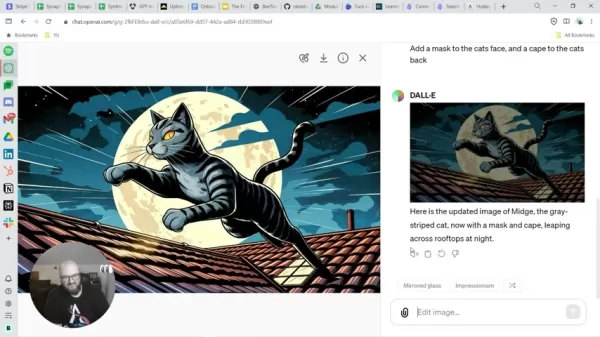
Note that DALL-E’s inpainting must be performed within its platform, not external tools.
If the base image needs adjustments, click the 'Edit Image' button to refine it.
Custom settings from ChatGPT don’t carry over to DALL-E, so you’ll need to configure image settings manually.
Step-by-Step Guide to DALL-E Inpainting
Highlighting and Re-prompting
With an image loaded in DALL-E, you’re ready to edit using inpainting.
- Choose the Edit Option: Locate the edit button.
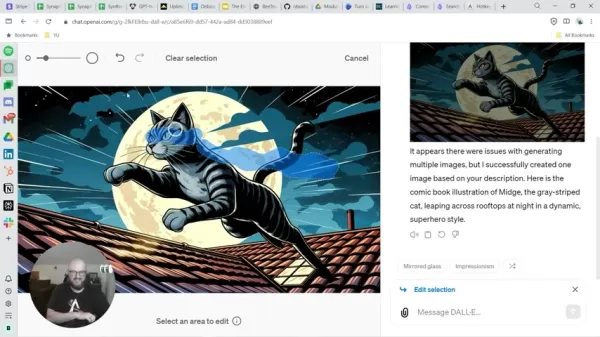
This opens the inpainting interface.
- Select the Area: Use the inpainting tool (typically a brush or selection tool) to mark the section you want to edit. Adjust the brush size for precision.
- Enter a New Prompt: Provide a detailed prompt describing the desired changes for the highlighted area.
- Generate the Edited Image: Click the generate button. DALL-E will update only the selected area, preserving the rest of the image.
- Refine as Needed: If the result isn’t perfect, tweak the prompt or selection and try again. Inpainting’s iterative process allows fine-tuning until you’re satisfied.
Adjusting Image Aspect Ratios
To create an image with a specific aspect ratio:
- Before entering your prompt, locate the aspect ratio option.
.
- Choose the desired ratio, which may vary depending on the tool.
Setting the ratio before prompting ensures the image meets your expectations.
Pros and Cons of DALL-E Inpainting
Pros
Delivers precise control over image edits.
Supports iterative refinement and creative experimentation.
Saves time and resources by editing existing images rather than generating new ones.
Features an intuitive interface for ease of use.
Cons
Can be challenging to achieve exact results.
Offers limited image setting options.
Depends on effective prompt crafting for optimal outcomes.
Inpainting isn’t supported directly in ChatGPT.
FAQ
What is image seeding?
Image seeding involves identifying the seed of your initial image to recreate similar images, simplifying the process of generating consistent characters or styles.
Can DALL-E tools be used within ChatGPT?
Yes, though it may feel cumbersome. Describe the desired image in ChatGPT, and it can generate it for you.
Can I inpaint in a custom ChatGPT GPT?
No, inpainting is currently not supported in custom ChatGPT GPTs.
Related Questions
What other AI tools can I use for image generation?
Several AI image generation tools are available:
Midjourney: Known for its artistic, surreal outputs, Midjourney operates via Discord, where users submit prompts for stunning, imaginative visuals. It’s ideal for artists seeking unique aesthetics, though its Discord-based interface may feel unconventional.
Adobe Firefly: Integrated into Adobe’s Creative Cloud, Firefly ensures copyright-safe content, making it perfect for professional designers creating marketing materials or social media visuals. It seamlessly fits into Adobe workflows.
Leonardo AI: This tool offers high-quality outputs with extensive customization options. It’s ideal for users seeking precise control and willing to master its advanced features for tailored image generation.
Related article
 DeepMind CEO Hassabis: I sleep six hours a day, usually feel energetic around 1 a.m.
Fortune recently featured an interview with Demis Hassabis, CEO of Google DeepMind, revealing his unconventional approach to rest and productivity. Hassabis disclosed that he sleeps very little, structuring his waking hours into two distinct work blo
OpenAI, Anthropic Vie for Market Share Despite Revenue Shortfalls
Despite recent reports suggesting OpenAI missed revenue targets, creating pressure on tech stocks this Tuesday, private AI lab investors remain resilient. Seasoned backers have confirmed they will not reduce investment despite negative media coverage
California AV Compliance: A New Era of Tickets, Geofences, and 1M Miles
Guident operates an AuveTech shuttle in South Florida, managing a four-mile route in West Palm Beach and a one-mile route in Boca Raton using its remote monitoring technology. | Credit: GuidentCalifornia is redefining the regulatory landscape for dri
Related Special Topic Recommendations
writing
DeepMind CEO Hassabis: I sleep six hours a day, usually feel energetic around 1 a.m.
Fortune recently featured an interview with Demis Hassabis, CEO of Google DeepMind, revealing his unconventional approach to rest and productivity. Hassabis disclosed that he sleeps very little, structuring his waking hours into two distinct work blo
OpenAI, Anthropic Vie for Market Share Despite Revenue Shortfalls
Despite recent reports suggesting OpenAI missed revenue targets, creating pressure on tech stocks this Tuesday, private AI lab investors remain resilient. Seasoned backers have confirmed they will not reduce investment despite negative media coverage
California AV Compliance: A New Era of Tickets, Geofences, and 1M Miles
Guident operates an AuveTech shuttle in South Florida, managing a four-mile route in West Palm Beach and a one-mile route in Boca Raton using its remote monitoring technology. | Credit: GuidentCalifornia is redefining the regulatory landscape for dri
Related Special Topic Recommendations
writing
 AI Article Outline Tools for Long Form Writing
2026 Latest Best Top-Rated AI Article Outline Tools for Long Form Writing! This curated collection features powerful, game-changing tools that deliver accurate, structured outlines with real-world tests to boost writing efficiency significantly. XIX.AI is part of this elite selection. Get a free vs paid comparison to help you choose the perfect tool. Explore now and Unlock your AI edge!
 9 tools
 xix.ai
chatbot
Best AI Roleplay Chat Apps for Language Practice, Interview Prep, and Daily Fluency
xix.ai
chatbot
Best AI Roleplay Chat Apps for Language Practice, Interview Prep, and Daily Fluency
2026 Latest Best Top-rated AI Roleplay Chat Apps for Language Practice, Interview Prep, and Daily Fluency! XIX.AI curates a powerful game-changing collection that offers free vs paid comparison, real-world tests, and updated rankings weekly. These must-try tools help you boost writing skills, overcome fluency challenges, and improve communication efficiency across all daily scenarios. Explore now to discover your perfect tool for language growth!
10 tools
xix.ai
Music composition
AI Stem Separation Tools for Remix Production, Sampling Prep, and Karaoke Masters
2026 Latest Best Top-rated AI Stem Separation Tools Curated for Remix Production, Sampling Prep, and Karaoke Masters. These powerful game-changing tools offer real-world tests to deliver precise audio isolation, boosting productivity significantly. XIX.AI provides a weekly updated free vs paid comparison guide to help you find the must-try solution that suits your needs. Explore now to unlock your AI edge.
8 tools
xix.ai
Data Analysis
AI SQL Copilots for Revenue Dashboards, Funnel Analysis, and Product Metrics
2026 Latest Best AI SQL Copilots Ranked Top-Rated! XIX.AI curates a powerful game-changing collection for weekly updated real-world tests. These must-try tools help you generate accurate revenue dashboards, analyze sales funnels, and track product metrics swiftly, boosting productivity massively. Explore now to Discover your perfect tool for data-driven decision making! 238 characters
9 tools
xix.ai
Music composition
Best AI Melody Writing Tools for Song Drafts
2026 Latest Best Top-Rated AI Melody Writing Tools for Song Drafts! XIX.AI has curated a highly powerful game-changing collection that goes through rigorous real-world tests to deliver the best writing experience. You can find detailed free vs paid comparisons, accurate rankings, and must-try options designed to help you create stunning song drafts effortlessly and boost your creative productivity significantly. Explore now to discover your perfect tool!
8 tools
xix.ai
chatbot
Best AI Conversation Trainer Tools for Interview Practice
2026 Latest Best Top-rated AI Conversation Trainer Tools for Interview Practice are here on XIX.AI! This curated collection features powerful, game-changing tools that go through rigorous real-world tests to deliver accurate feedback. You’ll find a free vs paid comparison and detailed rankings to help you choose the must-try option that boosts your confidence and skills. Explore now to Discover your perfect tool for interview success!
12 tools
xix.ai

 Comments (3)
0/500
Comments (3)
0/500
![WillGarcía]()
DALL-Eのinpainting機能って、まるでデジタル絵画の修正液みたいだね。AI生成画像の細かい部分を直せるのは便利だけど、これが広まると写真の真実性がさらに曖昧になりそうで少し怖いかも。でも使い方次第でクリエイターの表現の幅は確実に広がるよね🎨
![LarryEvans]()
L'inpainting de DALL-E est vraiment précis ! J'ai enfin pu corriger un détail gênant sur une image générée. Mais ça demande quand même un bon œil, des fois je passe plus de temps à retoucher qu'à générer l'image initiale 😅
![WillHill]()
Этот гид по DALL-E Inpainting реально полезный! Теперь редактировать изображения стало проще 😍 Очень понравилось, что объяснили всё по шагам. Кто-то уже пробовал восстанавливать старые фото с помощью этой функции? Было бы интересно увидеть результаты.
DALL-E's inpainting tool empowers users to enhance and modify AI-generated images with precision. This guide provides a detailed, step-by-step approach to leveraging this feature, exploring practical techniques and creative uses to elevate your image editing skills. Whether you're making subtle refinements or bold transformations, you'll discover actionable insights to streamline your process and achieve impressive outcomes.
Key Highlights
Inpainting Overview: Inpainting enables targeted edits to specific sections of AI-generated images by re-prompting selected areas.
Accessing the Feature: DALL-E's inpainting tool is available to all users, catering to both hobbyists and professionals.
Editing Process: Master the art of selecting and re-prompting image sections for precise modifications.
Prompt Enhancement: Learn how DALL-E automatically refines prompts to optimize image generation.
Aspect Ratio Adjustments: Modify image ratios (e.g., 16:9) to align with various creative or display requirements.
Iterative Refinement: Inpainting supports multiple rounds of edits for greater control over the final image.
Understanding Limits: Recognize challenges, such as complex edits requiring experimentation.
Alternative Options: Explore other AI tools like Leonardo AI and Midjourney for unique editing capabilities.
Introduction to DALL-E Inpainting
What is DALL-E Inpainting?
DALL-E's inpainting,
also referred to as targeted image editing, allows users to adjust specific parts of an AI-generated image. Instead of creating a new image from scratch, you can focus on altering a selected area. By highlighting a section and providing a new prompt, DALL-E updates only that portion, blending it seamlessly with the rest of the image. This is ideal for refining details while keeping the overall composition intact.
This feature offers several advantages. It saves time by eliminating the need to generate multiple full images. It also provides precise control, often lacking in standard AI image generation, enabling you to align results with your creative vision. Additionally, inpainting unlocks a range of creative possibilities, allowing iterative experimentation to perfect your ideas.
This guide will walk you through the core aspects of DALL-E’s inpainting, from basic functionality to advanced techniques. We’ll explore practical examples, provide clear instructions, and share tips for crafting effective prompts to achieve optimal results. Let’s dive in!
Core Advantages of Inpainting:
- Reduces time and resource demands.
- Offers precise control over edits.
- Supports iterative improvements.
- Expands creative opportunities.
Accessing and Setting Up DALL-E for Inpainting
To use inpainting, you’ll need access to DALL-E via OpenAI. If you’re an existing user, getting started is simple. Here’s how:
- Sign into your OpenAI account: Ensure you have an active account and are logged in.
- Locate DALL-E: Access the DALL-E interface through your OpenAI dashboard.
- Create or Upload an Image: Generate a new image with a text prompt or upload one for editing.
For this guide, we’ll assume you have an initial image ready.
Once your image is prepared, you can begin inpainting. The quality of your starting image and the clarity of your prompts will greatly impact the final output, as DALL-E enhances prompts to improve generation results.
Practical Examples and Creative Uses
Example: Superhero Cat
A fun application of DALL-E’s inpainting is creating images of your pets. Here’s how:
- Generate a base image with a prompt. For example, use: "Picture a superhero cat named Midge - a gray striped cat, highly agile, loves comic book adventures, details are up to you!"
- After generating the image, download it for further editing.
Note that DALL-E’s inpainting must be performed within its platform, not external tools.
If the base image needs adjustments, click the 'Edit Image' button to refine it.
Custom settings from ChatGPT don’t carry over to DALL-E, so you’ll need to configure image settings manually.
Step-by-Step Guide to DALL-E Inpainting
Highlighting and Re-prompting
With an image loaded in DALL-E, you’re ready to edit using inpainting.
- Choose the Edit Option: Locate the edit button.
This opens the inpainting interface.
- Select the Area: Use the inpainting tool (typically a brush or selection tool) to mark the section you want to edit. Adjust the brush size for precision.
- Enter a New Prompt: Provide a detailed prompt describing the desired changes for the highlighted area.
- Generate the Edited Image: Click the generate button. DALL-E will update only the selected area, preserving the rest of the image.
- Refine as Needed: If the result isn’t perfect, tweak the prompt or selection and try again. Inpainting’s iterative process allows fine-tuning until you’re satisfied.
Adjusting Image Aspect Ratios
To create an image with a specific aspect ratio:
- Before entering your prompt, locate the aspect ratio option.
.
- Choose the desired ratio, which may vary depending on the tool.
Setting the ratio before prompting ensures the image meets your expectations.
Pros and Cons of DALL-E Inpainting
Pros
Delivers precise control over image edits.
Supports iterative refinement and creative experimentation.
Saves time and resources by editing existing images rather than generating new ones.
Features an intuitive interface for ease of use.
Cons
Can be challenging to achieve exact results.
Offers limited image setting options.
Depends on effective prompt crafting for optimal outcomes.
Inpainting isn’t supported directly in ChatGPT.
FAQ
What is image seeding?
Image seeding involves identifying the seed of your initial image to recreate similar images, simplifying the process of generating consistent characters or styles.
Can DALL-E tools be used within ChatGPT?
Yes, though it may feel cumbersome. Describe the desired image in ChatGPT, and it can generate it for you.
Can I inpaint in a custom ChatGPT GPT?
No, inpainting is currently not supported in custom ChatGPT GPTs.
Related Questions
What other AI tools can I use for image generation?
Several AI image generation tools are available:
Midjourney: Known for its artistic, surreal outputs, Midjourney operates via Discord, where users submit prompts for stunning, imaginative visuals. It’s ideal for artists seeking unique aesthetics, though its Discord-based interface may feel unconventional.
Adobe Firefly: Integrated into Adobe’s Creative Cloud, Firefly ensures copyright-safe content, making it perfect for professional designers creating marketing materials or social media visuals. It seamlessly fits into Adobe workflows.
Leonardo AI: This tool offers high-quality outputs with extensive customization options. It’s ideal for users seeking precise control and willing to master its advanced features for tailored image generation.








 DeepMind CEO Hassabis: I sleep six hours a day, usually feel energetic around 1 a.m.
Fortune recently featured an interview with Demis Hassabis, CEO of Google DeepMind, revealing his unconventional approach to rest and productivity. Hassabis disclosed that he sleeps very little, structuring his waking hours into two distinct work blo
DeepMind CEO Hassabis: I sleep six hours a day, usually feel energetic around 1 a.m.
Fortune recently featured an interview with Demis Hassabis, CEO of Google DeepMind, revealing his unconventional approach to rest and productivity. Hassabis disclosed that he sleeps very little, structuring his waking hours into two distinct work blo
 OpenAI, Anthropic Vie for Market Share Despite Revenue Shortfalls
Despite recent reports suggesting OpenAI missed revenue targets, creating pressure on tech stocks this Tuesday, private AI lab investors remain resilient. Seasoned backers have confirmed they will not reduce investment despite negative media coverage
California AV Compliance: A New Era of Tickets, Geofences, and 1M Miles
Guident operates an AuveTech shuttle in South Florida, managing a four-mile route in West Palm Beach and a one-mile route in Boca Raton using its remote monitoring technology. | Credit: GuidentCalifornia is redefining the regulatory landscape for dri
OpenAI, Anthropic Vie for Market Share Despite Revenue Shortfalls
Despite recent reports suggesting OpenAI missed revenue targets, creating pressure on tech stocks this Tuesday, private AI lab investors remain resilient. Seasoned backers have confirmed they will not reduce investment despite negative media coverage
California AV Compliance: A New Era of Tickets, Geofences, and 1M Miles
Guident operates an AuveTech shuttle in South Florida, managing a four-mile route in West Palm Beach and a one-mile route in Boca Raton using its remote monitoring technology. | Credit: GuidentCalifornia is redefining the regulatory landscape for dri
2026 Latest Best Top-Rated AI Article Outline Tools for Long Form Writing! This curated collection features powerful, game-changing tools that deliver accurate, structured outlines with real-world tests to boost writing efficiency significantly. XIX.AI is part of this elite selection. Get a free vs paid comparison to help you choose the perfect tool. Explore now and Unlock your AI edge!
9 tools
xix.ai
2026 Latest Best Top-rated AI Roleplay Chat Apps for Language Practice, Interview Prep, and Daily Fluency! XIX.AI curates a powerful game-changing collection that offers free vs paid comparison, real-world tests, and updated rankings weekly. These must-try tools help you boost writing skills, overcome fluency challenges, and improve communication efficiency across all daily scenarios. Explore now to discover your perfect tool for language growth!
10 tools
xix.ai
2026 Latest Best Top-rated AI Stem Separation Tools Curated for Remix Production, Sampling Prep, and Karaoke Masters. These powerful game-changing tools offer real-world tests to deliver precise audio isolation, boosting productivity significantly. XIX.AI provides a weekly updated free vs paid comparison guide to help you find the must-try solution that suits your needs. Explore now to unlock your AI edge.
8 tools
xix.ai
2026 Latest Best AI SQL Copilots Ranked Top-Rated! XIX.AI curates a powerful game-changing collection for weekly updated real-world tests. These must-try tools help you generate accurate revenue dashboards, analyze sales funnels, and track product metrics swiftly, boosting productivity massively. Explore now to Discover your perfect tool for data-driven decision making! 238 characters
9 tools
xix.ai
2026 Latest Best Top-Rated AI Melody Writing Tools for Song Drafts! XIX.AI has curated a highly powerful game-changing collection that goes through rigorous real-world tests to deliver the best writing experience. You can find detailed free vs paid comparisons, accurate rankings, and must-try options designed to help you create stunning song drafts effortlessly and boost your creative productivity significantly. Explore now to discover your perfect tool!
8 tools
xix.ai
2026 Latest Best Top-rated AI Conversation Trainer Tools for Interview Practice are here on XIX.AI! This curated collection features powerful, game-changing tools that go through rigorous real-world tests to deliver accurate feedback. You’ll find a free vs paid comparison and detailed rankings to help you choose the must-try option that boosts your confidence and skills. Explore now to Discover your perfect tool for interview success!
12 tools
xix.ai

DALL-Eのinpainting機能って、まるでデジタル絵画の修正液みたいだね。AI生成画像の細かい部分を直せるのは便利だけど、これが広まると写真の真実性がさらに曖昧になりそうで少し怖いかも。でも使い方次第でクリエイターの表現の幅は確実に広がるよね🎨
L'inpainting de DALL-E est vraiment précis ! J'ai enfin pu corriger un détail gênant sur une image générée. Mais ça demande quand même un bon œil, des fois je passe plus de temps à retoucher qu'à générer l'image initiale 😅
Этот гид по DALL-E Inpainting реально полезный! Теперь редактировать изображения стало проще 😍 Очень понравилось, что объяснили всё по шагам. Кто-то уже пробовал восстанавливать старые фото с помощью этой функции? Было бы интересно увидеть результаты.












