


 Home
HomeMaster the Art of AI Image Editing with Stable Diffusion Inpainting
Stable Diffusion is transforming how we create and edit images. Its inpainting feature stands out as a particularly powerful tool, enabling precise, selective edits and refinements to existing images. This complete guide will take you through everything you need to know about Stable Diffusion inpainting, giving you the skills to enhance your images with AI.
Key Points
Inpainting lets you alter specific parts of an image while keeping the rest intact.
You can introduce new elements, modify existing ones, or erase unwanted objects.
Using a specialized inpainting model can improve your outcomes.
Denoising strength is a crucial setting for managing how much of the original image detail is preserved.
Understanding Stable Diffusion Inpainting
What is Stable Diffusion Inpainting?
In the world of Stable Diffusion, inpainting is the technique of using AI-powered generative algorithms to make targeted changes to parts of an image. Unlike conventional editing that can leave obvious marks, inpainting uses AI to merge the edited sections flawlessly with their surroundings.
The final product looks natural and cohesive, as if the modifications were part of the image from the start.
The Power of Selective Editing
Picture a beautiful landscape photo marred by a distracting element in the front, or a scene that would benefit from an added detail. Inpainting enables you to focus on just those specific spots without altering the entire picture. You can:
- Eliminate unwanted objects:
- Adjust the color or texture of a specific area
- Introduce completely new objects into the composition
- Improve details and sharpen existing features
How It Works
Fundamentally, Stable Diffusion inpainting uses a diffusion model trained on an enormous collection of images. When you define an area for inpainting, the algorithm examines the adjacent pixels and creates new content that is visually convincing and contextually appropriate. This is an iterative process that progressively adds detail and ensures a smooth integration with the original image.
Key Concepts in Inpainting
To use Stable Diffusion inpainting effectively, you need to grasp these fundamental ideas:
- Masking: This is how you choose the exact areas you want to change. The mask directs the algorithm to the target zone. You can create masks by hand with various tools, or use AI to generate them automatically through object detection.
- Prompting: Similar to standard Stable Diffusion image generation, prompts are vital for inpainting. Your prompt instructs the algorithm on what to generate inside the masked area. A well-written prompt is essential for getting the results you want.
- Denoising Strength: This setting determines how far the algorithm strays from the original content in the masked area. A higher denoising strength leads to more dramatic changes, while a lower value maintains more of the original detail.
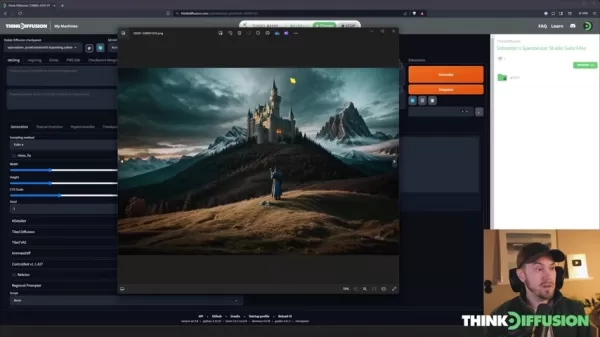
Fine-tuning this value is key to achieving your desired effect.
- Sampling Steps: This controls the number of cycles the algorithm goes through during inpainting. More steps usually yield more polished and detailed results, but they also take longer to process.
- Inpainting Models: Certain Stable Diffusion models are optimized specifically for inpainting. These models often deliver superior results because they are trained on specialized data and architectures.
Step-by-Step Guide to Inpainting with Thinkdiffusion
Step 1: Load Your Image into Thinkdiffusion
Begin by uploading the image you want to edit into the ThinkDiffusion platform.
You can do this by dragging and dropping your image file. This works in both the txt2img and img2img sections.
Step 2: Choosing the Model
Select your desired Stable Diffusion checkpoint. For optimal inpainting, consider using a model specifically designed for the task, like an epic realism model, though standard models also work.
Thinkdiffusion provides several inpainting models; simply type "inpaint" to find them. If you don't use an inpainting model, regular models are a viable alternative.
Step 3: Selecting The INPAINT Tab
Click on “img2img”. Here you'll find several options, including Sketch, Inpaint, Inpaint sketch, and Inpaint upload. Choose “Inpaint” to tell Thinkdiffusion you want to perform an inpainting operation.
Step 4: Selecting The Area
Inside the Inpaint tab, use the brush tool to meticulously outline the parts of the image you wish to change. You can change the brush size for accuracy.
Zoom in for detailed masking; the 'S' key is a handy shortcut. Be careful not to mask any areas you don't intend to change. Use the delete or undo functions to correct mistakes. To quickly adjust brush size, hold “control” and scroll your mouse wheel.
Step 5: Defining the Inpaint Parameters
Choose how the mask should be interpreted. With the “inpaint masked” option, you paint over the area you want to change. Alternatively, “inpaint not masked” selects everything outside your painted area. Setting Mask Content to “original” tells the AI to read and reuse the existing content. For a completely fresh generation, select “latent noise” to fill the area with noise from the latent space.
Step 6: Providing Prompt and Parameters
Write a clear and detailed prompt that tells the AI exactly what to create within your mask. Adjust the denoising strength to find the right balance between preserving original details and introducing new content.
Go to the settings to configure:
- Sampling steps
- Sampling methods
- CFG Scale
Step 7: Generate and Refine
Once all parameters are set, start the generation process and review the output. Modify your prompt and regenerate as needed. Achieving the perfect result often requires several attempts and adjustments.
Step 8: Using Inpaint Sketch
Thinkdiffusion Pricing
Subscription Details
Thinkdiffusion uses a tiered pricing structure. The Zeus Turbo Package, featured in the demonstration, costs $117.99 per month. It includes access to other models, like the RunDiffusion models, which operate at faster speeds. The platform also offers more affordable tiers to suit different rendering requirements and budgets.
ThinkDiffusion Stable Diffusion Pros and Cons
Pros
Features a user-friendly interface that is welcoming for beginners.
Powerful computing resources ensure high-quality image output and rendering.
Gives you flexible access to a wide array of AI image generation tools.
Cons
Its subscription-based pricing model can become costly over time.
Locating your completed renders can sometimes be challenging.
The quality of results can be inconsistent.
Thinkdiffusion Core Features
AI Image Generation and Editing
Thinkdiffusion is a top-tier platform for AI image generation and editing. Inpainting is just one of the many powerful tools that make its software so effective. It is available through different interfaces like Img2Img and txt2Img.
Vast Style Library
Thinkdiffusion comes with an extensive collection of style presets to help you realize your creative vision. Browse the available options or type in a style name to apply it.
Simple User Experience
The platform is well-designed and easy to navigate for users of all experience levels. Helpful tooltips are available for all the tools to assist you.
Thinkdiffusion Use Cases
Enhancing Images by Adding New Details
AI Image Generation can help you augment your images, as shown with the inpainting technique. You can use the sketch tool or text prompts to guide Thinkdiffusion's generation within your image.
Changing and Altering Garments with AI
You can use AI Image Generation to modify clothing, such as changing the fabric or style of a garment. Just draw over the section and let the AI handle the transformation.
Selective Image Manipulation
Easily alter facial features using only a prompt, opening up creative possibilities. This is done through advanced mask manipulation techniques.
FAQ
Is Stable Diffusion inpainting difficult to learn?
While it takes practice to master all its subtleties, the basic principles are quite easy to grasp. With some experimentation, you can start producing great results quickly.
Can I use Stable Diffusion inpainting for commercial purposes?
Yes, commercial use is permitted. Just make sure to comply with the licensing terms of the specific model you are using.
What is the difference between inpaint and inpaint sketch mode?
Inpaint mode relies on a mask to define the area for the AI to work on. Inpaint sketch mode, however, lets you add color information to further guide the generation process. This gives you greater control over the final image.
Related Questions
What are some best practices for prompting in Stable Diffusion inpainting?
Crafting effective prompts is essential for success with Stable Diffusion. Keep these tips in mind:Be Specific: Detailed prompts lead to better results. Instead of "add a tree," try "add a majestic, ancient oak tree with sprawling branches."Use Keywords: Test different descriptive words and phrases to see their impact. Feel free to experiment with creative and unusual combinations.Consider Negative Prompts: Tell the AI what you don't want to appear. This helps eliminate unwanted elements and refine the output.Iterate and Refine: Prompting is a process of trial and error. Don't get discouraged if the first result isn't perfect. Keep adjusting and testing your prompts.Balance Guidance and Freedom: Provide clear direction, but also allow the AI some creative latitude. Sometimes the best results come from unexpected interpretations.
Related article
 DeepMind CEO Hassabis: I sleep six hours a day, usually feel energetic around 1 a.m.
Fortune recently featured an interview with Demis Hassabis, CEO of Google DeepMind, revealing his unconventional approach to rest and productivity. Hassabis disclosed that he sleeps very little, structuring his waking hours into two distinct work blo
OpenAI, Anthropic Vie for Market Share Despite Revenue Shortfalls
Despite recent reports suggesting OpenAI missed revenue targets, creating pressure on tech stocks this Tuesday, private AI lab investors remain resilient. Seasoned backers have confirmed they will not reduce investment despite negative media coverage
California AV Compliance: A New Era of Tickets, Geofences, and 1M Miles
Guident operates an AuveTech shuttle in South Florida, managing a four-mile route in West Palm Beach and a one-mile route in Boca Raton using its remote monitoring technology. | Credit: GuidentCalifornia is redefining the regulatory landscape for dri
Related Special Topic Recommendations
Music composition
DeepMind CEO Hassabis: I sleep six hours a day, usually feel energetic around 1 a.m.
Fortune recently featured an interview with Demis Hassabis, CEO of Google DeepMind, revealing his unconventional approach to rest and productivity. Hassabis disclosed that he sleeps very little, structuring his waking hours into two distinct work blo
OpenAI, Anthropic Vie for Market Share Despite Revenue Shortfalls
Despite recent reports suggesting OpenAI missed revenue targets, creating pressure on tech stocks this Tuesday, private AI lab investors remain resilient. Seasoned backers have confirmed they will not reduce investment despite negative media coverage
California AV Compliance: A New Era of Tickets, Geofences, and 1M Miles
Guident operates an AuveTech shuttle in South Florida, managing a four-mile route in West Palm Beach and a one-mile route in Boca Raton using its remote monitoring technology. | Credit: GuidentCalifornia is redefining the regulatory landscape for dri
Related Special Topic Recommendations
Music composition
 AI Stem Separation Tools for Remix Production, Sampling Prep, and Karaoke Masters
2026 Latest Best Top-rated AI Stem Separation Tools Curated for Remix Production, Sampling Prep, and Karaoke Masters. These powerful game-changing tools offer real-world tests to deliver precise audio isolation, boosting productivity significantly. XIX.AI provides a weekly updated free vs paid comparison guide to help you find the must-try solution that suits your needs. Explore now to unlock your AI edge.
 8 tools
 xix.ai
Data Analysis
AI SQL Copilots for Revenue Dashboards, Funnel Analysis, and Product Metrics
xix.ai
Data Analysis
AI SQL Copilots for Revenue Dashboards, Funnel Analysis, and Product Metrics
2026 Latest Best AI SQL Copilots Ranked Top-Rated! XIX.AI curates a powerful game-changing collection for weekly updated real-world tests. These must-try tools help you generate accurate revenue dashboards, analyze sales funnels, and track product metrics swiftly, boosting productivity massively. Explore now to Discover your perfect tool for data-driven decision making! 238 characters
9 tools
xix.ai
Music composition
Best AI Melody Writing Tools for Song Drafts
2026 Latest Best Top-Rated AI Melody Writing Tools for Song Drafts! XIX.AI has curated a highly powerful game-changing collection that goes through rigorous real-world tests to deliver the best writing experience. You can find detailed free vs paid comparisons, accurate rankings, and must-try options designed to help you create stunning song drafts effortlessly and boost your creative productivity significantly. Explore now to discover your perfect tool!
8 tools
xix.ai
chatbot
Best AI Conversation Trainer Tools for Interview Practice
2026 Latest Best Top-rated AI Conversation Trainer Tools for Interview Practice are here on XIX.AI! This curated collection features powerful, game-changing tools that go through rigorous real-world tests to deliver accurate feedback. You’ll find a free vs paid comparison and detailed rankings to help you choose the must-try option that boosts your confidence and skills. Explore now to Discover your perfect tool for interview success!
12 tools
xix.ai
Design & Art
Best AI Style Transfer Tools for Creative Experiments
2026 Latest Best Top-rated AI Style Transfer Tools for Creative Experiments! XIX.AI has curated a powerful, game-changing collection of must-try tools that deliver exceptional results through real-world tests and rigorous rankings. These top solutions help creatives boost productivity significantly by accelerating content creation and unlocking endless creative possibilities. Explore now to discover your perfect tool and start creating today!
9 tools
xix.ai
Comic Creation
Best AI Dialogue Bubble Tools for Visual Storytelling
2026 Latest Best Top-Rated AI Dialogue Bubble Tools for Visual Storytelling are here on XIX.AI! This curated collection features powerful, game-changing tools that help creators boost productivity and overcome creative bottlenecks. Get a free vs paid comparison, see real-world tests, and check the latest rankings to find the must-try solutions perfect for crafting engaging visual narratives. Explore now to discover your ideal tool!
10 tools
xix.ai

 Comments (2)
0/500
Comments (2)
0/500
![OliverAnderson]()
This inpainting feature is a game-changer for digital artists! I've been using it to fix old family photos, and the results are mind-blowing. It's so much more intuitive than the clone stamp tool in Photoshop. Can't wait to see how this tech evolves and gets integrated into more mainstream software. The ethical side of 'editing reality' is a bit scary though... 🤔
![LawrenceMiller]()
Недавно пробовал inpainting в Stable Diffusion — просто невероятно, как можно исправить неудачные фрагменты на фото! 😲 Но иногда AI добавляет слишком много «творчества», получается странно. Кто-то сталкивался с таким?
Stable Diffusion is transforming how we create and edit images. Its inpainting feature stands out as a particularly powerful tool, enabling precise, selective edits and refinements to existing images. This complete guide will take you through everything you need to know about Stable Diffusion inpainting, giving you the skills to enhance your images with AI.
Key Points
Inpainting lets you alter specific parts of an image while keeping the rest intact.
You can introduce new elements, modify existing ones, or erase unwanted objects.
Using a specialized inpainting model can improve your outcomes.
Denoising strength is a crucial setting for managing how much of the original image detail is preserved.
Understanding Stable Diffusion Inpainting
What is Stable Diffusion Inpainting?
In the world of Stable Diffusion, inpainting is the technique of using AI-powered generative algorithms to make targeted changes to parts of an image. Unlike conventional editing that can leave obvious marks, inpainting uses AI to merge the edited sections flawlessly with their surroundings.
The final product looks natural and cohesive, as if the modifications were part of the image from the start.
The Power of Selective Editing
Picture a beautiful landscape photo marred by a distracting element in the front, or a scene that would benefit from an added detail. Inpainting enables you to focus on just those specific spots without altering the entire picture. You can:
- Eliminate unwanted objects:
- Adjust the color or texture of a specific area
- Introduce completely new objects into the composition
- Improve details and sharpen existing features
How It Works
Fundamentally, Stable Diffusion inpainting uses a diffusion model trained on an enormous collection of images. When you define an area for inpainting, the algorithm examines the adjacent pixels and creates new content that is visually convincing and contextually appropriate. This is an iterative process that progressively adds detail and ensures a smooth integration with the original image.
Key Concepts in Inpainting
To use Stable Diffusion inpainting effectively, you need to grasp these fundamental ideas:
- Masking: This is how you choose the exact areas you want to change. The mask directs the algorithm to the target zone. You can create masks by hand with various tools, or use AI to generate them automatically through object detection.
- Prompting: Similar to standard Stable Diffusion image generation, prompts are vital for inpainting. Your prompt instructs the algorithm on what to generate inside the masked area. A well-written prompt is essential for getting the results you want.
- Denoising Strength: This setting determines how far the algorithm strays from the original content in the masked area. A higher denoising strength leads to more dramatic changes, while a lower value maintains more of the original detail.
Fine-tuning this value is key to achieving your desired effect.
- Sampling Steps: This controls the number of cycles the algorithm goes through during inpainting. More steps usually yield more polished and detailed results, but they also take longer to process.
- Inpainting Models: Certain Stable Diffusion models are optimized specifically for inpainting. These models often deliver superior results because they are trained on specialized data and architectures.
Step-by-Step Guide to Inpainting with Thinkdiffusion
Step 1: Load Your Image into Thinkdiffusion
Begin by uploading the image you want to edit into the ThinkDiffusion platform.
You can do this by dragging and dropping your image file. This works in both the txt2img and img2img sections.
Step 2: Choosing the Model
Select your desired Stable Diffusion checkpoint. For optimal inpainting, consider using a model specifically designed for the task, like an epic realism model, though standard models also work.
Thinkdiffusion provides several inpainting models; simply type "inpaint" to find them. If you don't use an inpainting model, regular models are a viable alternative.
Step 3: Selecting The INPAINT Tab
Click on “img2img”. Here you'll find several options, including Sketch, Inpaint, Inpaint sketch, and Inpaint upload. Choose “Inpaint” to tell Thinkdiffusion you want to perform an inpainting operation.
Step 4: Selecting The Area
Inside the Inpaint tab, use the brush tool to meticulously outline the parts of the image you wish to change. You can change the brush size for accuracy.
Zoom in for detailed masking; the 'S' key is a handy shortcut. Be careful not to mask any areas you don't intend to change. Use the delete or undo functions to correct mistakes. To quickly adjust brush size, hold “control” and scroll your mouse wheel.
Step 5: Defining the Inpaint Parameters
Choose how the mask should be interpreted. With the “inpaint masked” option, you paint over the area you want to change. Alternatively, “inpaint not masked” selects everything outside your painted area. Setting Mask Content to “original” tells the AI to read and reuse the existing content. For a completely fresh generation, select “latent noise” to fill the area with noise from the latent space.
Step 6: Providing Prompt and Parameters
Write a clear and detailed prompt that tells the AI exactly what to create within your mask. Adjust the denoising strength to find the right balance between preserving original details and introducing new content.
Go to the settings to configure:
- Sampling steps
- Sampling methods
- CFG Scale
Step 7: Generate and Refine
Once all parameters are set, start the generation process and review the output. Modify your prompt and regenerate as needed. Achieving the perfect result often requires several attempts and adjustments.
Step 8: Using Inpaint Sketch
Thinkdiffusion Pricing
Subscription Details
Thinkdiffusion uses a tiered pricing structure. The Zeus Turbo Package, featured in the demonstration, costs $117.99 per month. It includes access to other models, like the RunDiffusion models, which operate at faster speeds. The platform also offers more affordable tiers to suit different rendering requirements and budgets.
ThinkDiffusion Stable Diffusion Pros and Cons
Pros
Features a user-friendly interface that is welcoming for beginners.
Powerful computing resources ensure high-quality image output and rendering.
Gives you flexible access to a wide array of AI image generation tools.
Cons
Its subscription-based pricing model can become costly over time.
Locating your completed renders can sometimes be challenging.
The quality of results can be inconsistent.
Thinkdiffusion Core Features
AI Image Generation and Editing
Thinkdiffusion is a top-tier platform for AI image generation and editing. Inpainting is just one of the many powerful tools that make its software so effective. It is available through different interfaces like Img2Img and txt2Img.
Vast Style Library
Thinkdiffusion comes with an extensive collection of style presets to help you realize your creative vision. Browse the available options or type in a style name to apply it.
Simple User Experience
The platform is well-designed and easy to navigate for users of all experience levels. Helpful tooltips are available for all the tools to assist you.
Thinkdiffusion Use Cases
Enhancing Images by Adding New Details
AI Image Generation can help you augment your images, as shown with the inpainting technique. You can use the sketch tool or text prompts to guide Thinkdiffusion's generation within your image.
Changing and Altering Garments with AI
You can use AI Image Generation to modify clothing, such as changing the fabric or style of a garment. Just draw over the section and let the AI handle the transformation.
Selective Image Manipulation
Easily alter facial features using only a prompt, opening up creative possibilities. This is done through advanced mask manipulation techniques.
FAQ
Is Stable Diffusion inpainting difficult to learn?
While it takes practice to master all its subtleties, the basic principles are quite easy to grasp. With some experimentation, you can start producing great results quickly.
Can I use Stable Diffusion inpainting for commercial purposes?
Yes, commercial use is permitted. Just make sure to comply with the licensing terms of the specific model you are using.
What is the difference between inpaint and inpaint sketch mode?
Inpaint mode relies on a mask to define the area for the AI to work on. Inpaint sketch mode, however, lets you add color information to further guide the generation process. This gives you greater control over the final image.
Related Questions
What are some best practices for prompting in Stable Diffusion inpainting?
Crafting effective prompts is essential for success with Stable Diffusion. Keep these tips in mind:Be Specific: Detailed prompts lead to better results. Instead of "add a tree," try "add a majestic, ancient oak tree with sprawling branches."Use Keywords: Test different descriptive words and phrases to see their impact. Feel free to experiment with creative and unusual combinations.Consider Negative Prompts: Tell the AI what you don't want to appear. This helps eliminate unwanted elements and refine the output.Iterate and Refine: Prompting is a process of trial and error. Don't get discouraged if the first result isn't perfect. Keep adjusting and testing your prompts.Balance Guidance and Freedom: Provide clear direction, but also allow the AI some creative latitude. Sometimes the best results come from unexpected interpretations.








 DeepMind CEO Hassabis: I sleep six hours a day, usually feel energetic around 1 a.m.
Fortune recently featured an interview with Demis Hassabis, CEO of Google DeepMind, revealing his unconventional approach to rest and productivity. Hassabis disclosed that he sleeps very little, structuring his waking hours into two distinct work blo
DeepMind CEO Hassabis: I sleep six hours a day, usually feel energetic around 1 a.m.
Fortune recently featured an interview with Demis Hassabis, CEO of Google DeepMind, revealing his unconventional approach to rest and productivity. Hassabis disclosed that he sleeps very little, structuring his waking hours into two distinct work blo
 OpenAI, Anthropic Vie for Market Share Despite Revenue Shortfalls
Despite recent reports suggesting OpenAI missed revenue targets, creating pressure on tech stocks this Tuesday, private AI lab investors remain resilient. Seasoned backers have confirmed they will not reduce investment despite negative media coverage
California AV Compliance: A New Era of Tickets, Geofences, and 1M Miles
Guident operates an AuveTech shuttle in South Florida, managing a four-mile route in West Palm Beach and a one-mile route in Boca Raton using its remote monitoring technology. | Credit: GuidentCalifornia is redefining the regulatory landscape for dri
OpenAI, Anthropic Vie for Market Share Despite Revenue Shortfalls
Despite recent reports suggesting OpenAI missed revenue targets, creating pressure on tech stocks this Tuesday, private AI lab investors remain resilient. Seasoned backers have confirmed they will not reduce investment despite negative media coverage
California AV Compliance: A New Era of Tickets, Geofences, and 1M Miles
Guident operates an AuveTech shuttle in South Florida, managing a four-mile route in West Palm Beach and a one-mile route in Boca Raton using its remote monitoring technology. | Credit: GuidentCalifornia is redefining the regulatory landscape for dri
2026 Latest Best Top-rated AI Stem Separation Tools Curated for Remix Production, Sampling Prep, and Karaoke Masters. These powerful game-changing tools offer real-world tests to deliver precise audio isolation, boosting productivity significantly. XIX.AI provides a weekly updated free vs paid comparison guide to help you find the must-try solution that suits your needs. Explore now to unlock your AI edge.
8 tools
xix.ai

2026 Latest Best AI SQL Copilots Ranked Top-Rated! XIX.AI curates a powerful game-changing collection for weekly updated real-world tests. These must-try tools help you generate accurate revenue dashboards, analyze sales funnels, and track product metrics swiftly, boosting productivity massively. Explore now to Discover your perfect tool for data-driven decision making! 238 characters
9 tools
xix.ai

2026 Latest Best Top-Rated AI Melody Writing Tools for Song Drafts! XIX.AI has curated a highly powerful game-changing collection that goes through rigorous real-world tests to deliver the best writing experience. You can find detailed free vs paid comparisons, accurate rankings, and must-try options designed to help you create stunning song drafts effortlessly and boost your creative productivity significantly. Explore now to discover your perfect tool!
8 tools
xix.ai

2026 Latest Best Top-rated AI Conversation Trainer Tools for Interview Practice are here on XIX.AI! This curated collection features powerful, game-changing tools that go through rigorous real-world tests to deliver accurate feedback. You’ll find a free vs paid comparison and detailed rankings to help you choose the must-try option that boosts your confidence and skills. Explore now to Discover your perfect tool for interview success!
12 tools
xix.ai

2026 Latest Best Top-rated AI Style Transfer Tools for Creative Experiments! XIX.AI has curated a powerful, game-changing collection of must-try tools that deliver exceptional results through real-world tests and rigorous rankings. These top solutions help creatives boost productivity significantly by accelerating content creation and unlocking endless creative possibilities. Explore now to discover your perfect tool and start creating today!
9 tools
xix.ai

2026 Latest Best Top-Rated AI Dialogue Bubble Tools for Visual Storytelling are here on XIX.AI! This curated collection features powerful, game-changing tools that help creators boost productivity and overcome creative bottlenecks. Get a free vs paid comparison, see real-world tests, and check the latest rankings to find the must-try solutions perfect for crafting engaging visual narratives. Explore now to discover your ideal tool!
10 tools
xix.ai

This inpainting feature is a game-changer for digital artists! I've been using it to fix old family photos, and the results are mind-blowing. It's so much more intuitive than the clone stamp tool in Photoshop. Can't wait to see how this tech evolves and gets integrated into more mainstream software. The ethical side of 'editing reality' is a bit scary though... 🤔
Недавно пробовал inpainting в Stable Diffusion — просто невероятно, как можно исправить неудачные фрагменты на фото! 😲 Но иногда AI добавляет слишком много «творчества», получается странно. Кто-то сталкивался с таким?












