


 Home
HomeMastering AI Image Editing: An In-Depth Look at Inpainting Technology
Artificial intelligence image generators are transforming the creative field, but initial results are often not flawless. This is where inpainting AI becomes essential, enabling targeted edits and refinements to AI-generated visuals. This guide provides a complete look at inpainting methods in AI image creation, covering how to alter, fix, and enhance details for professional-level outcomes. Whether you are an experienced AI artist or new to the process, learning inpainting AI is key to realizing your creative goals.
Key Points
Inpainting AI enables precise adjustments to AI-created images.
Using clear prompts is vital for successful inpainting.
The 'editing tab' in AI image tools usually includes inpainting features.
Improving specific areas with focused prompts increases image quality.
Inpainting connects AI generation with individual artistic direction.
Understanding Inpainting AI
What is Inpainting AI?
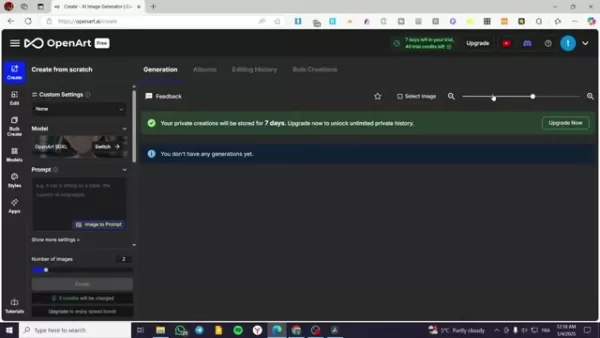
Inpainting AI is fundamentally an advanced technique for improving and perfecting AI-generated images. The word 'inpainting' describes the action of completing missing or undesirable parts of a picture, smoothly merging the new material with the current scene. For AI image generators, inpainting lets users focus on particular sections of a generated image for adjustment, correction, or improvement. This directed method provides unmatched control, allowing creators to fix flaws, add imaginative features, and customize the image to their precise requirements.
In essence, inpainting AI enables you to rewrite parts of an image using artificial intelligence. Rather than restarting entirely or using conventional photo editing software, you can direct the AI to rebuild or exchange components in the image according to your set conditions. This makes it a highly effective and adaptable tool for perfecting your AI artworks.
Consider it as digital reconstructive surgery for pictures. Need to eliminate a distracting item? Inpaint it out! Wish to alter a dress’s color? Inpaint the new shade! Want a new hairstyle for your AI-generated person? Inpainting allows this, all within the AI system.
The main functionalities are:
- Removing Unwanted Objects
- Correcting Imperfections
- Adding Creative Details
- Changing Colors and Textures
- Refining Specific Elements
The Importance of Prompts in Inpainting
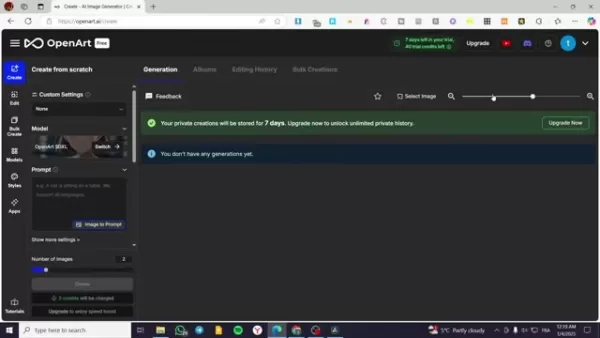
Prompts are the core element of any AI Image Generator, and they hold equal importance in the inpainting process. A prompt is essentially a direction or command provided to the AI, influencing how an image is made or changed. With inpainting, prompts are even more critical because they determine how the AI will modify the chosen section. A carefully written prompt can result in natural and believable outcomes, whereas an unclear or badly phrased prompt might produce unexpected or unsatisfactory results.
To use inpainting AI efficiently, it is important to know how to create straightforward and exact prompts that properly explain your intended edits. This involves identifying the object or feature you want to change, the preferred qualities of the new element, and any relevant background or style details. The more exact and comprehensive your Prompt, the more effectively the AI will interpret and implement your idea.
For instance, to change a shirt's color in an image, your prompt could be: "Change the shirt color to deep blue, keeping the fabric texture and shadow effects." This prompt clearly identifies the focus object (the shirt), the intended adjustment (deep blue color), and key design limits (keeping fabric texture and shadows). This degree of detail aids the AI in creating a result that fits perfectly with the rest of the image.
In contrast, a less useful prompt might state: "Change the shirt." This unclear direction gives the AI too much freedom, possibly causing unplanned and undesired alterations to the shirt's design, texture, or general look.
- Clarity: Use simple and direct wording to prevent misunderstanding.
- Specificity: Identify the target object and desired modifications accurately.
- Context: Include pertinent stylistic or situational details.
- Experimentation: Be willing to test various prompts and improve your method.
- Iteration: Adjust prompts based on early results to reach the best outcome.
OpenArt's Inpainting AI: A Practical Guide
Locating the Inpainting AI Feature in OpenArt
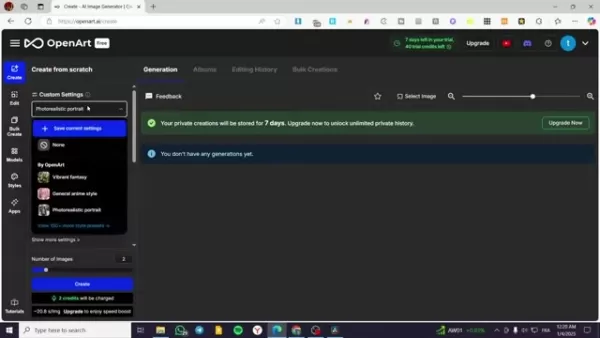
OpenArt is a capable AI image generator that includes a full set of tools, including inpainting functions. Locating the inpainting feature in the OpenArt interface is simple. Generally, you can find it in the 'Editing' tab or a comparable area for post-generation image adjustments. The specific placement might change slightly with platform updates, but it is normally easy to find and use.
After finding the inpainting tool, you will see a workspace where you can upload or pick your AI-generated image. From there, you can employ different selection tools to mark the particular area you wish to adjust. Openart generally provides several selection choices, such as:
- Brush Tool: For manually selecting and covering uneven shapes.
- Rectangle Tool: For marking rectangular sections precisely.
Lasso Tool: For making more detailed and personalized selection boundaries.
After selecting area, you can start to edit.
Step-by-Step Example: Using Inpainting AI in OpenArt
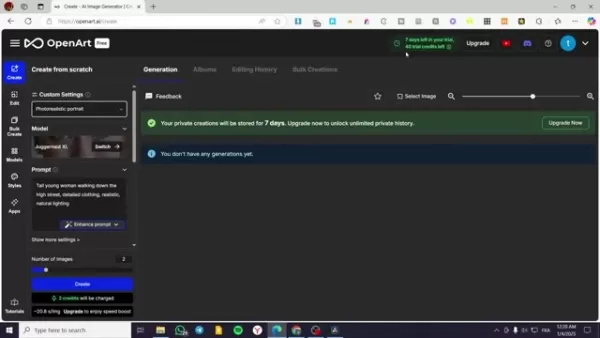
Let's go through a hands-on example of applying inpainting AI in OpenArt to upgrade an AI-generated image. Suppose we have a picture of a fashionable man walking on a New York street and we want to give him sunglasses. Here are the steps to adjust specific parts of your image in OpenArt:
- Upload or Select Image: Start by uploading your current AI-generated image to the OpenArt workspace or choosing a prior image from your OpenArt collection.
- Access the Editing Tab: Go to the 'Editing' tab in OpenArt. This section contains multiple image editing tools, including the inpainting AI function.
- Select the Inpainting Tool: Find the inpainting icon, usually shown as a brush or similar image, and click to start it.
- Choose area for editing: First you need to choose which area you would like to edit. This time, we would like to change the face. In that case, you should select the face in the image
- Define Your Desired Output: Type a detailed prompt that explains the intended change. Here, your prompt might be: "Add realistic sunglasses with dark lenses and a timeless frame design."
- Adjust AI Settings (Optional): Based on the platform, you might have controls to modify factors like the AI's intensity, originality level, or style impact. Try these settings to perfect the output.
- Generate: Start the inpainting process. The AI will examine the chosen section and the prompt, producing a new version of the targeted part that blends naturally with the remaining image.
- Review and Refine: Assess the first result and make any needed modifications. You can improve the prompt, change AI settings, or select another area for inpainting to get the ideal appearance.As you can see on the screen, there are visual instructions about what you should do.
Tips for Mastering Inpainting AI
Effective Prompting Techniques
Creating strong prompts is necessary to achieve the intended outcome with inpainting AI. Be precise, applying descriptive terms to lead the AI and ensure uniformity with the nearby image.
Iterative Refinement
Avoid expecting the best outcome immediately. Test different prompts and settings, repeatedly improving your strategy for the best results.
Understanding AI Controls
Investigate the different options provided by your AI image generator, like strength, creativity, and style impact, to personalize the inpainting procedure.
The Advantages and Disadvantages of Inpainting AI
Pros
Precise Editing: Focus on particular sections for adjustment, providing detailed control.
Seamless Integration: AI-produced content merges smoothly with existing pictures.
Efficiency: Quicker than traditional photo editing methods.
Accessibility: Easy-to-use interfaces allow beginners to access it.
Cons
Prompt Dependency: Outcomes depend significantly on prompt quality.
Potential for Artifacts: Ineffective prompts or too many edits can cause visible artifacts.
Computational Cost: AI operations can demand significant resources, particularly for detailed edits.
Frequently Asked Questions
What is inpainting AI and how does it work?
Inpainting AI is an image editing method employing artificial intelligence to complete absent or undesirable portions of a picture. It functions by assessing adjacent pixels and creating fresh content that integrates smoothly with the current image.
Can I use inpainting AI to remove objects from an image?
Yes, a frequent application of inpainting AI is eliminating unwanted objects from an image. By marking the object and supplying a prompt that defines the preferred background, the AI can smartly fill the area, deleting the object and forming a natural-looking finish.
Is inpainting AI suitable for beginners?
Although advanced methods might need some skill, numerous AI image generators provide intuitive interfaces and preset selections that make inpainting AI approachable for novices. Testing and practice are crucial for learning the method.
Related Questions
What other AI image editing tools are available?
Besides inpainting, various AI-driven image editing tools exist, such as: Outpainting: Expands an image past its original edges.Style Transfer: Implements the artistic style of one image onto another.Image Enhancement: Boosts the general quality, resolution, or sharpness of an image.Object Segmentation: Recognizes and separates particular objects inside an image.
Related article
 Former OpenAI Researcher Barrett Zoph Returns to Google to Support Gemini Development
Barret Zoph, who previously abruptly left and joined OpenAI due to a disagreement with Thinking Machines Lab CEO Miriam Mularati, has once again changed employers. Alphabet's Google announced that Zoph will return as Vice President of Research, bring
How Recursive Intelligence Raised $335M at $4B Valuation in 4 Months
The co-founders of startup Ricursive Intelligence seemed destined to be co-founders.Anna Goldie, CEO, and Azalia Mirhoseini, CTO, are so well-known in the AI community that they were among those AI engineers who “got those weird emails from Zuckerber
AI race won’t wait, nor will this TechCrunch Disrupt 25% discount
Every founder building in AI right now is asking the same question: Are we moving fast enough, and effectively enough? TechCrunch Disrupt 2026 puts you in the same room as the people wrestling with that existential question at the highest levels. Fro
Related Special Topic Recommendations
Design & Art
Former OpenAI Researcher Barrett Zoph Returns to Google to Support Gemini Development
Barret Zoph, who previously abruptly left and joined OpenAI due to a disagreement with Thinking Machines Lab CEO Miriam Mularati, has once again changed employers. Alphabet's Google announced that Zoph will return as Vice President of Research, bring
How Recursive Intelligence Raised $335M at $4B Valuation in 4 Months
The co-founders of startup Ricursive Intelligence seemed destined to be co-founders.Anna Goldie, CEO, and Azalia Mirhoseini, CTO, are so well-known in the AI community that they were among those AI engineers who “got those weird emails from Zuckerber
AI race won’t wait, nor will this TechCrunch Disrupt 25% discount
Every founder building in AI right now is asking the same question: Are we moving fast enough, and effectively enough? TechCrunch Disrupt 2026 puts you in the same room as the people wrestling with that existential question at the highest levels. Fro
Related Special Topic Recommendations
Design & Art
 Top AI Illustration Tools: Create Editorial Scenes and Cover Art Faster
2026 Latest Top-rated AI Illustration Tools: Our curated list features the best powerfully designed tools for creating stunning editorial scenes and eye-catching cover art quickly. Each option has gone through rigorous real-world tests, offering a free vs paid comparison to help you find the perfect match for your workflow. Try these must-try solutions today to unlock your AI edge and boost your creative productivity. Explore now at XIX.AI.
 10 tools
 xix.ai
Education and Learning
Top AI Tutors for Exam Prep: Practice Math, Science, and English
xix.ai
Education and Learning
Top AI Tutors for Exam Prep: Practice Math, Science, and English
2026 Latest Top-Rated Best AI Tutors for Exam Prep are here on XIX.AI! Our curated list features powerful game-changing tools that offer free vs paid comparison, real-world tests, and weekly updated rankings. They help boost your writing efficiency, simplify complex topic learning, and unlock your academic potential. Explore now to Discover your perfect exam prep tool and Start creating today to Unlock your AI edge!
10 tools
xix.ai
Finance
AI Budget Planning Tools for Personal Money Management
2026 Latest Best Top-Rated AI Budget Planning Tools for Personal Money Management are here on XIX.AI! This curated collection features powerful, game-changing solutions that help you conduct real-world tests, understand spending habits, and create personalized plans to boost productivity. Enjoy a free vs paid comparison along with detailed rankings. Must-try tools designed to simplify money management and unlock your AI edge. Explore now!
11 tools
xix.ai
Health & Wellness
AI Sleep Tracking Assistants: Improve Recovery with Better Bedtime Habits
2026 Latest Best Top-Rated AI Sleep Tracking Assistants curated for ultimate recovery. This fully updated weekly guide features powerful tools that deliver real-world tests, free vs paid comparison, and detailed rankings to help you find the must-try solution that boosts sleep quality and supports better bedtime habits. Explore now at XIX.AI to Unlock your AI edge.
10 tools
xix.ai
Data Analysis
AI SQL Copilots for Product and Revenue Analytics
2026 Latest Best Top-Rated AI SQL Copilots for Product and Revenue Analytics! XIX.AI has curated a powerful, game-changing collection of must-try tools that undergo real-world tests through weekly updated rankings. These tools help users boost productivity significantly by accelerating data analysis, streamlining complex queries, and generating accurate insights to drive smarter business decisions. Explore now to Discover your perfect tool for unlocking your AI edge!
14 tools
xix.ai
Education and Learning
Best AI Homework Helpers That Teach: Learn Concepts, Not Just Answers
2026 Latest Best Top-Rated AI Homework Helpers That Teach Core Concepts Not Just Answers Powerful Tools for Students Must-Try Curated List Weekly Updated Free vs Paid Comparison Real-World Tests Accurate Rankings to Help You Unlock Your Full Learning Potential Explore now to Discover your perfect tool for smarter studying.
10 tools
xix.ai

 Comments (0)
0/500
Comments (0)
0/500
Artificial intelligence image generators are transforming the creative field, but initial results are often not flawless. This is where inpainting AI becomes essential, enabling targeted edits and refinements to AI-generated visuals. This guide provides a complete look at inpainting methods in AI image creation, covering how to alter, fix, and enhance details for professional-level outcomes. Whether you are an experienced AI artist or new to the process, learning inpainting AI is key to realizing your creative goals.
Key Points
Inpainting AI enables precise adjustments to AI-created images.
Using clear prompts is vital for successful inpainting.
The 'editing tab' in AI image tools usually includes inpainting features.
Improving specific areas with focused prompts increases image quality.
Inpainting connects AI generation with individual artistic direction.
Understanding Inpainting AI
What is Inpainting AI?
Inpainting AI is fundamentally an advanced technique for improving and perfecting AI-generated images. The word 'inpainting' describes the action of completing missing or undesirable parts of a picture, smoothly merging the new material with the current scene. For AI image generators, inpainting lets users focus on particular sections of a generated image for adjustment, correction, or improvement. This directed method provides unmatched control, allowing creators to fix flaws, add imaginative features, and customize the image to their precise requirements.
In essence, inpainting AI enables you to rewrite parts of an image using artificial intelligence. Rather than restarting entirely or using conventional photo editing software, you can direct the AI to rebuild or exchange components in the image according to your set conditions. This makes it a highly effective and adaptable tool for perfecting your AI artworks.
Consider it as digital reconstructive surgery for pictures. Need to eliminate a distracting item? Inpaint it out! Wish to alter a dress’s color? Inpaint the new shade! Want a new hairstyle for your AI-generated person? Inpainting allows this, all within the AI system.
The main functionalities are:
- Removing Unwanted Objects
- Correcting Imperfections
- Adding Creative Details
- Changing Colors and Textures
- Refining Specific Elements
The Importance of Prompts in Inpainting
Prompts are the core element of any AI Image Generator, and they hold equal importance in the inpainting process. A prompt is essentially a direction or command provided to the AI, influencing how an image is made or changed. With inpainting, prompts are even more critical because they determine how the AI will modify the chosen section. A carefully written prompt can result in natural and believable outcomes, whereas an unclear or badly phrased prompt might produce unexpected or unsatisfactory results.
To use inpainting AI efficiently, it is important to know how to create straightforward and exact prompts that properly explain your intended edits. This involves identifying the object or feature you want to change, the preferred qualities of the new element, and any relevant background or style details. The more exact and comprehensive your Prompt, the more effectively the AI will interpret and implement your idea.
For instance, to change a shirt's color in an image, your prompt could be: "Change the shirt color to deep blue, keeping the fabric texture and shadow effects." This prompt clearly identifies the focus object (the shirt), the intended adjustment (deep blue color), and key design limits (keeping fabric texture and shadows). This degree of detail aids the AI in creating a result that fits perfectly with the rest of the image.
In contrast, a less useful prompt might state: "Change the shirt." This unclear direction gives the AI too much freedom, possibly causing unplanned and undesired alterations to the shirt's design, texture, or general look.
- Clarity: Use simple and direct wording to prevent misunderstanding.
- Specificity: Identify the target object and desired modifications accurately.
- Context: Include pertinent stylistic or situational details.
- Experimentation: Be willing to test various prompts and improve your method.
- Iteration: Adjust prompts based on early results to reach the best outcome.
OpenArt's Inpainting AI: A Practical Guide
Locating the Inpainting AI Feature in OpenArt
OpenArt is a capable AI image generator that includes a full set of tools, including inpainting functions. Locating the inpainting feature in the OpenArt interface is simple. Generally, you can find it in the 'Editing' tab or a comparable area for post-generation image adjustments. The specific placement might change slightly with platform updates, but it is normally easy to find and use.
After finding the inpainting tool, you will see a workspace where you can upload or pick your AI-generated image. From there, you can employ different selection tools to mark the particular area you wish to adjust. Openart generally provides several selection choices, such as:
- Brush Tool: For manually selecting and covering uneven shapes.
- Rectangle Tool: For marking rectangular sections precisely.
Lasso Tool: For making more detailed and personalized selection boundaries.
After selecting area, you can start to edit.
Step-by-Step Example: Using Inpainting AI in OpenArt
Let's go through a hands-on example of applying inpainting AI in OpenArt to upgrade an AI-generated image. Suppose we have a picture of a fashionable man walking on a New York street and we want to give him sunglasses. Here are the steps to adjust specific parts of your image in OpenArt:
- Upload or Select Image: Start by uploading your current AI-generated image to the OpenArt workspace or choosing a prior image from your OpenArt collection.
- Access the Editing Tab: Go to the 'Editing' tab in OpenArt. This section contains multiple image editing tools, including the inpainting AI function.
- Select the Inpainting Tool: Find the inpainting icon, usually shown as a brush or similar image, and click to start it.
- Choose area for editing: First you need to choose which area you would like to edit. This time, we would like to change the face. In that case, you should select the face in the image
- Define Your Desired Output: Type a detailed prompt that explains the intended change. Here, your prompt might be: "Add realistic sunglasses with dark lenses and a timeless frame design."
- Adjust AI Settings (Optional): Based on the platform, you might have controls to modify factors like the AI's intensity, originality level, or style impact. Try these settings to perfect the output.
- Generate: Start the inpainting process. The AI will examine the chosen section and the prompt, producing a new version of the targeted part that blends naturally with the remaining image.
- Review and Refine: Assess the first result and make any needed modifications. You can improve the prompt, change AI settings, or select another area for inpainting to get the ideal appearance.As you can see on the screen, there are visual instructions about what you should do.
Tips for Mastering Inpainting AI
Effective Prompting Techniques
Creating strong prompts is necessary to achieve the intended outcome with inpainting AI. Be precise, applying descriptive terms to lead the AI and ensure uniformity with the nearby image.
Iterative Refinement
Avoid expecting the best outcome immediately. Test different prompts and settings, repeatedly improving your strategy for the best results.
Understanding AI Controls
Investigate the different options provided by your AI image generator, like strength, creativity, and style impact, to personalize the inpainting procedure.
The Advantages and Disadvantages of Inpainting AI
Pros
Precise Editing: Focus on particular sections for adjustment, providing detailed control.
Seamless Integration: AI-produced content merges smoothly with existing pictures.
Efficiency: Quicker than traditional photo editing methods.
Accessibility: Easy-to-use interfaces allow beginners to access it.
Cons
Prompt Dependency: Outcomes depend significantly on prompt quality.
Potential for Artifacts: Ineffective prompts or too many edits can cause visible artifacts.
Computational Cost: AI operations can demand significant resources, particularly for detailed edits.
Frequently Asked Questions
What is inpainting AI and how does it work?
Inpainting AI is an image editing method employing artificial intelligence to complete absent or undesirable portions of a picture. It functions by assessing adjacent pixels and creating fresh content that integrates smoothly with the current image.
Can I use inpainting AI to remove objects from an image?
Yes, a frequent application of inpainting AI is eliminating unwanted objects from an image. By marking the object and supplying a prompt that defines the preferred background, the AI can smartly fill the area, deleting the object and forming a natural-looking finish.
Is inpainting AI suitable for beginners?
Although advanced methods might need some skill, numerous AI image generators provide intuitive interfaces and preset selections that make inpainting AI approachable for novices. Testing and practice are crucial for learning the method.
Related Questions
What other AI image editing tools are available?
Besides inpainting, various AI-driven image editing tools exist, such as: Outpainting: Expands an image past its original edges.Style Transfer: Implements the artistic style of one image onto another.Image Enhancement: Boosts the general quality, resolution, or sharpness of an image.Object Segmentation: Recognizes and separates particular objects inside an image.








 Former OpenAI Researcher Barrett Zoph Returns to Google to Support Gemini Development
Barret Zoph, who previously abruptly left and joined OpenAI due to a disagreement with Thinking Machines Lab CEO Miriam Mularati, has once again changed employers. Alphabet's Google announced that Zoph will return as Vice President of Research, bring
Former OpenAI Researcher Barrett Zoph Returns to Google to Support Gemini Development
Barret Zoph, who previously abruptly left and joined OpenAI due to a disagreement with Thinking Machines Lab CEO Miriam Mularati, has once again changed employers. Alphabet's Google announced that Zoph will return as Vice President of Research, bring
 How Recursive Intelligence Raised $335M at $4B Valuation in 4 Months
The co-founders of startup Ricursive Intelligence seemed destined to be co-founders.Anna Goldie, CEO, and Azalia Mirhoseini, CTO, are so well-known in the AI community that they were among those AI engineers who “got those weird emails from Zuckerber
How Recursive Intelligence Raised $335M at $4B Valuation in 4 Months
The co-founders of startup Ricursive Intelligence seemed destined to be co-founders.Anna Goldie, CEO, and Azalia Mirhoseini, CTO, are so well-known in the AI community that they were among those AI engineers who “got those weird emails from Zuckerber
 AI race won’t wait, nor will this TechCrunch Disrupt 25% discount
Every founder building in AI right now is asking the same question: Are we moving fast enough, and effectively enough? TechCrunch Disrupt 2026 puts you in the same room as the people wrestling with that existential question at the highest levels. Fro
AI race won’t wait, nor will this TechCrunch Disrupt 25% discount
Every founder building in AI right now is asking the same question: Are we moving fast enough, and effectively enough? TechCrunch Disrupt 2026 puts you in the same room as the people wrestling with that existential question at the highest levels. Fro
2026 Latest Top-rated AI Illustration Tools: Our curated list features the best powerfully designed tools for creating stunning editorial scenes and eye-catching cover art quickly. Each option has gone through rigorous real-world tests, offering a free vs paid comparison to help you find the perfect match for your workflow. Try these must-try solutions today to unlock your AI edge and boost your creative productivity. Explore now at XIX.AI.
10 tools
xix.ai
2026 Latest Top-Rated Best AI Tutors for Exam Prep are here on XIX.AI! Our curated list features powerful game-changing tools that offer free vs paid comparison, real-world tests, and weekly updated rankings. They help boost your writing efficiency, simplify complex topic learning, and unlock your academic potential. Explore now to Discover your perfect exam prep tool and Start creating today to Unlock your AI edge!
10 tools
xix.ai
2026 Latest Best Top-Rated AI Budget Planning Tools for Personal Money Management are here on XIX.AI! This curated collection features powerful, game-changing solutions that help you conduct real-world tests, understand spending habits, and create personalized plans to boost productivity. Enjoy a free vs paid comparison along with detailed rankings. Must-try tools designed to simplify money management and unlock your AI edge. Explore now!
11 tools
xix.ai
2026 Latest Best Top-Rated AI Sleep Tracking Assistants curated for ultimate recovery. This fully updated weekly guide features powerful tools that deliver real-world tests, free vs paid comparison, and detailed rankings to help you find the must-try solution that boosts sleep quality and supports better bedtime habits. Explore now at XIX.AI to Unlock your AI edge.
10 tools
xix.ai
2026 Latest Best Top-Rated AI SQL Copilots for Product and Revenue Analytics! XIX.AI has curated a powerful, game-changing collection of must-try tools that undergo real-world tests through weekly updated rankings. These tools help users boost productivity significantly by accelerating data analysis, streamlining complex queries, and generating accurate insights to drive smarter business decisions. Explore now to Discover your perfect tool for unlocking your AI edge!
14 tools
xix.ai
2026 Latest Best Top-Rated AI Homework Helpers That Teach Core Concepts Not Just Answers Powerful Tools for Students Must-Try Curated List Weekly Updated Free vs Paid Comparison Real-World Tests Accurate Rankings to Help You Unlock Your Full Learning Potential Explore now to Discover your perfect tool for smarter studying.
10 tools
xix.ai












