


 Home
HomeYour Guide to Summarizing Articles Using Microsoft Copilot
In our fast-paced digital era, effectively processing information is more vital than ever. Microsoft Copilot stands out as a robust tool specifically crafted to help you swiftly summarize articles and web pages. This guide details the steps for using Microsoft Copilot to refine your research process and elevate your efficiency. For students, academics, and working professionals alike, learning to use Copilot for summarization can reclaim precious hours and deepen your grasp of intricate subjects.
Key Points
Microsoft Copilot efficiently condenses articles and web pages into summaries.
Access the tool directly from your Microsoft Edge browser.
Utilize Copilot to distill essential insights from lengthy texts.
Boost your research output with AI-driven summarization.
Learn effective techniques for locating pertinent articles via library databases.
Getting Started with Microsoft Copilot
What is Microsoft Copilot?
Microsoft Copilot is a generative AI engine built to support users with diverse tasks, such as summarizing articles and web content. Tightly integrated into Microsoft Edge, it offers immediate access for anyone seeking to quickly understand the core message of a document or webpage. By harnessing artificial intelligence, Copilot condenses large volumes of text into clear, concise summaries, saving you time and aiding comprehension. Whether you're reviewing academic papers, news stories, or detailed reports, Copilot efficiently extracts the most critical information.
The Importance of Efficient Summarization
In our current landscape of abundant information, the ability to summarize effectively is indispensable. Quickly grasping the central arguments of an article or document can dramatically increase your productivity. Microsoft Copilot addresses this need by delivering AI-powered summaries that emphasize key takeaways. This is especially beneficial for:
- Students reviewing numerous sources for research projects.
- Researchers keeping abreast of the latest developments in their area.
- Professionals who need to rapidly analyze reports and documents.
Using Microsoft Copilot helps you optimize your workflow by focusing on the most relevant details, thereby improving overall efficiency. The skill of rapid summarization is invaluable, and Copilot makes it accessible to all. Its AI foundation ensures summaries are both precise and thorough, offering confidence in the information you receive.
Accessing Copilot in Microsoft Edge
Accessing Microsoft Copilot is straightforward if you use the Microsoft Edge browser.
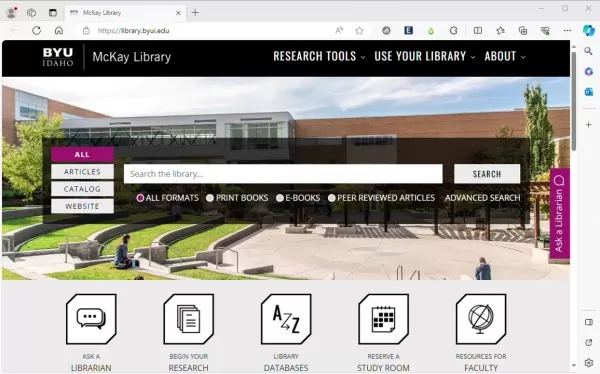
Find the Copilot icon situated in the upper-right corner of the browser window. Clicking this icon opens the Copilot panel, where you can interact with the AI. This built-in integration makes Copilot a convenient tool for summarizing content as you browse the internet.
Step-by-Step Guide to Accessing Copilot:
- Launch Microsoft Edge: Make sure the Microsoft Edge browser is installed and open on your computer.
- Find the Copilot Icon: Look for the distinctive Copilot icon in the browser's top-right corner.
- Click the Icon: Select the Copilot icon to open the side panel.
- Start Using Copilot: With the panel open, you can begin asking Copilot to summarize articles, pose questions, or perform other functions.
Because Copilot is seamlessly integrated into Microsoft Edge, you can summarize content without switching between different apps or websites. This streamlined approach makes Copilot a valuable enhancement to your browsing, conserving both time and effort.
Ensuring You Have the Latest Version of Edge
To guarantee access to Copilot, it's important to keep your Microsoft Edge browser updated. Updates frequently introduce new features, performance enhancements, and bug fixes. To update Edge, follow these steps:
- Open Edge Settings: Click the three-dot menu icon in the top-right corner to open the settings menu.
- Navigate to Help and Feedback: Within the settings menu, find and select "Help and feedback."
- Choose About Microsoft Edge: Click "About Microsoft Edge" to check for available updates.
- Install Updates: If updates are found, Edge will download and install them automatically. You might need to restart the browser to apply the update.
Keeping your browser current allows you to utilize the latest features and improvements, including Microsoft Copilot.
Finding Articles to Summarize
Using Library Databases
Library databases are among the most effective resources for locating high-quality articles to summarize.

Most libraries provide access to a vast collection of academic journals, magazines, and other materials not freely available on the public web. These databases often include peer-reviewed articles, which are regarded as more authoritative and reliable.
Accessing Library Databases
To use library databases, you usually need to visit your library's website and log in using your library card or student identification. Once logged in, you can explore the available databases and search for articles on your chosen topic. Here are some widely used library databases:
- Academic Search Premier: A broad database covering numerous academic disciplines.
- JSTOR: Provides access to an extensive archive of academic journals, books, and primary sources.
- PubMed: A specialized resource for biomedical and life sciences literature.
Searching for Articles
When conducting a search, using relevant keywords and filters helps refine your results. For instance, if you want to summarize articles on salmon farming, you could enter "salmon farming" as your search term. You can also apply filters to limit results to peer-reviewed articles or those published within a certain timeframe.
Example Search: Salmon Farming
Let's illustrate how to find articles on salmon farming using a library database. First, go to your library's website and log in to access the databases. Then, choose a database like Academic Search Premier and type "salmon farming" as your search term. You might add keywords like "environmental impact" or "sustainability" to focus your search further.
After entering your search terms, execute the search to see the results. The database will list articles matching your criteria. Browse the titles and abstracts to identify relevant articles for your research. Once you've selected an article, you can use Microsoft Copilot to create a summary of its content.
Ensuring Peer Review
When searching, it's critical to focus on peer-reviewed articles. These have been evaluated by field experts, which helps ensure their accuracy and credibility. Most library databases let you filter results to show only peer-reviewed articles. Look for a checkbox or filter option labeled "Peer Reviewed" or "Scholarly Journals" to narrow your search. By concentrating on peer-reviewed sources, you can trust that you're summarizing high-quality, dependable information.
Summarizing Articles with Microsoft Copilot: Step-by-Step Guide
Opening the Article and Activating Copilot
After locating an article you wish to summarize, the first step is to open it in Microsoft Edge.
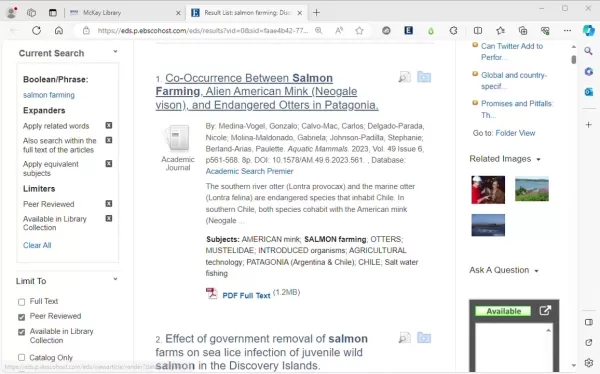
This may involve clicking a link within a library database or navigating directly to the webpage containing the article. Once the article is open, activate Microsoft Copilot by selecting the Copilot icon in the browser's top-right corner.
Step-by-Step Instructions:
- Find the Article: Identify and open the article you want to summarize in Microsoft Edge.
- Open the Article: Click the article link to load it fully in your browser.
- Activate Copilot: Click the Copilot icon in the top-right corner of the Edge window.
Once activated, Copilot opens a panel on the right side of your screen. This is where you interact with the AI to summarize the article. The Copilot interface is intuitive, with clear options for summarization and queries.
Troubleshooting Copilot Activation
Should you experience any issues activating Copilot, consider these troubleshooting tips:
- Confirm Edge is Updated: Ensure you're running the latest version of Microsoft Edge, as older versions may lack Copilot integration.
- Check Your Internet Connection: Verify you have a stable internet connection, since Copilot requires online access to function.
- Restart Edge: Sometimes, simply restarting the browser can resolve minor glitches preventing Copilot from activating.
By following these steps, you can easily open your article and activate Microsoft Copilot, preparing for efficient summarization.
Using Copilot to Generate a Summary
With Copilot activated, you can now generate a summary of the article.

The method may vary slightly depending on the specific Copilot features available. Generally, you can ask Copilot to summarize the page by typing a prompt like "Summarize this article" into the chat window. Copilot will then analyze the text and produce a concise overview of the main points.
Step-by-Step Instructions:
- Activate Copilot: Ensure the Copilot panel is open on the right side of your screen.
- Enter the Prompt: Type "Summarize this article" or a similar instruction into the chat box.
- Generate the Summary: Press Enter or click the send button. Copilot will process the article and generate a summary.
Copilot's AI analyzes the text, identifies key themes, and presents a condensed version. The summary gives you a quick overview, helping you decide whether to read the full text.
Customizing Your Summary
Copilot may offer options to customize your summary. For example, you might specify the summary length or ask it to focus on particular sections of the article. Experiment with different prompts to get the summary that best suits your needs.
Example Prompts:
- "Summarize this article in about 100 words."
- "What are the main findings of this study?"
- "Summarize the introduction and conclusion of this article."
Using these techniques, you can adapt Copilot's summarization to your specific requirements, maximizing the tool's utility.
Pricing
Copilot Pricing Details
Microsoft Copilot's pricing depends on whether it's for personal or business use. Microsoft 365 Copilot is typically included with certain Microsoft 365 subscription plans for enterprise customers. For individual users, Copilot is available as a separate subscription.
Plan Features Price (USD) per Month Microsoft 365 Copilot Integrated with Office apps, AI-powered assistance $30 user Copilot Pro Access to latest models, priority access, image creation $20 user Copilot (Free) Basic AI Chat, web access Free N/A
Microsoft 365 Copilot
This version is tailored for professional use, integrating AI directly into Word, Excel, PowerPoint, and Outlook. It assists with tasks such as:
- Summarizing lengthy documents.
- Creating PowerPoint presentations from existing content.
- Drafting emails and suggesting replies.
- Analyzing data within Excel.
Pricing for Microsoft 365 Copilot is usually per user, per month, and is available to businesses with Microsoft 365 Enterprise or Business Premium plans.
Copilot Pro
N/A Microsoft 365 Copilot
This version is tailored for professional use, integrating AI directly into Word, Excel, PowerPoint, and Outlook. It assists with tasks such as:
- Summarizing lengthy documents.
- Creating PowerPoint presentations from existing content.
- Drafting emails and suggesting replies.
- Analyzing data within Excel.
Pricing for Microsoft 365 Copilot is usually per user, per month, and is available to businesses with Microsoft 365 Enterprise or Business Premium plans.
Copilot Pro
Copilot Pro is an advanced tier for individual users needing more powerful AI tools. Benefits include:
- Faster performance and priority access during high-demand periods.
- Access to the most recent AI models.
- Advanced image creation using DALL-E 3.
This plan is ideal for those requiring enhanced capabilities.
Copilot (Free)
The free version of Copilot offers basic AI chat functions and web access. It's an excellent way to explore AI assistance without a financial commitment.
Benefits of Paid Subscriptions
Investing in a paid subscription like Microsoft 365 Copilot or Copilot Pro brings significant advantages, including greater productivity, access to advanced AI models, and integration with key applications. These subscriptions can save time and improve work quality, making them a valuable investment for professionals and power users.
Pros and Cons of Using Microsoft Copilot
Pros
Seamless integration with Microsoft Edge and Microsoft 365 applications.
Efficiently summarizes articles and web pages.
Provides a user-friendly interface.
Offers a free version for basic use.
Enhances productivity by streamlining workflows.
Cons
Advanced features require a paid subscription.
Summary accuracy can vary with content complexity.
Requires a stable internet connection to function.
May not be ideal for all content types.
Potential privacy considerations regarding AI data processing.
Core Features of Microsoft Copilot
Key Features Overview
Microsoft Copilot includes numerous features aimed at boosting productivity and simplifying workflows. Key features include:
- Text Summarization: Quickly condense articles, documents, and web pages.
- Content Generation: Produce text, code, and other content based on prompts.
- Q&A: Answer questions using the information from a document or webpage.
- Integration with Microsoft 365: Work seamlessly within Word, Excel, PowerPoint, and Outlook.
- Image Generation: Create images from text descriptions using DALL-E 3.
Detailed Feature Descriptions
Here’s a closer look at each core feature:
Text Summarization
This is one of Copilot's most popular features. It enables you to quickly understand the essence of a document or webpage without reading the entire text. The AI identifies primary points and presents them in a clear, concise format.
Content Generation
Copilot can generate various types of content based on your prompts, such as emails, reports, or code snippets. Provide a clear prompt, and Copilot will create the content for you.
Q&A
Copilot can answer specific questions based on the content of a document or webpage. This allows you to find information quickly without manually scanning the entire text.
Integration with Microsoft 365
Copilot integrates directly with Microsoft 365 applications like Word, Excel, PowerPoint, and Outlook. This integration lets you use AI features within these apps, smoothing your workflow and increasing productivity.
Image Generation
Using DALL-E 3, Copilot can generate images from text prompts. This is useful for creating visuals for presentations, marketing materials, or social media posts. Just describe what you need, and Copilot will produce a matching image.
Benefits of Using Core Features
Leveraging these core features can significantly improve your productivity and optimize your workflow. Whether summarizing content, generating materials, answering questions, or creating images, Copilot provides efficient tools to accomplish tasks quickly.
Use Cases for Microsoft Copilot
Various Applications of Copilot
Microsoft Copilot has diverse applications across many industries and professions. Common use cases include:
- Research: Summarizing academic papers, articles, and reports to quickly grasp key points.
- Education: Assisting students in understanding complex topics and completing assignments.
- Business: Quickly generating reports, presentations, and other business documents.
- Journalism: Summarizing news articles and creating concise summaries for social media.
- Marketing: Producing marketing copy, social media content, and related materials.
Specific Use Case Examples
Let's examine some specific examples in greater detail:
Research
Researchers can use Copilot to swiftly summarize academic papers and reports, helping them stay current with new findings. It also aids in literature reviews by summarizing multiple articles on a given topic.
Education
Students can employ Copilot to better understand complex subjects and complete assignments more efficiently. It can summarize textbook chapters, articles, and other educational resources, enabling quicker comprehension of main ideas.
Business
Business professionals can use Copilot to generate reports, presentations, and other documents rapidly. It also helps with tasks like drafting emails and summarizing meeting notes.
Journalism
Journalists can utilize Copilot to summarize news articles and create brief summaries for social media. It also supports research by summarizing background information on specific topics.
Marketing
Marketers can leverage Copilot to generate marketing copy, social media posts, and other promotional content. It can also help summarize customer feedback and analyze market trends.
Real-World Benefits
By applying Copilot in these scenarios, users save time, increase productivity, and enhance their work quality. Copilot provides
Related article
 Stripe to Acquire OpenRouter as AI Model Routing Gains Momentum
Stripe has agreed to acquire OpenRouter, an AI model-routing platform that gives developers access to hundreds of models through a single interface. The deal adds model selection and routing to Stripe’s existing work around AI usage and token-based b
Former OpenAI Researcher Barrett Zoph Returns to Google to Support Gemini Development
Barret Zoph, who previously abruptly left and joined OpenAI due to a disagreement with Thinking Machines Lab CEO Miriam Mularati, has once again changed employers. Alphabet's Google announced that Zoph will return as Vice President of Research, bring
How Recursive Intelligence Raised $335M at $4B Valuation in 4 Months
The co-founders of startup Ricursive Intelligence seemed destined to be co-founders.Anna Goldie, CEO, and Azalia Mirhoseini, CTO, are so well-known in the AI community that they were among those AI engineers who “got those weird emails from Zuckerber
Related Special Topic Recommendations
Design & Art
Stripe to Acquire OpenRouter as AI Model Routing Gains Momentum
Stripe has agreed to acquire OpenRouter, an AI model-routing platform that gives developers access to hundreds of models through a single interface. The deal adds model selection and routing to Stripe’s existing work around AI usage and token-based b
Former OpenAI Researcher Barrett Zoph Returns to Google to Support Gemini Development
Barret Zoph, who previously abruptly left and joined OpenAI due to a disagreement with Thinking Machines Lab CEO Miriam Mularati, has once again changed employers. Alphabet's Google announced that Zoph will return as Vice President of Research, bring
How Recursive Intelligence Raised $335M at $4B Valuation in 4 Months
The co-founders of startup Ricursive Intelligence seemed destined to be co-founders.Anna Goldie, CEO, and Azalia Mirhoseini, CTO, are so well-known in the AI community that they were among those AI engineers who “got those weird emails from Zuckerber
Related Special Topic Recommendations
Design & Art
 Top AI Illustration Tools: Create Editorial Scenes and Cover Art Faster
2026 Latest Top-rated AI Illustration Tools: Our curated list features the best powerfully designed tools for creating stunning editorial scenes and eye-catching cover art quickly. Each option has gone through rigorous real-world tests, offering a free vs paid comparison to help you find the perfect match for your workflow. Try these must-try solutions today to unlock your AI edge and boost your creative productivity. Explore now at XIX.AI.
 10 tools
 xix.ai
Education and Learning
Top AI Tutors for Exam Prep: Practice Math, Science, and English
xix.ai
Education and Learning
Top AI Tutors for Exam Prep: Practice Math, Science, and English
2026 Latest Top-Rated Best AI Tutors for Exam Prep are here on XIX.AI! Our curated list features powerful game-changing tools that offer free vs paid comparison, real-world tests, and weekly updated rankings. They help boost your writing efficiency, simplify complex topic learning, and unlock your academic potential. Explore now to Discover your perfect exam prep tool and Start creating today to Unlock your AI edge!
10 tools
xix.ai
Finance
AI Budget Planning Tools for Personal Money Management
2026 Latest Best Top-Rated AI Budget Planning Tools for Personal Money Management are here on XIX.AI! This curated collection features powerful, game-changing solutions that help you conduct real-world tests, understand spending habits, and create personalized plans to boost productivity. Enjoy a free vs paid comparison along with detailed rankings. Must-try tools designed to simplify money management and unlock your AI edge. Explore now!
11 tools
xix.ai
Health & Wellness
AI Sleep Tracking Assistants: Improve Recovery with Better Bedtime Habits
2026 Latest Best Top-Rated AI Sleep Tracking Assistants curated for ultimate recovery. This fully updated weekly guide features powerful tools that deliver real-world tests, free vs paid comparison, and detailed rankings to help you find the must-try solution that boosts sleep quality and supports better bedtime habits. Explore now at XIX.AI to Unlock your AI edge.
10 tools
xix.ai
Data Analysis
AI SQL Copilots for Product and Revenue Analytics
2026 Latest Best Top-Rated AI SQL Copilots for Product and Revenue Analytics! XIX.AI has curated a powerful, game-changing collection of must-try tools that undergo real-world tests through weekly updated rankings. These tools help users boost productivity significantly by accelerating data analysis, streamlining complex queries, and generating accurate insights to drive smarter business decisions. Explore now to Discover your perfect tool for unlocking your AI edge!
14 tools
xix.ai
Education and Learning
Best AI Homework Helpers That Teach: Learn Concepts, Not Just Answers
2026 Latest Best Top-Rated AI Homework Helpers That Teach Core Concepts Not Just Answers Powerful Tools for Students Must-Try Curated List Weekly Updated Free vs Paid Comparison Real-World Tests Accurate Rankings to Help You Unlock Your Full Learning Potential Explore now to Discover your perfect tool for smarter studying.
10 tools
xix.ai

 Comments (0)
0/500
Comments (0)
0/500
In our fast-paced digital era, effectively processing information is more vital than ever. Microsoft Copilot stands out as a robust tool specifically crafted to help you swiftly summarize articles and web pages. This guide details the steps for using Microsoft Copilot to refine your research process and elevate your efficiency. For students, academics, and working professionals alike, learning to use Copilot for summarization can reclaim precious hours and deepen your grasp of intricate subjects.
Key Points
Microsoft Copilot efficiently condenses articles and web pages into summaries.
Access the tool directly from your Microsoft Edge browser.
Utilize Copilot to distill essential insights from lengthy texts.
Boost your research output with AI-driven summarization.
Learn effective techniques for locating pertinent articles via library databases.
Getting Started with Microsoft Copilot
What is Microsoft Copilot?
Microsoft Copilot is a generative AI engine built to support users with diverse tasks, such as summarizing articles and web content. Tightly integrated into Microsoft Edge, it offers immediate access for anyone seeking to quickly understand the core message of a document or webpage. By harnessing artificial intelligence, Copilot condenses large volumes of text into clear, concise summaries, saving you time and aiding comprehension. Whether you're reviewing academic papers, news stories, or detailed reports, Copilot efficiently extracts the most critical information.
The Importance of Efficient Summarization
In our current landscape of abundant information, the ability to summarize effectively is indispensable. Quickly grasping the central arguments of an article or document can dramatically increase your productivity. Microsoft Copilot addresses this need by delivering AI-powered summaries that emphasize key takeaways. This is especially beneficial for:
- Students reviewing numerous sources for research projects.
- Researchers keeping abreast of the latest developments in their area.
- Professionals who need to rapidly analyze reports and documents.
Using Microsoft Copilot helps you optimize your workflow by focusing on the most relevant details, thereby improving overall efficiency. The skill of rapid summarization is invaluable, and Copilot makes it accessible to all. Its AI foundation ensures summaries are both precise and thorough, offering confidence in the information you receive.
Accessing Copilot in Microsoft Edge
Accessing Microsoft Copilot is straightforward if you use the Microsoft Edge browser.
Find the Copilot icon situated in the upper-right corner of the browser window. Clicking this icon opens the Copilot panel, where you can interact with the AI. This built-in integration makes Copilot a convenient tool for summarizing content as you browse the internet.
Step-by-Step Guide to Accessing Copilot:
- Launch Microsoft Edge: Make sure the Microsoft Edge browser is installed and open on your computer.
- Find the Copilot Icon: Look for the distinctive Copilot icon in the browser's top-right corner.
- Click the Icon: Select the Copilot icon to open the side panel.
- Start Using Copilot: With the panel open, you can begin asking Copilot to summarize articles, pose questions, or perform other functions.
Because Copilot is seamlessly integrated into Microsoft Edge, you can summarize content without switching between different apps or websites. This streamlined approach makes Copilot a valuable enhancement to your browsing, conserving both time and effort.
Ensuring You Have the Latest Version of Edge
To guarantee access to Copilot, it's important to keep your Microsoft Edge browser updated. Updates frequently introduce new features, performance enhancements, and bug fixes. To update Edge, follow these steps:
- Open Edge Settings: Click the three-dot menu icon in the top-right corner to open the settings menu.
- Navigate to Help and Feedback: Within the settings menu, find and select "Help and feedback."
- Choose About Microsoft Edge: Click "About Microsoft Edge" to check for available updates.
- Install Updates: If updates are found, Edge will download and install them automatically. You might need to restart the browser to apply the update.
Keeping your browser current allows you to utilize the latest features and improvements, including Microsoft Copilot.
Finding Articles to Summarize
Using Library Databases
Library databases are among the most effective resources for locating high-quality articles to summarize.
Most libraries provide access to a vast collection of academic journals, magazines, and other materials not freely available on the public web. These databases often include peer-reviewed articles, which are regarded as more authoritative and reliable.
Accessing Library Databases
To use library databases, you usually need to visit your library's website and log in using your library card or student identification. Once logged in, you can explore the available databases and search for articles on your chosen topic. Here are some widely used library databases:
- Academic Search Premier: A broad database covering numerous academic disciplines.
- JSTOR: Provides access to an extensive archive of academic journals, books, and primary sources.
- PubMed: A specialized resource for biomedical and life sciences literature.
Searching for Articles
When conducting a search, using relevant keywords and filters helps refine your results. For instance, if you want to summarize articles on salmon farming, you could enter "salmon farming" as your search term. You can also apply filters to limit results to peer-reviewed articles or those published within a certain timeframe.
Example Search: Salmon Farming
Let's illustrate how to find articles on salmon farming using a library database. First, go to your library's website and log in to access the databases. Then, choose a database like Academic Search Premier and type "salmon farming" as your search term. You might add keywords like "environmental impact" or "sustainability" to focus your search further.
After entering your search terms, execute the search to see the results. The database will list articles matching your criteria. Browse the titles and abstracts to identify relevant articles for your research. Once you've selected an article, you can use Microsoft Copilot to create a summary of its content.
Ensuring Peer Review
When searching, it's critical to focus on peer-reviewed articles. These have been evaluated by field experts, which helps ensure their accuracy and credibility. Most library databases let you filter results to show only peer-reviewed articles. Look for a checkbox or filter option labeled "Peer Reviewed" or "Scholarly Journals" to narrow your search. By concentrating on peer-reviewed sources, you can trust that you're summarizing high-quality, dependable information.
Summarizing Articles with Microsoft Copilot: Step-by-Step Guide
Opening the Article and Activating Copilot
After locating an article you wish to summarize, the first step is to open it in Microsoft Edge.
This may involve clicking a link within a library database or navigating directly to the webpage containing the article. Once the article is open, activate Microsoft Copilot by selecting the Copilot icon in the browser's top-right corner.
Step-by-Step Instructions:
- Find the Article: Identify and open the article you want to summarize in Microsoft Edge.
- Open the Article: Click the article link to load it fully in your browser.
- Activate Copilot: Click the Copilot icon in the top-right corner of the Edge window.
Once activated, Copilot opens a panel on the right side of your screen. This is where you interact with the AI to summarize the article. The Copilot interface is intuitive, with clear options for summarization and queries.
Troubleshooting Copilot Activation
Should you experience any issues activating Copilot, consider these troubleshooting tips:
- Confirm Edge is Updated: Ensure you're running the latest version of Microsoft Edge, as older versions may lack Copilot integration.
- Check Your Internet Connection: Verify you have a stable internet connection, since Copilot requires online access to function.
- Restart Edge: Sometimes, simply restarting the browser can resolve minor glitches preventing Copilot from activating.
By following these steps, you can easily open your article and activate Microsoft Copilot, preparing for efficient summarization.
Using Copilot to Generate a Summary
With Copilot activated, you can now generate a summary of the article.
The method may vary slightly depending on the specific Copilot features available. Generally, you can ask Copilot to summarize the page by typing a prompt like "Summarize this article" into the chat window. Copilot will then analyze the text and produce a concise overview of the main points.
Step-by-Step Instructions:
- Activate Copilot: Ensure the Copilot panel is open on the right side of your screen.
- Enter the Prompt: Type "Summarize this article" or a similar instruction into the chat box.
- Generate the Summary: Press Enter or click the send button. Copilot will process the article and generate a summary.
Copilot's AI analyzes the text, identifies key themes, and presents a condensed version. The summary gives you a quick overview, helping you decide whether to read the full text.
Customizing Your Summary
Copilot may offer options to customize your summary. For example, you might specify the summary length or ask it to focus on particular sections of the article. Experiment with different prompts to get the summary that best suits your needs.
Example Prompts:
- "Summarize this article in about 100 words."
- "What are the main findings of this study?"
- "Summarize the introduction and conclusion of this article."
Using these techniques, you can adapt Copilot's summarization to your specific requirements, maximizing the tool's utility.
Pricing
Copilot Pricing Details
Microsoft Copilot's pricing depends on whether it's for personal or business use. Microsoft 365 Copilot is typically included with certain Microsoft 365 subscription plans for enterprise customers. For individual users, Copilot is available as a separate subscription.
| Plan | Features | Price (USD) | per Month |
|---|---|---|---|
| Microsoft 365 Copilot | Integrated with Office apps, AI-powered assistance | $30 | user |
| Copilot Pro | Access to latest models, priority access, image creation | $20 | user |
| Copilot (Free) | Basic AI Chat, web access | Free | N/A |
Microsoft 365 Copilot
This version is tailored for professional use, integrating AI directly into Word, Excel, PowerPoint, and Outlook. It assists with tasks such as:
- Summarizing lengthy documents.
- Creating PowerPoint presentations from existing content.
- Drafting emails and suggesting replies.
- Analyzing data within Excel.
Pricing for Microsoft 365 Copilot is usually per user, per month, and is available to businesses with Microsoft 365 Enterprise or Business Premium plans.
Copilot Pro
Microsoft 365 Copilot
This version is tailored for professional use, integrating AI directly into Word, Excel, PowerPoint, and Outlook. It assists with tasks such as:
- Summarizing lengthy documents.
- Creating PowerPoint presentations from existing content.
- Drafting emails and suggesting replies.
- Analyzing data within Excel.
Pricing for Microsoft 365 Copilot is usually per user, per month, and is available to businesses with Microsoft 365 Enterprise or Business Premium plans.
Copilot Pro
Copilot Pro is an advanced tier for individual users needing more powerful AI tools. Benefits include:
- Faster performance and priority access during high-demand periods.
- Access to the most recent AI models.
- Advanced image creation using DALL-E 3.
This plan is ideal for those requiring enhanced capabilities.
Copilot (Free)
The free version of Copilot offers basic AI chat functions and web access. It's an excellent way to explore AI assistance without a financial commitment.
Benefits of Paid Subscriptions
Investing in a paid subscription like Microsoft 365 Copilot or Copilot Pro brings significant advantages, including greater productivity, access to advanced AI models, and integration with key applications. These subscriptions can save time and improve work quality, making them a valuable investment for professionals and power users.
Pros and Cons of Using Microsoft Copilot
Pros
Seamless integration with Microsoft Edge and Microsoft 365 applications.
Efficiently summarizes articles and web pages.
Provides a user-friendly interface.
Offers a free version for basic use.
Enhances productivity by streamlining workflows.
Cons
Advanced features require a paid subscription.
Summary accuracy can vary with content complexity.
Requires a stable internet connection to function.
May not be ideal for all content types.
Potential privacy considerations regarding AI data processing.
Core Features of Microsoft Copilot
Key Features Overview
Microsoft Copilot includes numerous features aimed at boosting productivity and simplifying workflows. Key features include:
- Text Summarization: Quickly condense articles, documents, and web pages.
- Content Generation: Produce text, code, and other content based on prompts.
- Q&A: Answer questions using the information from a document or webpage.
- Integration with Microsoft 365: Work seamlessly within Word, Excel, PowerPoint, and Outlook.
- Image Generation: Create images from text descriptions using DALL-E 3.
Detailed Feature Descriptions
Here’s a closer look at each core feature:
Text Summarization
This is one of Copilot's most popular features. It enables you to quickly understand the essence of a document or webpage without reading the entire text. The AI identifies primary points and presents them in a clear, concise format.
Content Generation
Copilot can generate various types of content based on your prompts, such as emails, reports, or code snippets. Provide a clear prompt, and Copilot will create the content for you.
Q&A
Copilot can answer specific questions based on the content of a document or webpage. This allows you to find information quickly without manually scanning the entire text.
Integration with Microsoft 365
Copilot integrates directly with Microsoft 365 applications like Word, Excel, PowerPoint, and Outlook. This integration lets you use AI features within these apps, smoothing your workflow and increasing productivity.
Image Generation
Using DALL-E 3, Copilot can generate images from text prompts. This is useful for creating visuals for presentations, marketing materials, or social media posts. Just describe what you need, and Copilot will produce a matching image.
Benefits of Using Core Features
Leveraging these core features can significantly improve your productivity and optimize your workflow. Whether summarizing content, generating materials, answering questions, or creating images, Copilot provides efficient tools to accomplish tasks quickly.
Use Cases for Microsoft Copilot
Various Applications of Copilot
Microsoft Copilot has diverse applications across many industries and professions. Common use cases include:
- Research: Summarizing academic papers, articles, and reports to quickly grasp key points.
- Education: Assisting students in understanding complex topics and completing assignments.
- Business: Quickly generating reports, presentations, and other business documents.
- Journalism: Summarizing news articles and creating concise summaries for social media.
- Marketing: Producing marketing copy, social media content, and related materials.
Specific Use Case Examples
Let's examine some specific examples in greater detail:
Research
Researchers can use Copilot to swiftly summarize academic papers and reports, helping them stay current with new findings. It also aids in literature reviews by summarizing multiple articles on a given topic.
Education
Students can employ Copilot to better understand complex subjects and complete assignments more efficiently. It can summarize textbook chapters, articles, and other educational resources, enabling quicker comprehension of main ideas.
Business
Business professionals can use Copilot to generate reports, presentations, and other documents rapidly. It also helps with tasks like drafting emails and summarizing meeting notes.
Journalism
Journalists can utilize Copilot to summarize news articles and create brief summaries for social media. It also supports research by summarizing background information on specific topics.
Marketing
Marketers can leverage Copilot to generate marketing copy, social media posts, and other promotional content. It can also help summarize customer feedback and analyze market trends.
Real-World Benefits
By applying Copilot in these scenarios, users save time, increase productivity, and enhance their work quality. Copilot provides








 Stripe to Acquire OpenRouter as AI Model Routing Gains Momentum
Stripe has agreed to acquire OpenRouter, an AI model-routing platform that gives developers access to hundreds of models through a single interface. The deal adds model selection and routing to Stripe’s existing work around AI usage and token-based b
Stripe to Acquire OpenRouter as AI Model Routing Gains Momentum
Stripe has agreed to acquire OpenRouter, an AI model-routing platform that gives developers access to hundreds of models through a single interface. The deal adds model selection and routing to Stripe’s existing work around AI usage and token-based b
 Former OpenAI Researcher Barrett Zoph Returns to Google to Support Gemini Development
Barret Zoph, who previously abruptly left and joined OpenAI due to a disagreement with Thinking Machines Lab CEO Miriam Mularati, has once again changed employers. Alphabet's Google announced that Zoph will return as Vice President of Research, bring
Former OpenAI Researcher Barrett Zoph Returns to Google to Support Gemini Development
Barret Zoph, who previously abruptly left and joined OpenAI due to a disagreement with Thinking Machines Lab CEO Miriam Mularati, has once again changed employers. Alphabet's Google announced that Zoph will return as Vice President of Research, bring
 How Recursive Intelligence Raised $335M at $4B Valuation in 4 Months
The co-founders of startup Ricursive Intelligence seemed destined to be co-founders.Anna Goldie, CEO, and Azalia Mirhoseini, CTO, are so well-known in the AI community that they were among those AI engineers who “got those weird emails from Zuckerber
How Recursive Intelligence Raised $335M at $4B Valuation in 4 Months
The co-founders of startup Ricursive Intelligence seemed destined to be co-founders.Anna Goldie, CEO, and Azalia Mirhoseini, CTO, are so well-known in the AI community that they were among those AI engineers who “got those weird emails from Zuckerber

2026 Latest Top-rated AI Illustration Tools: Our curated list features the best powerfully designed tools for creating stunning editorial scenes and eye-catching cover art quickly. Each option has gone through rigorous real-world tests, offering a free vs paid comparison to help you find the perfect match for your workflow. Try these must-try solutions today to unlock your AI edge and boost your creative productivity. Explore now at XIX.AI.
10 tools
xix.ai

2026 Latest Top-Rated Best AI Tutors for Exam Prep are here on XIX.AI! Our curated list features powerful game-changing tools that offer free vs paid comparison, real-world tests, and weekly updated rankings. They help boost your writing efficiency, simplify complex topic learning, and unlock your academic potential. Explore now to Discover your perfect exam prep tool and Start creating today to Unlock your AI edge!
10 tools
xix.ai

2026 Latest Best Top-Rated AI Budget Planning Tools for Personal Money Management are here on XIX.AI! This curated collection features powerful, game-changing solutions that help you conduct real-world tests, understand spending habits, and create personalized plans to boost productivity. Enjoy a free vs paid comparison along with detailed rankings. Must-try tools designed to simplify money management and unlock your AI edge. Explore now!
11 tools
xix.ai

2026 Latest Best Top-Rated AI Sleep Tracking Assistants curated for ultimate recovery. This fully updated weekly guide features powerful tools that deliver real-world tests, free vs paid comparison, and detailed rankings to help you find the must-try solution that boosts sleep quality and supports better bedtime habits. Explore now at XIX.AI to Unlock your AI edge.
10 tools
xix.ai

2026 Latest Best Top-Rated AI SQL Copilots for Product and Revenue Analytics! XIX.AI has curated a powerful, game-changing collection of must-try tools that undergo real-world tests through weekly updated rankings. These tools help users boost productivity significantly by accelerating data analysis, streamlining complex queries, and generating accurate insights to drive smarter business decisions. Explore now to Discover your perfect tool for unlocking your AI edge!
14 tools
xix.ai

2026 Latest Best Top-Rated AI Homework Helpers That Teach Core Concepts Not Just Answers Powerful Tools for Students Must-Try Curated List Weekly Updated Free vs Paid Comparison Real-World Tests Accurate Rankings to Help You Unlock Your Full Learning Potential Explore now to Discover your perfect tool for smarter studying.
10 tools
xix.ai












