


 Home
HomeMeitu AI: Free FacePlay Rival for TikTok Video Generation
Want to create eye-catching TikTok videos by transforming your photos in a creative way? Meitu AI Art provides an excellent, free alternative to FacePlay, enabling you to produce beautiful anime-style portraits. By pairing these with CapCut's trending templates, you can easily create engaging content that stands out. This guide explains how to use Meitu AI Art and CapCut together to unlock your creative potential and enhance your social media content.
Key Points
Meitu AI Art is a free, powerful alternative to FacePlay for creating anime-style portraits.
Its AI Art feature provides a wide range of anime effects, frequently achieving better quality than some paid options.
CapCut's 'trend douyin' template makes it simple to produce trendy TikTok videos.
Using Meitu AI Art with CapCut streamlines video creation, making it easy for anyone to do.
You can create unique and compelling social media content without any subscriptions or hidden fees.
Discovering Meitu AI Art: Your Free FacePlay Alternative
What is Meitu AI Art?
Meitu AI Art is a feature within the Meitu app that uses artificial intelligence to turn ordinary photos into artistic creations, often in anime or other artistic styles. A key benefit is that this core feature is completely free, offering a great option for users who want creative transformations without a subscription.
This positions it as an attractive alternative to apps like FacePlay, which often lock popular features behind a paywall.
Meitu offers much more than just anime transformations. The app includes a full suite of tools for beautifying photos, creating collages, editing videos, and retouching images. It caters to various editing needs beyond the popular anime aesthetic.
The AI Art feature itself offers numerous stylish options, allowing you to experiment and find the perfect look for your photos. This flexibility makes it a powerful tool for content creators.
Why Choose Meitu AI Art Over FacePlay?
While FacePlay is popular for face transformations, its free version often has limitations. Meitu AI Art stands out by providing a broader selection of styles and effects without pushing users toward a premium subscription.
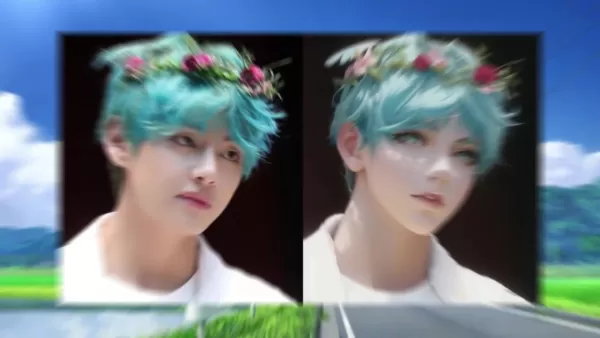
Many users find its anime effects to be more advanced and visually impressive than those in FacePlay's free tier.
Cost-Effective: Meitu's main advantage is its value. FacePlay frequently restricts free users, while Meitu AI Art delivers a robust set of AI transformations at no cost.
Diverse Anime Effects: Meitu AI Art features a wider spectrum of anime and artistic styles compared to FacePlay. Users can try different aesthetics to create unique, personalized portraits, including detailed renderings and stylized illustrations.
User-Friendly Interface: Meitu's intuitive design makes it easy for beginners to apply complex AI effects. You can quickly upload a photo, choose a style, and generate a transformed image in seconds.
Privacy Considerations: Meitu provides clear privacy policies and responsible data handling, addressing concerns some users have about face transformation apps.
Creating Trendy TikTok Videos with CapCut and Meitu AI Art
Step 1: Exporting your AI Art
After creating and saving your Meitu AI art, the next step is to make a trendy TikTok video with CapCut. Start by selecting your saved image and transferring it to CapCut. You can share or export the image directly from Meitu, choosing CapCut as the destination.
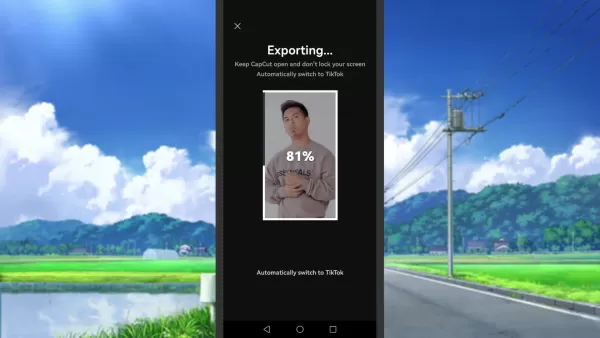
Export the image in high quality for the best video results.
Think about the overall theme of your TikTok video and how your chosen AI art fits into it. Planning this ahead will make the editing process in CapCut smoother.
Step 2: Discovering the 'Trend Douyin' Template in CapCut
CapCut offers numerous video templates, including the popular "Trend Douyin" template. This template creates dynamic, visually appealing videos with various effects, transitions, and dynamic layouts.
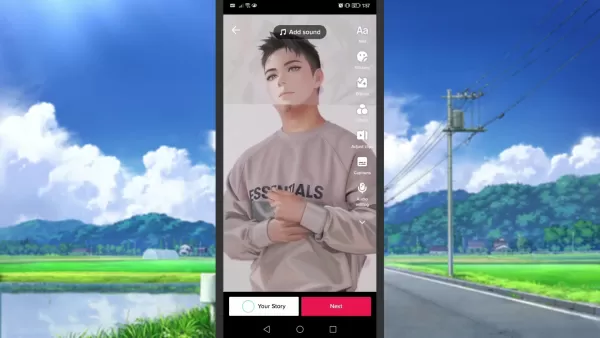
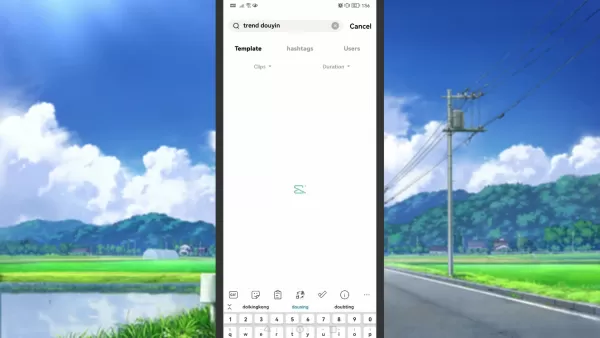
To find it, open CapCut and go to the "Template" section. Use the search bar to type 'trend douyin' and select the template from the results.
Browse the template library to find one that best complements your AI art and the message of your video.
Step 3: Adding Your AI Art to the CapCut Template
After choosing the "Trend Douyin" template, CapCut will prompt you to add your AI art. Follow the instructions to insert your image. Some templates may require multiple images or clips, so be ready to add more if needed. Select your AI art from your gallery or CapCut's media library.
Preview the video to ensure your art looks good and fits the template's style. Use CapCut's editing tools to adjust cropping and positioning for maximum visual impact.
Step 4: Customizing Your TikTok Video
Once your AI art is added, customize your video with extra effects, text, and music in CapCut. Add text for context, choose music that matches the mood, and consider visual effects to make the video more dynamic.
Experiment with different combinations of these elements to achieve the desired look and feel for your unique TikTok video.
Step 5: Exporting and Sharing Your TikTok Video
After finalizing your video, review it to ensure everything is perfect. Then, tap the "Export" button to save it to your device. You can then share it directly to TikTok or other social platforms.
When sharing, use relevant hashtags and a catchy caption to boost visibility. Engage with your audience by responding to comments.
Step-by-Step Guide: Transforming Photos with Meitu AI Art
Step 1: Downloading and Installing Meitu
First, download and install the Meitu app from your device's app store (Google Play Store for Android or Apple App Store for iOS). Search for "Meitu" and tap install.
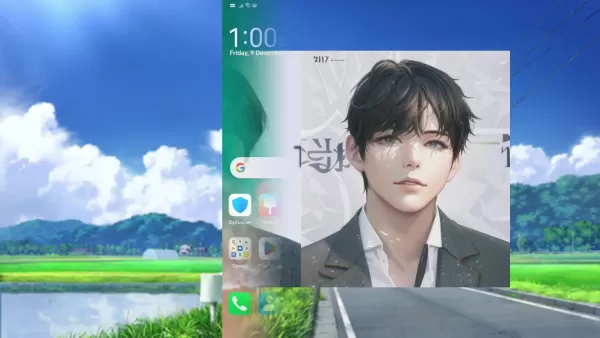
The installation time will vary based on your internet speed and device. Ensure you have enough storage space available.
Step 2: Navigating to the AI Art Feature
Open the Meitu app from your home screen. From the main menu, locate and tap on the "AI Art" option. This feature uses AI to transform photos into artistic renderings.
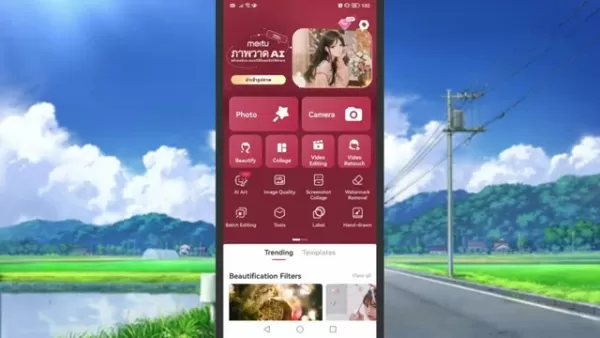
If you can't find it, check the app's help section for guidance, as the interface may change with updates.
Step 3: Uploading Your Photo
Selecting the AI Art feature will prompt you to upload a photo. Tap "Upload Photo" to access your device's gallery.
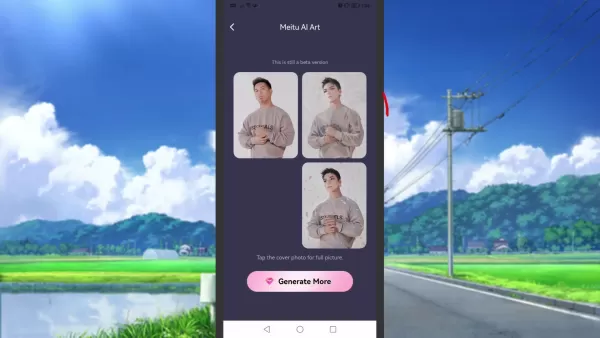
Choose a clear, well-lit photo with a distinct face for the best results. The AI works better with high-quality input.
You can also take a new photo directly within the Meitu app using the camera option.
Step 4: Generating AI Art
After selecting your photo, Meitu AI Art will process it, generating a series of AI-stylized images. This may take a moment depending on the style complexity and your device.
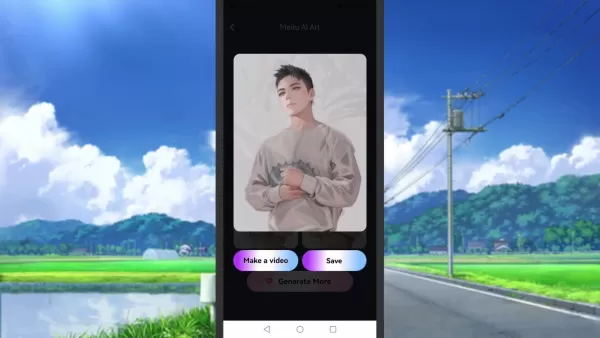
You'll then see a selection of transformed images in different artistic styles. Review them and pick your favorite.
Step 5: Saving Your AI Art
Once you've chosen an image, tap the "Save" button to store it in your device's gallery. The saved image can be shared on social media or used in other projects.
Meitu may also offer options to further edit or customize the image before saving.
Meitu AI Art: Pros and Cons
Pros
Free to use, offering cost-effective AI art generation.
Provides diverse anime and artistic styles for unique transformations.
Features a user-friendly interface for easy navigation.
Receives regular updates with new features and improvements.
Boosts creativity and social media engagement.
Cons
Some advanced features may require a premium subscription.
Processing can be slow on older devices.
Output quality depends heavily on the input photo quality.
Privacy concerns regarding data handling exist.
Offers fewer customization options than professional editing software.
Frequently Asked Questions (FAQ)
Is Meitu AI Art completely free to use?
Yes, the core Meitu AI Art feature is completely free. It offers a wide range of AI-driven artistic transformations without subscriptions or hidden fees. While other parts of the Meitu app may have premium features, the AI Art function is accessible to all users at no cost.
Can I use Meitu AI Art for commercial purposes?
Meitu's terms of service generally state that AI-generated content is for personal, non-commercial use. If you plan to use the content commercially, you must review Meitu's user agreements carefully. For any uncertainties, seeking legal advice is recommended to ensure compliance.
What are some tips for creating the best AI art with Meitu?
Use High-Quality Photos: Start with clear, well-lit, high-resolution images for the best and most accurate transformations.Experiment with Styles: Take time to explore Meitu's variety of AI art styles to find what works best for each photo.Keep the App Updated: Regularly update the Meitu app to access the latest AI improvements and new artistic styles.Consider Lighting and Composition: Good lighting and a visually appealing composition in your original photo will significantly improve the final AI result.
Related Questions
Are there any privacy concerns with using AI photo transformation apps?
Data privacy is an important consideration. To protect yourself, read an app's privacy policy before use and only choose trustworthy apps that are transparent about data handling. Review requested permissions carefully, use strong passwords, and limit the personal information you share. Keep your device's software and apps updated, be wary of phishing attempts, and consider using a VPN on public Wi-Fi to encrypt your connection.
Related article
 DeepMind CEO Hassabis: I sleep six hours a day, usually feel energetic around 1 a.m.
Fortune recently featured an interview with Demis Hassabis, CEO of Google DeepMind, revealing his unconventional approach to rest and productivity. Hassabis disclosed that he sleeps very little, structuring his waking hours into two distinct work blo
OpenAI, Anthropic Vie for Market Share Despite Revenue Shortfalls
Despite recent reports suggesting OpenAI missed revenue targets, creating pressure on tech stocks this Tuesday, private AI lab investors remain resilient. Seasoned backers have confirmed they will not reduce investment despite negative media coverage
California AV Compliance: A New Era of Tickets, Geofences, and 1M Miles
Guident operates an AuveTech shuttle in South Florida, managing a four-mile route in West Palm Beach and a one-mile route in Boca Raton using its remote monitoring technology. | Credit: GuidentCalifornia is redefining the regulatory landscape for dri
Related Special Topic Recommendations
Video creation
DeepMind CEO Hassabis: I sleep six hours a day, usually feel energetic around 1 a.m.
Fortune recently featured an interview with Demis Hassabis, CEO of Google DeepMind, revealing his unconventional approach to rest and productivity. Hassabis disclosed that he sleeps very little, structuring his waking hours into two distinct work blo
OpenAI, Anthropic Vie for Market Share Despite Revenue Shortfalls
Despite recent reports suggesting OpenAI missed revenue targets, creating pressure on tech stocks this Tuesday, private AI lab investors remain resilient. Seasoned backers have confirmed they will not reduce investment despite negative media coverage
California AV Compliance: A New Era of Tickets, Geofences, and 1M Miles
Guident operates an AuveTech shuttle in South Florida, managing a four-mile route in West Palm Beach and a one-mile route in Boca Raton using its remote monitoring technology. | Credit: GuidentCalifornia is redefining the regulatory landscape for dri
Related Special Topic Recommendations
Video creation
 AI Short-Form Video Hook Generators for Reels, Shorts, and Product Launch Campaigns
2026 Latest Best AI Short-Form Video Hook Generators for Reels Shorts and Product Launch Campaigns! XIX.AI curates top-rated powerful game-changing tools that deliver must-try results through real-world tests. This weekly updated page offers free vs paid comparison rankings to help you find the perfect solution for boosting content creativity and productivity. Explore now to Unlock your AI edge!
 11 tools
 xix.ai
writing
AI Article Outline Tools for Long Form Writing
xix.ai
writing
AI Article Outline Tools for Long Form Writing
2026 Latest Best Top-Rated AI Article Outline Tools for Long Form Writing! This curated collection features powerful, game-changing tools that deliver accurate, structured outlines with real-world tests to boost writing efficiency significantly. XIX.AI is part of this elite selection. Get a free vs paid comparison to help you choose the perfect tool. Explore now and Unlock your AI edge!
9 tools
xix.ai
chatbot
Best AI Roleplay Chat Apps for Language Practice, Interview Prep, and Daily Fluency
2026 Latest Best Top-rated AI Roleplay Chat Apps for Language Practice, Interview Prep, and Daily Fluency! XIX.AI curates a powerful game-changing collection that offers free vs paid comparison, real-world tests, and updated rankings weekly. These must-try tools help you boost writing skills, overcome fluency challenges, and improve communication efficiency across all daily scenarios. Explore now to discover your perfect tool for language growth!
10 tools
xix.ai
Music composition
AI Stem Separation Tools for Remix Production, Sampling Prep, and Karaoke Masters
2026 Latest Best Top-rated AI Stem Separation Tools Curated for Remix Production, Sampling Prep, and Karaoke Masters. These powerful game-changing tools offer real-world tests to deliver precise audio isolation, boosting productivity significantly. XIX.AI provides a weekly updated free vs paid comparison guide to help you find the must-try solution that suits your needs. Explore now to unlock your AI edge.
8 tools
xix.ai
Data Analysis
AI SQL Copilots for Revenue Dashboards, Funnel Analysis, and Product Metrics
2026 Latest Best AI SQL Copilots Ranked Top-Rated! XIX.AI curates a powerful game-changing collection for weekly updated real-world tests. These must-try tools help you generate accurate revenue dashboards, analyze sales funnels, and track product metrics swiftly, boosting productivity massively. Explore now to Discover your perfect tool for data-driven decision making! 238 characters
9 tools
xix.ai
Music composition
Best AI Melody Writing Tools for Song Drafts
2026 Latest Best Top-Rated AI Melody Writing Tools for Song Drafts! XIX.AI has curated a highly powerful game-changing collection that goes through rigorous real-world tests to deliver the best writing experience. You can find detailed free vs paid comparisons, accurate rankings, and must-try options designed to help you create stunning song drafts effortlessly and boost your creative productivity significantly. Explore now to discover your perfect tool!
8 tools
xix.ai

 Comments (2)
0/500
Comments (2)
0/500
![DonaldGonzález]()
Meitu AIのFacePlay代替案、面白そう!アニメ風ポートレートが無料で作れるのは嬉しい限り。CapCutとの連携も期待大だけど、プライバシー面が気になりますね。とりあえず試してみます🎨✨
![NicholasAdams]()
このアプリ、本当に無料なの?アニメ風のポートレートが簡単に作れるなんて、ちょっと信じられない。でも、自分の写真をAIに渡す時のプライバシーは大丈夫かな… 🤔 ちょっと試してみようかな。
Want to create eye-catching TikTok videos by transforming your photos in a creative way? Meitu AI Art provides an excellent, free alternative to FacePlay, enabling you to produce beautiful anime-style portraits. By pairing these with CapCut's trending templates, you can easily create engaging content that stands out. This guide explains how to use Meitu AI Art and CapCut together to unlock your creative potential and enhance your social media content.
Key Points
Meitu AI Art is a free, powerful alternative to FacePlay for creating anime-style portraits.
Its AI Art feature provides a wide range of anime effects, frequently achieving better quality than some paid options.
CapCut's 'trend douyin' template makes it simple to produce trendy TikTok videos.
Using Meitu AI Art with CapCut streamlines video creation, making it easy for anyone to do.
You can create unique and compelling social media content without any subscriptions or hidden fees.
Discovering Meitu AI Art: Your Free FacePlay Alternative
What is Meitu AI Art?
Meitu AI Art is a feature within the Meitu app that uses artificial intelligence to turn ordinary photos into artistic creations, often in anime or other artistic styles. A key benefit is that this core feature is completely free, offering a great option for users who want creative transformations without a subscription.
This positions it as an attractive alternative to apps like FacePlay, which often lock popular features behind a paywall.
Meitu offers much more than just anime transformations. The app includes a full suite of tools for beautifying photos, creating collages, editing videos, and retouching images. It caters to various editing needs beyond the popular anime aesthetic.
The AI Art feature itself offers numerous stylish options, allowing you to experiment and find the perfect look for your photos. This flexibility makes it a powerful tool for content creators.
Why Choose Meitu AI Art Over FacePlay?
While FacePlay is popular for face transformations, its free version often has limitations. Meitu AI Art stands out by providing a broader selection of styles and effects without pushing users toward a premium subscription.
Many users find its anime effects to be more advanced and visually impressive than those in FacePlay's free tier.
Cost-Effective: Meitu's main advantage is its value. FacePlay frequently restricts free users, while Meitu AI Art delivers a robust set of AI transformations at no cost.
Diverse Anime Effects: Meitu AI Art features a wider spectrum of anime and artistic styles compared to FacePlay. Users can try different aesthetics to create unique, personalized portraits, including detailed renderings and stylized illustrations.
User-Friendly Interface: Meitu's intuitive design makes it easy for beginners to apply complex AI effects. You can quickly upload a photo, choose a style, and generate a transformed image in seconds.
Privacy Considerations: Meitu provides clear privacy policies and responsible data handling, addressing concerns some users have about face transformation apps.
Creating Trendy TikTok Videos with CapCut and Meitu AI Art
Step 1: Exporting your AI Art
After creating and saving your Meitu AI art, the next step is to make a trendy TikTok video with CapCut. Start by selecting your saved image and transferring it to CapCut. You can share or export the image directly from Meitu, choosing CapCut as the destination.
Export the image in high quality for the best video results.
Think about the overall theme of your TikTok video and how your chosen AI art fits into it. Planning this ahead will make the editing process in CapCut smoother.
Step 2: Discovering the 'Trend Douyin' Template in CapCut
CapCut offers numerous video templates, including the popular "Trend Douyin" template. This template creates dynamic, visually appealing videos with various effects, transitions, and dynamic layouts.
To find it, open CapCut and go to the "Template" section. Use the search bar to type 'trend douyin' and select the template from the results.
Browse the template library to find one that best complements your AI art and the message of your video.
Step 3: Adding Your AI Art to the CapCut Template
After choosing the "Trend Douyin" template, CapCut will prompt you to add your AI art. Follow the instructions to insert your image. Some templates may require multiple images or clips, so be ready to add more if needed. Select your AI art from your gallery or CapCut's media library.
Preview the video to ensure your art looks good and fits the template's style. Use CapCut's editing tools to adjust cropping and positioning for maximum visual impact.
Step 4: Customizing Your TikTok Video
Once your AI art is added, customize your video with extra effects, text, and music in CapCut. Add text for context, choose music that matches the mood, and consider visual effects to make the video more dynamic.
Experiment with different combinations of these elements to achieve the desired look and feel for your unique TikTok video.
Step 5: Exporting and Sharing Your TikTok Video
After finalizing your video, review it to ensure everything is perfect. Then, tap the "Export" button to save it to your device. You can then share it directly to TikTok or other social platforms.
When sharing, use relevant hashtags and a catchy caption to boost visibility. Engage with your audience by responding to comments.
Step-by-Step Guide: Transforming Photos with Meitu AI Art
Step 1: Downloading and Installing Meitu
First, download and install the Meitu app from your device's app store (Google Play Store for Android or Apple App Store for iOS). Search for "Meitu" and tap install.
The installation time will vary based on your internet speed and device. Ensure you have enough storage space available.
Step 2: Navigating to the AI Art Feature
Open the Meitu app from your home screen. From the main menu, locate and tap on the "AI Art" option. This feature uses AI to transform photos into artistic renderings.
If you can't find it, check the app's help section for guidance, as the interface may change with updates.
Step 3: Uploading Your Photo
Selecting the AI Art feature will prompt you to upload a photo. Tap "Upload Photo" to access your device's gallery.
Choose a clear, well-lit photo with a distinct face for the best results. The AI works better with high-quality input.
You can also take a new photo directly within the Meitu app using the camera option.
Step 4: Generating AI Art
After selecting your photo, Meitu AI Art will process it, generating a series of AI-stylized images. This may take a moment depending on the style complexity and your device.
You'll then see a selection of transformed images in different artistic styles. Review them and pick your favorite.
Step 5: Saving Your AI Art
Once you've chosen an image, tap the "Save" button to store it in your device's gallery. The saved image can be shared on social media or used in other projects.
Meitu may also offer options to further edit or customize the image before saving.
Meitu AI Art: Pros and Cons
Pros
Free to use, offering cost-effective AI art generation.
Provides diverse anime and artistic styles for unique transformations.
Features a user-friendly interface for easy navigation.
Receives regular updates with new features and improvements.
Boosts creativity and social media engagement.
Cons
Some advanced features may require a premium subscription.
Processing can be slow on older devices.
Output quality depends heavily on the input photo quality.
Privacy concerns regarding data handling exist.
Offers fewer customization options than professional editing software.
Frequently Asked Questions (FAQ)
Is Meitu AI Art completely free to use?
Yes, the core Meitu AI Art feature is completely free. It offers a wide range of AI-driven artistic transformations without subscriptions or hidden fees. While other parts of the Meitu app may have premium features, the AI Art function is accessible to all users at no cost.
Can I use Meitu AI Art for commercial purposes?
Meitu's terms of service generally state that AI-generated content is for personal, non-commercial use. If you plan to use the content commercially, you must review Meitu's user agreements carefully. For any uncertainties, seeking legal advice is recommended to ensure compliance.
What are some tips for creating the best AI art with Meitu?
Use High-Quality Photos: Start with clear, well-lit, high-resolution images for the best and most accurate transformations.Experiment with Styles: Take time to explore Meitu's variety of AI art styles to find what works best for each photo.Keep the App Updated: Regularly update the Meitu app to access the latest AI improvements and new artistic styles.Consider Lighting and Composition: Good lighting and a visually appealing composition in your original photo will significantly improve the final AI result.
Related Questions
Are there any privacy concerns with using AI photo transformation apps?
Data privacy is an important consideration. To protect yourself, read an app's privacy policy before use and only choose trustworthy apps that are transparent about data handling. Review requested permissions carefully, use strong passwords, and limit the personal information you share. Keep your device's software and apps updated, be wary of phishing attempts, and consider using a VPN on public Wi-Fi to encrypt your connection.








 DeepMind CEO Hassabis: I sleep six hours a day, usually feel energetic around 1 a.m.
Fortune recently featured an interview with Demis Hassabis, CEO of Google DeepMind, revealing his unconventional approach to rest and productivity. Hassabis disclosed that he sleeps very little, structuring his waking hours into two distinct work blo
DeepMind CEO Hassabis: I sleep six hours a day, usually feel energetic around 1 a.m.
Fortune recently featured an interview with Demis Hassabis, CEO of Google DeepMind, revealing his unconventional approach to rest and productivity. Hassabis disclosed that he sleeps very little, structuring his waking hours into two distinct work blo
 OpenAI, Anthropic Vie for Market Share Despite Revenue Shortfalls
Despite recent reports suggesting OpenAI missed revenue targets, creating pressure on tech stocks this Tuesday, private AI lab investors remain resilient. Seasoned backers have confirmed they will not reduce investment despite negative media coverage
California AV Compliance: A New Era of Tickets, Geofences, and 1M Miles
Guident operates an AuveTech shuttle in South Florida, managing a four-mile route in West Palm Beach and a one-mile route in Boca Raton using its remote monitoring technology. | Credit: GuidentCalifornia is redefining the regulatory landscape for dri
OpenAI, Anthropic Vie for Market Share Despite Revenue Shortfalls
Despite recent reports suggesting OpenAI missed revenue targets, creating pressure on tech stocks this Tuesday, private AI lab investors remain resilient. Seasoned backers have confirmed they will not reduce investment despite negative media coverage
California AV Compliance: A New Era of Tickets, Geofences, and 1M Miles
Guident operates an AuveTech shuttle in South Florida, managing a four-mile route in West Palm Beach and a one-mile route in Boca Raton using its remote monitoring technology. | Credit: GuidentCalifornia is redefining the regulatory landscape for dri

2026 Latest Best AI Short-Form Video Hook Generators for Reels Shorts and Product Launch Campaigns! XIX.AI curates top-rated powerful game-changing tools that deliver must-try results through real-world tests. This weekly updated page offers free vs paid comparison rankings to help you find the perfect solution for boosting content creativity and productivity. Explore now to Unlock your AI edge!
11 tools
xix.ai
2026 Latest Best Top-Rated AI Article Outline Tools for Long Form Writing! This curated collection features powerful, game-changing tools that deliver accurate, structured outlines with real-world tests to boost writing efficiency significantly. XIX.AI is part of this elite selection. Get a free vs paid comparison to help you choose the perfect tool. Explore now and Unlock your AI edge!
9 tools
xix.ai
2026 Latest Best Top-rated AI Roleplay Chat Apps for Language Practice, Interview Prep, and Daily Fluency! XIX.AI curates a powerful game-changing collection that offers free vs paid comparison, real-world tests, and updated rankings weekly. These must-try tools help you boost writing skills, overcome fluency challenges, and improve communication efficiency across all daily scenarios. Explore now to discover your perfect tool for language growth!
10 tools
xix.ai
2026 Latest Best Top-rated AI Stem Separation Tools Curated for Remix Production, Sampling Prep, and Karaoke Masters. These powerful game-changing tools offer real-world tests to deliver precise audio isolation, boosting productivity significantly. XIX.AI provides a weekly updated free vs paid comparison guide to help you find the must-try solution that suits your needs. Explore now to unlock your AI edge.
8 tools
xix.ai

2026 Latest Best AI SQL Copilots Ranked Top-Rated! XIX.AI curates a powerful game-changing collection for weekly updated real-world tests. These must-try tools help you generate accurate revenue dashboards, analyze sales funnels, and track product metrics swiftly, boosting productivity massively. Explore now to Discover your perfect tool for data-driven decision making! 238 characters
9 tools
xix.ai
2026 Latest Best Top-Rated AI Melody Writing Tools for Song Drafts! XIX.AI has curated a highly powerful game-changing collection that goes through rigorous real-world tests to deliver the best writing experience. You can find detailed free vs paid comparisons, accurate rankings, and must-try options designed to help you create stunning song drafts effortlessly and boost your creative productivity significantly. Explore now to discover your perfect tool!
8 tools
xix.ai

Meitu AIのFacePlay代替案、面白そう!アニメ風ポートレートが無料で作れるのは嬉しい限り。CapCutとの連携も期待大だけど、プライバシー面が気になりますね。とりあえず試してみます🎨✨
このアプリ、本当に無料なの?アニメ風のポートレートが簡単に作れるなんて、ちょっと信じられない。でも、自分の写真をAIに渡す時のプライバシーは大丈夫かな… 🤔 ちょっと試してみようかな。












