


 Home
HomeAI Transforms Home Redesign: Simplify Interior Decor with HomeDesignsAI
Dreaming of a refresh for your home but unsure where to start? HomeDesignsAI presents a revolutionary solution, using advanced artificial intelligence to effortlessly reimagine your interiors, exteriors, and gardens. For interior designers, homeowners, and real estate professionals alike, it provides powerful tools to visualize and achieve your design goals. This complete guide explores the features and modes of HomeDesignsAI, showing you how to effortlessly transform any space.
Key Points
HomeDesignsAI features three unique redesign modes: Beautiful Redesign, Creative Redesign, and Sketch to Render.
The Beautiful Redesign mode improves aesthetics while keeping the existing room layout intact.
Creative Redesign enables furniture rearrangement and structural adjustments for a completely new look.
Sketch to Render converts simple drawings into photorealistic images.
The platform supports a vast array of design styles to suit any taste.
Users can provide custom instructions to guide the AI and tailor the designs.
HomeDesignsAI is perfect for homeowners, interior designers, architects, and real estate agents.
Exploring HomeDesignsAI's Redesign Modes
Redesign Your Space Instantly with AI
HomeDesignsAI’s Redesign mode offers a simple and efficient solution for achieving a fresh, stylish look without complication. Whether planning a quick refresh or a more significant update, this mode delivers intuitive results in moments.

The Redesign mode provides three dynamic options: Creative Redesign, Beautiful Redesign, and Sketch-to-Render, all designed to revitalize your home's interiors, exteriors, gardens, and patios. Let's explore each mode to see which fits your project best.
We will examine how each of HomeDesignsAI's modes serves a unique purpose in transforming your spaces.
Beautiful Redesign: Quick Aesthetic Enhancements
The Beautiful Redesign mode
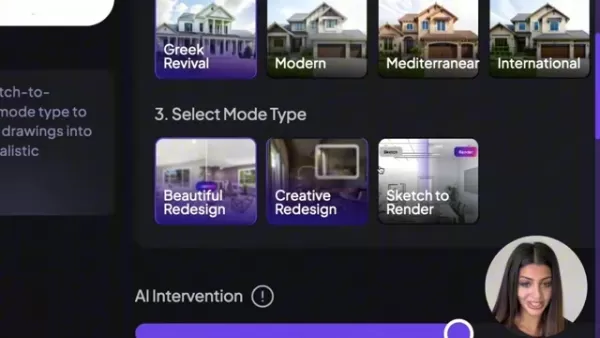
is ideal for homeowners, interior designers, architects, and real estate agents. It's perfect for quick visual upgrades, delivering beautiful results without changing the room's fundamental layout. Choose this mode if you want to keep your current arrangement while exploring new aesthetic possibilities.
Users appreciate this mode for its speed and control. The AI operates within tighter creative parameters, adding or removing fewer objects. This gives you more predictable outcomes that closely match your original vision.
Using Beautiful Redesign is straightforward: Start by uploading a high-quality photo of your space. Then, specify the space type—interior, exterior, or garden. Finally, select your room type and preferred design style from the extensive catalog. You're then ready to proceed.
Creative Redesign: Innovative Ideas and Room Layout Changes
The Creative Redesign mode is best for users seeking innovative new room layouts.
This mode allows the AI to rearrange furniture and suggest structural changes for a brand-new look. It's suited for homeowners wanting a dramatic change and designers looking for fresh inspiration.
To use Creative Redesign, simply switch from the Beautiful Redesign mode. Here, the AI has more freedom to implement bold and dramatic alterations.
The results can be completely transformative.
Sketch to Render: Turning Sketches into Photorealistic Visualizations
The Sketch to Render mode converts rough sketches into photorealistic visualizations.

This mode is perfect for architects, interior designers, and homeowners who wish to visualize new ideas with high realism. It brings preliminary concepts to life. You don't need to be a master sketcher—the AI interprets your ideas and realizes your vision.
Step-by-Step Guide: Transforming Your Space with HomeDesignsAI
Step 1: Uploading Your Image
Begin by uploading a clear, high-quality image

of the space you want to redesign. Ensure the photo is well-lit and captures the room's key features. Avoid blurry images or screenshots for optimal results. A quality image helps the AI accurately interpret the space and create more realistic redesigns.
Step 2: Selecting the Space Type
Next, choose the category of space you are redesigning. HomeDesignsAI offers three options: Interior, Exterior, and Garden.
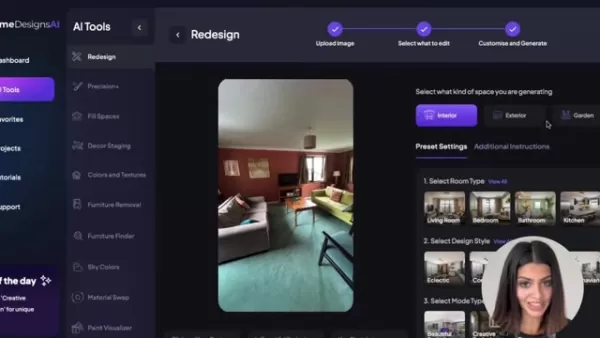
Select the option that matches your image. Choosing correctly ensures the AI applies suitable design styles and features.
Step 3: Choosing the Design Style
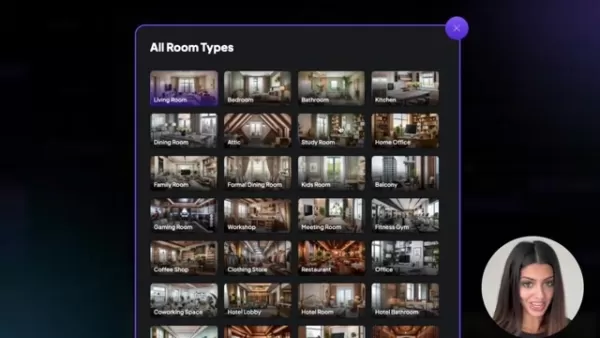
Now for the enjoyable part! Pick your preferred design style from HomeDesignsAI's extensive library
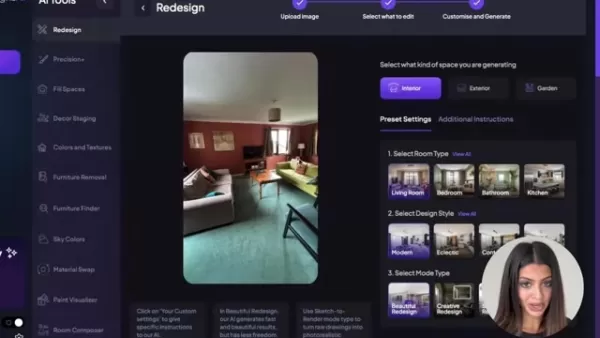
. Whether you prefer modern minimalism, rustic charm, or classic elegance, there's a style for every preference. The ability to preview each style is incredibly useful. Feel free to experiment with multiple options until you find the perfect match.
Step 4: Selecting the Mode Type
Choose the redesign mode that aligns with your goals
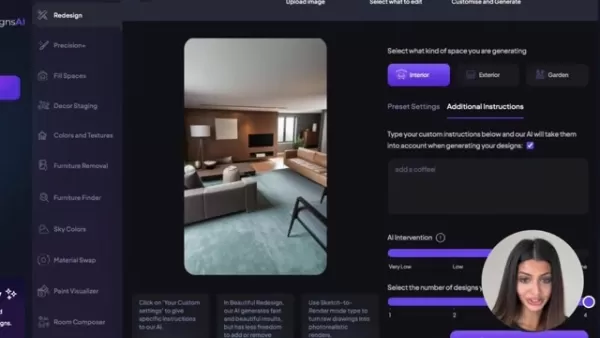
. For subtle enhancements without layout changes, select Beautiful Redesign. For more dramatic changes and furniture rearrangement, opt for Creative Redesign. If working from a drawing, choose Sketch to Render. Adjusting the AI Intervention level lets you control the extent of the changes. Experiment to find the best alignment with your creative vision.
Step 5: Generating Your Designs
With your settings configured, let HomeDesignsAI work its magic.
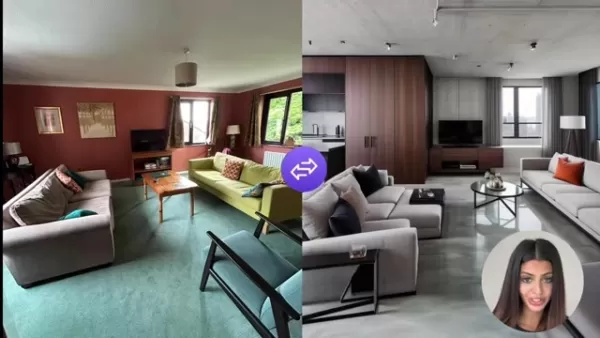
Click the “Generate New Designs” button and watch as the AI transforms your space in seconds. You'll receive multiple design options to explore. Generate several designs to see a full range of possibilities.
Once satisfied, you can save your favorite designs to projects or favorites.
How to Use HomeDesignsAI Effectively
Tips for Optimal Results
To get the most stunning results from HomeDesignsAI, consider these tips:
- Use High-Quality Images: Clear, well-lit photos are essential for accurate redesigns. Avoid blurry or low-resolution images.
- Experiment with Different Styles: Don't hesitate to try various design styles to discover new aesthetics and possibilities.
- Utilize Custom Prompts: Use the “Additional Instructions” feature to guide the AI with specific requests. Clear, concise prompts yield the best results.
- Adjust AI Intervention Level: Fine-tune this setting to control how much the AI alters your space. Start with a medium level and adjust as needed.
- Explore Multiple Designs: Generate several designs to compare options and find the perfect fit for your vision.
HomeDesignsAI Pricing Options
Understanding the Cost
HomeDesignsAI offers various pricing plans to suit different needs, from individuals to businesses. Each tier provides increasing credits, features, and support levels. Options include both subscription-based and one-time payment structures.
Pros and Cons of Using HomeDesignsAI
Pros
Fast and effortless redesigns
Multiple redesign modes
Extensive design style library
Custom prompts for personalization
Photorealistic renders
User-friendly interface
Suitable for homeowners, interior designers, and real estate agents
Cons
Requires high-quality images for best results
AI-generated designs may not always match individual preferences perfectly
Some advanced features may be limited in basic plans
Core Features of HomeDesignsAI
Key Capabilities
HomeDesignsAI is a powerful tool packed with game-changing features:
- AI-Powered Redesigns: Leverage artificial intelligence to transform spaces quickly and effortlessly.
- Multiple Redesign Modes: Select from Beautiful Redesign, Creative Redesign, and Sketch to Render based on your specific goals.
- Extensive Design Style Library: Browse a wide range of styles to find the perfect aesthetic.
- Custom Prompts: Add specific instructions to guide the AI and personalize outcomes.
- Photorealistic Renders: Turn rough sketches into high-quality, realistic visualizations.
- User-Friendly Interface: Navigate an intuitive platform for seamless design work.
- Collaboration Tools: Share designs with clients or collaborators for feedback.
- Before-and-After Comparisons: Easily compare the original space with redesigned versions to see the transformation.
Use Cases for HomeDesignsAI
Various Applications
HomeDesignsAI serves a broad spectrum of users and applications:
- Homeowners: Visualize and plan renovations, experiment with styles, and redesign rooms before making physical changes.
- Interior Designers: Generate concepts, create photorealistic renders for client presentations, and streamline the design process.
- Architects: Quickly turn sketches into detailed visualizations and explore design options.
- Real Estate Agents: Virtually stage properties, create compelling marketing visuals, and attract buyers.
- Furniture Retailers: Showcase products in various settings, helping customers visualize items in their own homes.
Frequently Asked Questions (FAQ)
How do I get the best results with HomeDesignsAI?
For optimal results, use high-quality images, experiment with different styles, use custom prompts clearly, and adjust the AI Intervention level. Avoid blurry photos and be specific in your instructions.
Can I use HomeDesignsAI to redesign outdoor spaces?
Yes, HomeDesignsAI supports redesigning interior, exterior, and garden spaces.
Is HomeDesignsAI suitable for professional interior designers?
Absolutely. HomeDesignsAI is a powerful asset for professional interior designers, architects, and real estate agents, offering features that streamline workflows and create impressive visuals.
Related Questions
What other AI tools can help with interior design?
While HomeDesignsAI excels at redesigning interior, exterior, and landscape spaces, other AI tools offer complementary functions: Jasper.ai: Helps generate marketing copy for design services and content about design ideas. Midjourney and DALL-E 2: AI image generators that create photorealistic images from text prompts, useful for unique concepts and inspiration. ColorSnap Visualizer (Sherwin-Williams): Lets users explore paint colors and visualize them in a space by uploading a photo. Havenly: Uses AI to provide quick design suggestions based on style quizzes, offering curated design plans. RoomGPT: Upload a room photo to virtually redesign it with different themes or styles, providing a fast preview of new aesthetics. Each tool offers unique benefits, allowing you to leverage AI across different aspects of interior design projects.
Related article
 DeepMind CEO Hassabis: I sleep six hours a day, usually feel energetic around 1 a.m.
Fortune recently featured an interview with Demis Hassabis, CEO of Google DeepMind, revealing his unconventional approach to rest and productivity. Hassabis disclosed that he sleeps very little, structuring his waking hours into two distinct work blo
OpenAI, Anthropic Vie for Market Share Despite Revenue Shortfalls
Despite recent reports suggesting OpenAI missed revenue targets, creating pressure on tech stocks this Tuesday, private AI lab investors remain resilient. Seasoned backers have confirmed they will not reduce investment despite negative media coverage
California AV Compliance: A New Era of Tickets, Geofences, and 1M Miles
Guident operates an AuveTech shuttle in South Florida, managing a four-mile route in West Palm Beach and a one-mile route in Boca Raton using its remote monitoring technology. | Credit: GuidentCalifornia is redefining the regulatory landscape for dri
Related Special Topic Recommendations
chatbot
DeepMind CEO Hassabis: I sleep six hours a day, usually feel energetic around 1 a.m.
Fortune recently featured an interview with Demis Hassabis, CEO of Google DeepMind, revealing his unconventional approach to rest and productivity. Hassabis disclosed that he sleeps very little, structuring his waking hours into two distinct work blo
OpenAI, Anthropic Vie for Market Share Despite Revenue Shortfalls
Despite recent reports suggesting OpenAI missed revenue targets, creating pressure on tech stocks this Tuesday, private AI lab investors remain resilient. Seasoned backers have confirmed they will not reduce investment despite negative media coverage
California AV Compliance: A New Era of Tickets, Geofences, and 1M Miles
Guident operates an AuveTech shuttle in South Florida, managing a four-mile route in West Palm Beach and a one-mile route in Boca Raton using its remote monitoring technology. | Credit: GuidentCalifornia is redefining the regulatory landscape for dri
Related Special Topic Recommendations
chatbot
 Best AI Roleplay Chat Apps for Language Practice, Interview Prep, and Daily Fluency
2026 Latest Best Top-rated AI Roleplay Chat Apps for Language Practice, Interview Prep, and Daily Fluency! XIX.AI curates a powerful game-changing collection that offers free vs paid comparison, real-world tests, and updated rankings weekly. These must-try tools help you boost writing skills, overcome fluency challenges, and improve communication efficiency across all daily scenarios. Explore now to discover your perfect tool for language growth!
 10 tools
 xix.ai
Music composition
AI Stem Separation Tools for Remix Production, Sampling Prep, and Karaoke Masters
xix.ai
Music composition
AI Stem Separation Tools for Remix Production, Sampling Prep, and Karaoke Masters
2026 Latest Best Top-rated AI Stem Separation Tools Curated for Remix Production, Sampling Prep, and Karaoke Masters. These powerful game-changing tools offer real-world tests to deliver precise audio isolation, boosting productivity significantly. XIX.AI provides a weekly updated free vs paid comparison guide to help you find the must-try solution that suits your needs. Explore now to unlock your AI edge.
8 tools
xix.ai
Data Analysis
AI SQL Copilots for Revenue Dashboards, Funnel Analysis, and Product Metrics
2026 Latest Best AI SQL Copilots Ranked Top-Rated! XIX.AI curates a powerful game-changing collection for weekly updated real-world tests. These must-try tools help you generate accurate revenue dashboards, analyze sales funnels, and track product metrics swiftly, boosting productivity massively. Explore now to Discover your perfect tool for data-driven decision making! 238 characters
9 tools
xix.ai
Music composition
Best AI Melody Writing Tools for Song Drafts
2026 Latest Best Top-Rated AI Melody Writing Tools for Song Drafts! XIX.AI has curated a highly powerful game-changing collection that goes through rigorous real-world tests to deliver the best writing experience. You can find detailed free vs paid comparisons, accurate rankings, and must-try options designed to help you create stunning song drafts effortlessly and boost your creative productivity significantly. Explore now to discover your perfect tool!
8 tools
xix.ai
chatbot
Best AI Conversation Trainer Tools for Interview Practice
2026 Latest Best Top-rated AI Conversation Trainer Tools for Interview Practice are here on XIX.AI! This curated collection features powerful, game-changing tools that go through rigorous real-world tests to deliver accurate feedback. You’ll find a free vs paid comparison and detailed rankings to help you choose the must-try option that boosts your confidence and skills. Explore now to Discover your perfect tool for interview success!
12 tools
xix.ai
Design & Art
Best AI Style Transfer Tools for Creative Experiments
2026 Latest Best Top-rated AI Style Transfer Tools for Creative Experiments! XIX.AI has curated a powerful, game-changing collection of must-try tools that deliver exceptional results through real-world tests and rigorous rankings. These top solutions help creatives boost productivity significantly by accelerating content creation and unlocking endless creative possibilities. Explore now to discover your perfect tool and start creating today!
9 tools
xix.ai

 Comments (2)
0/500
Comments (2)
0/500
![TimothyTaylor]()
Ну наконец-то! Мой муж три года не может решить, как переставить диван в гостиной 😂 Интересно, эта штука учтёт, что у нас ещё и кота нужно разместить так, чтобы он не драл обои? Кстати, а дизайнеры теперь не останутся без работы?
![KennethMartin]()
Ну наконец-то! Мой муж три года не может выбрать цвет для кухни 😂 Интересно, эта штука сможет показать, как будет выглядеть наш кот на новом диване? Технологии действительно меняют бытовые проблемы, но не превратит ли это всех в ленивых дизайнеров?
Dreaming of a refresh for your home but unsure where to start? HomeDesignsAI presents a revolutionary solution, using advanced artificial intelligence to effortlessly reimagine your interiors, exteriors, and gardens. For interior designers, homeowners, and real estate professionals alike, it provides powerful tools to visualize and achieve your design goals. This complete guide explores the features and modes of HomeDesignsAI, showing you how to effortlessly transform any space.
Key Points
HomeDesignsAI features three unique redesign modes: Beautiful Redesign, Creative Redesign, and Sketch to Render.
The Beautiful Redesign mode improves aesthetics while keeping the existing room layout intact.
Creative Redesign enables furniture rearrangement and structural adjustments for a completely new look.
Sketch to Render converts simple drawings into photorealistic images.
The platform supports a vast array of design styles to suit any taste.
Users can provide custom instructions to guide the AI and tailor the designs.
HomeDesignsAI is perfect for homeowners, interior designers, architects, and real estate agents.
Exploring HomeDesignsAI's Redesign Modes
Redesign Your Space Instantly with AI
HomeDesignsAI’s Redesign mode offers a simple and efficient solution for achieving a fresh, stylish look without complication. Whether planning a quick refresh or a more significant update, this mode delivers intuitive results in moments.
The Redesign mode provides three dynamic options: Creative Redesign, Beautiful Redesign, and Sketch-to-Render, all designed to revitalize your home's interiors, exteriors, gardens, and patios. Let's explore each mode to see which fits your project best.
We will examine how each of HomeDesignsAI's modes serves a unique purpose in transforming your spaces.
Beautiful Redesign: Quick Aesthetic Enhancements
The Beautiful Redesign mode
is ideal for homeowners, interior designers, architects, and real estate agents. It's perfect for quick visual upgrades, delivering beautiful results without changing the room's fundamental layout. Choose this mode if you want to keep your current arrangement while exploring new aesthetic possibilities.
Users appreciate this mode for its speed and control. The AI operates within tighter creative parameters, adding or removing fewer objects. This gives you more predictable outcomes that closely match your original vision.
Using Beautiful Redesign is straightforward: Start by uploading a high-quality photo of your space. Then, specify the space type—interior, exterior, or garden. Finally, select your room type and preferred design style from the extensive catalog. You're then ready to proceed.
Creative Redesign: Innovative Ideas and Room Layout Changes
The Creative Redesign mode is best for users seeking innovative new room layouts.
This mode allows the AI to rearrange furniture and suggest structural changes for a brand-new look. It's suited for homeowners wanting a dramatic change and designers looking for fresh inspiration.
To use Creative Redesign, simply switch from the Beautiful Redesign mode. Here, the AI has more freedom to implement bold and dramatic alterations.
The results can be completely transformative.
Sketch to Render: Turning Sketches into Photorealistic Visualizations
The Sketch to Render mode converts rough sketches into photorealistic visualizations.
This mode is perfect for architects, interior designers, and homeowners who wish to visualize new ideas with high realism. It brings preliminary concepts to life. You don't need to be a master sketcher—the AI interprets your ideas and realizes your vision.
Step-by-Step Guide: Transforming Your Space with HomeDesignsAI
Step 1: Uploading Your Image
Begin by uploading a clear, high-quality image
of the space you want to redesign. Ensure the photo is well-lit and captures the room's key features. Avoid blurry images or screenshots for optimal results. A quality image helps the AI accurately interpret the space and create more realistic redesigns.
Step 2: Selecting the Space Type
Next, choose the category of space you are redesigning. HomeDesignsAI offers three options: Interior, Exterior, and Garden.
Select the option that matches your image. Choosing correctly ensures the AI applies suitable design styles and features.
Step 3: Choosing the Design Style
Now for the enjoyable part! Pick your preferred design style from HomeDesignsAI's extensive library
. Whether you prefer modern minimalism, rustic charm, or classic elegance, there's a style for every preference. The ability to preview each style is incredibly useful. Feel free to experiment with multiple options until you find the perfect match.
Step 4: Selecting the Mode Type
Choose the redesign mode that aligns with your goals
. For subtle enhancements without layout changes, select Beautiful Redesign. For more dramatic changes and furniture rearrangement, opt for Creative Redesign. If working from a drawing, choose Sketch to Render. Adjusting the AI Intervention level lets you control the extent of the changes. Experiment to find the best alignment with your creative vision.
Step 5: Generating Your Designs
With your settings configured, let HomeDesignsAI work its magic.
Click the “Generate New Designs” button and watch as the AI transforms your space in seconds. You'll receive multiple design options to explore. Generate several designs to see a full range of possibilities.
Once satisfied, you can save your favorite designs to projects or favorites.
How to Use HomeDesignsAI Effectively
Tips for Optimal Results
To get the most stunning results from HomeDesignsAI, consider these tips:
- Use High-Quality Images: Clear, well-lit photos are essential for accurate redesigns. Avoid blurry or low-resolution images.
- Experiment with Different Styles: Don't hesitate to try various design styles to discover new aesthetics and possibilities.
- Utilize Custom Prompts: Use the “Additional Instructions” feature to guide the AI with specific requests. Clear, concise prompts yield the best results.
- Adjust AI Intervention Level: Fine-tune this setting to control how much the AI alters your space. Start with a medium level and adjust as needed.
- Explore Multiple Designs: Generate several designs to compare options and find the perfect fit for your vision.
HomeDesignsAI Pricing Options
Understanding the Cost
HomeDesignsAI offers various pricing plans to suit different needs, from individuals to businesses. Each tier provides increasing credits, features, and support levels. Options include both subscription-based and one-time payment structures.
Pros and Cons of Using HomeDesignsAI
Pros
Fast and effortless redesigns
Multiple redesign modes
Extensive design style library
Custom prompts for personalization
Photorealistic renders
User-friendly interface
Suitable for homeowners, interior designers, and real estate agents
Cons
Requires high-quality images for best results
AI-generated designs may not always match individual preferences perfectly
Some advanced features may be limited in basic plans
Core Features of HomeDesignsAI
Key Capabilities
HomeDesignsAI is a powerful tool packed with game-changing features:
- AI-Powered Redesigns: Leverage artificial intelligence to transform spaces quickly and effortlessly.
- Multiple Redesign Modes: Select from Beautiful Redesign, Creative Redesign, and Sketch to Render based on your specific goals.
- Extensive Design Style Library: Browse a wide range of styles to find the perfect aesthetic.
- Custom Prompts: Add specific instructions to guide the AI and personalize outcomes.
- Photorealistic Renders: Turn rough sketches into high-quality, realistic visualizations.
- User-Friendly Interface: Navigate an intuitive platform for seamless design work.
- Collaboration Tools: Share designs with clients or collaborators for feedback.
- Before-and-After Comparisons: Easily compare the original space with redesigned versions to see the transformation.
Use Cases for HomeDesignsAI
Various Applications
HomeDesignsAI serves a broad spectrum of users and applications:
- Homeowners: Visualize and plan renovations, experiment with styles, and redesign rooms before making physical changes.
- Interior Designers: Generate concepts, create photorealistic renders for client presentations, and streamline the design process.
- Architects: Quickly turn sketches into detailed visualizations and explore design options.
- Real Estate Agents: Virtually stage properties, create compelling marketing visuals, and attract buyers.
- Furniture Retailers: Showcase products in various settings, helping customers visualize items in their own homes.
Frequently Asked Questions (FAQ)
How do I get the best results with HomeDesignsAI?
For optimal results, use high-quality images, experiment with different styles, use custom prompts clearly, and adjust the AI Intervention level. Avoid blurry photos and be specific in your instructions.
Can I use HomeDesignsAI to redesign outdoor spaces?
Yes, HomeDesignsAI supports redesigning interior, exterior, and garden spaces.
Is HomeDesignsAI suitable for professional interior designers?
Absolutely. HomeDesignsAI is a powerful asset for professional interior designers, architects, and real estate agents, offering features that streamline workflows and create impressive visuals.
Related Questions
What other AI tools can help with interior design?
While HomeDesignsAI excels at redesigning interior, exterior, and landscape spaces, other AI tools offer complementary functions: Jasper.ai: Helps generate marketing copy for design services and content about design ideas. Midjourney and DALL-E 2: AI image generators that create photorealistic images from text prompts, useful for unique concepts and inspiration. ColorSnap Visualizer (Sherwin-Williams): Lets users explore paint colors and visualize them in a space by uploading a photo. Havenly: Uses AI to provide quick design suggestions based on style quizzes, offering curated design plans. RoomGPT: Upload a room photo to virtually redesign it with different themes or styles, providing a fast preview of new aesthetics. Each tool offers unique benefits, allowing you to leverage AI across different aspects of interior design projects.








 DeepMind CEO Hassabis: I sleep six hours a day, usually feel energetic around 1 a.m.
Fortune recently featured an interview with Demis Hassabis, CEO of Google DeepMind, revealing his unconventional approach to rest and productivity. Hassabis disclosed that he sleeps very little, structuring his waking hours into two distinct work blo
DeepMind CEO Hassabis: I sleep six hours a day, usually feel energetic around 1 a.m.
Fortune recently featured an interview with Demis Hassabis, CEO of Google DeepMind, revealing his unconventional approach to rest and productivity. Hassabis disclosed that he sleeps very little, structuring his waking hours into two distinct work blo
 OpenAI, Anthropic Vie for Market Share Despite Revenue Shortfalls
Despite recent reports suggesting OpenAI missed revenue targets, creating pressure on tech stocks this Tuesday, private AI lab investors remain resilient. Seasoned backers have confirmed they will not reduce investment despite negative media coverage
California AV Compliance: A New Era of Tickets, Geofences, and 1M Miles
Guident operates an AuveTech shuttle in South Florida, managing a four-mile route in West Palm Beach and a one-mile route in Boca Raton using its remote monitoring technology. | Credit: GuidentCalifornia is redefining the regulatory landscape for dri
OpenAI, Anthropic Vie for Market Share Despite Revenue Shortfalls
Despite recent reports suggesting OpenAI missed revenue targets, creating pressure on tech stocks this Tuesday, private AI lab investors remain resilient. Seasoned backers have confirmed they will not reduce investment despite negative media coverage
California AV Compliance: A New Era of Tickets, Geofences, and 1M Miles
Guident operates an AuveTech shuttle in South Florida, managing a four-mile route in West Palm Beach and a one-mile route in Boca Raton using its remote monitoring technology. | Credit: GuidentCalifornia is redefining the regulatory landscape for dri

2026 Latest Best Top-rated AI Roleplay Chat Apps for Language Practice, Interview Prep, and Daily Fluency! XIX.AI curates a powerful game-changing collection that offers free vs paid comparison, real-world tests, and updated rankings weekly. These must-try tools help you boost writing skills, overcome fluency challenges, and improve communication efficiency across all daily scenarios. Explore now to discover your perfect tool for language growth!
10 tools
xix.ai

2026 Latest Best Top-rated AI Stem Separation Tools Curated for Remix Production, Sampling Prep, and Karaoke Masters. These powerful game-changing tools offer real-world tests to deliver precise audio isolation, boosting productivity significantly. XIX.AI provides a weekly updated free vs paid comparison guide to help you find the must-try solution that suits your needs. Explore now to unlock your AI edge.
8 tools
xix.ai

2026 Latest Best AI SQL Copilots Ranked Top-Rated! XIX.AI curates a powerful game-changing collection for weekly updated real-world tests. These must-try tools help you generate accurate revenue dashboards, analyze sales funnels, and track product metrics swiftly, boosting productivity massively. Explore now to Discover your perfect tool for data-driven decision making! 238 characters
9 tools
xix.ai

2026 Latest Best Top-Rated AI Melody Writing Tools for Song Drafts! XIX.AI has curated a highly powerful game-changing collection that goes through rigorous real-world tests to deliver the best writing experience. You can find detailed free vs paid comparisons, accurate rankings, and must-try options designed to help you create stunning song drafts effortlessly and boost your creative productivity significantly. Explore now to discover your perfect tool!
8 tools
xix.ai

2026 Latest Best Top-rated AI Conversation Trainer Tools for Interview Practice are here on XIX.AI! This curated collection features powerful, game-changing tools that go through rigorous real-world tests to deliver accurate feedback. You’ll find a free vs paid comparison and detailed rankings to help you choose the must-try option that boosts your confidence and skills. Explore now to Discover your perfect tool for interview success!
12 tools
xix.ai

2026 Latest Best Top-rated AI Style Transfer Tools for Creative Experiments! XIX.AI has curated a powerful, game-changing collection of must-try tools that deliver exceptional results through real-world tests and rigorous rankings. These top solutions help creatives boost productivity significantly by accelerating content creation and unlocking endless creative possibilities. Explore now to discover your perfect tool and start creating today!
9 tools
xix.ai

Ну наконец-то! Мой муж три года не может решить, как переставить диван в гостиной 😂 Интересно, эта штука учтёт, что у нас ещё и кота нужно разместить так, чтобы он не драл обои? Кстати, а дизайнеры теперь не останутся без работы?
Ну наконец-то! Мой муж три года не может выбрать цвет для кухни 😂 Интересно, эта штука сможет показать, как будет выглядеть наш кот на новом диване? Технологии действительно меняют бытовые проблемы, но не превратит ли это всех в ленивых дизайнеров?












