


 Home
HomeHow to enhance audio with Filmora's AI in 2026? A complete guide for creators.
In today's content-driven world, exceptional audio quality is just as important as stunning visuals. For podcasters, video editors, and creators of all kinds, clear and crisp sound dramatically improves audience engagement and the overall viewing experience. Wondershare Filmora provides powerful, AI-driven audio enhancement tools that help you achieve professional-grade results effortlessly. This guide delves into Filmora's AI speech enhancement and audio denoising features, offering a clear, step-by-step approach to using them for transforming your content's audio quality.
Key Points
Filmora's AI speech enhancement tool effectively removes background noise and improves vocal clarity.
The audio denoise feature efficiently eliminates distracting sounds like electrical hums and wind noise.
High-quality audio significantly boosts content quality, resulting in more engaging videos.
These AI tools are invaluable for podcasters, video editors, and webinar hosts.
Filmora features an intuitive interface for quick and easy audio adjustments.
Download and install Filmora to start using these AI-powered audio tools.
Experiment with different settings to find the ideal audio balance for your projects.
The Importance of High-Quality Audio for Content Creators
Why Clear Audio Matters
In content creation, audio quality is critically important. Though sometimes neglected, clear audio has a major impact on audience engagement and how your content is perceived. Imagine a visually impressive video paired with muffled, noisy, or echo-filled sound—it's instantly frustrating. Clear audio immediately elevates your content, making it more engaging, professional, and enjoyable. When sound is crisp, viewers are more likely to keep watching, understand your message, and appreciate your work. Whether you produce podcasts, video tutorials, webinars, or short films, dedicating time to audio enhancement is a highly rewarding investment.
SEO Implications of Audio Quality: Search engines favor content that delivers a smooth and engaging user experience. High-quality audio contributes positively to this experience, signaling to search algorithms that your content is valuable and deserves higher visibility. Furthermore, clear audio improves accessibility for viewers with hearing impairments, especially when paired with accurate captions, which can further strengthen your SEO. Never underestimate the power of sound; it's a fundamental element for building a loyal audience and establishing your credibility online. Optimizing your audio can lead to increased watch time and better overall engagement metrics.
Introducing Filmora: Your AI Audio Enhancement Solution
Filmora, developed by Wondershare, is a video editing application that includes a suite of intuitive, AI-powered tools for enhancing audio quality with minimal effort. Its two standout features are AI speech enhancement and audio denoise. These tools are engineered to address common audio problems like background noise, echoes, and muffled voices, converting raw audio into professional-sounding tracks in seconds. Filmora's AI algorithms analyze your audio and intelligently identify and remove unwanted sounds, ensuring spoken words are crystal clear. What truly sets Filmora apart is its user-friendly interface. You don't need to be an audio expert to use these tools effectively. Filmora offers a straightforward workflow that simplifies the entire audio enhancement process. Whether you're an experienced creator or just starting out, Filmora empowers you to achieve professional audio quality without the steep learning curve typically associated with advanced audio software. It's a comprehensive solution that combines ease of use with powerful AI technology, making it accessible to anyone who values high-quality sound in their content.
Other Wondershare Filmora Video Editing Features.
More editing tools
Filmora offers a vast array of editing possibilities. Using its AI Tools is just the beginning.
- Motion Tracking: This feature allows you to precisely track movement within your video footage. You can follow specific objects in a scene and then attach text, graphics, or other elements to those moving objects. The result is more dynamic and engaging video content.
- Chroma Keying (Green Screen): The chroma key feature is perfect for replacing backgrounds. With just a few clicks, you can seamlessly transport your subjects to entirely new environments. This is an excellent tool for making videos more immersive, boosting production value and visual appeal for everything from professional projects to social media posts.
- Color Correction and Grading: Fine-tune the visual atmosphere of your video using Filmora’s color tools. Match colors across clips, adjust lighting, and create a distinctive look that makes your videos stand out.
Step-by-Step Guide: Using Filmora's AI Audio Enhancement Tools
Step 1: Download and Install Filmora
Begin by downloading the latest version of Filmora from the official Wondershare website. Click the 'Free Download' button to start the process. Once the download is complete, double-click the installer file and follow the on-screen instructions to install Filmora on your computer. The installation typically takes only a few minutes, after which you can launch the application and begin enhancing your audio.
Step 2: Create a New Project and Import Your Video
Launch Filmora from your desktop or applications folder. On the startup interface, click 'New Project' to begin. You can select from various aspect ratios suitable for different platforms, such as 16:9 for YouTube or 9:16 for TikTok. With your project created, import your video file by dragging and dropping it into the media area, or by clicking the 'Import' button and browsing your computer. Filmora supports a wide array of video and audio formats, ensuring compatibility with most common file types.
Step 3: Open the Audio Editing Panel
After importing your video, drag it onto the timeline at the bottom of the Filmora interface. This places your video in the main editing workspace. To access the audio tools, double-click the video clip on the timeline. This action opens an editing panel on the right side of your screen, presenting options for video, audio, color, and more. Click the 'Audio' tab to reveal all the audio editing features, including the AI speech enhancement and audio denoise tools.
Step 4: Apply AI Speech Enhancement
Within the audio settings, locate the 'Denoise' section. Here you will find several options, including 'AI Speech Enhancement'. Toggle the switch next to 'AI Speech Enhancement' to activate it. Filmora's AI will then automatically analyze the audio track, enhancing voice clarity by reducing background noise. This one-click solution is perfect for quickly cleaning up dialogue and making speech more intelligible.
Step 5: Remove Unwanted Sounds with Audio Denoise
The 'Denoise' section also provides options for removing specific unwanted sounds like background hum or wind noise. Toggle the switch next to the relevant noise type, or use the 'Normal Denoise' option for a general clean-up. You can fine-tune the intensity of the noise reduction using the provided slider. Experiment with different settings to find the perfect balance that removes distractions while preserving the natural quality of the audio.
Step 6: Preview and Export Your Enhanced Video
After applying your audio enhancements, click the play button in the preview window to review your video. Listen carefully to the audio clarity and ensure the results meet your expectations. If everything sounds good, proceed to export your project. Click the 'Export' button in the top right corner of the interface. Choose your desired output settings, such as format, resolution, and frame rate. Select a destination folder on your computer and click 'Export' to save your enhanced video. Filmora will then render the video, incorporating the new audio improvements, producing a high-quality file ready for sharing.
Filmora Pricing Options
Affordable Plans for Every Creator
Filmora provides several pricing plans to suit different needs and budgets:
- Monthly Plan: Perfect for short-term projects, costing $28.98 per month.
- Annual Plan: A cost-effective choice for regular users, priced at $68.98 per year.
- Perpetual Plan: A one-time purchase for lifetime access to the version you buy, priced at $98.98. This plan involves no ongoing upgrade fees.
Every plan includes full access to all of Filmora's features, including the AI speech enhancement and audio denoise tools. Filmora also offers a free trial version with limited functionality, allowing you to test the software before purchasing a plan. Watch for discounts and promotional offers, which can make a Filmora subscription even more affordable.
Filmora AI Audio Tools: Pros
and Cons
Pros
Intuitive, user-friendly interface
Powerful AI speech enhancement capabilities
Effective audio denoising features
Competitively priced plans
Extensive suite of video editing tools
Cons
The free trial version applies watermarks to exports
Certain advanced features might require a higher-tier plan
May be demanding on older computer hardware
Filmora's Core Features: Enhancing Your Video Editing Experience
Key Features for Seamless Audio and Video Editing
Filmora is equipped with a wide range of features designed to streamline your editing workflow:
- AI Speech Enhancement: Automatically reduces background noise and improves voice clarity.
- Audio Denoise: Removes distracting sounds like hums, wind, and other ambient noise.
- Advanced Color Grading: Offers precise tools for color correction and creative color styling.
- Motion Tracking: Enables you to track moving objects and attach dynamic effects.
- Keyframing: Provides precise control over animations and visual effects.
- Special Effects and Transitions: Includes a broad library of effects and transitions to polish your videos.
- Green Screen Editing: Simplifies the process of replacing backgrounds to create immersive scenes.
- 4K Editing Support: Allows for editing and exporting videos in high-resolution 4K.
Diverse Use Cases: Who Can Benefit from Filmora?
Unlocking Creative Potential Across Various Fields
Filmora's adaptability makes it a valuable asset for a diverse range of users:
- Podcasters: Enhance audio quality and remove distractions for a professional podcast sound.
- Video Editors: Simplify audio editing tasks and improve dialogue clarity in various projects.
- Content Creators: Produce engaging, high-quality content for platforms like YouTube and TikTok.
- Webinar Hosts: Ensure clear and effective communication in online meetings and presentations.
- Filmmakers: Elevate audio quality in short films and documentary projects.
- Educators: Create clear and compelling educational videos for online courses.
- Businesses: Develop professional marketing videos and product demonstrations.
Frequently Asked Questions About Filmora's AI Audio Tools
Is Filmora's AI speech enhancement tool easy to use?
Absolutely. Filmora's AI speech enhancement is designed for simplicity. With a single toggle, you can automatically reduce background noise and improve voice clarity. It requires no technical knowledge, making it accessible for beginners and pros alike.
Can Filmora remove wind noise from my audio?
Yes. Filmora's audio denoise feature can effectively remove wind noise, hums, and other unwanted sounds. Simply select the appropriate denoise option and adjust the intensity slider to get the best result.
Does Filmora support different audio and video formats?
Yes, Filmora supports a wide variety of audio and video formats, ensuring compatibility with most media files. This includes popular formats like MP4, MOV, AVI, MP3, and WAV.
Is there a free trial version of Filmora?
Yes, a free trial version of Filmora is available, though it has some feature limitations. This allows you to test the software and its AI audio tools before buying a plan. Note that the free trial adds a watermark to exported videos.
Can I adjust the intensity of the noise reduction in Filmora?
Yes, Filmora provides a slider to adjust the intensity of the noise reduction. This gives you precise control over the audio enhancement process, helping you find the perfect balance between removing noise and maintaining audio quality.
What if Filmora's AI tools can't automatically fix all audio issues, can I still fix my audio manually?
Filmora includes advanced manual editing tools. If the AI enhancements don't resolve every issue, you can use manual adjustments. Options like the equalizer or gain controls provide additional ways to refine your audio tracks. Experimenting with these tools is a great way to achieve the exact sound quality you're aiming for.
Related Questions
What are some alternative video editing software options with AI audio enhancement?
While Filmora is an excellent choice, other video editing software with AI audio features include:Adobe Premiere Pro: A professional-grade editor with advanced audio tools and AI-powered features.DaVinci Resolve: A comprehensive editing and color grading suite with robust audio editing capabilities.iMovie: A user-friendly video editor for macOS and iOS that includes basic audio enhancement tools.Audacity: An open-source, multi-track audio editor and recorder known for being easy to use, flexible, and feature-rich.
Related article
 How to enhance audio with Filmora's AI in 2026? A complete guide for creators.
In today's content-driven world, exceptional audio quality is just as important as stunning visuals. For podcasters, video editors, and creators of all kinds, clear and crisp sound dramatically improves audience engagement and the overall viewing exp
Filmora 14: Revolutionize Video Editing with AI-Powered Tools
Wondershare Filmora 14 introduces a robust set of AI-driven features to simplify and elevate your video editing experience. From novices to experts, these tools empower creators to produce standout vi
Filmora AI: Boost Your Creativity with AI-Powered Video Editing
Filmora AI is transforming the world of video editing by harnessing the power of Artificial Intelligence to help creators craft professional-quality videos with ease. This innovative tool offers a comprehensive suite of AI-powered features that not only streamline the editing process but also open u
Related Special Topic Recommendations
Music composition
How to enhance audio with Filmora's AI in 2026? A complete guide for creators.
In today's content-driven world, exceptional audio quality is just as important as stunning visuals. For podcasters, video editors, and creators of all kinds, clear and crisp sound dramatically improves audience engagement and the overall viewing exp
Filmora 14: Revolutionize Video Editing with AI-Powered Tools
Wondershare Filmora 14 introduces a robust set of AI-driven features to simplify and elevate your video editing experience. From novices to experts, these tools empower creators to produce standout vi
Filmora AI: Boost Your Creativity with AI-Powered Video Editing
Filmora AI is transforming the world of video editing by harnessing the power of Artificial Intelligence to help creators craft professional-quality videos with ease. This innovative tool offers a comprehensive suite of AI-powered features that not only streamline the editing process but also open u
Related Special Topic Recommendations
Music composition
 AI Stem Separation Tools for Remix Production, Sampling Prep, and Karaoke Masters
2026 Latest Best Top-rated AI Stem Separation Tools Curated for Remix Production, Sampling Prep, and Karaoke Masters. These powerful game-changing tools offer real-world tests to deliver precise audio isolation, boosting productivity significantly. XIX.AI provides a weekly updated free vs paid comparison guide to help you find the must-try solution that suits your needs. Explore now to unlock your AI edge.
 8 tools
 xix.ai
Data Analysis
AI SQL Copilots for Revenue Dashboards, Funnel Analysis, and Product Metrics
xix.ai
Data Analysis
AI SQL Copilots for Revenue Dashboards, Funnel Analysis, and Product Metrics
2026 Latest Best AI SQL Copilots Ranked Top-Rated! XIX.AI curates a powerful game-changing collection for weekly updated real-world tests. These must-try tools help you generate accurate revenue dashboards, analyze sales funnels, and track product metrics swiftly, boosting productivity massively. Explore now to Discover your perfect tool for data-driven decision making! 238 characters
9 tools
xix.ai
Music composition
Best AI Melody Writing Tools for Song Drafts
2026 Latest Best Top-Rated AI Melody Writing Tools for Song Drafts! XIX.AI has curated a highly powerful game-changing collection that goes through rigorous real-world tests to deliver the best writing experience. You can find detailed free vs paid comparisons, accurate rankings, and must-try options designed to help you create stunning song drafts effortlessly and boost your creative productivity significantly. Explore now to discover your perfect tool!
8 tools
xix.ai
chatbot
Best AI Conversation Trainer Tools for Interview Practice
2026 Latest Best Top-rated AI Conversation Trainer Tools for Interview Practice are here on XIX.AI! This curated collection features powerful, game-changing tools that go through rigorous real-world tests to deliver accurate feedback. You’ll find a free vs paid comparison and detailed rankings to help you choose the must-try option that boosts your confidence and skills. Explore now to Discover your perfect tool for interview success!
12 tools
xix.ai
Design & Art
Best AI Style Transfer Tools for Creative Experiments
2026 Latest Best Top-rated AI Style Transfer Tools for Creative Experiments! XIX.AI has curated a powerful, game-changing collection of must-try tools that deliver exceptional results through real-world tests and rigorous rankings. These top solutions help creatives boost productivity significantly by accelerating content creation and unlocking endless creative possibilities. Explore now to discover your perfect tool and start creating today!
9 tools
xix.ai
Comic Creation
Best AI Dialogue Bubble Tools for Visual Storytelling
2026 Latest Best Top-Rated AI Dialogue Bubble Tools for Visual Storytelling are here on XIX.AI! This curated collection features powerful, game-changing tools that help creators boost productivity and overcome creative bottlenecks. Get a free vs paid comparison, see real-world tests, and check the latest rankings to find the must-try solutions perfect for crafting engaging visual narratives. Explore now to discover your ideal tool!
10 tools
xix.ai

 Comments (2)
0/500
Comments (2)
0/500
![AlbertSanchez]()
這篇文章來得正是時候!我最近剪片總覺得音質不夠乾淨,AI降噪功能真的有用嗎?看介紹好像連背景雜音都能處理,不知道對老舊錄音檔效果如何?有點想試試看又怕操作太複雜...有人用過可以分享心得嗎?🎤
![BruceBrown]()
Filmora's AI audio tools sound promising for 2026! As a hobbyist editor, I'm always struggling with background noise in my recordings. If this can clean that up automatically, it'd be a huge time-saver. Hope the pricing stays reasonable though, some of these AI features are getting locked behind expensive subscriptions. 🤞
In today's content-driven world, exceptional audio quality is just as important as stunning visuals. For podcasters, video editors, and creators of all kinds, clear and crisp sound dramatically improves audience engagement and the overall viewing experience. Wondershare Filmora provides powerful, AI-driven audio enhancement tools that help you achieve professional-grade results effortlessly. This guide delves into Filmora's AI speech enhancement and audio denoising features, offering a clear, step-by-step approach to using them for transforming your content's audio quality.
Key Points
Filmora's AI speech enhancement tool effectively removes background noise and improves vocal clarity.
The audio denoise feature efficiently eliminates distracting sounds like electrical hums and wind noise.
High-quality audio significantly boosts content quality, resulting in more engaging videos.
These AI tools are invaluable for podcasters, video editors, and webinar hosts.
Filmora features an intuitive interface for quick and easy audio adjustments.
Download and install Filmora to start using these AI-powered audio tools.
Experiment with different settings to find the ideal audio balance for your projects.
The Importance of High-Quality Audio for Content Creators
Why Clear Audio Matters
In content creation, audio quality is critically important. Though sometimes neglected, clear audio has a major impact on audience engagement and how your content is perceived. Imagine a visually impressive video paired with muffled, noisy, or echo-filled sound—it's instantly frustrating. Clear audio immediately elevates your content, making it more engaging, professional, and enjoyable. When sound is crisp, viewers are more likely to keep watching, understand your message, and appreciate your work. Whether you produce podcasts, video tutorials, webinars, or short films, dedicating time to audio enhancement is a highly rewarding investment.
SEO Implications of Audio Quality: Search engines favor content that delivers a smooth and engaging user experience. High-quality audio contributes positively to this experience, signaling to search algorithms that your content is valuable and deserves higher visibility. Furthermore, clear audio improves accessibility for viewers with hearing impairments, especially when paired with accurate captions, which can further strengthen your SEO. Never underestimate the power of sound; it's a fundamental element for building a loyal audience and establishing your credibility online. Optimizing your audio can lead to increased watch time and better overall engagement metrics.
Introducing Filmora: Your AI Audio Enhancement Solution
Filmora, developed by Wondershare, is a video editing application that includes a suite of intuitive, AI-powered tools for enhancing audio quality with minimal effort. Its two standout features are AI speech enhancement and audio denoise. These tools are engineered to address common audio problems like background noise, echoes, and muffled voices, converting raw audio into professional-sounding tracks in seconds. Filmora's AI algorithms analyze your audio and intelligently identify and remove unwanted sounds, ensuring spoken words are crystal clear. What truly sets Filmora apart is its user-friendly interface. You don't need to be an audio expert to use these tools effectively. Filmora offers a straightforward workflow that simplifies the entire audio enhancement process. Whether you're an experienced creator or just starting out, Filmora empowers you to achieve professional audio quality without the steep learning curve typically associated with advanced audio software. It's a comprehensive solution that combines ease of use with powerful AI technology, making it accessible to anyone who values high-quality sound in their content.
Other Wondershare Filmora Video Editing Features.
More editing tools
Filmora offers a vast array of editing possibilities. Using its AI Tools is just the beginning.
- Motion Tracking: This feature allows you to precisely track movement within your video footage. You can follow specific objects in a scene and then attach text, graphics, or other elements to those moving objects. The result is more dynamic and engaging video content.
- Chroma Keying (Green Screen): The chroma key feature is perfect for replacing backgrounds. With just a few clicks, you can seamlessly transport your subjects to entirely new environments. This is an excellent tool for making videos more immersive, boosting production value and visual appeal for everything from professional projects to social media posts.
- Color Correction and Grading: Fine-tune the visual atmosphere of your video using Filmora’s color tools. Match colors across clips, adjust lighting, and create a distinctive look that makes your videos stand out.
Step-by-Step Guide: Using Filmora's AI Audio Enhancement Tools
Step 1: Download and Install Filmora
Begin by downloading the latest version of Filmora from the official Wondershare website. Click the 'Free Download' button to start the process. Once the download is complete, double-click the installer file and follow the on-screen instructions to install Filmora on your computer. The installation typically takes only a few minutes, after which you can launch the application and begin enhancing your audio.
Step 2: Create a New Project and Import Your Video
Launch Filmora from your desktop or applications folder. On the startup interface, click 'New Project' to begin. You can select from various aspect ratios suitable for different platforms, such as 16:9 for YouTube or 9:16 for TikTok. With your project created, import your video file by dragging and dropping it into the media area, or by clicking the 'Import' button and browsing your computer. Filmora supports a wide array of video and audio formats, ensuring compatibility with most common file types.
Step 3: Open the Audio Editing Panel
After importing your video, drag it onto the timeline at the bottom of the Filmora interface. This places your video in the main editing workspace. To access the audio tools, double-click the video clip on the timeline. This action opens an editing panel on the right side of your screen, presenting options for video, audio, color, and more. Click the 'Audio' tab to reveal all the audio editing features, including the AI speech enhancement and audio denoise tools.
Step 4: Apply AI Speech Enhancement
Within the audio settings, locate the 'Denoise' section. Here you will find several options, including 'AI Speech Enhancement'. Toggle the switch next to 'AI Speech Enhancement' to activate it. Filmora's AI will then automatically analyze the audio track, enhancing voice clarity by reducing background noise. This one-click solution is perfect for quickly cleaning up dialogue and making speech more intelligible.
Step 5: Remove Unwanted Sounds with Audio Denoise
The 'Denoise' section also provides options for removing specific unwanted sounds like background hum or wind noise. Toggle the switch next to the relevant noise type, or use the 'Normal Denoise' option for a general clean-up. You can fine-tune the intensity of the noise reduction using the provided slider. Experiment with different settings to find the perfect balance that removes distractions while preserving the natural quality of the audio.
Step 6: Preview and Export Your Enhanced Video
After applying your audio enhancements, click the play button in the preview window to review your video. Listen carefully to the audio clarity and ensure the results meet your expectations. If everything sounds good, proceed to export your project. Click the 'Export' button in the top right corner of the interface. Choose your desired output settings, such as format, resolution, and frame rate. Select a destination folder on your computer and click 'Export' to save your enhanced video. Filmora will then render the video, incorporating the new audio improvements, producing a high-quality file ready for sharing.
Filmora Pricing Options
Affordable Plans for Every Creator
Filmora provides several pricing plans to suit different needs and budgets:
- Monthly Plan: Perfect for short-term projects, costing $28.98 per month.
- Annual Plan: A cost-effective choice for regular users, priced at $68.98 per year.
- Perpetual Plan: A one-time purchase for lifetime access to the version you buy, priced at $98.98. This plan involves no ongoing upgrade fees.
Every plan includes full access to all of Filmora's features, including the AI speech enhancement and audio denoise tools. Filmora also offers a free trial version with limited functionality, allowing you to test the software before purchasing a plan. Watch for discounts and promotional offers, which can make a Filmora subscription even more affordable.
Filmora AI Audio Tools: Pros
and Cons
Pros
Intuitive, user-friendly interface
Powerful AI speech enhancement capabilities
Effective audio denoising features
Competitively priced plans
Extensive suite of video editing tools
Cons
The free trial version applies watermarks to exports
Certain advanced features might require a higher-tier plan
May be demanding on older computer hardware
Filmora's Core Features: Enhancing Your Video Editing Experience
Key Features for Seamless Audio and Video Editing
Filmora is equipped with a wide range of features designed to streamline your editing workflow:
- AI Speech Enhancement: Automatically reduces background noise and improves voice clarity.
- Audio Denoise: Removes distracting sounds like hums, wind, and other ambient noise.
- Advanced Color Grading: Offers precise tools for color correction and creative color styling.
- Motion Tracking: Enables you to track moving objects and attach dynamic effects.
- Keyframing: Provides precise control over animations and visual effects.
- Special Effects and Transitions: Includes a broad library of effects and transitions to polish your videos.
- Green Screen Editing: Simplifies the process of replacing backgrounds to create immersive scenes.
- 4K Editing Support: Allows for editing and exporting videos in high-resolution 4K.
Diverse Use Cases: Who Can Benefit from Filmora?
Unlocking Creative Potential Across Various Fields
Filmora's adaptability makes it a valuable asset for a diverse range of users:
- Podcasters: Enhance audio quality and remove distractions for a professional podcast sound.
- Video Editors: Simplify audio editing tasks and improve dialogue clarity in various projects.
- Content Creators: Produce engaging, high-quality content for platforms like YouTube and TikTok.
- Webinar Hosts: Ensure clear and effective communication in online meetings and presentations.
- Filmmakers: Elevate audio quality in short films and documentary projects.
- Educators: Create clear and compelling educational videos for online courses.
- Businesses: Develop professional marketing videos and product demonstrations.
Frequently Asked Questions About Filmora's AI Audio Tools
Is Filmora's AI speech enhancement tool easy to use?
Absolutely. Filmora's AI speech enhancement is designed for simplicity. With a single toggle, you can automatically reduce background noise and improve voice clarity. It requires no technical knowledge, making it accessible for beginners and pros alike.
Can Filmora remove wind noise from my audio?
Yes. Filmora's audio denoise feature can effectively remove wind noise, hums, and other unwanted sounds. Simply select the appropriate denoise option and adjust the intensity slider to get the best result.
Does Filmora support different audio and video formats?
Yes, Filmora supports a wide variety of audio and video formats, ensuring compatibility with most media files. This includes popular formats like MP4, MOV, AVI, MP3, and WAV.
Is there a free trial version of Filmora?
Yes, a free trial version of Filmora is available, though it has some feature limitations. This allows you to test the software and its AI audio tools before buying a plan. Note that the free trial adds a watermark to exported videos.
Can I adjust the intensity of the noise reduction in Filmora?
Yes, Filmora provides a slider to adjust the intensity of the noise reduction. This gives you precise control over the audio enhancement process, helping you find the perfect balance between removing noise and maintaining audio quality.
What if Filmora's AI tools can't automatically fix all audio issues, can I still fix my audio manually?
Filmora includes advanced manual editing tools. If the AI enhancements don't resolve every issue, you can use manual adjustments. Options like the equalizer or gain controls provide additional ways to refine your audio tracks. Experimenting with these tools is a great way to achieve the exact sound quality you're aiming for.
Related Questions
What are some alternative video editing software options with AI audio enhancement?
While Filmora is an excellent choice, other video editing software with AI audio features include:Adobe Premiere Pro: A professional-grade editor with advanced audio tools and AI-powered features.DaVinci Resolve: A comprehensive editing and color grading suite with robust audio editing capabilities.iMovie: A user-friendly video editor for macOS and iOS that includes basic audio enhancement tools.Audacity: An open-source, multi-track audio editor and recorder known for being easy to use, flexible, and feature-rich.







 How to enhance audio with Filmora's AI in 2026? A complete guide for creators.
In today's content-driven world, exceptional audio quality is just as important as stunning visuals. For podcasters, video editors, and creators of all kinds, clear and crisp sound dramatically improves audience engagement and the overall viewing exp
How to enhance audio with Filmora's AI in 2026? A complete guide for creators.
In today's content-driven world, exceptional audio quality is just as important as stunning visuals. For podcasters, video editors, and creators of all kinds, clear and crisp sound dramatically improves audience engagement and the overall viewing exp
 Filmora 14: Revolutionize Video Editing with AI-Powered Tools
Wondershare Filmora 14 introduces a robust set of AI-driven features to simplify and elevate your video editing experience. From novices to experts, these tools empower creators to produce standout vi
Filmora 14: Revolutionize Video Editing with AI-Powered Tools
Wondershare Filmora 14 introduces a robust set of AI-driven features to simplify and elevate your video editing experience. From novices to experts, these tools empower creators to produce standout vi
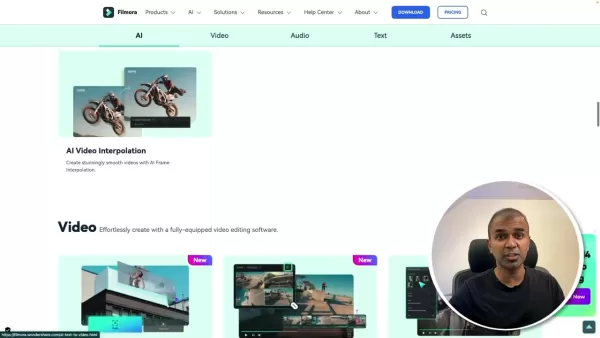 Filmora AI: Boost Your Creativity with AI-Powered Video Editing
Filmora AI is transforming the world of video editing by harnessing the power of Artificial Intelligence to help creators craft professional-quality videos with ease. This innovative tool offers a comprehensive suite of AI-powered features that not only streamline the editing process but also open u
Filmora AI: Boost Your Creativity with AI-Powered Video Editing
Filmora AI is transforming the world of video editing by harnessing the power of Artificial Intelligence to help creators craft professional-quality videos with ease. This innovative tool offers a comprehensive suite of AI-powered features that not only streamline the editing process but also open u
2026 Latest Best Top-rated AI Stem Separation Tools Curated for Remix Production, Sampling Prep, and Karaoke Masters. These powerful game-changing tools offer real-world tests to deliver precise audio isolation, boosting productivity significantly. XIX.AI provides a weekly updated free vs paid comparison guide to help you find the must-try solution that suits your needs. Explore now to unlock your AI edge.
8 tools
xix.ai
2026 Latest Best AI SQL Copilots Ranked Top-Rated! XIX.AI curates a powerful game-changing collection for weekly updated real-world tests. These must-try tools help you generate accurate revenue dashboards, analyze sales funnels, and track product metrics swiftly, boosting productivity massively. Explore now to Discover your perfect tool for data-driven decision making! 238 characters
9 tools
xix.ai
2026 Latest Best Top-Rated AI Melody Writing Tools for Song Drafts! XIX.AI has curated a highly powerful game-changing collection that goes through rigorous real-world tests to deliver the best writing experience. You can find detailed free vs paid comparisons, accurate rankings, and must-try options designed to help you create stunning song drafts effortlessly and boost your creative productivity significantly. Explore now to discover your perfect tool!
8 tools
xix.ai
2026 Latest Best Top-rated AI Conversation Trainer Tools for Interview Practice are here on XIX.AI! This curated collection features powerful, game-changing tools that go through rigorous real-world tests to deliver accurate feedback. You’ll find a free vs paid comparison and detailed rankings to help you choose the must-try option that boosts your confidence and skills. Explore now to Discover your perfect tool for interview success!
12 tools
xix.ai

2026 Latest Best Top-rated AI Style Transfer Tools for Creative Experiments! XIX.AI has curated a powerful, game-changing collection of must-try tools that deliver exceptional results through real-world tests and rigorous rankings. These top solutions help creatives boost productivity significantly by accelerating content creation and unlocking endless creative possibilities. Explore now to discover your perfect tool and start creating today!
9 tools
xix.ai
2026 Latest Best Top-Rated AI Dialogue Bubble Tools for Visual Storytelling are here on XIX.AI! This curated collection features powerful, game-changing tools that help creators boost productivity and overcome creative bottlenecks. Get a free vs paid comparison, see real-world tests, and check the latest rankings to find the must-try solutions perfect for crafting engaging visual narratives. Explore now to discover your ideal tool!
10 tools
xix.ai

這篇文章來得正是時候!我最近剪片總覺得音質不夠乾淨,AI降噪功能真的有用嗎?看介紹好像連背景雜音都能處理,不知道對老舊錄音檔效果如何?有點想試試看又怕操作太複雜...有人用過可以分享心得嗎?🎤
Filmora's AI audio tools sound promising for 2026! As a hobbyist editor, I'm always struggling with background noise in my recordings. If this can clean that up automatically, it'd be a huge time-saver. Hope the pricing stays reasonable though, some of these AI features are getting locked behind expensive subscriptions. 🤞












