


 Home
HomeHow to Design Your Own 3D Printed Keychain: A Beginner's Tutorial
In the digital era, personalization is crucial. Crafting customized keychains with names and unique designs is now more accessible than ever. This guide provides a step-by-step tutorial on leveraging AI-powered tools to design and produce personalized 3D keychains. Ideal for personal use or as distinctive gifts, it empowers you to unlock your creativity and forge something truly unique!
Key Points
Install the Bing app from the Play Store to gain access to its Image Creator feature.
Utilize text prompts to generate unique 3D keychain designs featuring custom names and styles.
Customize your prompts to define specific colors, outfits, and background elements.
Download the resulting images for personal projects or to share with others.
Experiment with different prompts to produce one-of-a-kind, personalized designs.
Getting Started with AI Keychain Design
Installing the Bing App
Your first step in designing a personalized 3D keychain is to install the required application. The Bing app, obtainable via the Google Play Store, houses the Image Creator tool necessary for generating your designs. To start, go to the Google Play Store and search for "Bing." Once located, download and install the app on your mobile device.
After installation, launch the Bing app. This platform will be your hub for accessing the AI-powered Image Creator. Ensure the app is updated to the latest version to take advantage of all current features and enhancements for a smoother workflow.
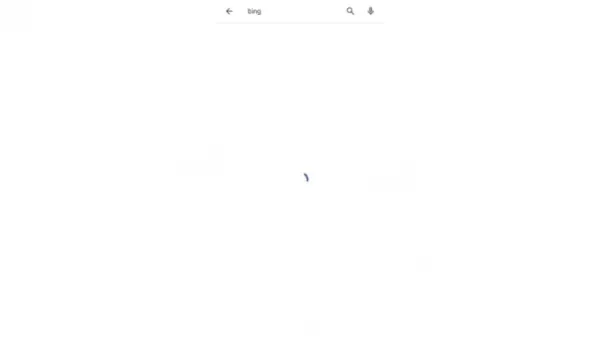
Keeping your app up-to-date guarantees a fluid and efficient design experience.
Accessing Image Creator
With the Bing app installed, the next step is to find the Image Creator tool inside the app. You can typically locate it in one of two ways. The first method is to look for the Image Creator icon on the Bing app's main screen.
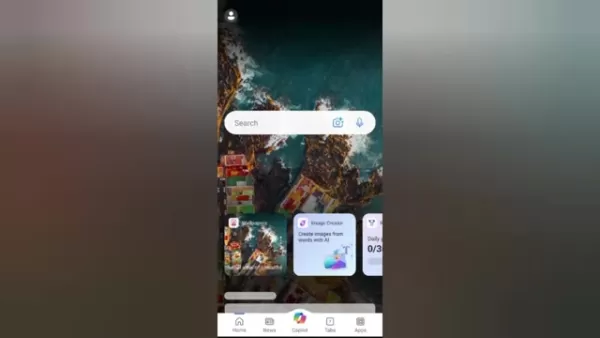
This icon is generally placed prominently for immediate access.
If the icon isn't visible on the home screen, use the second method by navigating to the "Apps" section, usually found at the bottom of the interface. Tapping "Apps" will show a menu of available tools, where you should find the Image Creator. Select it to open the design interface and begin crafting your custom 3D keychain.
Crafting the Perfect Prompt for Your Keychain
Understanding Prompts
Well-written prompts are fundamental for directing the AI to generate your desired 3D keychain design. An effective prompt should incorporate precise details about your vision. Consider these elements when formulating your instructions:
- Character Description: Indicate if you want a boy or girl cartoon character.
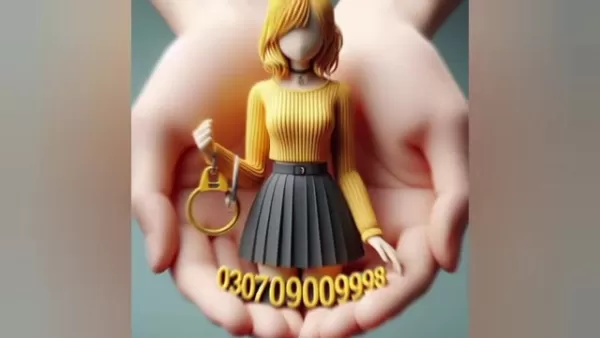
You can further specify hair color, eye color, and other distinctive traits.
- Keychain Style: Describe the keychain's format. Do you prefer a full-body character or just a torso? Mention if a key should be included.
- Name and Text: Clearly indicate the name to be featured on the keychain. You can also specify including a phone number.
- Color Scheme: Outline the colors for the name, clothing, and other design elements. The more specific, the better.
- Clothing: Describe the character's attire, such as "a skirt and top," "a hoodie," or "a salwar kameez." This personalizes the keychain to your liking.
- Background: If you desire a particular background, state it in the prompt. Otherwise, the AI will apply a default background.
By supplying these specifics, you guide the AI to produce a design that aligns with your concept. Example prompts:
- A 3D cartoon of a boy, holding a keychain in his palm. High-quality, realistic photo with the name 'ARYAN' in 3D, embossed letters in black, yellow, purple, and white. Below, include the number "99699900008".
- A 3D caricature of a girl in a skirt top, holding a keychain. High-quality, realistic photo featuring the name 'RIZZ' in embossed 3D lettering, using black, yellow, white, and black colors. Below, include the number "0307090009998".
Step-by-Step Guide to Creating Your Keychain
Step 1: Enter the Prompt
After creating your prompt, type or paste it into the Image Creator's designated text field.
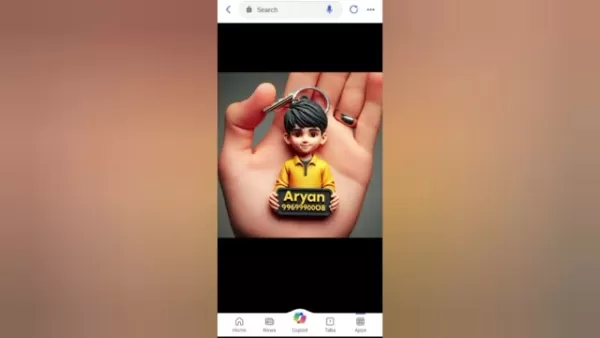
Double-check that all details are accurate and clearly expressed. The AI interprets your prompt literally, so precision is vital for achieving the intended outcome.
Review your text for any potential vagueness. The more explicit and unambiguous your instructions, the more accurately the AI can grasp your vision and generate a satisfactory design.
Step 2: Generate the Image
Once your prompt is entered, start the image generation by clicking the "Create" or "Generate" button.
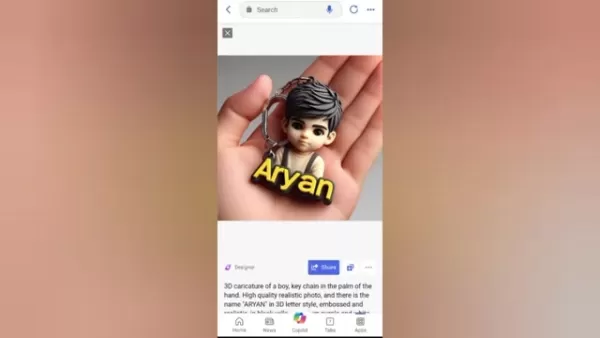
The AI will then process your request and produce several image variations based on your instructions.
Generation time can vary based on the prompt's complexity and AI system load. Please wait patiently for the process to finish. Upon completion, you will see a selection of images matching your description.
Step 3: Review and Select Your Design
Examine the generated images closely to identify the one that best fits your vision.
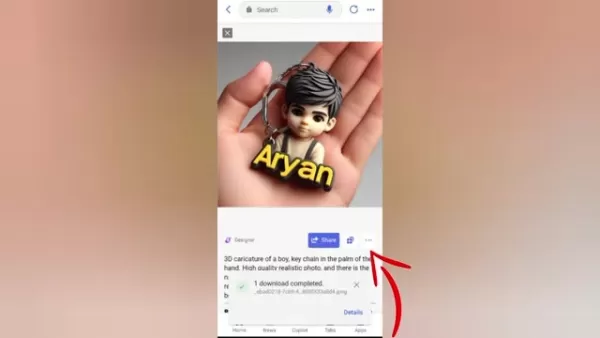
Typically, the AI provides multiple options with subtle differences. Scrutinize the details, color accuracy, and overall style of each image.
If the initial results are unsatisfactory, try refining your prompt and generating again. Minor tweaks to colors, clothing, or background details can yield significantly improved outcomes.
Step 4: Download the Image
After selecting your preferred design, download the image to your device.
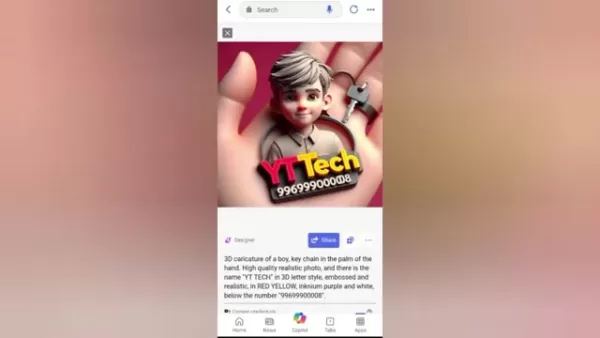
This usually involves clicking on the image and choosing a "Download" option. The file will be saved to your device's gallery or download folder.
With the image saved, you can use it for numerous applications. Share it online, use it as a blueprint for a physical keychain, or submit it to a custom printing service. The options are virtually limitless!
Advantages and Disadvantages of Using AI for Keychain Design
Pros
Cost-Effective: AI design tools are often free or require only a minimal subscription fee.
Time-Saving: It produces design concepts rapidly, saving considerable time compared to manual methods.
Accessibility: The platform is user-friendly for novices and experienced designers alike.
Customization: Highly adaptable personalization is possible through detailed text prompts.
Creativity: It inspires new ideas by offering unique design possibilities you might not have imagined.
Cons
Prompt Dependency: The final design quality is highly dependent on the clarity and detail of your initial prompt.
Potential Inaccuracy: The AI can sometimes misinterpret prompts, leading to unexpected results.
Limited Control: You have less precise control over fine details compared to manual design software.
Generic Results: Designs can occasionally appear generic if the input prompts are too simplistic.
Ethical Considerations: Potential exists for misuse of generated images and related copyright concerns.
Frequently Asked Questions
What is the best app for creating 3D keychains?
The Bing app provides an intuitive Image Creator tool that is excellent for generating custom 3D keychain designs. It is easily downloadable from the Google Play Store.
How do I customize the keychain design?
Use comprehensive text prompts to define character traits, keychain format, text, colors, attire, and background. Greater specificity enables the AI to better understand and execute your creative vision.
Can I include a phone number on the keychain?
Absolutely. Simply include the desired phone number clearly within your text prompt.
How do I download the generated image?
Click on your chosen generated image and select the "Download" function. The image will then be saved to your device's gallery or designated download location.
What should I do if the generated image is not what I expected?
Revise your prompt with more precise details and generate a new set of images. Testing different colors, styles, and descriptions will help you achieve the look you want.
Related Questions
Are there any limitations to what I can include in my prompt?
While the AI is highly capable, it may have difficulty with excessively complex or conflicting instructions. Keep your prompts straightforward and unambiguous. Also, refrain from including any inappropriate or offensive material, as the AI is programmed to block such content. Experimenting is the best way to learn what yields optimal results.
Can I use these designs for commercial purposes?
The terms of service for the Image Creator tool determine if you can use the generated designs commercially. Check these terms thoroughly to ensure you are compliant. Often, commercial use may require securing additional permissions or licensing.
How accurate is the AI in interpreting my prompts?
The AI's accuracy in interpreting prompts hinges on how clear and detailed your instructions are. Providing comprehensive details helps the AI grasp your concept and produce a design that aligns with it. However, as with any AI, it's not infallible and occasional misinterpretations may occur. Always review the images produced and adjust your prompts accordingly.
Related article
 Google AI virtual avatars now support 24 languages, breaking language barriers and making digital human communication accessible across cultures
Global cross-language communication is becoming increasingly seamless thanks to advances in generative AI. In February 2026, Qichacha, citing reports from Huxiu.com, announced that Google has significantly upgraded its AI Avatars (AI Virtual Characte
Baidu Q2 Revenue Hits 31.3 Billion Yuan as AI Business Surpasses Half for Second Straight Quarter
Baidu’s second-quarter 2026 financial results show total revenue of 31.3 billion yuan, with core business revenue at 25.2 billion yuan. AI-driven revenue now represents 50% of total business income, surpassing the halfway mark for two consecutive qua
OpenAI overtakes Anthropic in enterprise market share as AI spending grows
Recent figures from Ramp, a corporate credit card and expense management platform, reveal that OpenAI has reclaimed over 40% of the U.S. enterprise AI market, overtaking Anthropic. In May, Anthropic held a 41% share against OpenAI’s 39%; by July, Ant
Related Special Topic Recommendations
Prompt
Google AI virtual avatars now support 24 languages, breaking language barriers and making digital human communication accessible across cultures
Global cross-language communication is becoming increasingly seamless thanks to advances in generative AI. In February 2026, Qichacha, citing reports from Huxiu.com, announced that Google has significantly upgraded its AI Avatars (AI Virtual Characte
Baidu Q2 Revenue Hits 31.3 Billion Yuan as AI Business Surpasses Half for Second Straight Quarter
Baidu’s second-quarter 2026 financial results show total revenue of 31.3 billion yuan, with core business revenue at 25.2 billion yuan. AI-driven revenue now represents 50% of total business income, surpassing the halfway mark for two consecutive qua
OpenAI overtakes Anthropic in enterprise market share as AI spending grows
Recent figures from Ramp, a corporate credit card and expense management platform, reveal that OpenAI has reclaimed over 40% of the U.S. enterprise AI market, overtaking Anthropic. In May, Anthropic held a 41% share against OpenAI’s 39%; by July, Ant
Related Special Topic Recommendations
Prompt
 AI Prompt Testing Tools for Better Output Quality
2026 Latest Best Top-rated AI Prompt Testing Tools for Better Output Quality! XIX.AI has curated a powerful, game-changing collection of highly efficient tools that undergo rigorous real-world tests to ensure consistent top-tier results. You’ll find detailed free vs paid comparison insights, comprehensive rankings, and expert guidance to help you identify the must-try solutions that boost your workflow significantly. Explore now to unlock your AI edge!
 11 tools
 xix.ai
Business
AI Customer Insight Tools for Product Positioning
xix.ai
Business
AI Customer Insight Tools for Product Positioning
2026 Latest Best Top-rated AI Customer Insight Tools for Product Positioning! XIX.AI has curated a powerful, game-changing collection that goes through real-world tests and weekly updated rankings. It helps you uncover customer needs quickly to boost writing efficiency, create optimal SEO content, and craft perfect social media messages without wasting time. Explore now to Discover your perfect tool and Unlock your AI edge.
10 tools
xix.ai
Meeting Assistant
Zoom AI Note Takers for Client Calls, Internal Syncs, and Decision Tracking
2026 Latest Best Zoom AI note takers ranked by performance and usability. XIX.AI has curated a top-rated list of powerful tools that help you take accurate notes during client calls, streamline internal team syncs, and keep track of key decisions effortlessly. Get a free vs paid comparison along with real-world tests to find the must-try solution that boosts your productivity significantly. Explore now!
12 tools
xix.ai
Data Analysis
AI Spreadsheet Analysis Tools: Ask Questions and Get Charts Instantly
2026 Latest Best Top-rated AI Spreadsheet Analysis Tools are here on XIX.AI! This curated list features powerful, game-changing solutions that allow you to ask questions directly in spreadsheets and get accurate charts instantly, boosting your productivity significantly. We conduct real-world tests and provide a free vs paid comparison along with weekly updated rankings to help you find the perfect tool for streamlining data tasks. Explore now to Unlock your AI edge!
19 tools
xix.ai
design
AI Wireframe Tools for Product Designers
2026 Latest Best Top-Rated AI Wireframe Tools for Product Designers! XIX.AI has curated a powerful, game-changing collection of must-try tools that go through rigorous real-world tests. You’ll find detailed weekly updated rankings, free vs paid comparison insights, and all the key info you need to choose the perfect tool to boost your design efficiency and unlock your AI edge. Explore now!
8 tools
xix.ai
SEO
Best AI SEO Tools for Keyword Research
2026 Latest Best Top-Rated AI SEO Tools for Keyword Research are here on XIX.AI! This curated list features powerful, game-changing tools that go through rigorous real-world tests to deliver accurate data. Get a free vs paid comparison, see detailed rankings, and discover must-try options to boost your content strategy and improve search visibility. Explore now to find your perfect tool!
8 tools
xix.ai

 Comments (2)
0/500
Comments (2)
0/500
![CarlLopez]()
Finally, a tutorial that doesn't assume I'm a pro! The idea of using AI for keychain design is genius. Can't wait to try it with my own name. 😎
![BrianBaker]()
Just tried this tutorial and made a keychain with my cat's face! The AI tool suggestions were super helpful for a total beginner like me. Anyone else find the 'thickness' part tricky? 😅 Might need to tweak my design a bit more.
In the digital era, personalization is crucial. Crafting customized keychains with names and unique designs is now more accessible than ever. This guide provides a step-by-step tutorial on leveraging AI-powered tools to design and produce personalized 3D keychains. Ideal for personal use or as distinctive gifts, it empowers you to unlock your creativity and forge something truly unique!
Key Points
Install the Bing app from the Play Store to gain access to its Image Creator feature.
Utilize text prompts to generate unique 3D keychain designs featuring custom names and styles.
Customize your prompts to define specific colors, outfits, and background elements.
Download the resulting images for personal projects or to share with others.
Experiment with different prompts to produce one-of-a-kind, personalized designs.
Getting Started with AI Keychain Design
Installing the Bing App
Your first step in designing a personalized 3D keychain is to install the required application. The Bing app, obtainable via the Google Play Store, houses the Image Creator tool necessary for generating your designs. To start, go to the Google Play Store and search for "Bing." Once located, download and install the app on your mobile device.
After installation, launch the Bing app. This platform will be your hub for accessing the AI-powered Image Creator. Ensure the app is updated to the latest version to take advantage of all current features and enhancements for a smoother workflow.
Keeping your app up-to-date guarantees a fluid and efficient design experience.
Accessing Image Creator
With the Bing app installed, the next step is to find the Image Creator tool inside the app. You can typically locate it in one of two ways. The first method is to look for the Image Creator icon on the Bing app's main screen.
This icon is generally placed prominently for immediate access.
If the icon isn't visible on the home screen, use the second method by navigating to the "Apps" section, usually found at the bottom of the interface. Tapping "Apps" will show a menu of available tools, where you should find the Image Creator. Select it to open the design interface and begin crafting your custom 3D keychain.
Crafting the Perfect Prompt for Your Keychain
Understanding Prompts
Well-written prompts are fundamental for directing the AI to generate your desired 3D keychain design. An effective prompt should incorporate precise details about your vision. Consider these elements when formulating your instructions:
- Character Description: Indicate if you want a boy or girl cartoon character.
You can further specify hair color, eye color, and other distinctive traits.
- Keychain Style: Describe the keychain's format. Do you prefer a full-body character or just a torso? Mention if a key should be included.
- Name and Text: Clearly indicate the name to be featured on the keychain. You can also specify including a phone number.
- Color Scheme: Outline the colors for the name, clothing, and other design elements. The more specific, the better.
- Clothing: Describe the character's attire, such as "a skirt and top," "a hoodie," or "a salwar kameez." This personalizes the keychain to your liking.
- Background: If you desire a particular background, state it in the prompt. Otherwise, the AI will apply a default background.
By supplying these specifics, you guide the AI to produce a design that aligns with your concept. Example prompts:
- A 3D cartoon of a boy, holding a keychain in his palm. High-quality, realistic photo with the name 'ARYAN' in 3D, embossed letters in black, yellow, purple, and white. Below, include the number "99699900008".
- A 3D caricature of a girl in a skirt top, holding a keychain. High-quality, realistic photo featuring the name 'RIZZ' in embossed 3D lettering, using black, yellow, white, and black colors. Below, include the number "0307090009998".
Step-by-Step Guide to Creating Your Keychain
Step 1: Enter the Prompt
After creating your prompt, type or paste it into the Image Creator's designated text field.
Double-check that all details are accurate and clearly expressed. The AI interprets your prompt literally, so precision is vital for achieving the intended outcome.
Review your text for any potential vagueness. The more explicit and unambiguous your instructions, the more accurately the AI can grasp your vision and generate a satisfactory design.
Step 2: Generate the Image
Once your prompt is entered, start the image generation by clicking the "Create" or "Generate" button.
The AI will then process your request and produce several image variations based on your instructions.
Generation time can vary based on the prompt's complexity and AI system load. Please wait patiently for the process to finish. Upon completion, you will see a selection of images matching your description.
Step 3: Review and Select Your Design
Examine the generated images closely to identify the one that best fits your vision.
Typically, the AI provides multiple options with subtle differences. Scrutinize the details, color accuracy, and overall style of each image.
If the initial results are unsatisfactory, try refining your prompt and generating again. Minor tweaks to colors, clothing, or background details can yield significantly improved outcomes.
Step 4: Download the Image
After selecting your preferred design, download the image to your device.
This usually involves clicking on the image and choosing a "Download" option. The file will be saved to your device's gallery or download folder.
With the image saved, you can use it for numerous applications. Share it online, use it as a blueprint for a physical keychain, or submit it to a custom printing service. The options are virtually limitless!
Advantages and Disadvantages of Using AI for Keychain Design
Pros
Cost-Effective: AI design tools are often free or require only a minimal subscription fee.
Time-Saving: It produces design concepts rapidly, saving considerable time compared to manual methods.
Accessibility: The platform is user-friendly for novices and experienced designers alike.
Customization: Highly adaptable personalization is possible through detailed text prompts.
Creativity: It inspires new ideas by offering unique design possibilities you might not have imagined.
Cons
Prompt Dependency: The final design quality is highly dependent on the clarity and detail of your initial prompt.
Potential Inaccuracy: The AI can sometimes misinterpret prompts, leading to unexpected results.
Limited Control: You have less precise control over fine details compared to manual design software.
Generic Results: Designs can occasionally appear generic if the input prompts are too simplistic.
Ethical Considerations: Potential exists for misuse of generated images and related copyright concerns.
Frequently Asked Questions
What is the best app for creating 3D keychains?
The Bing app provides an intuitive Image Creator tool that is excellent for generating custom 3D keychain designs. It is easily downloadable from the Google Play Store.
How do I customize the keychain design?
Use comprehensive text prompts to define character traits, keychain format, text, colors, attire, and background. Greater specificity enables the AI to better understand and execute your creative vision.
Can I include a phone number on the keychain?
Absolutely. Simply include the desired phone number clearly within your text prompt.
How do I download the generated image?
Click on your chosen generated image and select the "Download" function. The image will then be saved to your device's gallery or designated download location.
What should I do if the generated image is not what I expected?
Revise your prompt with more precise details and generate a new set of images. Testing different colors, styles, and descriptions will help you achieve the look you want.
Related Questions
Are there any limitations to what I can include in my prompt?
While the AI is highly capable, it may have difficulty with excessively complex or conflicting instructions. Keep your prompts straightforward and unambiguous. Also, refrain from including any inappropriate or offensive material, as the AI is programmed to block such content. Experimenting is the best way to learn what yields optimal results.
Can I use these designs for commercial purposes?
The terms of service for the Image Creator tool determine if you can use the generated designs commercially. Check these terms thoroughly to ensure you are compliant. Often, commercial use may require securing additional permissions or licensing.
How accurate is the AI in interpreting my prompts?
The AI's accuracy in interpreting prompts hinges on how clear and detailed your instructions are. Providing comprehensive details helps the AI grasp your concept and produce a design that aligns with it. However, as with any AI, it's not infallible and occasional misinterpretations may occur. Always review the images produced and adjust your prompts accordingly.








 Google AI virtual avatars now support 24 languages, breaking language barriers and making digital human communication accessible across cultures
Global cross-language communication is becoming increasingly seamless thanks to advances in generative AI. In February 2026, Qichacha, citing reports from Huxiu.com, announced that Google has significantly upgraded its AI Avatars (AI Virtual Characte
Google AI virtual avatars now support 24 languages, breaking language barriers and making digital human communication accessible across cultures
Global cross-language communication is becoming increasingly seamless thanks to advances in generative AI. In February 2026, Qichacha, citing reports from Huxiu.com, announced that Google has significantly upgraded its AI Avatars (AI Virtual Characte
 Baidu Q2 Revenue Hits 31.3 Billion Yuan as AI Business Surpasses Half for Second Straight Quarter
Baidu’s second-quarter 2026 financial results show total revenue of 31.3 billion yuan, with core business revenue at 25.2 billion yuan. AI-driven revenue now represents 50% of total business income, surpassing the halfway mark for two consecutive qua
Baidu Q2 Revenue Hits 31.3 Billion Yuan as AI Business Surpasses Half for Second Straight Quarter
Baidu’s second-quarter 2026 financial results show total revenue of 31.3 billion yuan, with core business revenue at 25.2 billion yuan. AI-driven revenue now represents 50% of total business income, surpassing the halfway mark for two consecutive qua
 OpenAI overtakes Anthropic in enterprise market share as AI spending grows
Recent figures from Ramp, a corporate credit card and expense management platform, reveal that OpenAI has reclaimed over 40% of the U.S. enterprise AI market, overtaking Anthropic. In May, Anthropic held a 41% share against OpenAI’s 39%; by July, Ant
OpenAI overtakes Anthropic in enterprise market share as AI spending grows
Recent figures from Ramp, a corporate credit card and expense management platform, reveal that OpenAI has reclaimed over 40% of the U.S. enterprise AI market, overtaking Anthropic. In May, Anthropic held a 41% share against OpenAI’s 39%; by July, Ant
2026 Latest Best Top-rated AI Prompt Testing Tools for Better Output Quality! XIX.AI has curated a powerful, game-changing collection of highly efficient tools that undergo rigorous real-world tests to ensure consistent top-tier results. You’ll find detailed free vs paid comparison insights, comprehensive rankings, and expert guidance to help you identify the must-try solutions that boost your workflow significantly. Explore now to unlock your AI edge!
11 tools
xix.ai
2026 Latest Best Top-rated AI Customer Insight Tools for Product Positioning! XIX.AI has curated a powerful, game-changing collection that goes through real-world tests and weekly updated rankings. It helps you uncover customer needs quickly to boost writing efficiency, create optimal SEO content, and craft perfect social media messages without wasting time. Explore now to Discover your perfect tool and Unlock your AI edge.
10 tools
xix.ai
2026 Latest Best Zoom AI note takers ranked by performance and usability. XIX.AI has curated a top-rated list of powerful tools that help you take accurate notes during client calls, streamline internal team syncs, and keep track of key decisions effortlessly. Get a free vs paid comparison along with real-world tests to find the must-try solution that boosts your productivity significantly. Explore now!
12 tools
xix.ai
2026 Latest Best Top-rated AI Spreadsheet Analysis Tools are here on XIX.AI! This curated list features powerful, game-changing solutions that allow you to ask questions directly in spreadsheets and get accurate charts instantly, boosting your productivity significantly. We conduct real-world tests and provide a free vs paid comparison along with weekly updated rankings to help you find the perfect tool for streamlining data tasks. Explore now to Unlock your AI edge!
19 tools
xix.ai
2026 Latest Best Top-Rated AI Wireframe Tools for Product Designers! XIX.AI has curated a powerful, game-changing collection of must-try tools that go through rigorous real-world tests. You’ll find detailed weekly updated rankings, free vs paid comparison insights, and all the key info you need to choose the perfect tool to boost your design efficiency and unlock your AI edge. Explore now!
8 tools
xix.ai

2026 Latest Best Top-Rated AI SEO Tools for Keyword Research are here on XIX.AI! This curated list features powerful, game-changing tools that go through rigorous real-world tests to deliver accurate data. Get a free vs paid comparison, see detailed rankings, and discover must-try options to boost your content strategy and improve search visibility. Explore now to find your perfect tool!
8 tools
xix.ai

Finally, a tutorial that doesn't assume I'm a pro! The idea of using AI for keychain design is genius. Can't wait to try it with my own name. 😎
Just tried this tutorial and made a keychain with my cat's face! The AI tool suggestions were super helpful for a total beginner like me. Anyone else find the 'thickness' part tricky? 😅 Might need to tweak my design a bit more.












