


 Home
HomeHow to create aesthetic profile pictures in 2026? Step-by-step guide for all devices.
In today's digital world, your profile picture is frequently the first impression you create online. Whether for WhatsApp, Facebook, or Instagram, a stylish and eye-catching profile picture can significantly boost your personal appeal and brand identity. This guide will walk you through designing visually compelling profile pictures using PicsArt, a powerful photo editing application, ensuring your online persona stands out. Let's explore how to create a beautiful aesthetic display picture (DP) that perfectly represents you.
Key Points
Use PicsArt for photo editing.
Crop images to a square format.
Apply black and white filters for a classic look.
Use blur effects to soften the image.
Add circular frames to focus on the profile.
Include name initials for a personal touch.
Apply shadow effects to create depth.
Adjust contrast to enhance visual clarity.
Understanding Aesthetic Profile Picture Creation
Why Aesthetic Profile Pictures Matter
A stylish profile picture helps build a strong visual identity. In a crowded online space, a unique and appealing display picture is essential for grabbing attention and making a lasting first impression. A carefully designed profile picture can reflect your personality, interests, and style, making your social profiles more engaging and approachable. Whether you're building a personal brand, growing your follower base, or simply expressing yourself, a compelling profile picture is a valuable asset. Using tools like PicsArt provides an easy way to turn ordinary photos into striking self-representations, perfectly suited for platforms like WhatsApp, Facebook, and Instagram. Creating the right aesthetic boosts visibility and relatability, helping you form stronger connections and expand your digital footprint.
Tools and Apps for Creating Aesthetic Profile Pictures
Several apps and software are available for crafting aesthetic profile pictures, but PicsArt is notable for its intuitive interface and versatile functionality.

PicsArt enables users to edit photos, apply filters, add text, and integrate various design elements with ease. Other tools like Canva and Adobe Photoshop Express also provide strong editing features. However, this tutorial concentrates on PicsArt due to its accessibility and effectiveness for producing chic, personalized profile pictures. Using the right tools simplifies the creative process, allowing you to achieve professional-quality results without needing advanced technical knowledge. Understanding the features and advantages of each application helps you select the one that aligns best with your creative vision and skill level.
Additional Tips for a Stunning Profile Picture
Advanced Edits and Composition Techniques
To enhance your profile picture further, consider advanced editing methods. Try color grading to establish a cohesive aesthetic. Utilize the 'Curves' tool for precise brightness and contrast adjustments. Focus on composition; apply the rule of thirds to place key elements deliberately. Use gradient filters to add depth and dimension. Blending various effects subtly can yield distinctive, attention-grabbing results. Mastering these advanced techniques improves your photo editing proficiency and empowers you to create profile pictures that truly stand out. The time spent learning these methods will be evident in the quality and impact of your online presence, helping you reach your creative objectives with polish.
Step-by-Step Guide: Creating an Aesthetic Profile Picture with PicsArt
Step 1: Open PicsArt and Select a Photo
Start by launching the PicsArt app on your mobile device.

If you haven't installed it, download it from your app store. Once open, tap the '+' icon and choose the photo you wish to transform into an aesthetic profile picture from your gallery. Pick a high-resolution image for optimal quality. This first step lays the groundwork for your editing process, so select a photo that matches your intended style and aesthetic. Ensuring the image is clear and well-lit will make subsequent edits more effective and visually pleasing. Take a moment to choose the ideal starting point for your creative project.
Step 2: Crop the Photo
After selecting your photo, crop it into a square.
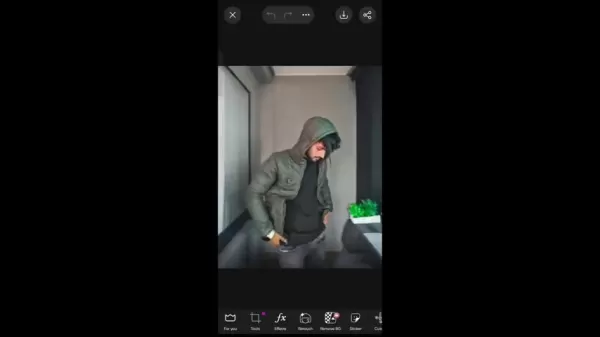
Square dimensions work best for most social media profile pictures, ensuring your image fits perfectly without distortion. To do this, navigate to 'Tools' and tap 'Crop'. Choose the 'Square' option and adjust the cropping area to highlight the most important part of your face or subject. Proper cropping ensures your profile picture is visually balanced and effectively draws attention to the focal point. Precision in this step enhances the overall aesthetic of your final image, making it more engaging and professional.
Step 3: Apply Black and White Filter
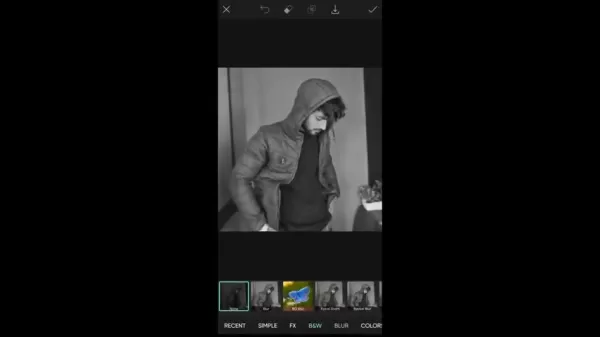
Convert your photo to black and white.

This imparts a classic, timeless aesthetic. Go to 'Effects' and choose 'B&W'. Select a black and white filter that accentuates the details and contrast in your photo. Black and white filters can soften the image and lend a sophisticated, artistic feel. Experiment with different filter options to find the one that best complements your features and style. This step is key to creating a profile picture that stands out with elegance and simplicity.
Step 4: Add Motion Blur
Apply motion blur to create a subtle, dreamy effect.
This softens the image and adds a touch of intrigue. Return to 'Effects', then select 'Blur', and pick 'Motion Blur'. Adjust the 'Distance' slider to control the blur intensity. A lower distance value typically achieves the desired effect. Adding blur can make your profile picture more captivating and visually appealing, encouraging viewers to explore your profile further. Experiment with the settings to find the perfect balance that enhances your photo without hiding important details.
Step 5: Add a Circle Frame
Elevate your profile picture by adding a circular frame.
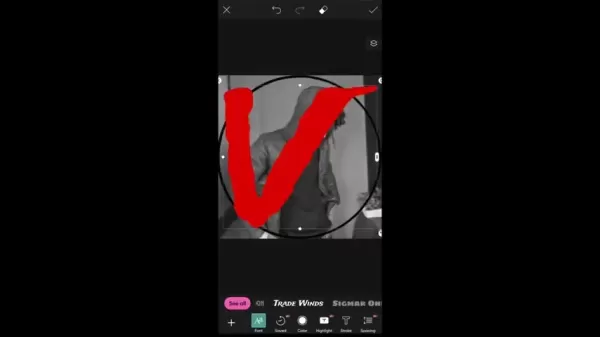
Go to 'Sticker' and search for 'circle'. Pick a simple, elegant circle frame that complements your photo. Resize and position the frame so it fits neatly around your face or the main subject. A well-placed circle frame draws attention to the center of your profile picture, making it more visually striking and appealing. Choose a frame that matches your desired aesthetic and adds a sophisticated touch to your overall profile.
Step 6: Insert Initial Text
Personalize your profile picture by adding your initial.
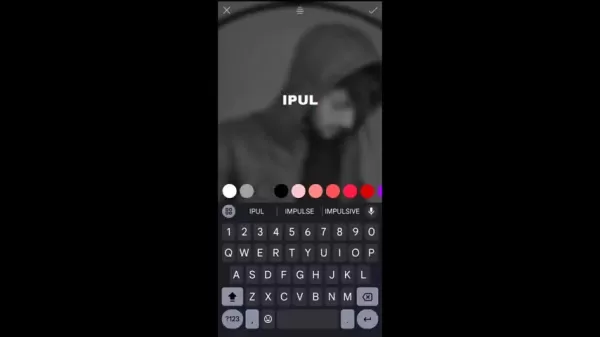
Go to 'Text' and type the first letter of your name. Select an attractive font and set the color to red. Position the initial near the edge of the circle frame. Ensure the text is clear and readable, but not overwhelming. Adding your initial is a simple yet effective way to make your profile picture distinctive and memorable. It adds a personal element that helps you stand out in a busy online environment.
Step 7: Insert Your Name
Add the rest of your name in capital letters below the initial, using a white color.
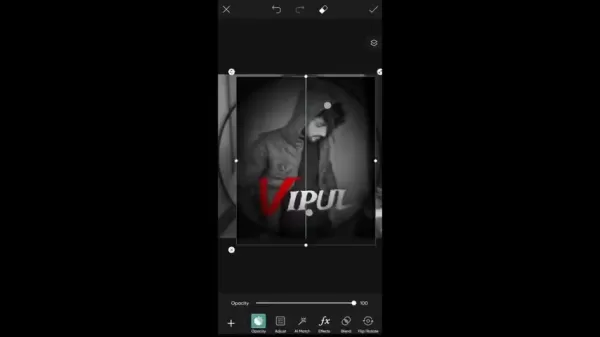
Choose the same font. Reduce the size to fit around the initial and adjust it for a perfect look. This helps people easily remember and recognize you across different platforms, strengthening your personal brand and online presence. This contributes to a unified and polished aesthetic that improves the overall appeal of your profile picture.
Step 8: Add Shadow
Apply shadow to both your initial and name. This creates depth in the profile picture.
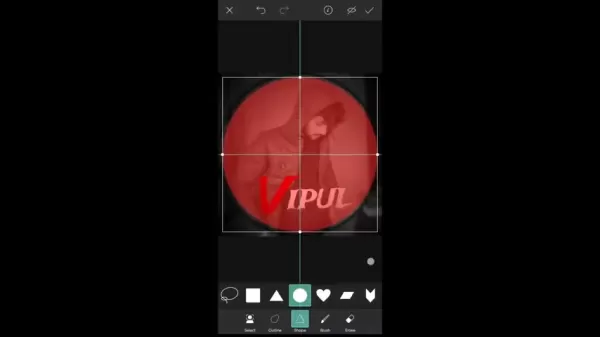
Select the 'Shadow' options after clicking the text and set the positioning to zero. Adding shadow provides a realistic and refined appearance. You can create a professional and aesthetically pleasing profile picture with a three-dimensional effect that makes it stand out.
Step 9: Focus Zoom
To emphasize your subject further, apply focus zoom from the effects menu. This is done by adding the effect and adjusting it to suitable levels. Modify the blur to your preference and keep the size relatively large. Adding focus zoom ensures your subject is clearly visible and well-defined, drawing viewers' attention and creating a sense of depth and clarity.
Step 10: Add a Shadow
Apply a shadow effect to darken the image. Use a shadow effect across the entire photo to subtly darken it, enhancing the black and white aesthetic. Adjust the opacity to your liking. Shadow effects can add depth and dimension, making your profile picture more visually dynamic. If your photo is overly bright, this step will be particularly useful. Experiment and fine-tune the effect until it meets your expectations.
Step 11: Save to Photos
Finally, go to Cutout to remove any unnecessary parts of the image. Ensure you set the crop shape to circle and save the image to your photos. Check that the picture is properly aligned so you don't crop out important elements. This will be your final profile picture and should be centered for your profile. You have now created a perfectly aesthetic profile picture using just PicsArt.
PicsArt Pricing
Affordable Options for Every User
PicsArt operates on a freemium model, offering a comprehensive set of features for free, making it accessible to everyone. For users wanting more advanced capabilities, PicsArt provides premium subscription plans. The PicsArt Gold subscription grants access to additional tools, filters, and content, broadening your creative options. While the free version is adequate for basic profile picture creation, the paid subscriptions serve more demanding editing needs. The range of pricing ensures that both casual and professional users can find a plan that fits their needs and budget. Investing in a premium subscription can markedly improve the quality and distinctiveness of your profile pictures, giving you a competitive advantage online.
PicsArt Subscription Options
PicsArt offers flexible subscription plans designed for various needs:
Free Version: Provides basic editing tools and access to a limited asset library.
PicsArt Gold: Unlocks premium editing tools, an expanded collection of stickers and templates, and an ad-free experience. Pricing generally ranges from $4.99 to $11.99 per month, depending on the subscription term.
Team Subscription: Designed for collaborative work, offering all PicsArt Gold features plus team management tools and shared storage. Pricing varies according to team size.
Enterprise Solutions: Customized for larger organizations, providing tailored solutions with dedicated support and advanced features. Pricing is based on specific needs.
These options ensure users can choose the plan that best suits their requirements, whether they are individual creators or part of a larger team.
Please Note: Pricing may differ based on promotions, geographic region, and subscription terms.
Weighing the Options: PicsArt Aesthetic Profile Picture Creation – Pros
and Cons
Pros
User-Friendly Interface: Simple to navigate and use, ideal for beginners.
Versatile Editing Tools: Provides a broad array of tools for photo editing, filters, and design elements.
Free Version Available: Offers a solid set of features at no cost, enabling users to create without upfront payment.
Creative Community: Access to a community where users share creations and receive feedback.
Cons
Ads in Free Version: The free version contains ads, which can be intrusive.
Subscription Required for Premium Features: Advanced tools and content need a paid subscription.
Mobile-Only Focus: Mainly a mobile application, with limited functionality on desktops.
PicsArt Core Features
PicsArt Key Capabilities
PicsArt includes a variety of features designed for diverse creative purposes:
Photo Editor: Provides numerous tools for cropping, adjusting, and enhancing photos.
Filters and Effects: Offers a wide selection of filters and effects to add creative touches to images.
Stickers and Overlays: Enables users to add stickers, overlays, and text for customization.
Drawing Tools: Includes drawing tools for creating custom graphics and illustrations.
Collage Maker: Allows users to merge multiple images into attractive collages.
AI-Powered Tools: Uses AI for features like background removal, object detection, and style transfer.
Video Editor: Provides basic video editing tools for creating short clips and social media content.
Community Features: Grants access to a community where users can share their work and get input.
These features make PicsArt a versatile platform for both novice and expert creators aiming to improve their visual content.
Use Cases for Aesthetic Profile Picture Creation
Various Applications for Enhancing Online Presence
Creating aesthetic profile pictures is useful for numerous online platforms. For WhatsApp, a refined profile picture can enhance your professionalism and personal branding. On Facebook, it helps make a memorable impression and attract friends and followers. Instagram profile pictures can boost your feed's overall aesthetic and draw a wider audience. Additionally, aesthetic display pictures are excellent for maintaining a consistent look across all your social media profiles. Applying the methods and advice from this guide can turn your ordinary photos into captivating self-representations, maximizing your influence on each platform. A consistent and visually appealing online identity is crucial for effective communication and engagement.
Frequently Asked Questions
Is PicsArt free to use?
Yes, PicsArt has a free version with essential editing tools. However, premium features and content require a subscription.
Can I use PicsArt on my computer?
PicsArt is mainly a mobile app, but you can use some features via their web-based editor.
How do I save my edited profile picture?
Once your edits are complete, tap the download icon to save the image to your gallery.
Related Questions
What other apps can I use to edit photos?
Beyond PicsArt, several other apps are excellent for photo editing. Canva provides user-friendly design templates and editing tools. Adobe Photoshop Express delivers more advanced features for professional-grade edits. VSCO is renowned for its aesthetic filters and presets. Snapseed, created by Google, offers a variety of precise editing options. Each app serves different needs and skill levels, so try a few to discover which one aligns with your style and creative objectives. Combining different tools can also produce unique and impressive results, elevating your photo editing skills. Your choice depends on your intended outcome and the degree of control you want over the editing process.
Related article
 Stripe to Acquire OpenRouter as AI Model Routing Gains Momentum
Stripe has agreed to acquire OpenRouter, an AI model-routing platform that gives developers access to hundreds of models through a single interface. The deal adds model selection and routing to Stripe’s existing work around AI usage and token-based b
Former OpenAI Researcher Barrett Zoph Returns to Google to Support Gemini Development
Barret Zoph, who previously abruptly left and joined OpenAI due to a disagreement with Thinking Machines Lab CEO Miriam Mularati, has once again changed employers. Alphabet's Google announced that Zoph will return as Vice President of Research, bring
How Recursive Intelligence Raised $335M at $4B Valuation in 4 Months
The co-founders of startup Ricursive Intelligence seemed destined to be co-founders.Anna Goldie, CEO, and Azalia Mirhoseini, CTO, are so well-known in the AI community that they were among those AI engineers who “got those weird emails from Zuckerber
Related Special Topic Recommendations
Design & Art
Stripe to Acquire OpenRouter as AI Model Routing Gains Momentum
Stripe has agreed to acquire OpenRouter, an AI model-routing platform that gives developers access to hundreds of models through a single interface. The deal adds model selection and routing to Stripe’s existing work around AI usage and token-based b
Former OpenAI Researcher Barrett Zoph Returns to Google to Support Gemini Development
Barret Zoph, who previously abruptly left and joined OpenAI due to a disagreement with Thinking Machines Lab CEO Miriam Mularati, has once again changed employers. Alphabet's Google announced that Zoph will return as Vice President of Research, bring
How Recursive Intelligence Raised $335M at $4B Valuation in 4 Months
The co-founders of startup Ricursive Intelligence seemed destined to be co-founders.Anna Goldie, CEO, and Azalia Mirhoseini, CTO, are so well-known in the AI community that they were among those AI engineers who “got those weird emails from Zuckerber
Related Special Topic Recommendations
Design & Art
 Top AI Illustration Tools: Create Editorial Scenes and Cover Art Faster
2026 Latest Top-rated AI Illustration Tools: Our curated list features the best powerfully designed tools for creating stunning editorial scenes and eye-catching cover art quickly. Each option has gone through rigorous real-world tests, offering a free vs paid comparison to help you find the perfect match for your workflow. Try these must-try solutions today to unlock your AI edge and boost your creative productivity. Explore now at XIX.AI.
 10 tools
 xix.ai
Education and Learning
Top AI Tutors for Exam Prep: Practice Math, Science, and English
xix.ai
Education and Learning
Top AI Tutors for Exam Prep: Practice Math, Science, and English
2026 Latest Top-Rated Best AI Tutors for Exam Prep are here on XIX.AI! Our curated list features powerful game-changing tools that offer free vs paid comparison, real-world tests, and weekly updated rankings. They help boost your writing efficiency, simplify complex topic learning, and unlock your academic potential. Explore now to Discover your perfect exam prep tool and Start creating today to Unlock your AI edge!
10 tools
xix.ai
Finance
AI Budget Planning Tools for Personal Money Management
2026 Latest Best Top-Rated AI Budget Planning Tools for Personal Money Management are here on XIX.AI! This curated collection features powerful, game-changing solutions that help you conduct real-world tests, understand spending habits, and create personalized plans to boost productivity. Enjoy a free vs paid comparison along with detailed rankings. Must-try tools designed to simplify money management and unlock your AI edge. Explore now!
11 tools
xix.ai
Health & Wellness
AI Sleep Tracking Assistants: Improve Recovery with Better Bedtime Habits
2026 Latest Best Top-Rated AI Sleep Tracking Assistants curated for ultimate recovery. This fully updated weekly guide features powerful tools that deliver real-world tests, free vs paid comparison, and detailed rankings to help you find the must-try solution that boosts sleep quality and supports better bedtime habits. Explore now at XIX.AI to Unlock your AI edge.
10 tools
xix.ai
Data Analysis
AI SQL Copilots for Product and Revenue Analytics
2026 Latest Best Top-Rated AI SQL Copilots for Product and Revenue Analytics! XIX.AI has curated a powerful, game-changing collection of must-try tools that undergo real-world tests through weekly updated rankings. These tools help users boost productivity significantly by accelerating data analysis, streamlining complex queries, and generating accurate insights to drive smarter business decisions. Explore now to Discover your perfect tool for unlocking your AI edge!
14 tools
xix.ai
Education and Learning
Best AI Homework Helpers That Teach: Learn Concepts, Not Just Answers
2026 Latest Best Top-Rated AI Homework Helpers That Teach Core Concepts Not Just Answers Powerful Tools for Students Must-Try Curated List Weekly Updated Free vs Paid Comparison Real-World Tests Accurate Rankings to Help You Unlock Your Full Learning Potential Explore now to Discover your perfect tool for smarter studying.
10 tools
xix.ai

 Comments (0)
0/500
Comments (0)
0/500
In today's digital world, your profile picture is frequently the first impression you create online. Whether for WhatsApp, Facebook, or Instagram, a stylish and eye-catching profile picture can significantly boost your personal appeal and brand identity. This guide will walk you through designing visually compelling profile pictures using PicsArt, a powerful photo editing application, ensuring your online persona stands out. Let's explore how to create a beautiful aesthetic display picture (DP) that perfectly represents you.
Key Points
Use PicsArt for photo editing.
Crop images to a square format.
Apply black and white filters for a classic look.
Use blur effects to soften the image.
Add circular frames to focus on the profile.
Include name initials for a personal touch.
Apply shadow effects to create depth.
Adjust contrast to enhance visual clarity.
Understanding Aesthetic Profile Picture Creation
Why Aesthetic Profile Pictures Matter
A stylish profile picture helps build a strong visual identity. In a crowded online space, a unique and appealing display picture is essential for grabbing attention and making a lasting first impression. A carefully designed profile picture can reflect your personality, interests, and style, making your social profiles more engaging and approachable. Whether you're building a personal brand, growing your follower base, or simply expressing yourself, a compelling profile picture is a valuable asset. Using tools like PicsArt provides an easy way to turn ordinary photos into striking self-representations, perfectly suited for platforms like WhatsApp, Facebook, and Instagram. Creating the right aesthetic boosts visibility and relatability, helping you form stronger connections and expand your digital footprint.
Tools and Apps for Creating Aesthetic Profile Pictures
Several apps and software are available for crafting aesthetic profile pictures, but PicsArt is notable for its intuitive interface and versatile functionality.
PicsArt enables users to edit photos, apply filters, add text, and integrate various design elements with ease. Other tools like Canva and Adobe Photoshop Express also provide strong editing features. However, this tutorial concentrates on PicsArt due to its accessibility and effectiveness for producing chic, personalized profile pictures. Using the right tools simplifies the creative process, allowing you to achieve professional-quality results without needing advanced technical knowledge. Understanding the features and advantages of each application helps you select the one that aligns best with your creative vision and skill level.
Additional Tips for a Stunning Profile Picture
Advanced Edits and Composition Techniques
To enhance your profile picture further, consider advanced editing methods. Try color grading to establish a cohesive aesthetic. Utilize the 'Curves' tool for precise brightness and contrast adjustments. Focus on composition; apply the rule of thirds to place key elements deliberately. Use gradient filters to add depth and dimension. Blending various effects subtly can yield distinctive, attention-grabbing results. Mastering these advanced techniques improves your photo editing proficiency and empowers you to create profile pictures that truly stand out. The time spent learning these methods will be evident in the quality and impact of your online presence, helping you reach your creative objectives with polish.
Step-by-Step Guide: Creating an Aesthetic Profile Picture with PicsArt
Step 1: Open PicsArt and Select a Photo
Start by launching the PicsArt app on your mobile device.
If you haven't installed it, download it from your app store. Once open, tap the '+' icon and choose the photo you wish to transform into an aesthetic profile picture from your gallery. Pick a high-resolution image for optimal quality. This first step lays the groundwork for your editing process, so select a photo that matches your intended style and aesthetic. Ensuring the image is clear and well-lit will make subsequent edits more effective and visually pleasing. Take a moment to choose the ideal starting point for your creative project.
Step 2: Crop the Photo
After selecting your photo, crop it into a square.
Square dimensions work best for most social media profile pictures, ensuring your image fits perfectly without distortion. To do this, navigate to 'Tools' and tap 'Crop'. Choose the 'Square' option and adjust the cropping area to highlight the most important part of your face or subject. Proper cropping ensures your profile picture is visually balanced and effectively draws attention to the focal point. Precision in this step enhances the overall aesthetic of your final image, making it more engaging and professional.
Step 3: Apply Black and White Filter
Convert your photo to black and white.
This imparts a classic, timeless aesthetic. Go to 'Effects' and choose 'B&W'. Select a black and white filter that accentuates the details and contrast in your photo. Black and white filters can soften the image and lend a sophisticated, artistic feel. Experiment with different filter options to find the one that best complements your features and style. This step is key to creating a profile picture that stands out with elegance and simplicity.
Step 4: Add Motion Blur
Apply motion blur to create a subtle, dreamy effect.
This softens the image and adds a touch of intrigue. Return to 'Effects', then select 'Blur', and pick 'Motion Blur'. Adjust the 'Distance' slider to control the blur intensity. A lower distance value typically achieves the desired effect. Adding blur can make your profile picture more captivating and visually appealing, encouraging viewers to explore your profile further. Experiment with the settings to find the perfect balance that enhances your photo without hiding important details.
Step 5: Add a Circle Frame
Elevate your profile picture by adding a circular frame.
Go to 'Sticker' and search for 'circle'. Pick a simple, elegant circle frame that complements your photo. Resize and position the frame so it fits neatly around your face or the main subject. A well-placed circle frame draws attention to the center of your profile picture, making it more visually striking and appealing. Choose a frame that matches your desired aesthetic and adds a sophisticated touch to your overall profile.
Step 6: Insert Initial Text
Personalize your profile picture by adding your initial.
Go to 'Text' and type the first letter of your name. Select an attractive font and set the color to red. Position the initial near the edge of the circle frame. Ensure the text is clear and readable, but not overwhelming. Adding your initial is a simple yet effective way to make your profile picture distinctive and memorable. It adds a personal element that helps you stand out in a busy online environment.
Step 7: Insert Your Name
Add the rest of your name in capital letters below the initial, using a white color.
Choose the same font. Reduce the size to fit around the initial and adjust it for a perfect look. This helps people easily remember and recognize you across different platforms, strengthening your personal brand and online presence. This contributes to a unified and polished aesthetic that improves the overall appeal of your profile picture.
Step 8: Add Shadow
Apply shadow to both your initial and name. This creates depth in the profile picture.
Select the 'Shadow' options after clicking the text and set the positioning to zero. Adding shadow provides a realistic and refined appearance. You can create a professional and aesthetically pleasing profile picture with a three-dimensional effect that makes it stand out.
Step 9: Focus Zoom
To emphasize your subject further, apply focus zoom from the effects menu. This is done by adding the effect and adjusting it to suitable levels. Modify the blur to your preference and keep the size relatively large. Adding focus zoom ensures your subject is clearly visible and well-defined, drawing viewers' attention and creating a sense of depth and clarity.
Step 10: Add a Shadow
Apply a shadow effect to darken the image. Use a shadow effect across the entire photo to subtly darken it, enhancing the black and white aesthetic. Adjust the opacity to your liking. Shadow effects can add depth and dimension, making your profile picture more visually dynamic. If your photo is overly bright, this step will be particularly useful. Experiment and fine-tune the effect until it meets your expectations.
Step 11: Save to Photos
Finally, go to Cutout to remove any unnecessary parts of the image. Ensure you set the crop shape to circle and save the image to your photos. Check that the picture is properly aligned so you don't crop out important elements. This will be your final profile picture and should be centered for your profile. You have now created a perfectly aesthetic profile picture using just PicsArt.
PicsArt Pricing
Affordable Options for Every User
PicsArt operates on a freemium model, offering a comprehensive set of features for free, making it accessible to everyone. For users wanting more advanced capabilities, PicsArt provides premium subscription plans. The PicsArt Gold subscription grants access to additional tools, filters, and content, broadening your creative options. While the free version is adequate for basic profile picture creation, the paid subscriptions serve more demanding editing needs. The range of pricing ensures that both casual and professional users can find a plan that fits their needs and budget. Investing in a premium subscription can markedly improve the quality and distinctiveness of your profile pictures, giving you a competitive advantage online.
PicsArt Subscription Options
PicsArt offers flexible subscription plans designed for various needs:
Free Version: Provides basic editing tools and access to a limited asset library.
PicsArt Gold: Unlocks premium editing tools, an expanded collection of stickers and templates, and an ad-free experience. Pricing generally ranges from $4.99 to $11.99 per month, depending on the subscription term.
Team Subscription: Designed for collaborative work, offering all PicsArt Gold features plus team management tools and shared storage. Pricing varies according to team size.
Enterprise Solutions: Customized for larger organizations, providing tailored solutions with dedicated support and advanced features. Pricing is based on specific needs.
These options ensure users can choose the plan that best suits their requirements, whether they are individual creators or part of a larger team.
Please Note: Pricing may differ based on promotions, geographic region, and subscription terms.
Weighing the Options: PicsArt Aesthetic Profile Picture Creation – Pros
and Cons
Pros
User-Friendly Interface: Simple to navigate and use, ideal for beginners.
Versatile Editing Tools: Provides a broad array of tools for photo editing, filters, and design elements.
Free Version Available: Offers a solid set of features at no cost, enabling users to create without upfront payment.
Creative Community: Access to a community where users share creations and receive feedback.
Cons
Ads in Free Version: The free version contains ads, which can be intrusive.
Subscription Required for Premium Features: Advanced tools and content need a paid subscription.
Mobile-Only Focus: Mainly a mobile application, with limited functionality on desktops.
PicsArt Core Features
PicsArt Key Capabilities
PicsArt includes a variety of features designed for diverse creative purposes:
Photo Editor: Provides numerous tools for cropping, adjusting, and enhancing photos.
Filters and Effects: Offers a wide selection of filters and effects to add creative touches to images.
Stickers and Overlays: Enables users to add stickers, overlays, and text for customization.
Drawing Tools: Includes drawing tools for creating custom graphics and illustrations.
Collage Maker: Allows users to merge multiple images into attractive collages.
AI-Powered Tools: Uses AI for features like background removal, object detection, and style transfer.
Video Editor: Provides basic video editing tools for creating short clips and social media content.
Community Features: Grants access to a community where users can share their work and get input.
These features make PicsArt a versatile platform for both novice and expert creators aiming to improve their visual content.
Use Cases for Aesthetic Profile Picture Creation
Various Applications for Enhancing Online Presence
Creating aesthetic profile pictures is useful for numerous online platforms. For WhatsApp, a refined profile picture can enhance your professionalism and personal branding. On Facebook, it helps make a memorable impression and attract friends and followers. Instagram profile pictures can boost your feed's overall aesthetic and draw a wider audience. Additionally, aesthetic display pictures are excellent for maintaining a consistent look across all your social media profiles. Applying the methods and advice from this guide can turn your ordinary photos into captivating self-representations, maximizing your influence on each platform. A consistent and visually appealing online identity is crucial for effective communication and engagement.
Frequently Asked Questions
Is PicsArt free to use?
Yes, PicsArt has a free version with essential editing tools. However, premium features and content require a subscription.
Can I use PicsArt on my computer?
PicsArt is mainly a mobile app, but you can use some features via their web-based editor.
How do I save my edited profile picture?
Once your edits are complete, tap the download icon to save the image to your gallery.
Related Questions
What other apps can I use to edit photos?
Beyond PicsArt, several other apps are excellent for photo editing. Canva provides user-friendly design templates and editing tools. Adobe Photoshop Express delivers more advanced features for professional-grade edits. VSCO is renowned for its aesthetic filters and presets. Snapseed, created by Google, offers a variety of precise editing options. Each app serves different needs and skill levels, so try a few to discover which one aligns with your style and creative objectives. Combining different tools can also produce unique and impressive results, elevating your photo editing skills. Your choice depends on your intended outcome and the degree of control you want over the editing process.








 Stripe to Acquire OpenRouter as AI Model Routing Gains Momentum
Stripe has agreed to acquire OpenRouter, an AI model-routing platform that gives developers access to hundreds of models through a single interface. The deal adds model selection and routing to Stripe’s existing work around AI usage and token-based b
Stripe to Acquire OpenRouter as AI Model Routing Gains Momentum
Stripe has agreed to acquire OpenRouter, an AI model-routing platform that gives developers access to hundreds of models through a single interface. The deal adds model selection and routing to Stripe’s existing work around AI usage and token-based b
 Former OpenAI Researcher Barrett Zoph Returns to Google to Support Gemini Development
Barret Zoph, who previously abruptly left and joined OpenAI due to a disagreement with Thinking Machines Lab CEO Miriam Mularati, has once again changed employers. Alphabet's Google announced that Zoph will return as Vice President of Research, bring
Former OpenAI Researcher Barrett Zoph Returns to Google to Support Gemini Development
Barret Zoph, who previously abruptly left and joined OpenAI due to a disagreement with Thinking Machines Lab CEO Miriam Mularati, has once again changed employers. Alphabet's Google announced that Zoph will return as Vice President of Research, bring
 How Recursive Intelligence Raised $335M at $4B Valuation in 4 Months
The co-founders of startup Ricursive Intelligence seemed destined to be co-founders.Anna Goldie, CEO, and Azalia Mirhoseini, CTO, are so well-known in the AI community that they were among those AI engineers who “got those weird emails from Zuckerber
How Recursive Intelligence Raised $335M at $4B Valuation in 4 Months
The co-founders of startup Ricursive Intelligence seemed destined to be co-founders.Anna Goldie, CEO, and Azalia Mirhoseini, CTO, are so well-known in the AI community that they were among those AI engineers who “got those weird emails from Zuckerber
2026 Latest Top-rated AI Illustration Tools: Our curated list features the best powerfully designed tools for creating stunning editorial scenes and eye-catching cover art quickly. Each option has gone through rigorous real-world tests, offering a free vs paid comparison to help you find the perfect match for your workflow. Try these must-try solutions today to unlock your AI edge and boost your creative productivity. Explore now at XIX.AI.
10 tools
xix.ai

2026 Latest Top-Rated Best AI Tutors for Exam Prep are here on XIX.AI! Our curated list features powerful game-changing tools that offer free vs paid comparison, real-world tests, and weekly updated rankings. They help boost your writing efficiency, simplify complex topic learning, and unlock your academic potential. Explore now to Discover your perfect exam prep tool and Start creating today to Unlock your AI edge!
10 tools
xix.ai

2026 Latest Best Top-Rated AI Budget Planning Tools for Personal Money Management are here on XIX.AI! This curated collection features powerful, game-changing solutions that help you conduct real-world tests, understand spending habits, and create personalized plans to boost productivity. Enjoy a free vs paid comparison along with detailed rankings. Must-try tools designed to simplify money management and unlock your AI edge. Explore now!
11 tools
xix.ai

2026 Latest Best Top-Rated AI Sleep Tracking Assistants curated for ultimate recovery. This fully updated weekly guide features powerful tools that deliver real-world tests, free vs paid comparison, and detailed rankings to help you find the must-try solution that boosts sleep quality and supports better bedtime habits. Explore now at XIX.AI to Unlock your AI edge.
10 tools
xix.ai

2026 Latest Best Top-Rated AI SQL Copilots for Product and Revenue Analytics! XIX.AI has curated a powerful, game-changing collection of must-try tools that undergo real-world tests through weekly updated rankings. These tools help users boost productivity significantly by accelerating data analysis, streamlining complex queries, and generating accurate insights to drive smarter business decisions. Explore now to Discover your perfect tool for unlocking your AI edge!
14 tools
xix.ai

2026 Latest Best Top-Rated AI Homework Helpers That Teach Core Concepts Not Just Answers Powerful Tools for Students Must-Try Curated List Weekly Updated Free vs Paid Comparison Real-World Tests Accurate Rankings to Help You Unlock Your Full Learning Potential Explore now to Discover your perfect tool for smarter studying.
10 tools
xix.ai












