


 Home
HomeStoryboarder.ai Guide: Uploading and Converting Images
This tutorial guides you through using the upload and image-to-image features in Storyboarder.ai. These tools provide the flexibility to incorporate external images and refine your existing storyboards, helping you bring your creative vision to life.
Key Points
Understand the 'Upload Image' feature in Storyboarder.ai.
Learn to use 'Simple Image Upload' for directly inserting images.
Discover how the 'Image-to-Image' feature enables creative transformations.
Adjust 'Image Strength' to find the right balance between AI style and original image detail.
See practical examples of replacing and enhancing storyboard frames with custom images.
Introduction to Image Uploading in Storyboarder.ai
Overview of the Upload Image Feature
Storyboarder.ai's versatile 'Upload Image' feature lets you bring external images into your storyboard. This is essential for personalizing projects, visualizing unique scenes, and ensuring your storyboard aligns with your creative ideas. The 'Upload Image' function includes two main modes: Simple Image Upload and Image-to-Image, each serving different creative needs. These tools give you significant control over your storyboard's visual content, boosting both efficiency and creative potential. Using this feature accelerates your brainstorming and iteration workflow, allowing you to quickly visualize scenarios and then fine-tune them with AI for limitless possibilities. It's a core feature for customizing any project.
Mastering these upload options helps you build more compelling and visually accurate storyboards, bridging the gap between your imagination and the final project visuals. These integrated tools streamline the creative process, ensuring each frame precisely reflects your vision. Greater skill with image uploading leads to a more professional final project and more satisfying results.
Simple Image Upload: Direct Insertion
How to Use Simple Image Upload
The Simple Image Upload option lets you directly insert an image file into a selected storyboard frame. This mode is best when you have a specific image you want to use as-is, without AI-driven modifications. It's the fastest way to get your chosen image into a frame. Follow this step-by-step guide:
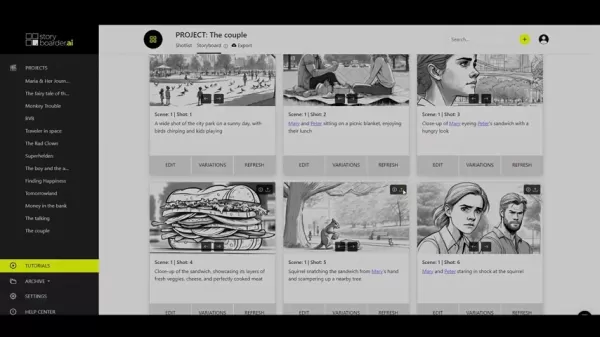
Accessing the Upload Function:First, go to your project's storyboard view in Storyboarder.ai. Find the frame you want to change and click the 'Upload' icon, typically shown as an upward-pointing arrow. This opens the 'Upload Image' dialog box.
Selecting the Image File:
In the 'Upload Image' dialog box, you'll see an area labeled 'Image File' with the prompt 'Select file or drag and drop.' Click this area to open your computer's file explorer, or simply drag and drop your image file directly into the space. The system supports common formats like JPEG, PNG, and GIF.
Choosing Simple Image Upload:Once your image file is selected, confirm that the 'Simple Image Upload' option is chosen. This is usually the default setting for standard imports.
Initiating the Upload: After confirming 'Simple Image Upload' is selected, click the 'Upload' button at the bottom of the dialog box. Storyboarder.ai will then process and place your selected image into the storyboard frame. The image appears exactly as you uploaded it, with no AI transformations.
This method's simplicity makes it ideal for adding pre-made artwork, reference images, or specific visual elements directly to your storyboard, giving you full control over the frame's final look.
Best Practices: Using high-resolution images ensures your storyboard looks sharp and professional. Also, match your image's aspect ratio to the frame to prevent stretching. Simple Image Upload works well for adding detailed backgrounds, character designs, or specific props.
Detailed Steps for Image-to-Image Transformation
Leveraging Image-to-Image for AI-Driven Refinement
The Image-to-Image feature offers an advanced approach, uploading an image and having Storyboarder.ai transform it. This blends your original image's essence with the AI's scene understanding and style settings. It's excellent for maintaining a consistent visual style across your storyboard while incorporating unique elements from your uploads.
Accessing the Upload Function: As with the simple upload, start in the storyboard view and select your target frame. Click the 'Upload' icon to open the dialog box.
Selecting the Image File: Choose your image file the same way as the simple upload, either by clicking the designated area or by dragging and dropping.
Choosing Image-to-Image:
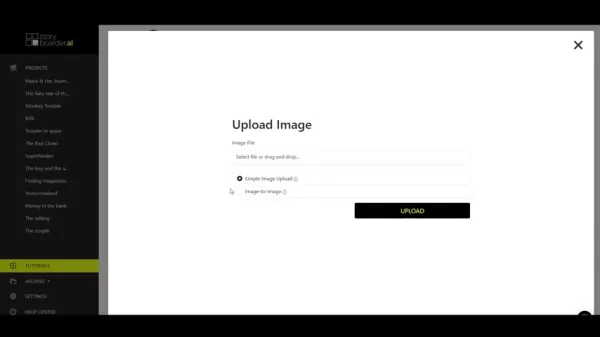
In the 'Upload Image' dialog box, select the 'Image-to-Image' option. This activates the AI transformation settings for customization.
Adjusting Image Strength: A key setting here is the 'Image Strength' slider. It controls the balance between your original image and the storyboard style. Dragging the slider toward 'Closer to the Image' (around 40%) preserves more details from your upload, while moving it toward 'Closer to the Storyboard Style' (around 20%) emphasizes the AI's style. Experiment to find the ideal blend; a middle ground often produces the most appealing visuals.
Initiating the Upload: After setting the 'Image Strength,' click the 'Upload' button. Storyboarder.ai will process the image, transforming it based on your settings and integrating it into the frame.
Reviewing and Refining: Once the transformed image appears, review it and make adjustments if needed. You can re-upload the same image with different 'Image Strength' values until you achieve the perfect mix.
Best Practices: For best results, use images relevant to the scene. A higher image strength is suitable for preserving unique textures or patterns, while a lower strength ensures better stylistic harmony. The goal is to enhance your storyboard while keeping the visual narrative coherent.
Storyboarder.ai Pricing
Cost and subscription
Storyboarder.ai offers different pricing tiers based on features and functionality. The current plans include:
- Free plan: Offers basic functionality to help new users get acquainted with the tool.
- Subscription Plan: Provides access to premium features and cloud support.
For the latest pricing details and subscription options, please visit the official Storyboarder.AI website. [website]
Evaluating Storyboarder.ai: Weighing the Pros and Cons
Pros
AI-powered image generation dramatically speeds up the storyboarding process.
The Image-to-Image feature allows seamless blending of external visuals with AI-generated content.
Customizable styles and filters let you create storyboards in various artistic styles.
Shotlist management tools help effectively organize and manage shot details.
Collaboration tools facilitate teamwork and keep everyone aligned on the visual narrative.
Cons
AI-generated images may sometimes need manual tweaking to match a specific creative vision.
Reliance on AI might limit creative input for users who prefer traditional, hands-on methods.
Advanced features often require a paid subscription, which can restrict access for free users.
The quality of AI output depends on the accuracy of your scene descriptions and style choices.
Users unfamiliar with AI tools might face a learning curve.
Key Features of Storyboarder.ai
Extensive Functionality Set
Storyboarder.ai comes packed with features designed to streamline and enhance storyboard creation:
- AI-Powered Image Generation: Automatically create storyboard images from scene descriptions.
- Image Upload & Transformation: Easily upload external images and blend them with the AI's style.
- Shotlist Management: Organize and manage details like scene descriptions, equipment, and shot types.
- Export Options: Export your storyboards in multiple formats, including PDF, JPG, and video.
- Collaboration Tools: Share and collaborate on storyboards with team members in real-time.
- Customizable Styles: Tailor the visual style of your storyboard using different artistic filters and effects.
Versatile Use Cases for Storyboarder.ai
Broad applications across industries
Storyboarder.ai is used across various industries to visualize and plan visual content:
- Film & Television: Pre-visualize scenes, plan camera angles, and storyboard entire productions.
- Advertising: Create storyboards for commercials, marketing videos, and advertising campaigns.
- Animation: Plan animation sequences, character movements, and scene layouts.
- Game Development: Visualize game cinematics, cutscenes, and in-game events.
- Education: Teach visual storytelling, film production, and animation techniques.
By utilizing Storyboarder.ai, professionals and creatives can effectively communicate their ideas, streamline production, and bring their visions to life with clarity.
Frequently Asked Questions
What file formats does Storyboarder.ai support for image uploads?
Storyboarder.ai supports various image formats, including JPEG, PNG, and GIF, ensuring compatibility with most common image files.
How can I ensure that the uploaded image maintains its original aspect ratio?
To avoid stretching or distortion, ensure your uploaded image's aspect ratio matches that of the storyboard frame. You may need to crop or resize your image beforehand.
Can I use Image-to-Image to add specific textures or patterns to my storyboard?
Yes, the Image-to-Image function is ideal for incorporating unique textures or patterns. Use a higher 'Image Strength' setting to retain more detail from your uploaded texture image.
What is the best way to achieve stylistic consistency when using Image-to-Image?
For a consistent style, use a lower 'Image Strength' setting. This emphasizes the AI's stylistic interpretation and blends your uploaded image smoothly with the storyboard's overall aesthetic.
Is it possible to revert back to the original AI-generated image after uploading an image?
Yes, Storyboarder.ai typically allows you to revert to the original AI-generated image. Look for a 'Revert' or 'Refresh' option in the frame's editing menu.
Can I adjust the image strength after uploading the image?
Yes, you can adjust the image strength. This feature allows for iterative refinements, but it only applies to images uploaded using the "Image-to-Image" function.
Related Questions
How does Storyboarder.ai compare to other storyboarding tools?
Storyboarder.ai distinguishes itself with AI-powered image generation and transformation, offering a unique combination of automation and creative freedom. Compared to traditional tools, it makes storyboarding faster and more efficient. It’s an all-in-one editor and creation tool, reducing the need for other software. Its powerful AI can generate countless outcomes based on your input, and its export features make sharing projects straightforward.
Can Storyboarder.ai generate storyboards in different artistic styles?
Yes, Storyboarder.ai provides customizable styles and filters, enabling you to create storyboards in a variety of artistic looks, from simple sketches to cinematic frames. This flexibility improves visual appeal and ensures the storyboard matches your project's aesthetic.
What are the benefits of using AI in storyboarding?
Using AI for storyboarding offers several key advantages: Speed: AI automates the creation of images, saving significant time. Inspiration: AI can produce unique visuals that spark new creative directions. Consistency: AI helps maintain a uniform style across all storyboard frames. Accessibility: AI makes storyboarding achievable for users with varying levels of artistic skill.
How can I collaborate with team members on storyboards created with Storyboarder.ai?
Storyboarder.ai includes collaboration tools that let team members share and work on storyboards together in real-time. This promotes teamwork and ensures everyone has a shared understanding of the visual story.
Related article
 Ctrip Business Travel Unveils AI Ecosystem with 7 Industry Agents and 17 Core Capabilities
Ctrip Business Travel has officially unveiled the "Ctrip Business Travel AI Ecosystem," leveraging large language models to fundamentally restructure corporate travel management. This comprehensive ecosystem addresses four core scenarios: travel arra
Stripe to Acquire OpenRouter as AI Model Routing Gains Momentum
Stripe has agreed to acquire OpenRouter, an AI model-routing platform that gives developers access to hundreds of models through a single interface. The deal adds model selection and routing to Stripe’s existing work around AI usage and token-based b
Former OpenAI Researcher Barrett Zoph Returns to Google to Support Gemini Development
Barret Zoph, who previously abruptly left and joined OpenAI due to a disagreement with Thinking Machines Lab CEO Miriam Mularati, has once again changed employers. Alphabet's Google announced that Zoph will return as Vice President of Research, bring
Related Special Topic Recommendations
Design & Art
Ctrip Business Travel Unveils AI Ecosystem with 7 Industry Agents and 17 Core Capabilities
Ctrip Business Travel has officially unveiled the "Ctrip Business Travel AI Ecosystem," leveraging large language models to fundamentally restructure corporate travel management. This comprehensive ecosystem addresses four core scenarios: travel arra
Stripe to Acquire OpenRouter as AI Model Routing Gains Momentum
Stripe has agreed to acquire OpenRouter, an AI model-routing platform that gives developers access to hundreds of models through a single interface. The deal adds model selection and routing to Stripe’s existing work around AI usage and token-based b
Former OpenAI Researcher Barrett Zoph Returns to Google to Support Gemini Development
Barret Zoph, who previously abruptly left and joined OpenAI due to a disagreement with Thinking Machines Lab CEO Miriam Mularati, has once again changed employers. Alphabet's Google announced that Zoph will return as Vice President of Research, bring
Related Special Topic Recommendations
Design & Art
 Top AI Illustration Tools: Create Editorial Scenes and Cover Art Faster
2026 Latest Top-rated AI Illustration Tools: Our curated list features the best powerfully designed tools for creating stunning editorial scenes and eye-catching cover art quickly. Each option has gone through rigorous real-world tests, offering a free vs paid comparison to help you find the perfect match for your workflow. Try these must-try solutions today to unlock your AI edge and boost your creative productivity. Explore now at XIX.AI.
 10 tools
 xix.ai
Education and Learning
Top AI Tutors for Exam Prep: Practice Math, Science, and English
xix.ai
Education and Learning
Top AI Tutors for Exam Prep: Practice Math, Science, and English
2026 Latest Top-Rated Best AI Tutors for Exam Prep are here on XIX.AI! Our curated list features powerful game-changing tools that offer free vs paid comparison, real-world tests, and weekly updated rankings. They help boost your writing efficiency, simplify complex topic learning, and unlock your academic potential. Explore now to Discover your perfect exam prep tool and Start creating today to Unlock your AI edge!
10 tools
xix.ai
Finance
AI Budget Planning Tools for Personal Money Management
2026 Latest Best Top-Rated AI Budget Planning Tools for Personal Money Management are here on XIX.AI! This curated collection features powerful, game-changing solutions that help you conduct real-world tests, understand spending habits, and create personalized plans to boost productivity. Enjoy a free vs paid comparison along with detailed rankings. Must-try tools designed to simplify money management and unlock your AI edge. Explore now!
11 tools
xix.ai
Health & Wellness
AI Sleep Tracking Assistants: Improve Recovery with Better Bedtime Habits
2026 Latest Best Top-Rated AI Sleep Tracking Assistants curated for ultimate recovery. This fully updated weekly guide features powerful tools that deliver real-world tests, free vs paid comparison, and detailed rankings to help you find the must-try solution that boosts sleep quality and supports better bedtime habits. Explore now at XIX.AI to Unlock your AI edge.
10 tools
xix.ai
Data Analysis
AI SQL Copilots for Product and Revenue Analytics
2026 Latest Best Top-Rated AI SQL Copilots for Product and Revenue Analytics! XIX.AI has curated a powerful, game-changing collection of must-try tools that undergo real-world tests through weekly updated rankings. These tools help users boost productivity significantly by accelerating data analysis, streamlining complex queries, and generating accurate insights to drive smarter business decisions. Explore now to Discover your perfect tool for unlocking your AI edge!
14 tools
xix.ai
Education and Learning
Best AI Homework Helpers That Teach: Learn Concepts, Not Just Answers
2026 Latest Best Top-Rated AI Homework Helpers That Teach Core Concepts Not Just Answers Powerful Tools for Students Must-Try Curated List Weekly Updated Free vs Paid Comparison Real-World Tests Accurate Rankings to Help You Unlock Your Full Learning Potential Explore now to Discover your perfect tool for smarter studying.
10 tools
xix.ai

 Comments (3)
0/500
Comments (3)
0/500
![FrankRoberts]()
Ich frage mich, ob solche KI-Tools bald die Arbeit von Storyboard-Künstlern ersetzen werden? 🤔 Einerseits praktisch, andererseits etwas beängstigend... Aber die Tutorials scheinen gut erklärt!
![EricRoberts]()
このチュートリアル、すごく役に立ちそう!外部画像を取り込んでストーリーボードをブラッシュアップできる機能は、アイデアの具体化にぴったりだね。AIツールがここまでクリエイティブな作業をサポートしてくれる時代になったのか…少し驚き。でも、生成された画像の著作権問題はどうなるんだろう?そこがちょっと気になるかも😅
![EdwardTaylor]()
このツール、外部画像の取り込みができるのがすごく便利だね!ストーリーボードの調整がこんなに柔軟にできるなら、アイデアの具現化が格段に楽になりそう。ただ、無料版だとどのくらい使えるのかな?🤔 料金プランが気になる…
This tutorial guides you through using the upload and image-to-image features in Storyboarder.ai. These tools provide the flexibility to incorporate external images and refine your existing storyboards, helping you bring your creative vision to life.
Key Points
Understand the 'Upload Image' feature in Storyboarder.ai.
Learn to use 'Simple Image Upload' for directly inserting images.
Discover how the 'Image-to-Image' feature enables creative transformations.
Adjust 'Image Strength' to find the right balance between AI style and original image detail.
See practical examples of replacing and enhancing storyboard frames with custom images.
Introduction to Image Uploading in Storyboarder.ai
Overview of the Upload Image Feature
Storyboarder.ai's versatile 'Upload Image' feature lets you bring external images into your storyboard. This is essential for personalizing projects, visualizing unique scenes, and ensuring your storyboard aligns with your creative ideas. The 'Upload Image' function includes two main modes: Simple Image Upload and Image-to-Image, each serving different creative needs. These tools give you significant control over your storyboard's visual content, boosting both efficiency and creative potential. Using this feature accelerates your brainstorming and iteration workflow, allowing you to quickly visualize scenarios and then fine-tune them with AI for limitless possibilities. It's a core feature for customizing any project.
Mastering these upload options helps you build more compelling and visually accurate storyboards, bridging the gap between your imagination and the final project visuals. These integrated tools streamline the creative process, ensuring each frame precisely reflects your vision. Greater skill with image uploading leads to a more professional final project and more satisfying results.
Simple Image Upload: Direct Insertion
How to Use Simple Image Upload
The Simple Image Upload option lets you directly insert an image file into a selected storyboard frame. This mode is best when you have a specific image you want to use as-is, without AI-driven modifications. It's the fastest way to get your chosen image into a frame. Follow this step-by-step guide:
Accessing the Upload Function:First, go to your project's storyboard view in Storyboarder.ai. Find the frame you want to change and click the 'Upload' icon, typically shown as an upward-pointing arrow. This opens the 'Upload Image' dialog box.
Selecting the Image File:
In the 'Upload Image' dialog box, you'll see an area labeled 'Image File' with the prompt 'Select file or drag and drop.' Click this area to open your computer's file explorer, or simply drag and drop your image file directly into the space. The system supports common formats like JPEG, PNG, and GIF.
Choosing Simple Image Upload:Once your image file is selected, confirm that the 'Simple Image Upload' option is chosen. This is usually the default setting for standard imports.
Initiating the Upload: After confirming 'Simple Image Upload' is selected, click the 'Upload' button at the bottom of the dialog box. Storyboarder.ai will then process and place your selected image into the storyboard frame. The image appears exactly as you uploaded it, with no AI transformations.
This method's simplicity makes it ideal for adding pre-made artwork, reference images, or specific visual elements directly to your storyboard, giving you full control over the frame's final look.
Best Practices: Using high-resolution images ensures your storyboard looks sharp and professional. Also, match your image's aspect ratio to the frame to prevent stretching. Simple Image Upload works well for adding detailed backgrounds, character designs, or specific props.
Detailed Steps for Image-to-Image Transformation
Leveraging Image-to-Image for AI-Driven Refinement
The Image-to-Image feature offers an advanced approach, uploading an image and having Storyboarder.ai transform it. This blends your original image's essence with the AI's scene understanding and style settings. It's excellent for maintaining a consistent visual style across your storyboard while incorporating unique elements from your uploads.
Accessing the Upload Function: As with the simple upload, start in the storyboard view and select your target frame. Click the 'Upload' icon to open the dialog box.
Selecting the Image File: Choose your image file the same way as the simple upload, either by clicking the designated area or by dragging and dropping.
Choosing Image-to-Image:
In the 'Upload Image' dialog box, select the 'Image-to-Image' option. This activates the AI transformation settings for customization.
Adjusting Image Strength: A key setting here is the 'Image Strength' slider. It controls the balance between your original image and the storyboard style. Dragging the slider toward 'Closer to the Image' (around 40%) preserves more details from your upload, while moving it toward 'Closer to the Storyboard Style' (around 20%) emphasizes the AI's style. Experiment to find the ideal blend; a middle ground often produces the most appealing visuals.
Initiating the Upload: After setting the 'Image Strength,' click the 'Upload' button. Storyboarder.ai will process the image, transforming it based on your settings and integrating it into the frame.
Reviewing and Refining: Once the transformed image appears, review it and make adjustments if needed. You can re-upload the same image with different 'Image Strength' values until you achieve the perfect mix.
Best Practices: For best results, use images relevant to the scene. A higher image strength is suitable for preserving unique textures or patterns, while a lower strength ensures better stylistic harmony. The goal is to enhance your storyboard while keeping the visual narrative coherent.
Storyboarder.ai Pricing
Cost and subscription
Storyboarder.ai offers different pricing tiers based on features and functionality. The current plans include:
- Free plan: Offers basic functionality to help new users get acquainted with the tool.
- Subscription Plan: Provides access to premium features and cloud support.
For the latest pricing details and subscription options, please visit the official Storyboarder.AI website. [website]
Evaluating Storyboarder.ai: Weighing the Pros and Cons
Pros
AI-powered image generation dramatically speeds up the storyboarding process.
The Image-to-Image feature allows seamless blending of external visuals with AI-generated content.
Customizable styles and filters let you create storyboards in various artistic styles.
Shotlist management tools help effectively organize and manage shot details.
Collaboration tools facilitate teamwork and keep everyone aligned on the visual narrative.
Cons
AI-generated images may sometimes need manual tweaking to match a specific creative vision.
Reliance on AI might limit creative input for users who prefer traditional, hands-on methods.
Advanced features often require a paid subscription, which can restrict access for free users.
The quality of AI output depends on the accuracy of your scene descriptions and style choices.
Users unfamiliar with AI tools might face a learning curve.
Key Features of Storyboarder.ai
Extensive Functionality Set
Storyboarder.ai comes packed with features designed to streamline and enhance storyboard creation:
- AI-Powered Image Generation: Automatically create storyboard images from scene descriptions.
- Image Upload & Transformation: Easily upload external images and blend them with the AI's style.
- Shotlist Management: Organize and manage details like scene descriptions, equipment, and shot types.
- Export Options: Export your storyboards in multiple formats, including PDF, JPG, and video.
- Collaboration Tools: Share and collaborate on storyboards with team members in real-time.
- Customizable Styles: Tailor the visual style of your storyboard using different artistic filters and effects.
Versatile Use Cases for Storyboarder.ai
Broad applications across industries
Storyboarder.ai is used across various industries to visualize and plan visual content:
- Film & Television: Pre-visualize scenes, plan camera angles, and storyboard entire productions.
- Advertising: Create storyboards for commercials, marketing videos, and advertising campaigns.
- Animation: Plan animation sequences, character movements, and scene layouts.
- Game Development: Visualize game cinematics, cutscenes, and in-game events.
- Education: Teach visual storytelling, film production, and animation techniques.
By utilizing Storyboarder.ai, professionals and creatives can effectively communicate their ideas, streamline production, and bring their visions to life with clarity.
Frequently Asked Questions
What file formats does Storyboarder.ai support for image uploads?
Storyboarder.ai supports various image formats, including JPEG, PNG, and GIF, ensuring compatibility with most common image files.
How can I ensure that the uploaded image maintains its original aspect ratio?
To avoid stretching or distortion, ensure your uploaded image's aspect ratio matches that of the storyboard frame. You may need to crop or resize your image beforehand.
Can I use Image-to-Image to add specific textures or patterns to my storyboard?
Yes, the Image-to-Image function is ideal for incorporating unique textures or patterns. Use a higher 'Image Strength' setting to retain more detail from your uploaded texture image.
What is the best way to achieve stylistic consistency when using Image-to-Image?
For a consistent style, use a lower 'Image Strength' setting. This emphasizes the AI's stylistic interpretation and blends your uploaded image smoothly with the storyboard's overall aesthetic.
Is it possible to revert back to the original AI-generated image after uploading an image?
Yes, Storyboarder.ai typically allows you to revert to the original AI-generated image. Look for a 'Revert' or 'Refresh' option in the frame's editing menu.
Can I adjust the image strength after uploading the image?
Yes, you can adjust the image strength. This feature allows for iterative refinements, but it only applies to images uploaded using the "Image-to-Image" function.
Related Questions
How does Storyboarder.ai compare to other storyboarding tools?
Storyboarder.ai distinguishes itself with AI-powered image generation and transformation, offering a unique combination of automation and creative freedom. Compared to traditional tools, it makes storyboarding faster and more efficient. It’s an all-in-one editor and creation tool, reducing the need for other software. Its powerful AI can generate countless outcomes based on your input, and its export features make sharing projects straightforward.
Can Storyboarder.ai generate storyboards in different artistic styles?
Yes, Storyboarder.ai provides customizable styles and filters, enabling you to create storyboards in a variety of artistic looks, from simple sketches to cinematic frames. This flexibility improves visual appeal and ensures the storyboard matches your project's aesthetic.
What are the benefits of using AI in storyboarding?
Using AI for storyboarding offers several key advantages: Speed: AI automates the creation of images, saving significant time. Inspiration: AI can produce unique visuals that spark new creative directions. Consistency: AI helps maintain a uniform style across all storyboard frames. Accessibility: AI makes storyboarding achievable for users with varying levels of artistic skill.
How can I collaborate with team members on storyboards created with Storyboarder.ai?
Storyboarder.ai includes collaboration tools that let team members share and work on storyboards together in real-time. This promotes teamwork and ensures everyone has a shared understanding of the visual story.








 Ctrip Business Travel Unveils AI Ecosystem with 7 Industry Agents and 17 Core Capabilities
Ctrip Business Travel has officially unveiled the "Ctrip Business Travel AI Ecosystem," leveraging large language models to fundamentally restructure corporate travel management. This comprehensive ecosystem addresses four core scenarios: travel arra
Ctrip Business Travel Unveils AI Ecosystem with 7 Industry Agents and 17 Core Capabilities
Ctrip Business Travel has officially unveiled the "Ctrip Business Travel AI Ecosystem," leveraging large language models to fundamentally restructure corporate travel management. This comprehensive ecosystem addresses four core scenarios: travel arra
 Stripe to Acquire OpenRouter as AI Model Routing Gains Momentum
Stripe has agreed to acquire OpenRouter, an AI model-routing platform that gives developers access to hundreds of models through a single interface. The deal adds model selection and routing to Stripe’s existing work around AI usage and token-based b
Stripe to Acquire OpenRouter as AI Model Routing Gains Momentum
Stripe has agreed to acquire OpenRouter, an AI model-routing platform that gives developers access to hundreds of models through a single interface. The deal adds model selection and routing to Stripe’s existing work around AI usage and token-based b
 Former OpenAI Researcher Barrett Zoph Returns to Google to Support Gemini Development
Barret Zoph, who previously abruptly left and joined OpenAI due to a disagreement with Thinking Machines Lab CEO Miriam Mularati, has once again changed employers. Alphabet's Google announced that Zoph will return as Vice President of Research, bring
Former OpenAI Researcher Barrett Zoph Returns to Google to Support Gemini Development
Barret Zoph, who previously abruptly left and joined OpenAI due to a disagreement with Thinking Machines Lab CEO Miriam Mularati, has once again changed employers. Alphabet's Google announced that Zoph will return as Vice President of Research, bring
2026 Latest Top-rated AI Illustration Tools: Our curated list features the best powerfully designed tools for creating stunning editorial scenes and eye-catching cover art quickly. Each option has gone through rigorous real-world tests, offering a free vs paid comparison to help you find the perfect match for your workflow. Try these must-try solutions today to unlock your AI edge and boost your creative productivity. Explore now at XIX.AI.
10 tools
xix.ai

2026 Latest Top-Rated Best AI Tutors for Exam Prep are here on XIX.AI! Our curated list features powerful game-changing tools that offer free vs paid comparison, real-world tests, and weekly updated rankings. They help boost your writing efficiency, simplify complex topic learning, and unlock your academic potential. Explore now to Discover your perfect exam prep tool and Start creating today to Unlock your AI edge!
10 tools
xix.ai
2026 Latest Best Top-Rated AI Budget Planning Tools for Personal Money Management are here on XIX.AI! This curated collection features powerful, game-changing solutions that help you conduct real-world tests, understand spending habits, and create personalized plans to boost productivity. Enjoy a free vs paid comparison along with detailed rankings. Must-try tools designed to simplify money management and unlock your AI edge. Explore now!
11 tools
xix.ai

2026 Latest Best Top-Rated AI Sleep Tracking Assistants curated for ultimate recovery. This fully updated weekly guide features powerful tools that deliver real-world tests, free vs paid comparison, and detailed rankings to help you find the must-try solution that boosts sleep quality and supports better bedtime habits. Explore now at XIX.AI to Unlock your AI edge.
10 tools
xix.ai
2026 Latest Best Top-Rated AI SQL Copilots for Product and Revenue Analytics! XIX.AI has curated a powerful, game-changing collection of must-try tools that undergo real-world tests through weekly updated rankings. These tools help users boost productivity significantly by accelerating data analysis, streamlining complex queries, and generating accurate insights to drive smarter business decisions. Explore now to Discover your perfect tool for unlocking your AI edge!
14 tools
xix.ai

2026 Latest Best Top-Rated AI Homework Helpers That Teach Core Concepts Not Just Answers Powerful Tools for Students Must-Try Curated List Weekly Updated Free vs Paid Comparison Real-World Tests Accurate Rankings to Help You Unlock Your Full Learning Potential Explore now to Discover your perfect tool for smarter studying.
10 tools
xix.ai

Ich frage mich, ob solche KI-Tools bald die Arbeit von Storyboard-Künstlern ersetzen werden? 🤔 Einerseits praktisch, andererseits etwas beängstigend... Aber die Tutorials scheinen gut erklärt!
このチュートリアル、すごく役に立ちそう!外部画像を取り込んでストーリーボードをブラッシュアップできる機能は、アイデアの具体化にぴったりだね。AIツールがここまでクリエイティブな作業をサポートしてくれる時代になったのか…少し驚き。でも、生成された画像の著作権問題はどうなるんだろう?そこがちょっと気になるかも😅
このツール、外部画像の取り込みができるのがすごく便利だね!ストーリーボードの調整がこんなに柔軟にできるなら、アイデアの具現化が格段に楽になりそう。ただ、無料版だとどのくらい使えるのかな?🤔 料金プランが気になる…












