


 Home
HomeAdvanced Image Editing with Stable Diffusion XL
Image inpainting is a transformative technique in generative AI, enabling precise image modifications with exceptional control. This guide explores the nuances of image inpainting using Stable Diffusion XL, offering insights into its powerful capabilities for seamless image enhancement. Learn how to master this tool for professional-grade results.
Key Highlights
Image inpainting provides precise control over targeted image edits.
Stable Diffusion XL delivers superior inpainting performance.
Replicate offers an intuitive platform for using Stable Diffusion XL.
Accurate masking defines areas for modification in inpainting.
Effective prompt engineering guides the inpainting process.
Advanced tools boost the precision and quality of inpainting results.
Exploring Image Inpainting
What Is Image Inpainting?
Image inpainting, a generative AI technique, enables targeted edits to specific image areas. Unlike broad edits affecting the entire image, inpainting focuses on precise regions, offering unmatched control over the final result.
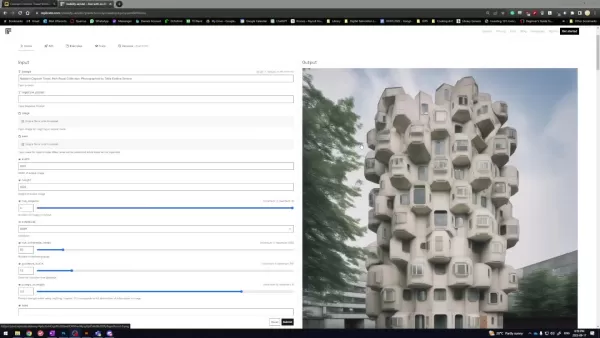
This method excels at tasks like removing unwanted elements, adding new features, or refining details.
It acts like digital restoration, filling in missing or unwanted areas with content that blends seamlessly with the surroundings. Its strength lies in creating cohesive, realistic outcomes, making it ideal for artists, designers, and image enhancement enthusiasts.
Why Stable Diffusion XL Stands Out
Stable Diffusion XL, a cutting-edge generative AI model, excels at producing high-quality images from text prompts. Its advanced architecture and training enable it to interpret complex instructions and create detailed, lifelike visuals.
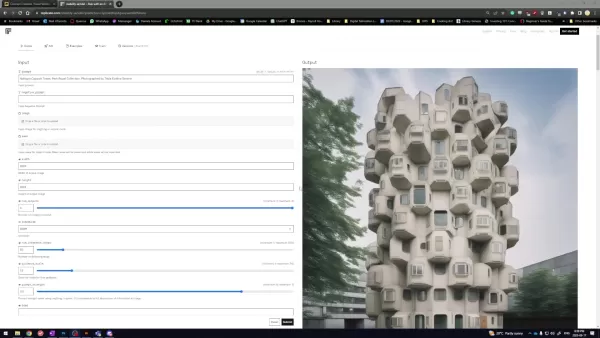
When paired with inpainting, Stable Diffusion XL transforms into a versatile tool, allowing users to refine and enhance existing images alongside generating new ones.
Its key strength is maintaining visual consistency. By analyzing the context around masked areas, it generates content that integrates naturally, delivering professional-grade results. This makes it a top choice for sophisticated image editing.
Benefits of Using Replicate with Stable Diffusion XL
Replicate streamlines Stable Diffusion XL usage with a user-friendly interface, eliminating the need for complex setups. Users can access the model via a web browser or API with ease.
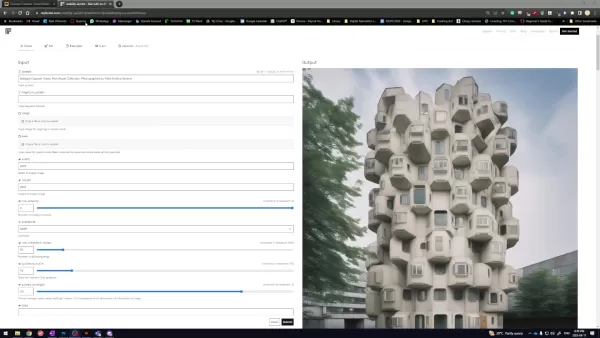
This accessibility broadens the reach of advanced AI tools, catering to users regardless of technical expertise.
Replicate frees users to focus on creative inpainting tasks, handling technical complexities in the background. It enables quick experimentation with prompts and settings, making it ideal for both beginners and seasoned users exploring Stable Diffusion XL’s potential.
Image Inpainting Process with Replicate
Step 1: Preparing the Image and Prompt
Start by selecting an initial image—be it a photo or digital artwork—as the foundation for your edits.
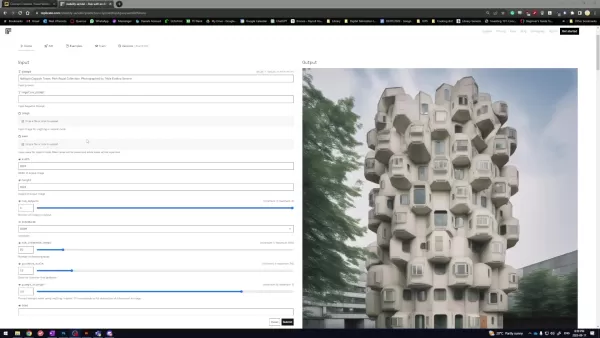
Pair the image with a text prompt to guide the inpainting. Prompts can range from simple, like “add a vibrant sunset,” to complex, such as “replace the old bridge with a futuristic structure.”
The prompt shapes the inpainting direction, influencing the generated content. Specific, detailed prompts ensure the model aligns closely with your creative vision.
Step 2: Perfecting the Mask
Masking involves creating a black-and-white image to mark areas for inpainting (white) and preservation (black).
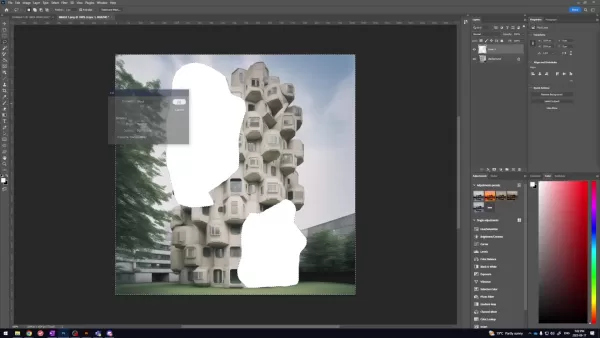
The mask directs Stable Diffusion XL’s focus during content generation.
Precise masks are critical for seamless results. Inaccurate masks may cause artifacts or inconsistencies. Tools like Adobe Photoshop, GIMP, or online editors help refine masks, with feathered edges ensuring smooth blending of inpainted content.
Step 3: Crafting Effective Prompts
Prompt engineering entails designing clear, descriptive text prompts to steer Stable Diffusion XL toward desired outcomes. This iterative process involves tweaking wording and experimenting with keywords.
Use negative prompts to exclude unwanted elements, like “no clouds” for a clear sky. With practice, prompt engineering unlocks the full potential of Stable Diffusion XL for inpainting.
Step 4: Executing and Reviewing Results
Run Stable Diffusion XL via Replicate with your image, mask, and prompt. Replicate processes the inputs and generates the modified image. Generation time depends on prompt complexity and image size.
Evaluate the output and refine prompts, masks, or model parameters as needed. This iterative process hones the image to meet your expectations, with parameter adjustments enhancing outcomes over time.
Creating a Mask for Inpainting in Photoshop
Step 1: Load Your Image
Open your target image in Adobe Photoshop via File > Open.
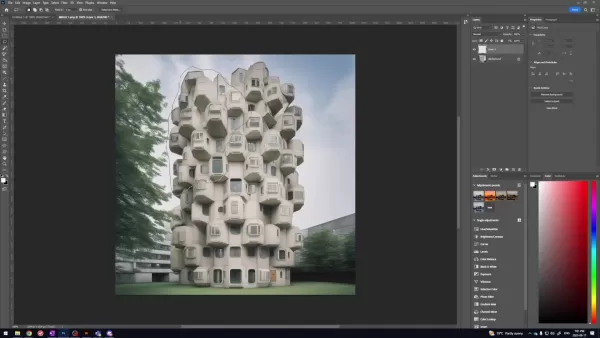
Ensure the image is high quality for optimal results.
Step 2: Add a New Layer
Create a new layer above the original image for masking.
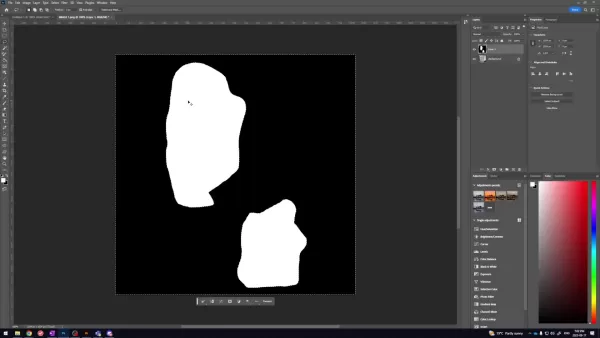
Go to Layer > New > Layer or use the Layers panel’s new layer icon.
Step 3: Choose the Lasso Tool
Select the Lasso Tool (or preferred selection tool) from the toolbar.
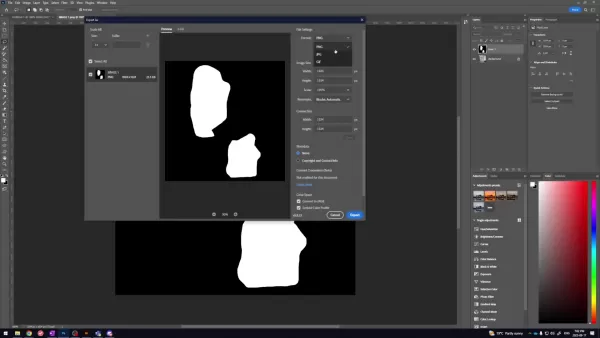
The Lasso Tool is ideal for freehand selections around areas to edit.
Step 4: Outline the Inpainting Area
Carefully trace the area to inpaint. Hold Shift to add multiple selections.
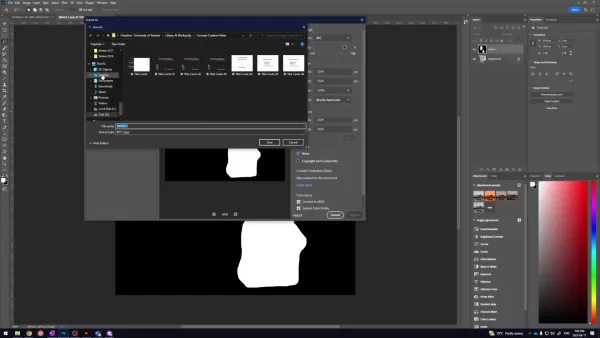
Precision is key for accurate results.
Step 5: Invert the Selection
Invert the selection via Select > Inverse to target all areas except the outlined region.
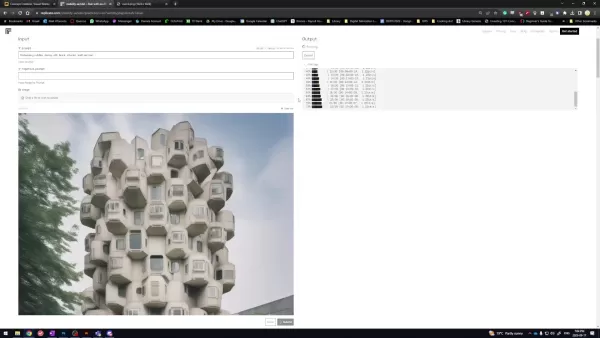
This isolates the non-inpainting areas.
Step 6: Fill with Black
On the new layer, fill the selected area with black via Edit > Fill, choosing Black.
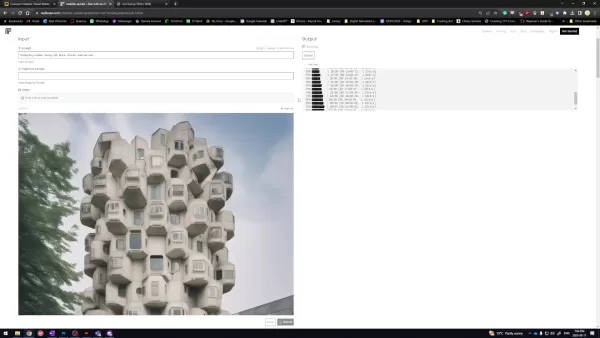
This creates a mask preserving the original image.
Step 7: Finalize the Mask
Fill the inverted selection with white using Edit > Fill.
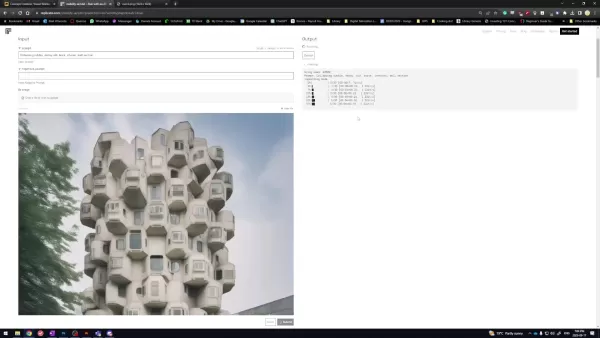
Ensure the white mask is visible over the base image. Deselect with Ctrl+D.
Step 8: Save the Mask
Export the masked image as a JPG for use alongside the original.
Stable Diffusion XL Pricing on Replicate
Replicate’s Billing Model
Replicate uses a pay-as-you-go model, charging based on computational resources used. Pricing for Stable Diffusion XL varies by model version, prompt complexity, and image size. Check Replicate’s pricing estimator for accurate costs.
Pros and Cons of Stable Diffusion XL for Inpainting
Pros
Exceptional image generation quality
Replicate’s intuitive interface
Precise control over edits
Automated content creation
Cons
Potential limits on image size and runtime with Replicate
Prompt engineering may require trial and error
Relies on computational resources
Frequently Asked Questions
Which File Formats Are Supported?
Stable Diffusion XL supports JPEG, PNG, and WebP. Check Replicate’s documentation for specifics.
What’s the Ideal Image Resolution?
High-resolution images (1024x1024 pixels or higher) yield the best results. Lower resolutions may reduce output quality. Ensure mask and image resolutions match.
How Can I Enhance Mask Accuracy?
Refine rough selections with tools like Photoshop’s Pen Tool or Refine Edge. Feathering edges ensures smoother blending of inpainted content.
Are There Limitations with Replicate?
Replicate simplifies access but may limit image size, concurrent executions, or model versions based on your plan. Self-hosting removes these restrictions.
Related Questions
How Does Inpainting Compare to Traditional Editing?
AI-driven inpainting generates seamless content, surpassing traditional manual editing. It offers a faster, automated approach, simplifying complex modifications with minimal effort.
Related article
 Apple Smart Glasses Could Debut at WWDC27, Highlighting Privacy Protection
Bloomberg’s Mark Gurman reports that Apple’s smart glasses, codenamed N50, are slated for a WWDC27 debut in June 2027, with a retail launch expected in autumn 2027. Originally targeted for late this year and early 2027, the device’s release has been
Inside Details Exposed About Next-Gen Gemini: Strained Computing Power, Internal Teams Disagreed on Development Priorities and Resource Allocation
Reports indicate that the launch of Google’s highly anticipated next-generation Gemini model has been pushed back. Internal disagreements over development priorities and resource allocation, combined with limited computing capacity and complex approv
OpenAI Dismisses Growth Slowdown Concerns, Says Multiple Business Units Accelerating
In response to external scrutiny regarding decelerating sales growth and missed internal benchmarks, AI leader OpenAI issued a confident statement on Tuesday, April 28. The company clarified that its consumer products and enterprise services are adva
Related Special Topic Recommendations
Data Analysis
Apple Smart Glasses Could Debut at WWDC27, Highlighting Privacy Protection
Bloomberg’s Mark Gurman reports that Apple’s smart glasses, codenamed N50, are slated for a WWDC27 debut in June 2027, with a retail launch expected in autumn 2027. Originally targeted for late this year and early 2027, the device’s release has been
Inside Details Exposed About Next-Gen Gemini: Strained Computing Power, Internal Teams Disagreed on Development Priorities and Resource Allocation
Reports indicate that the launch of Google’s highly anticipated next-generation Gemini model has been pushed back. Internal disagreements over development priorities and resource allocation, combined with limited computing capacity and complex approv
OpenAI Dismisses Growth Slowdown Concerns, Says Multiple Business Units Accelerating
In response to external scrutiny regarding decelerating sales growth and missed internal benchmarks, AI leader OpenAI issued a confident statement on Tuesday, April 28. The company clarified that its consumer products and enterprise services are adva
Related Special Topic Recommendations
Data Analysis
 AI SQL Copilots for Revenue Dashboards, Funnel Analysis, and Product Metrics
2026 Latest Best AI SQL Copilots Ranked Top-Rated! XIX.AI curates a powerful game-changing collection for weekly updated real-world tests. These must-try tools help you generate accurate revenue dashboards, analyze sales funnels, and track product metrics swiftly, boosting productivity massively. Explore now to Discover your perfect tool for data-driven decision making! 238 characters
 9 tools
 xix.ai
Music composition
Best AI Melody Writing Tools for Song Drafts
xix.ai
Music composition
Best AI Melody Writing Tools for Song Drafts
2026 Latest Best Top-Rated AI Melody Writing Tools for Song Drafts! XIX.AI has curated a highly powerful game-changing collection that goes through rigorous real-world tests to deliver the best writing experience. You can find detailed free vs paid comparisons, accurate rankings, and must-try options designed to help you create stunning song drafts effortlessly and boost your creative productivity significantly. Explore now to discover your perfect tool!
8 tools
xix.ai
chatbot
Best AI Conversation Trainer Tools for Interview Practice
2026 Latest Best Top-rated AI Conversation Trainer Tools for Interview Practice are here on XIX.AI! This curated collection features powerful, game-changing tools that go through rigorous real-world tests to deliver accurate feedback. You’ll find a free vs paid comparison and detailed rankings to help you choose the must-try option that boosts your confidence and skills. Explore now to Discover your perfect tool for interview success!
12 tools
xix.ai
Design & Art
Best AI Style Transfer Tools for Creative Experiments
2026 Latest Best Top-rated AI Style Transfer Tools for Creative Experiments! XIX.AI has curated a powerful, game-changing collection of must-try tools that deliver exceptional results through real-world tests and rigorous rankings. These top solutions help creatives boost productivity significantly by accelerating content creation and unlocking endless creative possibilities. Explore now to discover your perfect tool and start creating today!
9 tools
xix.ai
Comic Creation
Best AI Dialogue Bubble Tools for Visual Storytelling
2026 Latest Best Top-Rated AI Dialogue Bubble Tools for Visual Storytelling are here on XIX.AI! This curated collection features powerful, game-changing tools that help creators boost productivity and overcome creative bottlenecks. Get a free vs paid comparison, see real-world tests, and check the latest rankings to find the must-try solutions perfect for crafting engaging visual narratives. Explore now to discover your ideal tool!
10 tools
xix.ai
Meeting Assistant
Top AI Meeting Summary Tools: Track Decisions and Follow-Ups Clearly
2026 Latest Top-Rated Best AI Meeting Summary Tools for Clear Decision Tracking and Effortless Follow-Ups. This curated list showcases powerful, game-changing solutions that boost productivity dramatically by automating meeting notes, identifying key action items, and streamlining team coordination across all projects. Get a free vs paid comparison along with real-world tests and weekly updated rankings to help you find the perfect tool. Explore now to unlock your AI edge!
9 tools
xix.ai

 Comments (0)
0/500
Comments (0)
0/500
Image inpainting is a transformative technique in generative AI, enabling precise image modifications with exceptional control. This guide explores the nuances of image inpainting using Stable Diffusion XL, offering insights into its powerful capabilities for seamless image enhancement. Learn how to master this tool for professional-grade results.
Key Highlights
Image inpainting provides precise control over targeted image edits.
Stable Diffusion XL delivers superior inpainting performance.
Replicate offers an intuitive platform for using Stable Diffusion XL.
Accurate masking defines areas for modification in inpainting.
Effective prompt engineering guides the inpainting process.
Advanced tools boost the precision and quality of inpainting results.
Exploring Image Inpainting
What Is Image Inpainting?
Image inpainting, a generative AI technique, enables targeted edits to specific image areas. Unlike broad edits affecting the entire image, inpainting focuses on precise regions, offering unmatched control over the final result.
This method excels at tasks like removing unwanted elements, adding new features, or refining details.
It acts like digital restoration, filling in missing or unwanted areas with content that blends seamlessly with the surroundings. Its strength lies in creating cohesive, realistic outcomes, making it ideal for artists, designers, and image enhancement enthusiasts.
Why Stable Diffusion XL Stands Out
Stable Diffusion XL, a cutting-edge generative AI model, excels at producing high-quality images from text prompts. Its advanced architecture and training enable it to interpret complex instructions and create detailed, lifelike visuals.
When paired with inpainting, Stable Diffusion XL transforms into a versatile tool, allowing users to refine and enhance existing images alongside generating new ones.
Its key strength is maintaining visual consistency. By analyzing the context around masked areas, it generates content that integrates naturally, delivering professional-grade results. This makes it a top choice for sophisticated image editing.
Benefits of Using Replicate with Stable Diffusion XL
Replicate streamlines Stable Diffusion XL usage with a user-friendly interface, eliminating the need for complex setups. Users can access the model via a web browser or API with ease.
This accessibility broadens the reach of advanced AI tools, catering to users regardless of technical expertise.
Replicate frees users to focus on creative inpainting tasks, handling technical complexities in the background. It enables quick experimentation with prompts and settings, making it ideal for both beginners and seasoned users exploring Stable Diffusion XL’s potential.
Image Inpainting Process with Replicate
Step 1: Preparing the Image and Prompt
Start by selecting an initial image—be it a photo or digital artwork—as the foundation for your edits.
Pair the image with a text prompt to guide the inpainting. Prompts can range from simple, like “add a vibrant sunset,” to complex, such as “replace the old bridge with a futuristic structure.”
The prompt shapes the inpainting direction, influencing the generated content. Specific, detailed prompts ensure the model aligns closely with your creative vision.
Step 2: Perfecting the Mask
Masking involves creating a black-and-white image to mark areas for inpainting (white) and preservation (black).
The mask directs Stable Diffusion XL’s focus during content generation.
Precise masks are critical for seamless results. Inaccurate masks may cause artifacts or inconsistencies. Tools like Adobe Photoshop, GIMP, or online editors help refine masks, with feathered edges ensuring smooth blending of inpainted content.
Step 3: Crafting Effective Prompts
Prompt engineering entails designing clear, descriptive text prompts to steer Stable Diffusion XL toward desired outcomes. This iterative process involves tweaking wording and experimenting with keywords.
Use negative prompts to exclude unwanted elements, like “no clouds” for a clear sky. With practice, prompt engineering unlocks the full potential of Stable Diffusion XL for inpainting.
Step 4: Executing and Reviewing Results
Run Stable Diffusion XL via Replicate with your image, mask, and prompt. Replicate processes the inputs and generates the modified image. Generation time depends on prompt complexity and image size.
Evaluate the output and refine prompts, masks, or model parameters as needed. This iterative process hones the image to meet your expectations, with parameter adjustments enhancing outcomes over time.
Creating a Mask for Inpainting in Photoshop
Step 1: Load Your Image
Open your target image in Adobe Photoshop via File > Open.
Ensure the image is high quality for optimal results.
Step 2: Add a New Layer
Create a new layer above the original image for masking.
Go to Layer > New > Layer or use the Layers panel’s new layer icon.
Step 3: Choose the Lasso Tool
Select the Lasso Tool (or preferred selection tool) from the toolbar.
The Lasso Tool is ideal for freehand selections around areas to edit.
Step 4: Outline the Inpainting Area
Carefully trace the area to inpaint. Hold Shift to add multiple selections.
Precision is key for accurate results.
Step 5: Invert the Selection
Invert the selection via Select > Inverse to target all areas except the outlined region.
This isolates the non-inpainting areas.
Step 6: Fill with Black
On the new layer, fill the selected area with black via Edit > Fill, choosing Black.
This creates a mask preserving the original image.
Step 7: Finalize the Mask
Fill the inverted selection with white using Edit > Fill.
Ensure the white mask is visible over the base image. Deselect with Ctrl+D.
Step 8: Save the Mask
Export the masked image as a JPG for use alongside the original.
Stable Diffusion XL Pricing on Replicate
Replicate’s Billing Model
Replicate uses a pay-as-you-go model, charging based on computational resources used. Pricing for Stable Diffusion XL varies by model version, prompt complexity, and image size. Check Replicate’s pricing estimator for accurate costs.
Pros and Cons of Stable Diffusion XL for Inpainting
Pros
Exceptional image generation quality
Replicate’s intuitive interface
Precise control over edits
Automated content creation
Cons
Potential limits on image size and runtime with Replicate
Prompt engineering may require trial and error
Relies on computational resources
Frequently Asked Questions
Which File Formats Are Supported?
Stable Diffusion XL supports JPEG, PNG, and WebP. Check Replicate’s documentation for specifics.
What’s the Ideal Image Resolution?
High-resolution images (1024x1024 pixels or higher) yield the best results. Lower resolutions may reduce output quality. Ensure mask and image resolutions match.
How Can I Enhance Mask Accuracy?
Refine rough selections with tools like Photoshop’s Pen Tool or Refine Edge. Feathering edges ensures smoother blending of inpainted content.
Are There Limitations with Replicate?
Replicate simplifies access but may limit image size, concurrent executions, or model versions based on your plan. Self-hosting removes these restrictions.
Related Questions
How Does Inpainting Compare to Traditional Editing?
AI-driven inpainting generates seamless content, surpassing traditional manual editing. It offers a faster, automated approach, simplifying complex modifications with minimal effort.








 Apple Smart Glasses Could Debut at WWDC27, Highlighting Privacy Protection
Bloomberg’s Mark Gurman reports that Apple’s smart glasses, codenamed N50, are slated for a WWDC27 debut in June 2027, with a retail launch expected in autumn 2027. Originally targeted for late this year and early 2027, the device’s release has been
Apple Smart Glasses Could Debut at WWDC27, Highlighting Privacy Protection
Bloomberg’s Mark Gurman reports that Apple’s smart glasses, codenamed N50, are slated for a WWDC27 debut in June 2027, with a retail launch expected in autumn 2027. Originally targeted for late this year and early 2027, the device’s release has been
 Inside Details Exposed About Next-Gen Gemini: Strained Computing Power, Internal Teams Disagreed on Development Priorities and Resource Allocation
Reports indicate that the launch of Google’s highly anticipated next-generation Gemini model has been pushed back. Internal disagreements over development priorities and resource allocation, combined with limited computing capacity and complex approv
Inside Details Exposed About Next-Gen Gemini: Strained Computing Power, Internal Teams Disagreed on Development Priorities and Resource Allocation
Reports indicate that the launch of Google’s highly anticipated next-generation Gemini model has been pushed back. Internal disagreements over development priorities and resource allocation, combined with limited computing capacity and complex approv
 OpenAI Dismisses Growth Slowdown Concerns, Says Multiple Business Units Accelerating
In response to external scrutiny regarding decelerating sales growth and missed internal benchmarks, AI leader OpenAI issued a confident statement on Tuesday, April 28. The company clarified that its consumer products and enterprise services are adva
OpenAI Dismisses Growth Slowdown Concerns, Says Multiple Business Units Accelerating
In response to external scrutiny regarding decelerating sales growth and missed internal benchmarks, AI leader OpenAI issued a confident statement on Tuesday, April 28. The company clarified that its consumer products and enterprise services are adva

2026 Latest Best AI SQL Copilots Ranked Top-Rated! XIX.AI curates a powerful game-changing collection for weekly updated real-world tests. These must-try tools help you generate accurate revenue dashboards, analyze sales funnels, and track product metrics swiftly, boosting productivity massively. Explore now to Discover your perfect tool for data-driven decision making! 238 characters
9 tools
xix.ai

2026 Latest Best Top-Rated AI Melody Writing Tools for Song Drafts! XIX.AI has curated a highly powerful game-changing collection that goes through rigorous real-world tests to deliver the best writing experience. You can find detailed free vs paid comparisons, accurate rankings, and must-try options designed to help you create stunning song drafts effortlessly and boost your creative productivity significantly. Explore now to discover your perfect tool!
8 tools
xix.ai

2026 Latest Best Top-rated AI Conversation Trainer Tools for Interview Practice are here on XIX.AI! This curated collection features powerful, game-changing tools that go through rigorous real-world tests to deliver accurate feedback. You’ll find a free vs paid comparison and detailed rankings to help you choose the must-try option that boosts your confidence and skills. Explore now to Discover your perfect tool for interview success!
12 tools
xix.ai

2026 Latest Best Top-rated AI Style Transfer Tools for Creative Experiments! XIX.AI has curated a powerful, game-changing collection of must-try tools that deliver exceptional results through real-world tests and rigorous rankings. These top solutions help creatives boost productivity significantly by accelerating content creation and unlocking endless creative possibilities. Explore now to discover your perfect tool and start creating today!
9 tools
xix.ai

2026 Latest Best Top-Rated AI Dialogue Bubble Tools for Visual Storytelling are here on XIX.AI! This curated collection features powerful, game-changing tools that help creators boost productivity and overcome creative bottlenecks. Get a free vs paid comparison, see real-world tests, and check the latest rankings to find the must-try solutions perfect for crafting engaging visual narratives. Explore now to discover your ideal tool!
10 tools
xix.ai

2026 Latest Top-Rated Best AI Meeting Summary Tools for Clear Decision Tracking and Effortless Follow-Ups. This curated list showcases powerful, game-changing solutions that boost productivity dramatically by automating meeting notes, identifying key action items, and streamlining team coordination across all projects. Get a free vs paid comparison along with real-world tests and weekly updated rankings to help you find the perfect tool. Explore now to unlock your AI edge!
9 tools
xix.ai












