


 Home
HomeFlux Tools: The Complete Guide to AI Image Inpainting
Artificial intelligence is transforming creative processes, with image inpainting leading the way. In this guide, we explore FLUX Tools, covering the FillDev and Redux models, to seamlessly edit and inpaint images—unlocking new opportunities for custom visual content creation. Discover techniques for modifying hair color, swapping clothing, and other enhancements using these advanced utilities.
Key Points
FLUX Tools delivers sophisticated AI-driven image inpainting functionality.
The FillDev model supports detailed edits and smooth visual integration.
FLUX Redux allows for generating image variations and applying new styles.
These tools enable you to easily adjust image details like hairstyle and apparel.
The workflow is available for download on CivitAI and integrates with ComfyUI.
Essential models: FLUX.1 Fill Dev GGUF, FLUX.1 Redux dev adapter, SigClip Vision, FLUX.1 Turbo Alpha.
Introduction to FLUX Tools and AI Image Inpainting
What is FLUX Tools and How Does It Enhance Image Editing?
AI-powered image inpainting is reshaping how we approach image editing and modification. FLUX Tools, developed by Black Forest Labs, offers cutting-edge inpainting and image variation generation. This tutorial demonstrates how FLUX Tools—especially the FillDev and Redux models—simplify image editing while providing exceptional creative flexibility.
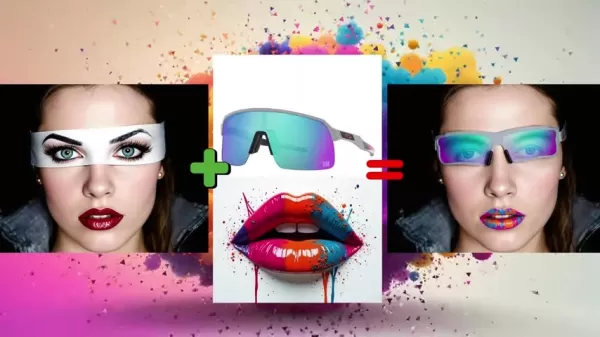
While the FillDev model delivers precise and seamless edits, the Redux model specializes in creating image variations, offering creative options for restyling and refinement.
Understanding the FLUX.1 Fill Dev Model
The FLUX.1 Fill Dev model is an advanced AI solution built for detailed image inpainting and outpainting. It empowers users to edit and expand current images while maintaining visual consistency. It outperforms traditional tools by ensuring edits blend naturally with the original content. You can update a person's hair color or outfit while keeping the rest of the image intact. The model is distributed under the FLUX Dev License, with full model weights accessible on Hugging Face and inference code on GitHub.
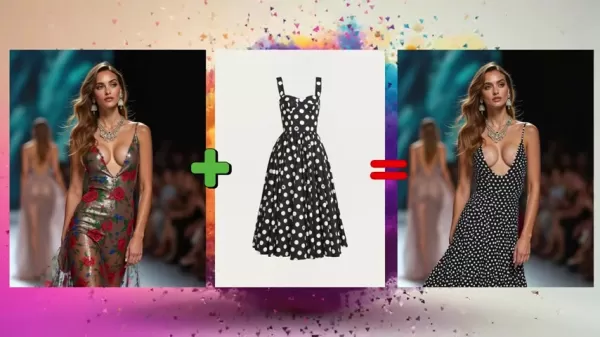
With the Flux Tools FillDev model, you can effortlessly modify images, such as adjusting hair color or updating clothing.
Exploring the FLUX.1 Redux Model for Image Variation
FLUX.1 Redux functions as an adapter compatible with all FLUX.1 base models, supporting image and prompt recombination. It allows you to reproduce an input image with nuanced variations, giving you the ability to refine visuals iteratively.
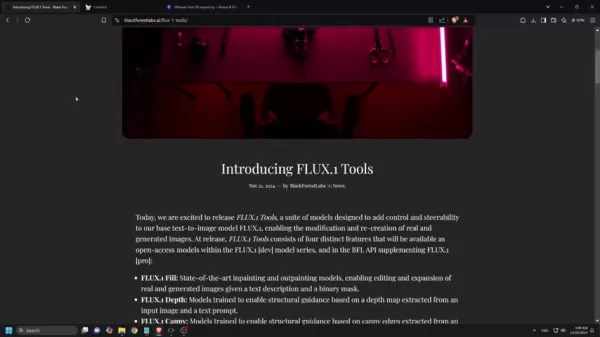
This technique facilitates image restyling, letting you enhance an image via image-to-image generation.
Combining FLUX FillDev and Redux: A Powerful Synergy
Effortless Image Editing and Feature Preservation
Integrating FLUX Tools provides a robust solution for producing polished, personalized, and diverse visual content. It enables straightforward editing and inpainting while retaining essential image characteristics. This workflow maintains image resolution and integrity, allowing creative expression without quality loss.
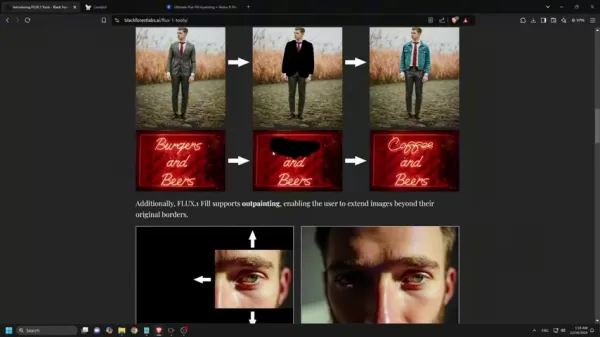
Use the FillDev model to modify main subjects, while Flux Redux introduces controlled changes to other visual elements. Flux Redux provides subtle, distinctive modifications to hair, attire, and background details.
Downloading the Necessary Components for ComfyUI
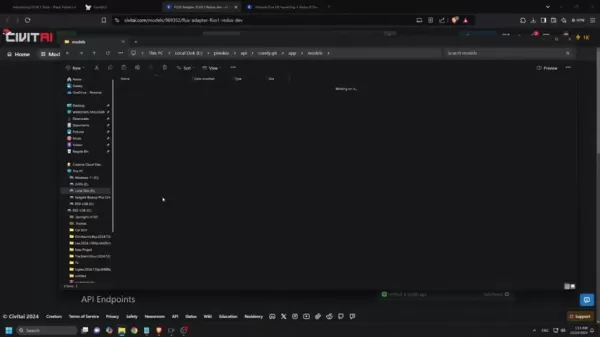
Start by downloading the workflow from Civitai—search for AI Motion Studio. This setup enables Flux image inpainting within the ComfyUI interface. Make sure to download and position the following models in their appropriate directories:
- GGUF quantized FLUX Fill Dev model
- FLUX.1 Redux dev model
- SigClip Vision model
- FLUX Turbo Alpha Lora model
Download links are included in the workflow for easy access. Place the GGUF quantized FLUX Fill Dev model in the unet folder, the FLUX.1 Redux dev model in the style_models folder, the SigClip Vision model in the clip_vision folder, and the FLUX Turbo Alpha Lora model in the loras folder. Once files are placed in the unet folder.
Setting up ComfyUI
Once all files are correctly downloaded and stored, refresh your ComfyUI before launching image generation. Load a previously edited image to alter the subject's hair color using the supplied reference image.
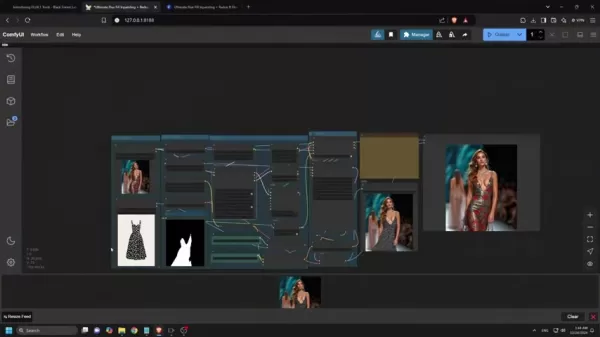
Type "hair" in the prompt to define the mask area using the Florence 2 model. The goal is to generate an image that keeps the original attributes—like clothing and background lighting—but features an updated hair color.
Step-by-Step: How to Use FLUX Tools for Image Inpainting
How to Change Outfits Using FLUX Inpainting
Follow these clear steps to modify clothing in an image:
- Upload the image: Load the image you want to edit into ComfyUI.
- Add reference image: Provide an image as a reference for the desired outfit.
- Select mask: Outline the area you wish to modify within the image.
- Hit the queue button: Start the generation process. After a short wait, your updated image with the new outfit will be ready.
How to Add Sunglasses Using FLUX Inpainting
To add sunglasses to an image, use this step-by-step method:
- Upload the image: Open the image you want to edit in ComfyUI.
- Add reference image: Supply an image showing the sunglasses you want to add.
- Select mask: Type "white band" to highlight the region where sunglasses should appear.
- Hit the queue button: Initiate generation. Shortly, your image will include the new sunglasses.
How to change Backgrounds using FLUX Inpainting
To change the background of an image, follow these instructions:
- Upload the image: Import your image into ComfyUI—ideally with a plain, clear background.
- Add reference image: Upload a reference image depicting your preferred background.
- Select mask: Enter "background" in the prompt box to select the entire background area.
- Hit the queue button: Launch the generation. Your final image will soon display the refreshed background.
Pricing
FLUX Tools Pricing
For current FLUX Tools pricing details, visit the Black Forest Labs website. We recommend checking directly for the latest pricing and available options.
Pros and Cons
Pros
High-quality image adjustments.
Streamlined and user-friendly processes.
Extensive customization possibilities.
Cons
Significant dependency on reference images.
Outcomes may occasionally include imperfections.
Considerable learning curve for users new to ComfyUI.
Core Features of FLUX Tools
FLUX Tools Features
Flux Tools is designed to provide structural guidance using canny edge or depth detection, ensuring precise oversight during image changes. Its most impactful features include:
- FLUX.1 Fill: Inpainting and outpainting models for editing and expanding real or AI-generated images.
- FLUX.1 Depth: Models that enable structural guidance from depth maps derived from input images and prompts.
- FLUX.1 Canny: Models that use canny edge data from input images for structural control.
- FLUX.1 Redux: An adapter that blends and regenerates input images and text instructions.
Ideal Use Cases for FLUX Tools
FLUX Tools Use Cases
Flux Tools supports a broad spectrum of applications. Notable examples are:
- Delicate glass sculptures on display
- Basic 3D modeling projects
- Realistic duck figures on a desktop
- Dramatic anime illustrations
FAQ
Where can I download the workflow for FLUX Tools?
The workflow is available for download on CivitAI—search for AI Motion Studio.
What models are required for this workflow?
You'll need these models: GGUF quantized FLUX Fill Dev, FLUX.1 Redux dev, SigClip Vision, and FLUX Turbo Alpha Lora.
Where should I place the downloaded models?
Place the GGUF quantized FLUX Fill Dev model in the unet folder, FLUX.1 Redux dev in style_models, SigClip Vision in clip_vision, and FLUX Turbo Alpha Lora in the loras directory.
What should I do if some nodes are not working?
Open the ComfyUI Manager, select Install Missing Custom Nodes, then choose Update All before restarting ComfyUI.
Related Questions
How does FLUX Redux enhance image editing capabilities, and what are its primary applications in image variation and restyling?
FLUX Redux expands image editing possibilities by serving as an adapter for all FLUX.1 base models, enabling the fusion and regeneration of input images and text prompts. This functionality supports generating various interpretations of an original image, allowing users to fine-tune specific features without losing overall cohesion. Its main uses include:Image Restyling: FLUX Redux supports comprehensive image restyling by adjusting style, color schemes, and surface details while preserving structural integrity. This can be applied to create artistic versions of photos, produce content matching specific aesthetics, or unify different components in a composition. Set the strength parameter to 1 for optimal results.Controlled Attribute Modification: Users gain exact control over individual image attributes such as object surfaces, lighting conditions, and color palettes. This enables iterative content refinement, ensuring all outputs match defined creative standards.Content Enrichment: FLUX Redux facilitates the smooth addition of new elements into existing visuals while preserving their inherent structure and consistency. This allows users to enhance subjects with supplementary details, strengthening the visual story.Style Transfer: Style transfer, or style migration, refers to the process of recomposing an image using the stylistic elements of another. For instance, using a landscape photograph as content and Van Gogh's The Starry Night as style, it generates the landscape reinterpreted in Van Gogh's technique. This method can also transform a portrait using artistic influences. Through managed manipulation of image components, FLUX Redux ensures all variations reflect user-defined changes, making it a vital tool for innovative design work.
Related article
 Inside Details Exposed About Next-Gen Gemini: Strained Computing Power, Internal Teams Disagreed on Development Priorities and Resource Allocation
Reports indicate that the launch of Google’s highly anticipated next-generation Gemini model has been pushed back. Internal disagreements over development priorities and resource allocation, combined with limited computing capacity and complex approv
OpenAI Dismisses Growth Slowdown Concerns, Says Multiple Business Units Accelerating
In response to external scrutiny regarding decelerating sales growth and missed internal benchmarks, AI leader OpenAI issued a confident statement on Tuesday, April 28. The company clarified that its consumer products and enterprise services are adva
Alibaba Super Cup: Qwen3.8-Max Debuts with Boosted Coding and Office Tools
Alibaba has officially unveiled Qwen3.8-Max, a next-generation foundation large model boasting 2.4 trillion parameters. This significant AI advancement delivers substantial performance gains in core areas like coding and professional office tasks, sh
Related Special Topic Recommendations
Music composition
Inside Details Exposed About Next-Gen Gemini: Strained Computing Power, Internal Teams Disagreed on Development Priorities and Resource Allocation
Reports indicate that the launch of Google’s highly anticipated next-generation Gemini model has been pushed back. Internal disagreements over development priorities and resource allocation, combined with limited computing capacity and complex approv
OpenAI Dismisses Growth Slowdown Concerns, Says Multiple Business Units Accelerating
In response to external scrutiny regarding decelerating sales growth and missed internal benchmarks, AI leader OpenAI issued a confident statement on Tuesday, April 28. The company clarified that its consumer products and enterprise services are adva
Alibaba Super Cup: Qwen3.8-Max Debuts with Boosted Coding and Office Tools
Alibaba has officially unveiled Qwen3.8-Max, a next-generation foundation large model boasting 2.4 trillion parameters. This significant AI advancement delivers substantial performance gains in core areas like coding and professional office tasks, sh
Related Special Topic Recommendations
Music composition
 Best AI Melody Writing Tools for Song Drafts
2026 Latest Best Top-Rated AI Melody Writing Tools for Song Drafts! XIX.AI has curated a highly powerful game-changing collection that goes through rigorous real-world tests to deliver the best writing experience. You can find detailed free vs paid comparisons, accurate rankings, and must-try options designed to help you create stunning song drafts effortlessly and boost your creative productivity significantly. Explore now to discover your perfect tool!
 8 tools
 xix.ai
chatbot
Best AI Conversation Trainer Tools for Interview Practice
xix.ai
chatbot
Best AI Conversation Trainer Tools for Interview Practice
2026 Latest Best Top-rated AI Conversation Trainer Tools for Interview Practice are here on XIX.AI! This curated collection features powerful, game-changing tools that go through rigorous real-world tests to deliver accurate feedback. You’ll find a free vs paid comparison and detailed rankings to help you choose the must-try option that boosts your confidence and skills. Explore now to Discover your perfect tool for interview success!
12 tools
xix.ai
Design & Art
Best AI Style Transfer Tools for Creative Experiments
2026 Latest Best Top-rated AI Style Transfer Tools for Creative Experiments! XIX.AI has curated a powerful, game-changing collection of must-try tools that deliver exceptional results through real-world tests and rigorous rankings. These top solutions help creatives boost productivity significantly by accelerating content creation and unlocking endless creative possibilities. Explore now to discover your perfect tool and start creating today!
9 tools
xix.ai
Comic Creation
Best AI Dialogue Bubble Tools for Visual Storytelling
2026 Latest Best Top-Rated AI Dialogue Bubble Tools for Visual Storytelling are here on XIX.AI! This curated collection features powerful, game-changing tools that help creators boost productivity and overcome creative bottlenecks. Get a free vs paid comparison, see real-world tests, and check the latest rankings to find the must-try solutions perfect for crafting engaging visual narratives. Explore now to discover your ideal tool!
10 tools
xix.ai
Meeting Assistant
Top AI Meeting Summary Tools: Track Decisions and Follow-Ups Clearly
2026 Latest Top-Rated Best AI Meeting Summary Tools for Clear Decision Tracking and Effortless Follow-Ups. This curated list showcases powerful, game-changing solutions that boost productivity dramatically by automating meeting notes, identifying key action items, and streamlining team coordination across all projects. Get a free vs paid comparison along with real-world tests and weekly updated rankings to help you find the perfect tool. Explore now to unlock your AI edge!
9 tools
xix.ai
Data Analysis
Best AI Data Cleaning Tools: Fix Missing Values and Duplicates Fast
2026 Latest Best Top-rated AI Data Cleaning Tools for quick fixing of missing values and duplicates. This curated list showcases powerful, game-changing solutions that boost productivity significantly. Each option has undergone rigorous real-world tests to ensure reliability. Get a free vs paid comparison and discover the must-try tool that fits your needs best. Explore now at XIX.AI to Unlock your AI edge.
11 tools
xix.ai

 Comments (1)
0/500
Comments (1)
0/500
![TerryGonzález]()
I just tried using the FillDev model in Flux Tools to fix a tiny scratch on my pet photo, and it actually worked better than my phone’s built-in editor! It’s crazy how AI can handle such detailed edits now. Do you think these tools will make professional photographers obsolete soon?
Artificial intelligence is transforming creative processes, with image inpainting leading the way. In this guide, we explore FLUX Tools, covering the FillDev and Redux models, to seamlessly edit and inpaint images—unlocking new opportunities for custom visual content creation. Discover techniques for modifying hair color, swapping clothing, and other enhancements using these advanced utilities.
Key Points
FLUX Tools delivers sophisticated AI-driven image inpainting functionality.
The FillDev model supports detailed edits and smooth visual integration.
FLUX Redux allows for generating image variations and applying new styles.
These tools enable you to easily adjust image details like hairstyle and apparel.
The workflow is available for download on CivitAI and integrates with ComfyUI.
Essential models: FLUX.1 Fill Dev GGUF, FLUX.1 Redux dev adapter, SigClip Vision, FLUX.1 Turbo Alpha.
Introduction to FLUX Tools and AI Image Inpainting
What is FLUX Tools and How Does It Enhance Image Editing?
AI-powered image inpainting is reshaping how we approach image editing and modification. FLUX Tools, developed by Black Forest Labs, offers cutting-edge inpainting and image variation generation. This tutorial demonstrates how FLUX Tools—especially the FillDev and Redux models—simplify image editing while providing exceptional creative flexibility.
While the FillDev model delivers precise and seamless edits, the Redux model specializes in creating image variations, offering creative options for restyling and refinement.
Understanding the FLUX.1 Fill Dev Model
The FLUX.1 Fill Dev model is an advanced AI solution built for detailed image inpainting and outpainting. It empowers users to edit and expand current images while maintaining visual consistency. It outperforms traditional tools by ensuring edits blend naturally with the original content. You can update a person's hair color or outfit while keeping the rest of the image intact. The model is distributed under the FLUX Dev License, with full model weights accessible on Hugging Face and inference code on GitHub.
With the Flux Tools FillDev model, you can effortlessly modify images, such as adjusting hair color or updating clothing.
Exploring the FLUX.1 Redux Model for Image Variation
FLUX.1 Redux functions as an adapter compatible with all FLUX.1 base models, supporting image and prompt recombination. It allows you to reproduce an input image with nuanced variations, giving you the ability to refine visuals iteratively.
This technique facilitates image restyling, letting you enhance an image via image-to-image generation.
Combining FLUX FillDev and Redux: A Powerful Synergy
Effortless Image Editing and Feature Preservation
Integrating FLUX Tools provides a robust solution for producing polished, personalized, and diverse visual content. It enables straightforward editing and inpainting while retaining essential image characteristics. This workflow maintains image resolution and integrity, allowing creative expression without quality loss.
Use the FillDev model to modify main subjects, while Flux Redux introduces controlled changes to other visual elements. Flux Redux provides subtle, distinctive modifications to hair, attire, and background details.
Downloading the Necessary Components for ComfyUI
Start by downloading the workflow from Civitai—search for AI Motion Studio. This setup enables Flux image inpainting within the ComfyUI interface. Make sure to download and position the following models in their appropriate directories:
- GGUF quantized FLUX Fill Dev model
- FLUX.1 Redux dev model
- SigClip Vision model
- FLUX Turbo Alpha Lora model
Download links are included in the workflow for easy access. Place the GGUF quantized FLUX Fill Dev model in the unet folder, the FLUX.1 Redux dev model in the style_models folder, the SigClip Vision model in the clip_vision folder, and the FLUX Turbo Alpha Lora model in the loras folder. Once files are placed in the unet folder.
Setting up ComfyUI
Once all files are correctly downloaded and stored, refresh your ComfyUI before launching image generation. Load a previously edited image to alter the subject's hair color using the supplied reference image.
Type "hair" in the prompt to define the mask area using the Florence 2 model. The goal is to generate an image that keeps the original attributes—like clothing and background lighting—but features an updated hair color.
Step-by-Step: How to Use FLUX Tools for Image Inpainting
How to Change Outfits Using FLUX Inpainting
Follow these clear steps to modify clothing in an image:
- Upload the image: Load the image you want to edit into ComfyUI.
- Add reference image: Provide an image as a reference for the desired outfit.
- Select mask: Outline the area you wish to modify within the image.
- Hit the queue button: Start the generation process. After a short wait, your updated image with the new outfit will be ready.
How to Add Sunglasses Using FLUX Inpainting
To add sunglasses to an image, use this step-by-step method:
- Upload the image: Open the image you want to edit in ComfyUI.
- Add reference image: Supply an image showing the sunglasses you want to add.
- Select mask: Type "white band" to highlight the region where sunglasses should appear.
- Hit the queue button: Initiate generation. Shortly, your image will include the new sunglasses.
How to change Backgrounds using FLUX Inpainting
To change the background of an image, follow these instructions:
- Upload the image: Import your image into ComfyUI—ideally with a plain, clear background.
- Add reference image: Upload a reference image depicting your preferred background.
- Select mask: Enter "background" in the prompt box to select the entire background area.
- Hit the queue button: Launch the generation. Your final image will soon display the refreshed background.
Pricing
FLUX Tools Pricing
For current FLUX Tools pricing details, visit the Black Forest Labs website. We recommend checking directly for the latest pricing and available options.
Pros and Cons
Pros
High-quality image adjustments.
Streamlined and user-friendly processes.
Extensive customization possibilities.
Cons
Significant dependency on reference images.
Outcomes may occasionally include imperfections.
Considerable learning curve for users new to ComfyUI.
Core Features of FLUX Tools
FLUX Tools Features
Flux Tools is designed to provide structural guidance using canny edge or depth detection, ensuring precise oversight during image changes. Its most impactful features include:
- FLUX.1 Fill: Inpainting and outpainting models for editing and expanding real or AI-generated images.
- FLUX.1 Depth: Models that enable structural guidance from depth maps derived from input images and prompts.
- FLUX.1 Canny: Models that use canny edge data from input images for structural control.
- FLUX.1 Redux: An adapter that blends and regenerates input images and text instructions.
Ideal Use Cases for FLUX Tools
FLUX Tools Use Cases
Flux Tools supports a broad spectrum of applications. Notable examples are:
- Delicate glass sculptures on display
- Basic 3D modeling projects
- Realistic duck figures on a desktop
- Dramatic anime illustrations
FAQ
Where can I download the workflow for FLUX Tools?
The workflow is available for download on CivitAI—search for AI Motion Studio.
What models are required for this workflow?
You'll need these models: GGUF quantized FLUX Fill Dev, FLUX.1 Redux dev, SigClip Vision, and FLUX Turbo Alpha Lora.
Where should I place the downloaded models?
Place the GGUF quantized FLUX Fill Dev model in the unet folder, FLUX.1 Redux dev in style_models, SigClip Vision in clip_vision, and FLUX Turbo Alpha Lora in the loras directory.
What should I do if some nodes are not working?
Open the ComfyUI Manager, select Install Missing Custom Nodes, then choose Update All before restarting ComfyUI.
Related Questions
How does FLUX Redux enhance image editing capabilities, and what are its primary applications in image variation and restyling?
FLUX Redux expands image editing possibilities by serving as an adapter for all FLUX.1 base models, enabling the fusion and regeneration of input images and text prompts. This functionality supports generating various interpretations of an original image, allowing users to fine-tune specific features without losing overall cohesion. Its main uses include:Image Restyling: FLUX Redux supports comprehensive image restyling by adjusting style, color schemes, and surface details while preserving structural integrity. This can be applied to create artistic versions of photos, produce content matching specific aesthetics, or unify different components in a composition. Set the strength parameter to 1 for optimal results.Controlled Attribute Modification: Users gain exact control over individual image attributes such as object surfaces, lighting conditions, and color palettes. This enables iterative content refinement, ensuring all outputs match defined creative standards.Content Enrichment: FLUX Redux facilitates the smooth addition of new elements into existing visuals while preserving their inherent structure and consistency. This allows users to enhance subjects with supplementary details, strengthening the visual story.Style Transfer: Style transfer, or style migration, refers to the process of recomposing an image using the stylistic elements of another. For instance, using a landscape photograph as content and Van Gogh's The Starry Night as style, it generates the landscape reinterpreted in Van Gogh's technique. This method can also transform a portrait using artistic influences. Through managed manipulation of image components, FLUX Redux ensures all variations reflect user-defined changes, making it a vital tool for innovative design work.








 Inside Details Exposed About Next-Gen Gemini: Strained Computing Power, Internal Teams Disagreed on Development Priorities and Resource Allocation
Reports indicate that the launch of Google’s highly anticipated next-generation Gemini model has been pushed back. Internal disagreements over development priorities and resource allocation, combined with limited computing capacity and complex approv
Inside Details Exposed About Next-Gen Gemini: Strained Computing Power, Internal Teams Disagreed on Development Priorities and Resource Allocation
Reports indicate that the launch of Google’s highly anticipated next-generation Gemini model has been pushed back. Internal disagreements over development priorities and resource allocation, combined with limited computing capacity and complex approv
 OpenAI Dismisses Growth Slowdown Concerns, Says Multiple Business Units Accelerating
In response to external scrutiny regarding decelerating sales growth and missed internal benchmarks, AI leader OpenAI issued a confident statement on Tuesday, April 28. The company clarified that its consumer products and enterprise services are adva
OpenAI Dismisses Growth Slowdown Concerns, Says Multiple Business Units Accelerating
In response to external scrutiny regarding decelerating sales growth and missed internal benchmarks, AI leader OpenAI issued a confident statement on Tuesday, April 28. The company clarified that its consumer products and enterprise services are adva
 Alibaba Super Cup: Qwen3.8-Max Debuts with Boosted Coding and Office Tools
Alibaba has officially unveiled Qwen3.8-Max, a next-generation foundation large model boasting 2.4 trillion parameters. This significant AI advancement delivers substantial performance gains in core areas like coding and professional office tasks, sh
Alibaba Super Cup: Qwen3.8-Max Debuts with Boosted Coding and Office Tools
Alibaba has officially unveiled Qwen3.8-Max, a next-generation foundation large model boasting 2.4 trillion parameters. This significant AI advancement delivers substantial performance gains in core areas like coding and professional office tasks, sh

2026 Latest Best Top-Rated AI Melody Writing Tools for Song Drafts! XIX.AI has curated a highly powerful game-changing collection that goes through rigorous real-world tests to deliver the best writing experience. You can find detailed free vs paid comparisons, accurate rankings, and must-try options designed to help you create stunning song drafts effortlessly and boost your creative productivity significantly. Explore now to discover your perfect tool!
8 tools
xix.ai

2026 Latest Best Top-rated AI Conversation Trainer Tools for Interview Practice are here on XIX.AI! This curated collection features powerful, game-changing tools that go through rigorous real-world tests to deliver accurate feedback. You’ll find a free vs paid comparison and detailed rankings to help you choose the must-try option that boosts your confidence and skills. Explore now to Discover your perfect tool for interview success!
12 tools
xix.ai

2026 Latest Best Top-rated AI Style Transfer Tools for Creative Experiments! XIX.AI has curated a powerful, game-changing collection of must-try tools that deliver exceptional results through real-world tests and rigorous rankings. These top solutions help creatives boost productivity significantly by accelerating content creation and unlocking endless creative possibilities. Explore now to discover your perfect tool and start creating today!
9 tools
xix.ai

2026 Latest Best Top-Rated AI Dialogue Bubble Tools for Visual Storytelling are here on XIX.AI! This curated collection features powerful, game-changing tools that help creators boost productivity and overcome creative bottlenecks. Get a free vs paid comparison, see real-world tests, and check the latest rankings to find the must-try solutions perfect for crafting engaging visual narratives. Explore now to discover your ideal tool!
10 tools
xix.ai

2026 Latest Top-Rated Best AI Meeting Summary Tools for Clear Decision Tracking and Effortless Follow-Ups. This curated list showcases powerful, game-changing solutions that boost productivity dramatically by automating meeting notes, identifying key action items, and streamlining team coordination across all projects. Get a free vs paid comparison along with real-world tests and weekly updated rankings to help you find the perfect tool. Explore now to unlock your AI edge!
9 tools
xix.ai

2026 Latest Best Top-rated AI Data Cleaning Tools for quick fixing of missing values and duplicates. This curated list showcases powerful, game-changing solutions that boost productivity significantly. Each option has undergone rigorous real-world tests to ensure reliability. Get a free vs paid comparison and discover the must-try tool that fits your needs best. Explore now at XIX.AI to Unlock your AI edge.
11 tools
xix.ai

I just tried using the FillDev model in Flux Tools to fix a tiny scratch on my pet photo, and it actually worked better than my phone’s built-in editor! It’s crazy how AI can handle such detailed edits now. Do you think these tools will make professional photographers obsolete soon?












