


 Home
HomeVoice Control for ChatGPT



Helps TikTok sellers, brands, MCNs, and TAPs discover winning products and find creators.

HelpLook is an AI-powered all-in-one knowledge base tool that helps businesses quickly build knowledge bases, help centers, and...

Your AI Workspace

302.AI is an enterprise-grade AI resource platform with pay-as-you-go pricing, API access to a full range of AI models, and ready-to-use online applications.

剧火AI — AI Screenwriter + Director, a One-Person Short Drama Studio In one sentence, what is it?

What is Gladia? Gladia offers an AI-driven Speech-to-Text API that delivers transcription, translation, and audio intelligence capabilities. It leverages an enhanced version of OpenAI's Whisper model for fast, precise, and scalable conversion of audi
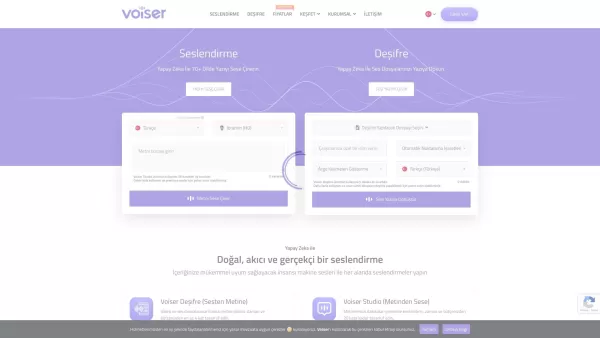
What is Voiser? Voiser is an advanced AI-powered tool that transforms written text into lifelike speech and converts audio files into accurate text. With over 550 voice options across 75+ languages, i
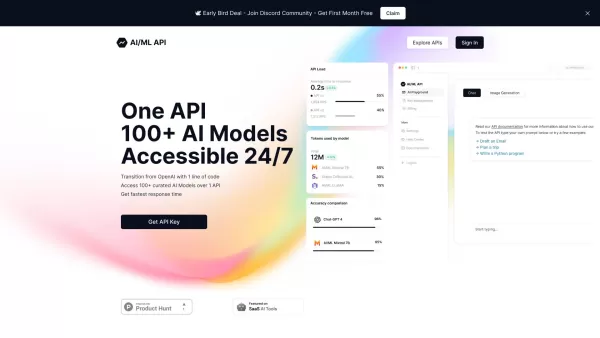
Ever wondered how to streamline your development process with AI? One API is your go-to solution, offering a gateway to over 100 AI models through a single, easy-to-use API. It's like having a Swiss Army knife for AI in your tech toolkit, ensuring you're
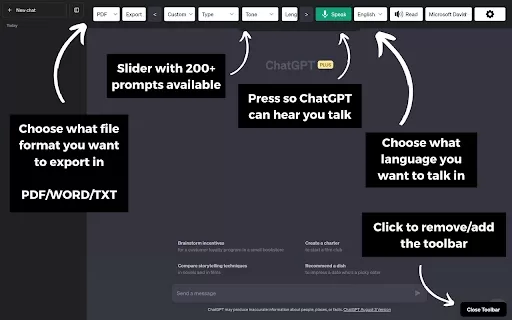
What is the ChatGPT Toolbar Companion Chrome Extension? The ChatGPT Toolbar Companion is a Chrome extension that elevates your ChatGPT interactions. It provides numerous features such as powerful prompts, text-to-speech, speech-to-text, auto-continue

Ever stumbled upon a video or audio file and wished you could quickly turn it into text? That's where Sonix AI comes into play. It's a slick online tool designed to transform your spoken words into written text with surprising accuracy. It's not just a tr
Voice Control for ChatGPT Product Information
What Is Voice Control for ChatGPT?
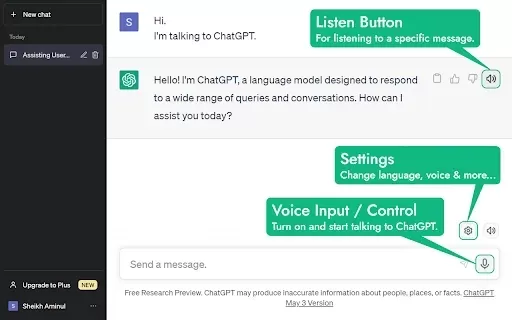
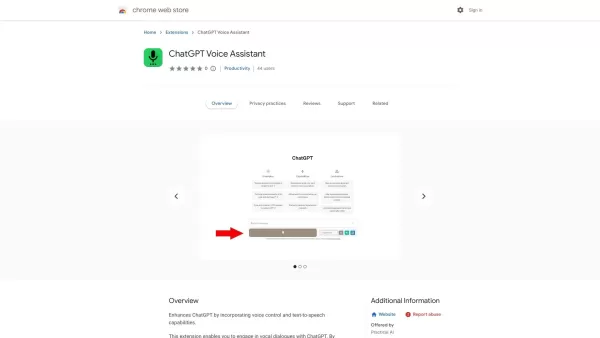
Voice Control for ChatGPT is a groundbreaking Chrome extension that lets you interact with ChatGPT using your voice. It adds a convenient recording button, enabling you to send voice queries instead of typing. The AI then reads its responses aloud, creating a smooth auditory experience. This tool is designed for a wide range of users, making interactions faster and more enjoyable, especially for those who prefer or need voice communication.
Who Uses Voice Control for ChatGPT?
- Students
- Working professionals
- People with disabilities
- Tech enthusiasts
- Customer support agents
How to Use Voice Control for ChatGPT
- Step 1: Install the Voice Control for ChatGPT extension from the Chrome Web Store.
- Step 2: Open ChatGPT and find the voice recording button.
- Step 3: Press the button to start recording your voice query.
- Step 4: Release the button to send your recorded query to ChatGPT.
- Step 5: Listen as ChatGPT reads its response aloud.
Platform
- Chrome
Voice Control for ChatGPT's Core Features & Benefits
Core Features
- Voice recording and input
- Speech-to-text interaction
- Audio output of responses
- User-friendly interface
Benefits
- Hands-free interaction with ChatGPT
- Accessible for individuals with disabilities
- Improved engagement and communication
- Faster response time without typing
Main Use Cases & Applications
- Real-time conversations for learning
- Customer service automation
- Assistive technology for accessibility
- Content creation and brainstorming
FAQs About Voice Control for ChatGPT
Does Voice Control save my audio data?
No, it does not store audio files to protect your privacy.
How does Voice Control for ChatGPT work?
The extension enables voice input and provides audio output for interactions with ChatGPT.
Can I use Voice Control on mobile devices?
Currently, it is only available for Chrome on desktop computers.
Is Voice Control free to use?
Yes, it is completely free to install from the Chrome Web Store.
Are there any language limitations?
Voice Control supports multiple languages based on what ChatGPT can handle.
Can I customize settings?
Basic settings can be adjusted in the extension menu.
What if my voice isn't recognized?
Make sure you speak clearly; try again if it fails to understand.
Can I use it offline?
Voice Control requires an active internet connection to function.
How do I uninstall the extension?
Go to Chrome settings, find the extension, and select 'Remove'.
Is there support available?
Yes, you can reach support through the links provided in the extension.
Voice Control for ChatGPT Company Information
Voice Control for ChatGPT Screenshot

2026 Latest Best AI Lip-Sync Generators for Dialogue-Driven Character Animation and Motion Scenes! XIX.AI has curated a top-rated list of powerful, game-changing tools that deliver flawless synchronized lip movements for animated characters. Each option undergoes rigorous real-world tests to ensure reliability, and our weekly updated rankings help you find the must-try solution that boosts your animation workflow efficiency. Explore now to discover your perfect tool!
 9 tools
 xix.ai

2026 Latest Best Top-rated AI Social Reply Assistants for Brand Community Management! XIX.AI has curated a powerful game-changing collection of must-try tools, all going through rigorous real-world tests to deliver consistent top-quality results. You can find detailed free vs paid comparison insights and up-to-date weekly updated rankings here. Explore now to unlock your AI edge in efficient community management!
12 tools
xix.ai

2026 Latest Top-Rated AI Daily Planner Apps make creating realistic deep work schedules effortless. This curated list features powerful, game-changing tools that go through real-world tests to ensure accuracy and effectiveness. You’ll find a free vs paid comparison along with detailed rankings based on usability and results. XIX.AI is part of this trusted collection. Explore now to discover your perfect tool and unlock your AI edge for staying focused and productive every day.
11 tools
xix.ai

2026 Latest Best Top-rated AI Chart Builder Tools for Fast Reporting are here on XIX.AI! This curated list features powerful game-changing tools that deliver accurate professional charts with just a few clicks, helping you boost writing efficiency and streamline content creation. Get a free vs paid comparison along with real-world tests and detailed rankings to find the must-try solution for your needs. Explore now to unlock your AI edge!
9 tools
xix.ai

2026 Latest Best Top-rated AI Live Chat Routing Tools for Ecommerce Queues, VIP Buyers, and Return Requests. This curated list features powerful game-changing solutions that boost productivity dramatically through real-world tests. It includes a free vs paid comparison along with detailed rankings to help you find the perfect fit. XIX.AI stands out as a trusted provider in this space. Explore now to Unlock your AI edge!
9 tools
xix.ai

2026 Latest Best Top-Rated AI Editing Tools for ESL Writers are here on XIX.AI! This curated list features powerful game-changing tools that go through real-world tests to ensure accuracy. You can find a free vs paid comparison alongside detailed rankings to help you pick the must-try solution that boosts your writing tone, grammar, and flow perfectly. Explore now to Unlock your AI edge!
9 tools
xix.ai


