


 Home
HomeLeonardo AI Launches Effortless Style Transfer for Creating Distinctive Art
Unlock your creative potential with Leonardo AI! This versatile tool enables you to transfer artistic styles from one image to another, opening up a world of creative opportunities. Whether you're an experienced designer or just beginning your creative journey, Leonardo AI's user-friendly interface makes it simple to produce unique and visually striking artwork. Explore the limitless possibilities of AI-driven art generation and take your creative projects to the next level with style transfer. This guide walks you through the process, providing practical examples and expert advice to help you master the feature and achieve impressive results.
Key Points
Discover Leonardo AI's style transfer feature for easy and effective image transformation.
Learn how to blend various artistic styles into a single image.
Utilize 'Image Guidance' to manage the impact of your style reference.
Explore the potential of combining multiple images for distinctive outcomes.
Create mockups and apply artistic styles using specific image inputs.
Understand how strength settings affect your image generation results.
Understanding Style Transfer with Leonardo AI
What is Leonardo AI Style Transfer?
Leonardo AI is an advanced platform that empowers users to create images using artificial intelligence. A standout feature is style transfer, which allows you to apply the visual characteristics of one image to another. This means you can transform a photograph into a painting, sketch, or any other artistic style you choose.
Style transfer works by analyzing the source image and identifying its key stylistic elements, such as color schemes, textures, and patterns. It then applies these elements to your target image while preserving its core content and structure.
This process is supported by an intuitive interface and various customization options within Leonardo AI, giving you precise control over the final output. The platform uses sophisticated algorithms to ensure the applied style blends seamlessly with the target image, producing cohesive and visually appealing artwork. With Leonardo AI's style transfer capabilities, your creative options are virtually endless, making it an invaluable tool for artists, designers, and anyone looking to add a unique touch to their visuals. Experimenting with prompts can lead to surprising and beautiful outcomes, showcasing the flexibility of style transfer.
By grasping this core functionality, users can explore more detailed aspects of Leonardo AI, such as image guidance and strength settings, to further refine their creations. Whether your goal is to create digital art, enhance photography, or explore new creative directions, Leonardo AI's style transfer feature is your gateway to innovative visual expression. Remember to use relevant keywords in your prompts to help the AI better understand your intentions and produce the desired results.
Why Use Style Transfer?
Style transfer offers numerous advantages for both creative professionals and enthusiasts. Firstly, it opens up new creative pathways, allowing you to experiment with artistic styles that might otherwise be difficult to achieve. If you've ever wondered how a photo would look in the style of Van Gogh or as a pencil sketch, style transfer makes it possible with minimal effort.
Secondly, style transfer boosts productivity. Instead of spending hours or days manually replicating an art style, you can achieve compelling results in just minutes. This is especially beneficial for designers who need to quickly explore different visual concepts.
Thirdly, style transfer is highly adaptable. Platforms like Leonardo AI provide settings to control the intensity and influence of the transferred style, enabling you to fine-tune the outcome to match your vision precisely. This level of control ensures the final image meets your creative expectations.
Finally, style transfer is exceptionally versatile. It can be applied to a wide range of images, from portraits and landscapes to abstract compositions. This versatility makes it a valuable asset for various creative projects, including:
- Digital Art Creation: Produce unique artwork by merging different styles.
- Photography Enhancement: Turn ordinary photos into stunning artistic pieces.
- Concept Design: Quickly visualize ideas in different visual styles.
- Content Creation: Enhance your social media and blog posts with captivating visuals.
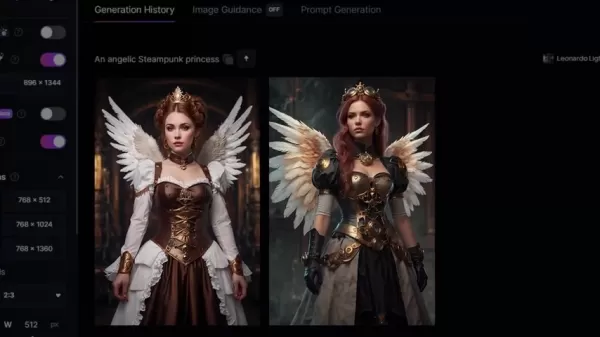
By leveraging style transfer, you can elevate your creative output and stand out in a visually competitive environment. It's an accessible, efficient, and inspiring tool that empowers you to explore and express your creativity in exciting new ways. Utilizing features like Leonardo Lightning and Alchemy are part of the basic settings needed to get started.
Maximize Your Style Transfer Results
Tips and Tricks for Better Outcomes
Achieving the best results with Leonardo AI's style transfer feature involves more than just uploading images and clicking 'Generate.' Consider these tips and tricks:
Use High-Quality Images: The quality of your source and target images significantly affects the final outcome. High-resolution images with clear stylistic elements produce better results. Photos with a resolution of 1280x720 are ideal for maintaining quality while conserving tokens.
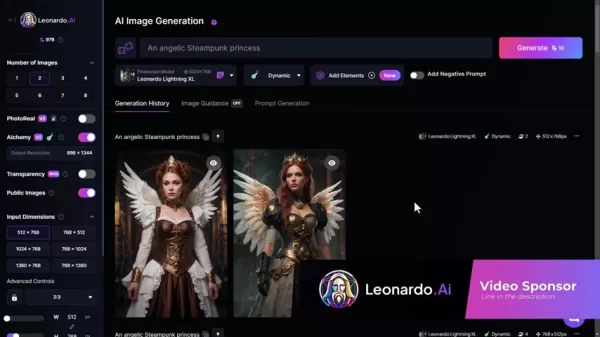
Experiment with Different Strength Settings: The strength settings determine how much the style reference influences the target image. Test different levels to find the perfect balance.
Combine Image Prompts Strategically: Don't hesitate to combine multiple image prompts for unique results. For instance, using 'Edge to Image' can help maintain the structure of your target image while applying the style of your reference image.
Refine Your Text Prompts: Use descriptive text prompts to guide the AI and ensure it generates images that align with your vision. Be detailed and specific in your descriptions.
Iterate and Refine: The key to mastering style transfer is iteration. Generate multiple images, review the outcomes, and adjust your settings to achieve the desired effect.
By following these tips and tricks, you can unlock the full potential of Leonardo AI's style transfer feature and create truly exceptional visuals.
How to Use Leonardo AI Style Transfer: A Step-by-Step Guide
Step 1: Accessing Image Guidance
First, open Leonardo AI. Locate the 'Image Guidance' tab within the platform's interface. This is where you'll upload and manage the images used for style transfer. Image Guidance helps the AI understand how to perform the style transfer. The location of this tab may vary as the Leonardo AI interface is updated, so familiarizing yourself with the layout is important. This section is crucial for achieving the desired results in your image manipulations. Remember, you can also upload your own images here for comparison with the original images.
Step 2: Uploading Your Images
Within the 'Image Guidance' section, you'll find an option to 'Add an image to get started.' Click this to upload the image whose style you want to transfer. This image serves as your style reference. You can also select an image from your recent generations within Leonardo AI. The platform accepts common image formats like PNG, JPG, or WEBP, up to 5MB in size. Ensure your chosen style reference image has clear stylistic elements, as these will be extracted and applied to your target image. You can use any of your images to influence the style of the output.
Step 3: Selecting Style Reference
Once your images are uploaded, click on the 'Image to Image' dropdown menu, then select 'Style Reference' from the list. This tells Leonardo AI that you want to transfer the style from the selected image to your new creation.
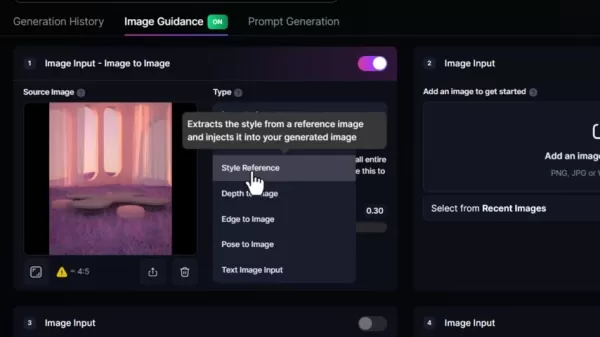
The Style Reference setting allows you to determine the strength of the style application. This is how you extract and inject the style into your generated image.
Step 4: Adjusting Strength Settings
Below the 'Style Reference' option, you'll find strength settings. These settings control the degree to which the style from your reference image is applied to your target image. Options typically include 'Low', 'Mid', 'High', 'Ultra', and 'Max'. Each level represents a different intensity of style application. Starting with the default 'High' strength is a good way to begin, then you can adjust the strength based on your needs. It's essential to experiment with these settings to find the perfect balance for your desired outcome. These levels include:
- Low: Minimal style influence.
- Mid: Moderate style influence.
- High: Balanced style influence (default).
- Ultra: Strong style influence.
- Max: Maximum style influence, which may overpower the original image.
Adjusting the strength settings is vital, as it directly affects the final appearance of your image. Test each setting to determine what works best for your project.
Step 5: Generating Your Image
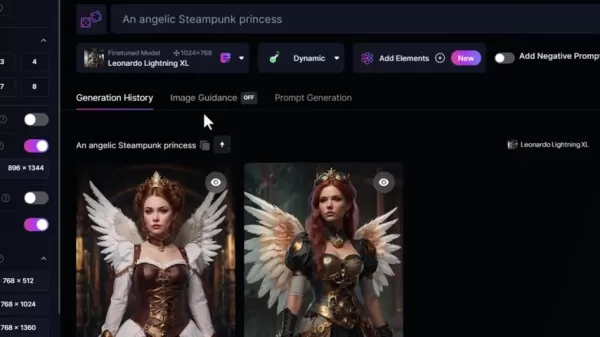
After setting up the style reference and strength, return to the 'Generation History' tab. You can review your original image and the desired prompt to prepare for generation. Now, click the 'Generate' button to start the style transfer process. Leonardo AI will use the selected style reference and strength settings to create a new image, blending the artistic characteristics of the reference image with the content of your target image. Be sure to use the appropriate fine-tuned model for your image generation.
Step 6: Reviewing and Refining
Once the image is generated, review the results and decide if any adjustments are needed. If the style transfer isn't quite what you envisioned, adjust the strength settings and generate the image again. You can also experiment with different style reference images to achieve varied effects. The iterative process of generating, reviewing, and refining is key to mastering Leonardo AI's style transfer feature.
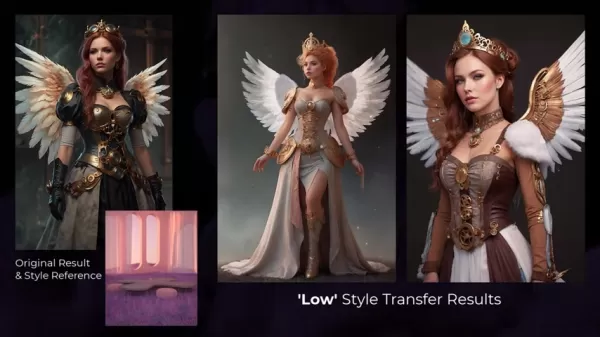
You may notice that the images have a soft, peach-like hue. If you want to enhance the colors and lighting, try using a stronger setting.
Leonardo AI Pricing: Choose the Plan That Fits Your Needs
Subscription Tiers and Features
Leonardo AI offers several subscription tiers designed to meet the needs of different users, from casual hobbyists to professional artists. Each tier provides a specific number of 'fast generations' per month, access to advanced features, and varying levels of customer support. Understanding these tiers is crucial for getting the most value from your investment.
- Free Tier: This tier is ideal for beginners or those looking to explore Leonardo AI's capabilities. It includes a limited number of fast generations per month and access to basic features.
- Apprentice Tier: The Apprentice tier offers more fast generations and additional features, suitable for regular users who want to create more content.
- Artisan Tier: Aimed at professional users, the Artisan tier provides a substantial number of fast generations, priority access, and advanced customization options.
- Maestro Tier: The Maestro tier is designed for large teams or organizations, offering unlimited fast generations, dedicated support, and enterprise-level features.
Tokens can be purchased for a single month or on an ongoing basis.
Each tier includes access to core features such as:
- Image Generation
- Style Transfer
- Alchemy
Weighing the Leonardo AI Style Transfer Experience
Pros
Easy to understand and use
High productivity
Offers customization controls
Versatile across a wide range of projects
Cons
High token usage
Results can vary significantly
Core Features of Leonardo AI
Key Capabilities for Image Generation and Style Transfer
Leonardo AI boasts a range of features that make it a powerful tool for image generation and manipulation. Understanding these features is essential for harnessing the full potential of the platform.
- Image Generation:
Leonardo AI excels at generating images from text prompts. The platform's AI algorithms interpret your text input and create corresponding visuals, allowing you to bring your ideas to life with ease. By combining Image Generation you can achieve unique looks that other AI programs may not provide.
Style Transfer:
This core feature allows you to apply the artistic style of one image to another, transforming photos into paintings, drawings, and more. Style Transfer can be enhanced by using the settings feature described in step 4.
- Image Guidance:
The 'Image Guidance' feature lets you upload and manage images for style transfer, providing a centralized hub for your visual resources. This gives the AI direction based on your prompt and desired results.
- Strength Settings:
Control the intensity of style application with 'strength settings', ranging from 'Low' to 'Max', giving you precise control over the final outcome.
- Alchemy:
Alchemy is a crucial component when using Leonardo AI. It allows you to combine style and image guidance to produce cohesive results for your image.
Leonardo AI Use Cases: Transforming Creative Possibilities
Real-World Applications of Leonardo AI's Style Transfer
Leonardo AI is highly versatile, applicable across various industries and creative fields.
Digital Art Creation: Leonardo AI is perfect for creating original digital artwork. By combining various styles and refining the generated images, artists can produce pieces that are both unique and visually striking.

Photography Enhancement: Photographers can use style transfer to transform ordinary photos into extraordinary pieces of art, experimenting with different artistic styles to create unique visual effects.
Mockup Creation: Designers can quickly generate product mockups by applying textures, patterns, and colors to create compelling visuals. Uploading images of T-shirts and using relevant prompts can yield results suitable for an ecommerce store or print-on-demand shop.
Concept Design: Architects and designers can visualize concepts in different visual styles, from futuristic renderings to classic architectural drawings. Using Depth to Image settings will enhance their creativity.
Content Creation: Content creators can enhance their social media posts and blog articles with eye-catching visuals, making their content more engaging and shareable.
These applications demonstrate the transformative power of Leonardo AI, making it an indispensable tool for anyone seeking to push the boundaries of creative expression. For example, if you use an image of a city and upload it to Leonardo AI, you can generate a new image with a futuristic style. A cityscape, a neon building, or a landscape can all be realized with a single image and prompt.
Frequently Asked Questions (FAQ)
What image formats does Leonardo AI support for style transfer?
Leonardo AI supports common image formats such as PNG, JPG, and WEBP, with a maximum file size of 5MB. Ensure your images are compatible with these formats for optimal results. You can find high-quality images on websites like Pexels or Unsplash. Be aware that you may need to purchase a license for some images. It's a good idea to use a site like Canva to upload your photos and images for free.
How do I control the intensity of style transfer in Leonardo AI?
You can control the intensity of style transfer using the 'strength settings' located below the 'Style Reference' option. These settings include 'Low', 'Mid', 'High', 'Ultra', and 'Max', each representing a different level of style influence. Be sure to use a Leonardo Lightning XL model for best results.
Can I combine multiple image prompts for even more unique results?
Yes, you can combine certain image prompts, such as using 'Edge to Image' alongside 'Style Reference', to achieve more unique and controlled outcomes. Experimenting with these combinations is key to unlocking new creative possibilities, giving you the ability to use different prompts for an even better image with unique properties. With features like this, you're granted freedom and flexibility with all prompts.
Related Questions and Answers
What are Leonardo AI's Alchemy and Image Guidance features?
Alchemy is a feature on Leonardo AI that enhances the quality of generated images, improving details and coherence. Image Guidance uses uploaded images to steer the generation process, allowing for style and layout control. When these features are used together, you have a better chance of obtaining a higher-quality image than with a standard prompt alone. To use both, start by adding an image to the upload field for the AI to reference around your prompt. These features are designed to create images and artwork, so using them in combination provides a more diverse range of opportunities.
How can I use Leonardo AI for professional design work?
Leonardo AI is suitable for professional design work by streamlining the creative process. Its features support quick visualization of design concepts, creation of mockups, and generation of unique visual assets. Leonardo AI delivers high-quality results, making it appropriate for this type of prompt-driven work.
Related article
 Stripe to Acquire OpenRouter as AI Model Routing Gains Momentum
Stripe has agreed to acquire OpenRouter, an AI model-routing platform that gives developers access to hundreds of models through a single interface. The deal adds model selection and routing to Stripe’s existing work around AI usage and token-based b
Former OpenAI Researcher Barrett Zoph Returns to Google to Support Gemini Development
Barret Zoph, who previously abruptly left and joined OpenAI due to a disagreement with Thinking Machines Lab CEO Miriam Mularati, has once again changed employers. Alphabet's Google announced that Zoph will return as Vice President of Research, bring
How Recursive Intelligence Raised $335M at $4B Valuation in 4 Months
The co-founders of startup Ricursive Intelligence seemed destined to be co-founders.Anna Goldie, CEO, and Azalia Mirhoseini, CTO, are so well-known in the AI community that they were among those AI engineers who “got those weird emails from Zuckerber
Related Special Topic Recommendations
Design & Art
Stripe to Acquire OpenRouter as AI Model Routing Gains Momentum
Stripe has agreed to acquire OpenRouter, an AI model-routing platform that gives developers access to hundreds of models through a single interface. The deal adds model selection and routing to Stripe’s existing work around AI usage and token-based b
Former OpenAI Researcher Barrett Zoph Returns to Google to Support Gemini Development
Barret Zoph, who previously abruptly left and joined OpenAI due to a disagreement with Thinking Machines Lab CEO Miriam Mularati, has once again changed employers. Alphabet's Google announced that Zoph will return as Vice President of Research, bring
How Recursive Intelligence Raised $335M at $4B Valuation in 4 Months
The co-founders of startup Ricursive Intelligence seemed destined to be co-founders.Anna Goldie, CEO, and Azalia Mirhoseini, CTO, are so well-known in the AI community that they were among those AI engineers who “got those weird emails from Zuckerber
Related Special Topic Recommendations
Design & Art
 Top AI Illustration Tools: Create Editorial Scenes and Cover Art Faster
2026 Latest Top-rated AI Illustration Tools: Our curated list features the best powerfully designed tools for creating stunning editorial scenes and eye-catching cover art quickly. Each option has gone through rigorous real-world tests, offering a free vs paid comparison to help you find the perfect match for your workflow. Try these must-try solutions today to unlock your AI edge and boost your creative productivity. Explore now at XIX.AI.
 10 tools
 xix.ai
Education and Learning
Top AI Tutors for Exam Prep: Practice Math, Science, and English
xix.ai
Education and Learning
Top AI Tutors for Exam Prep: Practice Math, Science, and English
2026 Latest Top-Rated Best AI Tutors for Exam Prep are here on XIX.AI! Our curated list features powerful game-changing tools that offer free vs paid comparison, real-world tests, and weekly updated rankings. They help boost your writing efficiency, simplify complex topic learning, and unlock your academic potential. Explore now to Discover your perfect exam prep tool and Start creating today to Unlock your AI edge!
10 tools
xix.ai
Finance
AI Budget Planning Tools for Personal Money Management
2026 Latest Best Top-Rated AI Budget Planning Tools for Personal Money Management are here on XIX.AI! This curated collection features powerful, game-changing solutions that help you conduct real-world tests, understand spending habits, and create personalized plans to boost productivity. Enjoy a free vs paid comparison along with detailed rankings. Must-try tools designed to simplify money management and unlock your AI edge. Explore now!
11 tools
xix.ai
Health & Wellness
AI Sleep Tracking Assistants: Improve Recovery with Better Bedtime Habits
2026 Latest Best Top-Rated AI Sleep Tracking Assistants curated for ultimate recovery. This fully updated weekly guide features powerful tools that deliver real-world tests, free vs paid comparison, and detailed rankings to help you find the must-try solution that boosts sleep quality and supports better bedtime habits. Explore now at XIX.AI to Unlock your AI edge.
10 tools
xix.ai
Data Analysis
AI SQL Copilots for Product and Revenue Analytics
2026 Latest Best Top-Rated AI SQL Copilots for Product and Revenue Analytics! XIX.AI has curated a powerful, game-changing collection of must-try tools that undergo real-world tests through weekly updated rankings. These tools help users boost productivity significantly by accelerating data analysis, streamlining complex queries, and generating accurate insights to drive smarter business decisions. Explore now to Discover your perfect tool for unlocking your AI edge!
14 tools
xix.ai
Education and Learning
Best AI Homework Helpers That Teach: Learn Concepts, Not Just Answers
2026 Latest Best Top-Rated AI Homework Helpers That Teach Core Concepts Not Just Answers Powerful Tools for Students Must-Try Curated List Weekly Updated Free vs Paid Comparison Real-World Tests Accurate Rankings to Help You Unlock Your Full Learning Potential Explore now to Discover your perfect tool for smarter studying.
10 tools
xix.ai

 Comments (4)
0/500
Comments (4)
0/500
![FrankTaylor]()
Finally, a tool that doesn't require me to learn complex coding just to make my cat look like a Van Gogh! 🎨 The style transfer feature looks promising, though I'm still skeptical about how it handles intricate textures. Can't wait to test it with my own sketches.
![JimmyWhite]()
This style transfer feature looks super handy for quick mockups! I've been using similar tools but they often require a lot of tweaking. Wonder how it compares to Adobe's offerings in terms of speed and quality. The creative possibilities are endless though, especially for social media content. 🎨
![ThomasLewis]()
おぉ、これで模写するのに時間がかからなくなりそう!昔は手作業でやっていたスタイル転写がAIでこんなに簡単になるなんて。しかし、倫理面もちょっと気になるな... 他の作家のスタイルを自由に転用できるってことで問題にならないかな?🤔
![PaulYoung]()
Ce genre de fonctionnalités de transfert de style est sympa, mais parfois je me demande si c'est trop accessible ? Est-ce qu'on perd un peu le sens du travail artistique 'traditionnel' quand tout devient si rapide et automatisé ? 😅 En même temps, ça ouvre des portes incroyables pour les débutants comme moi !
Unlock your creative potential with Leonardo AI! This versatile tool enables you to transfer artistic styles from one image to another, opening up a world of creative opportunities. Whether you're an experienced designer or just beginning your creative journey, Leonardo AI's user-friendly interface makes it simple to produce unique and visually striking artwork. Explore the limitless possibilities of AI-driven art generation and take your creative projects to the next level with style transfer. This guide walks you through the process, providing practical examples and expert advice to help you master the feature and achieve impressive results.
Key Points
Discover Leonardo AI's style transfer feature for easy and effective image transformation.
Learn how to blend various artistic styles into a single image.
Utilize 'Image Guidance' to manage the impact of your style reference.
Explore the potential of combining multiple images for distinctive outcomes.
Create mockups and apply artistic styles using specific image inputs.
Understand how strength settings affect your image generation results.
Understanding Style Transfer with Leonardo AI
What is Leonardo AI Style Transfer?
Leonardo AI is an advanced platform that empowers users to create images using artificial intelligence. A standout feature is style transfer, which allows you to apply the visual characteristics of one image to another. This means you can transform a photograph into a painting, sketch, or any other artistic style you choose.
Style transfer works by analyzing the source image and identifying its key stylistic elements, such as color schemes, textures, and patterns. It then applies these elements to your target image while preserving its core content and structure.
This process is supported by an intuitive interface and various customization options within Leonardo AI, giving you precise control over the final output. The platform uses sophisticated algorithms to ensure the applied style blends seamlessly with the target image, producing cohesive and visually appealing artwork. With Leonardo AI's style transfer capabilities, your creative options are virtually endless, making it an invaluable tool for artists, designers, and anyone looking to add a unique touch to their visuals. Experimenting with prompts can lead to surprising and beautiful outcomes, showcasing the flexibility of style transfer.
By grasping this core functionality, users can explore more detailed aspects of Leonardo AI, such as image guidance and strength settings, to further refine their creations. Whether your goal is to create digital art, enhance photography, or explore new creative directions, Leonardo AI's style transfer feature is your gateway to innovative visual expression. Remember to use relevant keywords in your prompts to help the AI better understand your intentions and produce the desired results.
Why Use Style Transfer?
Style transfer offers numerous advantages for both creative professionals and enthusiasts. Firstly, it opens up new creative pathways, allowing you to experiment with artistic styles that might otherwise be difficult to achieve. If you've ever wondered how a photo would look in the style of Van Gogh or as a pencil sketch, style transfer makes it possible with minimal effort.
Secondly, style transfer boosts productivity. Instead of spending hours or days manually replicating an art style, you can achieve compelling results in just minutes. This is especially beneficial for designers who need to quickly explore different visual concepts.
Thirdly, style transfer is highly adaptable. Platforms like Leonardo AI provide settings to control the intensity and influence of the transferred style, enabling you to fine-tune the outcome to match your vision precisely. This level of control ensures the final image meets your creative expectations.
Finally, style transfer is exceptionally versatile. It can be applied to a wide range of images, from portraits and landscapes to abstract compositions. This versatility makes it a valuable asset for various creative projects, including:
- Digital Art Creation: Produce unique artwork by merging different styles.
- Photography Enhancement: Turn ordinary photos into stunning artistic pieces.
- Concept Design: Quickly visualize ideas in different visual styles.
- Content Creation: Enhance your social media and blog posts with captivating visuals.
By leveraging style transfer, you can elevate your creative output and stand out in a visually competitive environment. It's an accessible, efficient, and inspiring tool that empowers you to explore and express your creativity in exciting new ways. Utilizing features like Leonardo Lightning and Alchemy are part of the basic settings needed to get started.
Maximize Your Style Transfer Results
Tips and Tricks for Better Outcomes
Achieving the best results with Leonardo AI's style transfer feature involves more than just uploading images and clicking 'Generate.' Consider these tips and tricks:
Use High-Quality Images: The quality of your source and target images significantly affects the final outcome. High-resolution images with clear stylistic elements produce better results. Photos with a resolution of 1280x720 are ideal for maintaining quality while conserving tokens.
Experiment with Different Strength Settings: The strength settings determine how much the style reference influences the target image. Test different levels to find the perfect balance.
Combine Image Prompts Strategically: Don't hesitate to combine multiple image prompts for unique results. For instance, using 'Edge to Image' can help maintain the structure of your target image while applying the style of your reference image.
Refine Your Text Prompts: Use descriptive text prompts to guide the AI and ensure it generates images that align with your vision. Be detailed and specific in your descriptions.
Iterate and Refine: The key to mastering style transfer is iteration. Generate multiple images, review the outcomes, and adjust your settings to achieve the desired effect.
By following these tips and tricks, you can unlock the full potential of Leonardo AI's style transfer feature and create truly exceptional visuals.
How to Use Leonardo AI Style Transfer: A Step-by-Step Guide
Step 1: Accessing Image Guidance
First, open Leonardo AI. Locate the 'Image Guidance' tab within the platform's interface. This is where you'll upload and manage the images used for style transfer. Image Guidance helps the AI understand how to perform the style transfer. The location of this tab may vary as the Leonardo AI interface is updated, so familiarizing yourself with the layout is important. This section is crucial for achieving the desired results in your image manipulations. Remember, you can also upload your own images here for comparison with the original images.
Step 2: Uploading Your Images
Within the 'Image Guidance' section, you'll find an option to 'Add an image to get started.' Click this to upload the image whose style you want to transfer. This image serves as your style reference. You can also select an image from your recent generations within Leonardo AI. The platform accepts common image formats like PNG, JPG, or WEBP, up to 5MB in size. Ensure your chosen style reference image has clear stylistic elements, as these will be extracted and applied to your target image. You can use any of your images to influence the style of the output.
Step 3: Selecting Style Reference
Once your images are uploaded, click on the 'Image to Image' dropdown menu, then select 'Style Reference' from the list. This tells Leonardo AI that you want to transfer the style from the selected image to your new creation.
The Style Reference setting allows you to determine the strength of the style application. This is how you extract and inject the style into your generated image.
Step 4: Adjusting Strength Settings
Below the 'Style Reference' option, you'll find strength settings. These settings control the degree to which the style from your reference image is applied to your target image. Options typically include 'Low', 'Mid', 'High', 'Ultra', and 'Max'. Each level represents a different intensity of style application. Starting with the default 'High' strength is a good way to begin, then you can adjust the strength based on your needs. It's essential to experiment with these settings to find the perfect balance for your desired outcome. These levels include:
- Low: Minimal style influence.
- Mid: Moderate style influence.
- High: Balanced style influence (default).
- Ultra: Strong style influence.
- Max: Maximum style influence, which may overpower the original image.
Adjusting the strength settings is vital, as it directly affects the final appearance of your image. Test each setting to determine what works best for your project.
Step 5: Generating Your Image
After setting up the style reference and strength, return to the 'Generation History' tab. You can review your original image and the desired prompt to prepare for generation. Now, click the 'Generate' button to start the style transfer process. Leonardo AI will use the selected style reference and strength settings to create a new image, blending the artistic characteristics of the reference image with the content of your target image. Be sure to use the appropriate fine-tuned model for your image generation.
Step 6: Reviewing and Refining
Once the image is generated, review the results and decide if any adjustments are needed. If the style transfer isn't quite what you envisioned, adjust the strength settings and generate the image again. You can also experiment with different style reference images to achieve varied effects. The iterative process of generating, reviewing, and refining is key to mastering Leonardo AI's style transfer feature.
You may notice that the images have a soft, peach-like hue. If you want to enhance the colors and lighting, try using a stronger setting.
Leonardo AI Pricing: Choose the Plan That Fits Your Needs
Subscription Tiers and Features
Leonardo AI offers several subscription tiers designed to meet the needs of different users, from casual hobbyists to professional artists. Each tier provides a specific number of 'fast generations' per month, access to advanced features, and varying levels of customer support. Understanding these tiers is crucial for getting the most value from your investment.
- Free Tier: This tier is ideal for beginners or those looking to explore Leonardo AI's capabilities. It includes a limited number of fast generations per month and access to basic features.
- Apprentice Tier: The Apprentice tier offers more fast generations and additional features, suitable for regular users who want to create more content.
- Artisan Tier: Aimed at professional users, the Artisan tier provides a substantial number of fast generations, priority access, and advanced customization options.
- Maestro Tier: The Maestro tier is designed for large teams or organizations, offering unlimited fast generations, dedicated support, and enterprise-level features.
Tokens can be purchased for a single month or on an ongoing basis.
Each tier includes access to core features such as:
- Image Generation
- Style Transfer
- Alchemy
Weighing the Leonardo AI Style Transfer Experience
Pros
Easy to understand and use
High productivity
Offers customization controls
Versatile across a wide range of projects
Cons
High token usage
Results can vary significantly
Core Features of Leonardo AI
Key Capabilities for Image Generation and Style Transfer
Leonardo AI boasts a range of features that make it a powerful tool for image generation and manipulation. Understanding these features is essential for harnessing the full potential of the platform.
- Image Generation:
Leonardo AI excels at generating images from text prompts. The platform's AI algorithms interpret your text input and create corresponding visuals, allowing you to bring your ideas to life with ease. By combining Image Generation you can achieve unique looks that other AI programs may not provide.
Style Transfer:
This core feature allows you to apply the artistic style of one image to another, transforming photos into paintings, drawings, and more. Style Transfer can be enhanced by using the settings feature described in step 4.
- Image Guidance:
The 'Image Guidance' feature lets you upload and manage images for style transfer, providing a centralized hub for your visual resources. This gives the AI direction based on your prompt and desired results.
- Strength Settings:
Control the intensity of style application with 'strength settings', ranging from 'Low' to 'Max', giving you precise control over the final outcome.
- Alchemy:
Alchemy is a crucial component when using Leonardo AI. It allows you to combine style and image guidance to produce cohesive results for your image.
Leonardo AI Use Cases: Transforming Creative Possibilities
Real-World Applications of Leonardo AI's Style Transfer
Leonardo AI is highly versatile, applicable across various industries and creative fields.
Digital Art Creation: Leonardo AI is perfect for creating original digital artwork. By combining various styles and refining the generated images, artists can produce pieces that are both unique and visually striking.
Photography Enhancement: Photographers can use style transfer to transform ordinary photos into extraordinary pieces of art, experimenting with different artistic styles to create unique visual effects.
Mockup Creation: Designers can quickly generate product mockups by applying textures, patterns, and colors to create compelling visuals. Uploading images of T-shirts and using relevant prompts can yield results suitable for an ecommerce store or print-on-demand shop.
Concept Design: Architects and designers can visualize concepts in different visual styles, from futuristic renderings to classic architectural drawings. Using Depth to Image settings will enhance their creativity.
Content Creation: Content creators can enhance their social media posts and blog articles with eye-catching visuals, making their content more engaging and shareable.
These applications demonstrate the transformative power of Leonardo AI, making it an indispensable tool for anyone seeking to push the boundaries of creative expression. For example, if you use an image of a city and upload it to Leonardo AI, you can generate a new image with a futuristic style. A cityscape, a neon building, or a landscape can all be realized with a single image and prompt.
Frequently Asked Questions (FAQ)
What image formats does Leonardo AI support for style transfer?
Leonardo AI supports common image formats such as PNG, JPG, and WEBP, with a maximum file size of 5MB. Ensure your images are compatible with these formats for optimal results. You can find high-quality images on websites like Pexels or Unsplash. Be aware that you may need to purchase a license for some images. It's a good idea to use a site like Canva to upload your photos and images for free.
How do I control the intensity of style transfer in Leonardo AI?
You can control the intensity of style transfer using the 'strength settings' located below the 'Style Reference' option. These settings include 'Low', 'Mid', 'High', 'Ultra', and 'Max', each representing a different level of style influence. Be sure to use a Leonardo Lightning XL model for best results.
Can I combine multiple image prompts for even more unique results?
Yes, you can combine certain image prompts, such as using 'Edge to Image' alongside 'Style Reference', to achieve more unique and controlled outcomes. Experimenting with these combinations is key to unlocking new creative possibilities, giving you the ability to use different prompts for an even better image with unique properties. With features like this, you're granted freedom and flexibility with all prompts.
Related Questions and Answers
What are Leonardo AI's Alchemy and Image Guidance features?
Alchemy is a feature on Leonardo AI that enhances the quality of generated images, improving details and coherence. Image Guidance uses uploaded images to steer the generation process, allowing for style and layout control. When these features are used together, you have a better chance of obtaining a higher-quality image than with a standard prompt alone. To use both, start by adding an image to the upload field for the AI to reference around your prompt. These features are designed to create images and artwork, so using them in combination provides a more diverse range of opportunities.
How can I use Leonardo AI for professional design work?
Leonardo AI is suitable for professional design work by streamlining the creative process. Its features support quick visualization of design concepts, creation of mockups, and generation of unique visual assets. Leonardo AI delivers high-quality results, making it appropriate for this type of prompt-driven work.








 Stripe to Acquire OpenRouter as AI Model Routing Gains Momentum
Stripe has agreed to acquire OpenRouter, an AI model-routing platform that gives developers access to hundreds of models through a single interface. The deal adds model selection and routing to Stripe’s existing work around AI usage and token-based b
Stripe to Acquire OpenRouter as AI Model Routing Gains Momentum
Stripe has agreed to acquire OpenRouter, an AI model-routing platform that gives developers access to hundreds of models through a single interface. The deal adds model selection and routing to Stripe’s existing work around AI usage and token-based b
 Former OpenAI Researcher Barrett Zoph Returns to Google to Support Gemini Development
Barret Zoph, who previously abruptly left and joined OpenAI due to a disagreement with Thinking Machines Lab CEO Miriam Mularati, has once again changed employers. Alphabet's Google announced that Zoph will return as Vice President of Research, bring
Former OpenAI Researcher Barrett Zoph Returns to Google to Support Gemini Development
Barret Zoph, who previously abruptly left and joined OpenAI due to a disagreement with Thinking Machines Lab CEO Miriam Mularati, has once again changed employers. Alphabet's Google announced that Zoph will return as Vice President of Research, bring
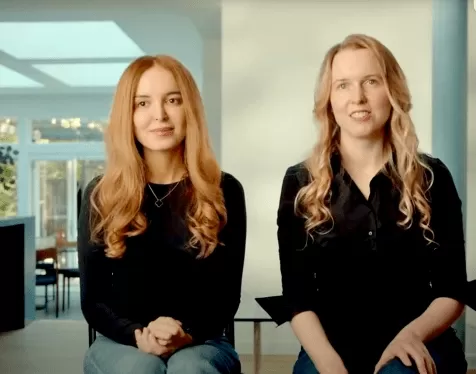 How Recursive Intelligence Raised $335M at $4B Valuation in 4 Months
The co-founders of startup Ricursive Intelligence seemed destined to be co-founders.Anna Goldie, CEO, and Azalia Mirhoseini, CTO, are so well-known in the AI community that they were among those AI engineers who “got those weird emails from Zuckerber
How Recursive Intelligence Raised $335M at $4B Valuation in 4 Months
The co-founders of startup Ricursive Intelligence seemed destined to be co-founders.Anna Goldie, CEO, and Azalia Mirhoseini, CTO, are so well-known in the AI community that they were among those AI engineers who “got those weird emails from Zuckerber
2026 Latest Top-rated AI Illustration Tools: Our curated list features the best powerfully designed tools for creating stunning editorial scenes and eye-catching cover art quickly. Each option has gone through rigorous real-world tests, offering a free vs paid comparison to help you find the perfect match for your workflow. Try these must-try solutions today to unlock your AI edge and boost your creative productivity. Explore now at XIX.AI.
10 tools
xix.ai
2026 Latest Top-Rated Best AI Tutors for Exam Prep are here on XIX.AI! Our curated list features powerful game-changing tools that offer free vs paid comparison, real-world tests, and weekly updated rankings. They help boost your writing efficiency, simplify complex topic learning, and unlock your academic potential. Explore now to Discover your perfect exam prep tool and Start creating today to Unlock your AI edge!
10 tools
xix.ai
2026 Latest Best Top-Rated AI Budget Planning Tools for Personal Money Management are here on XIX.AI! This curated collection features powerful, game-changing solutions that help you conduct real-world tests, understand spending habits, and create personalized plans to boost productivity. Enjoy a free vs paid comparison along with detailed rankings. Must-try tools designed to simplify money management and unlock your AI edge. Explore now!
11 tools
xix.ai
2026 Latest Best Top-Rated AI Sleep Tracking Assistants curated for ultimate recovery. This fully updated weekly guide features powerful tools that deliver real-world tests, free vs paid comparison, and detailed rankings to help you find the must-try solution that boosts sleep quality and supports better bedtime habits. Explore now at XIX.AI to Unlock your AI edge.
10 tools
xix.ai
2026 Latest Best Top-Rated AI SQL Copilots for Product and Revenue Analytics! XIX.AI has curated a powerful, game-changing collection of must-try tools that undergo real-world tests through weekly updated rankings. These tools help users boost productivity significantly by accelerating data analysis, streamlining complex queries, and generating accurate insights to drive smarter business decisions. Explore now to Discover your perfect tool for unlocking your AI edge!
14 tools
xix.ai

2026 Latest Best Top-Rated AI Homework Helpers That Teach Core Concepts Not Just Answers Powerful Tools for Students Must-Try Curated List Weekly Updated Free vs Paid Comparison Real-World Tests Accurate Rankings to Help You Unlock Your Full Learning Potential Explore now to Discover your perfect tool for smarter studying.
10 tools
xix.ai

Finally, a tool that doesn't require me to learn complex coding just to make my cat look like a Van Gogh! 🎨 The style transfer feature looks promising, though I'm still skeptical about how it handles intricate textures. Can't wait to test it with my own sketches.
This style transfer feature looks super handy for quick mockups! I've been using similar tools but they often require a lot of tweaking. Wonder how it compares to Adobe's offerings in terms of speed and quality. The creative possibilities are endless though, especially for social media content. 🎨
おぉ、これで模写するのに時間がかからなくなりそう!昔は手作業でやっていたスタイル転写がAIでこんなに簡単になるなんて。しかし、倫理面もちょっと気になるな... 他の作家のスタイルを自由に転用できるってことで問題にならないかな?🤔
Ce genre de fonctionnalités de transfert de style est sympa, mais parfois je me demande si c'est trop accessible ? Est-ce qu'on perd un peu le sens du travail artistique 'traditionnel' quand tout devient si rapide et automatisé ? 😅 En même temps, ça ouvre des portes incroyables pour les débutants comme moi !












