


 Home
HomeWhat is Image Inpainting in 2025? Easy photo restoration & object removal guide.
Image inpainting is an advanced AI technique that intelligently fills in missing or corrupted sections of an image. This powerful tool can effortlessly remove unwanted objects, restore aged photographs, or correct flaws by using sophisticated algorithms to reconstruct the missing areas, ensuring they blend naturally with the surrounding pixels. This article explores image inpainting in depth, covering its core concepts, practical uses, and demonstrating how to leverage open-source solutions like Generative Image Inpainting alongside the Saiwa AI platform to achieve professional-grade outcomes.
Key Points
Image inpainting uses artificial intelligence to reconstruct missing parts of pictures.
Its applications include removing artifacts, eliminating unwanted objects, and repairing old or damaged photos.
Generative Image Inpainting is a freely available, open-source framework for this purpose.
Saiwa AI provides a convenient online service for performing image inpainting.
Masks are essential for defining which areas of an image need to be filled in.
Understanding Image Inpainting
What is Image Inpainting?
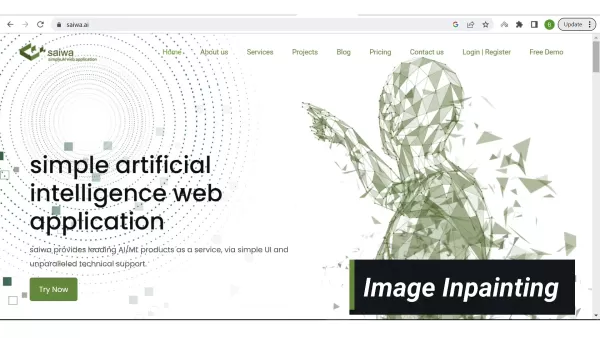
Image inpainting is the intelligent process of reconstructing missing or damaged portions of an image. It employs advanced algorithms, frequently based on deep learning, to analyze the context of the surrounding area and generate a plausible, visually coherent fill for the missing parts. This technique goes far beyond basic blurring or pixel copying; it aims to produce a seamless, natural-looking result that is indistinguishable from the original image. The AI essentially predicts the missing content by learning from the intact parts of the picture. Image inpainting has evolved into an indispensable tool for photo restoration, object removal, and creative editing. For instance, imagine an old, treasured photograph that has been damaged by scratches and stains. Image inpainting can digitally repair these flaws, restoring the photo to its former condition. Similarly, if you need to remove an unwanted person or object from a scene, image inpainting can erase it and convincingly reconstruct the background. Image inpainting exemplifies the power of AI to enhance and manipulate visual content for both corrective and creative endeavors.
Applications of Image Inpainting
Image inpainting has a broad spectrum of practical uses across numerous fields.
- Photo Restoration: Revive damaged or aging photographs by repairing scratches, tears, and other imperfections.
- Object Removal: Easily delete unwanted elements like photobombers, distractions, or logos from images.
- Text and Graffiti Removal: Clean up pictures by erasing unwanted text, graffiti, or watermarks.
- Image Editing: Creatively modify images by removing and replacing elements, unlocking new artistic potential.
- Film and Video Restoration: Repair damaged frames and fill in missing sections in old films and videos.
- Medical Imaging: Improve medical scans by filling in gaps in data, aiding in visualization and diagnosis.
- Cultural Heritage: Preserve and restore damaged artworks and historical artifacts for future generations.
Methods in Image Inpainting
A variety of techniques exist for image inpainting, including the method known as Generative Image Inpainting.
This is an open-source framework specifically for generative image inpainting, which incorporates contextual awareness. The core concepts of contextual attention and gated convolution were presented as oral papers at CVPR 2018 and ICCV 2019, respectively. The Generative Image Inpainting code is accessible via a Git repository, often linked in related video descriptions. To further demonstrate the process, this article will utilize an online tool, with the Saiwa AI platform serving as an example.
Generating Masks
How to perform generating Masks
A mask instructs the software on which parts of the image to inpaint. Therefore, creating a high-quality, precise mask is crucial for success. The Saiwa AI platform offers two methods for mask generation: uploading a pre-made mask or creating one directly within its online tool.
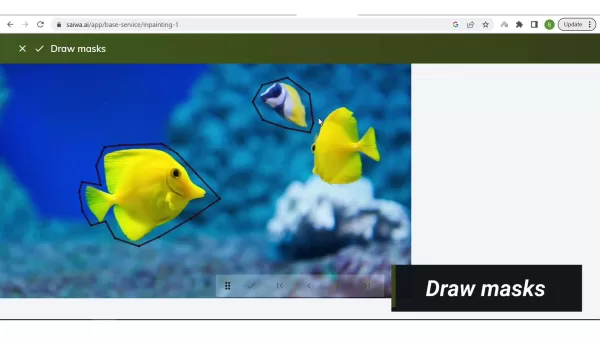
. The following demonstration will use Saiwa's built-in mask creator to highlight its functionality. Remember, masks are typically black and white, with the white areas indicating the regions slated for inpainting.
Step-by-Step Guide to Image Inpainting with Saiwa AI
Accessing the Image Inpainting Tool
Begin by visiting the Saiwa AI website (saiwa.ai). Navigate to the 'Projects' or 'Services' section on the main page and select 'Image Inpainting' from the menu of AI tools. This will direct you to the dedicated image inpainting workspace where you can start uploading and editing your images. Saiwa AI simplifies the entire image inpainting workflow.
Uploading Input Images
Once inside the image inpainting interface, upload the image you wish to edit. You can either click on the upload zone or drag and drop your image file directly into the application. The Saiwa AI platform accepts common formats like PNG, JPG, and WebP. Ensure your image adheres to the platform's specifications regarding size and format for the best processing outcome. Uploading your image is the essential first step for using the tool.
Specifying Regions of Interest with Masks
To guide the AI, you must create a mask that pinpoints the areas to be inpainted. A mask is a black-and-white overlay where white denotes the regions that will be filled or removed. Saiwa AI provides two options for this:
- Upload Existing Masks: If you have a mask file ready from another editing program, you can upload it directly.
- Generate Masks Online: Use Saiwa's integrated masking tool to draw directly onto your image. The demonstration will use this online generation method.
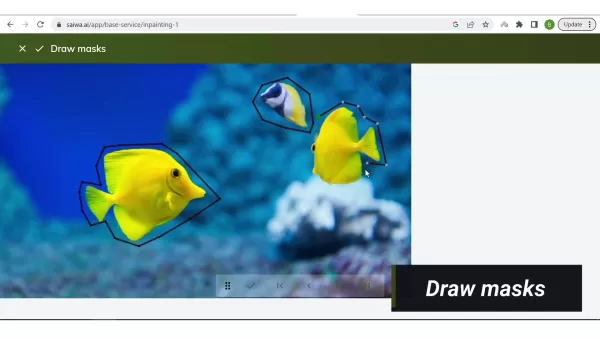
Using the online tool, carefully outline the object you want to remove or the area you need to restore. Accuracy is key; a precise mask provides the AI with the best information for high-quality inpainting. Creating a precise mask is fundamental for achieving optimal results.
Configuring Advanced Settings (Optional)
Before executing the image inpainting, you can fine-tune the output using several advanced options. These settings may include:
- Output File Extension: Select your preferred output format, such as PNG or JPG. The demonstration selects PNG format to preserve image quality without compression.
- Image Dimension and Size Shrinkage: Adjust the final dimensions and file size of the output image.
Tweak these parameters to achieve the desired level of detail and quality. Note that these advanced options become available only after an image has been selected.
Applying the Inpainting Process and Analyzing Results
After finalizing the mask and settings, click 'Apply' to initiate the image inpainting process. The AI will analyze the image and generate the final result, with the processing time displayed. Once complete, scrutinize the output image to evaluate the quality of the fill. Pay close attention to how well the inpainted areas blend with their surroundings and check for any visual inconsistencies. For complex images or large masked areas, you might need to adjust settings or refine the mask to get the best possible outcome.Careful analysis of the result is crucial for successful image inpainting.
Saiwa AI Platform Pricing Plans
Overview of Pricing Structure
Saiwa AI operates on a tiered pricing model designed to accommodate different user needs and levels of usage. Costs are typically based on factors like the number of API requests, the amount of data processed, and access to advanced features. For the most current and detailed pricing, please refer to the official Saiwa AI pricing page. As this text focuses on the tool's functionality, a deep dive into pricing tiers is not included here.
Pros and Cons of Using Saiwa AI for Image Inpainting
Pros
Intuitive user interface suitable for both novices and experts.
AI-driven algorithms deliver automated and seamless inpainting.
The integrated online mask generator simplifies defining target areas.
Flexible tiered pricing allows users to scale according to their needs.
Cons
Results can vary, particularly with intricate images or very large areas to fill.
Occasional artifacts may appear around the edges of inpainted regions, sometimes needing manual correction.
Offers fewer customization options than professional desktop editing software.
Requires a stable internet connection, which may be a limitation for some.
Core Features of Saiwa AI Image Inpainting
Key Capabilities
The Saiwa AI image inpainting tool is equipped with several powerful features for effective image restoration and manipulation:
Automated Inpainting: Leverages AI algorithms to automatically fill in missing or damaged parts of an image.
Masking Tools: User-friendly tools for creating and refining masks to pinpoint target areas.
Customizable Settings: Adjustable parameters for output format and image dimensions.
Batch Processing: Capability to process multiple images at once for greater efficiency.
API Integration: Allows for seamless integration with other applications and workflows through an API.
Real-Time Preview: Offers a preview of the inpainted result before finalizing the changes.
Diverse Use Cases for Saiwa AI Image Inpainting
Applications Across Industries
Saiwa AI's image inpainting technology can be applied in numerous scenarios:
- Restoring old family photos affected by scratches, tears, or water damage.
- Removing unwanted objects from real estate photos to create cleaner, more appealing listings.
- Cleaning up product images by eliminating flaws, logos, or distracting background elements.
- Enhancing marketing materials by removing superfluous text or graphics.
- Improving digital artwork by filling in gaps or correcting mistakes.
Frequently Asked Questions
What image formats does Saiwa AI Image Inpainting support?
Saiwa AI Image Inpainting is compatible with several standard image formats, including PNG, JPG, and WebP, ensuring it works with the majority of images you'll use.
Can I use Saiwa AI Image Inpainting for commercial purposes?
Yes, Saiwa AI Image Inpainting can be used for commercial projects, governed by the terms of the platform's license agreement. Please review the license for specific details on usage rights and limitations.
Is there a limit to the size of the images I can inpaint using Saiwa AI?
Saiwa AI may impose limitations on the dimensions or file size of images that can be processed. Consult the platform's official documentation or pricing page for specific information on any restrictions.
Related Questions
What are some alternative image inpainting tools?
While Saiwa AI offers a user-friendly and effective solution, other image inpainting tools are available. These alternatives include:Adobe Photoshop: A professional software suite with advanced content-aware fill features.GIMP: A free, open-source image editor that includes inpainting functionality.Deep Image Prior: A deep learning-based method that uses neural network structure for image restoration.Other online services: Numerous web-based platforms provide inpainting with varying features and pricing.Comparing these options will help you select the tool that best fits your specific requirements and expertise. Choosing the right image inpainting tool is critical for achieving high-quality results.
What factors affect the quality of image inpainting results?
The success of an image inpainting task depends on several key factors:The size and complexity of the area to be filled: Larger or more structurally complex regions are generally harder to reconstruct convincingly.The amount of contextual information available: If the area surrounding the hole lacks sufficient detail, it becomes difficult for the AI to make an accurate prediction, potentially lowering the quality of the fill. The accuracy of the mask:A well-defined mask is essential for guiding the inpainting algorithm correctly.The chosen algorithm and its parameters: Different techniques and settings can yield varying outcomes. Experimentation is often necessary to find the best approach for a specific image.By understanding and managing these factors, you can significantly improve the likelihood of obtaining high-quality image inpainting results.
Related article
 Stripe to Acquire OpenRouter as AI Model Routing Gains Momentum
Stripe has agreed to acquire OpenRouter, an AI model-routing platform that gives developers access to hundreds of models through a single interface. The deal adds model selection and routing to Stripe’s existing work around AI usage and token-based b
Former OpenAI Researcher Barrett Zoph Returns to Google to Support Gemini Development
Barret Zoph, who previously abruptly left and joined OpenAI due to a disagreement with Thinking Machines Lab CEO Miriam Mularati, has once again changed employers. Alphabet's Google announced that Zoph will return as Vice President of Research, bring
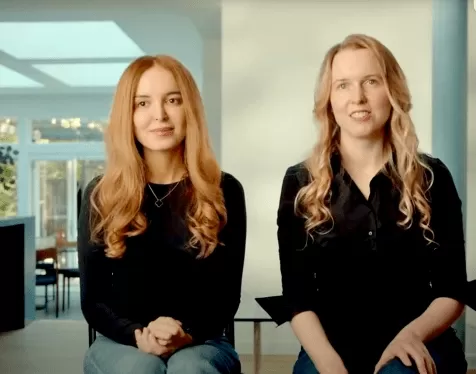
How Recursive Intelligence Raised $335M at $4B Valuation in 4 Months
The co-founders of startup Ricursive Intelligence seemed destined to be co-founders.Anna Goldie, CEO, and Azalia Mirhoseini, CTO, are so well-known in the AI community that they were among those AI engineers who “got those weird emails from Zuckerber
Related Special Topic Recommendations
Design & Art
Stripe to Acquire OpenRouter as AI Model Routing Gains Momentum
Stripe has agreed to acquire OpenRouter, an AI model-routing platform that gives developers access to hundreds of models through a single interface. The deal adds model selection and routing to Stripe’s existing work around AI usage and token-based b
Former OpenAI Researcher Barrett Zoph Returns to Google to Support Gemini Development
Barret Zoph, who previously abruptly left and joined OpenAI due to a disagreement with Thinking Machines Lab CEO Miriam Mularati, has once again changed employers. Alphabet's Google announced that Zoph will return as Vice President of Research, bring
How Recursive Intelligence Raised $335M at $4B Valuation in 4 Months
The co-founders of startup Ricursive Intelligence seemed destined to be co-founders.Anna Goldie, CEO, and Azalia Mirhoseini, CTO, are so well-known in the AI community that they were among those AI engineers who “got those weird emails from Zuckerber
Related Special Topic Recommendations
Design & Art
 Top AI Illustration Tools: Create Editorial Scenes and Cover Art Faster
2026 Latest Top-rated AI Illustration Tools: Our curated list features the best powerfully designed tools for creating stunning editorial scenes and eye-catching cover art quickly. Each option has gone through rigorous real-world tests, offering a free vs paid comparison to help you find the perfect match for your workflow. Try these must-try solutions today to unlock your AI edge and boost your creative productivity. Explore now at XIX.AI.
 10 tools
 xix.ai
Education and Learning
Top AI Tutors for Exam Prep: Practice Math, Science, and English
xix.ai
Education and Learning
Top AI Tutors for Exam Prep: Practice Math, Science, and English
2026 Latest Top-Rated Best AI Tutors for Exam Prep are here on XIX.AI! Our curated list features powerful game-changing tools that offer free vs paid comparison, real-world tests, and weekly updated rankings. They help boost your writing efficiency, simplify complex topic learning, and unlock your academic potential. Explore now to Discover your perfect exam prep tool and Start creating today to Unlock your AI edge!
10 tools
xix.ai
Finance
AI Budget Planning Tools for Personal Money Management
2026 Latest Best Top-Rated AI Budget Planning Tools for Personal Money Management are here on XIX.AI! This curated collection features powerful, game-changing solutions that help you conduct real-world tests, understand spending habits, and create personalized plans to boost productivity. Enjoy a free vs paid comparison along with detailed rankings. Must-try tools designed to simplify money management and unlock your AI edge. Explore now!
11 tools
xix.ai
Health & Wellness
AI Sleep Tracking Assistants: Improve Recovery with Better Bedtime Habits
2026 Latest Best Top-Rated AI Sleep Tracking Assistants curated for ultimate recovery. This fully updated weekly guide features powerful tools that deliver real-world tests, free vs paid comparison, and detailed rankings to help you find the must-try solution that boosts sleep quality and supports better bedtime habits. Explore now at XIX.AI to Unlock your AI edge.
10 tools
xix.ai
Data Analysis
AI SQL Copilots for Product and Revenue Analytics
2026 Latest Best Top-Rated AI SQL Copilots for Product and Revenue Analytics! XIX.AI has curated a powerful, game-changing collection of must-try tools that undergo real-world tests through weekly updated rankings. These tools help users boost productivity significantly by accelerating data analysis, streamlining complex queries, and generating accurate insights to drive smarter business decisions. Explore now to Discover your perfect tool for unlocking your AI edge!
14 tools
xix.ai
Education and Learning
Best AI Homework Helpers That Teach: Learn Concepts, Not Just Answers
2026 Latest Best Top-Rated AI Homework Helpers That Teach Core Concepts Not Just Answers Powerful Tools for Students Must-Try Curated List Weekly Updated Free vs Paid Comparison Real-World Tests Accurate Rankings to Help You Unlock Your Full Learning Potential Explore now to Discover your perfect tool for smarter studying.
10 tools
xix.ai

 Comments (1)
0/500
Comments (1)
0/500
![ScottJackson]()
사진 복원 기술이 이 정도로 발전했나요 🤯. 오래된 가족 사진을 깨끗하게 복원할 수 있다니 실용성 대박인데, 기술 발전 속도에 살짝 압도되기도 하네요. 근데 AI가 이런 식으로 사진을 '조작'하는 게 윤리적으로 괜찮을지 걱정도 돼요. 진실과 가상의 경계가 점점 흐려지는 느낌이에요.
Image inpainting is an advanced AI technique that intelligently fills in missing or corrupted sections of an image. This powerful tool can effortlessly remove unwanted objects, restore aged photographs, or correct flaws by using sophisticated algorithms to reconstruct the missing areas, ensuring they blend naturally with the surrounding pixels. This article explores image inpainting in depth, covering its core concepts, practical uses, and demonstrating how to leverage open-source solutions like Generative Image Inpainting alongside the Saiwa AI platform to achieve professional-grade outcomes.
Key Points
Image inpainting uses artificial intelligence to reconstruct missing parts of pictures.
Its applications include removing artifacts, eliminating unwanted objects, and repairing old or damaged photos.
Generative Image Inpainting is a freely available, open-source framework for this purpose.
Saiwa AI provides a convenient online service for performing image inpainting.
Masks are essential for defining which areas of an image need to be filled in.
Understanding Image Inpainting
What is Image Inpainting?
Image inpainting is the intelligent process of reconstructing missing or damaged portions of an image. It employs advanced algorithms, frequently based on deep learning, to analyze the context of the surrounding area and generate a plausible, visually coherent fill for the missing parts. This technique goes far beyond basic blurring or pixel copying; it aims to produce a seamless, natural-looking result that is indistinguishable from the original image. The AI essentially predicts the missing content by learning from the intact parts of the picture. Image inpainting has evolved into an indispensable tool for photo restoration, object removal, and creative editing. For instance, imagine an old, treasured photograph that has been damaged by scratches and stains. Image inpainting can digitally repair these flaws, restoring the photo to its former condition. Similarly, if you need to remove an unwanted person or object from a scene, image inpainting can erase it and convincingly reconstruct the background. Image inpainting exemplifies the power of AI to enhance and manipulate visual content for both corrective and creative endeavors.
Applications of Image Inpainting
Image inpainting has a broad spectrum of practical uses across numerous fields.
- Photo Restoration: Revive damaged or aging photographs by repairing scratches, tears, and other imperfections.
- Object Removal: Easily delete unwanted elements like photobombers, distractions, or logos from images.
- Text and Graffiti Removal: Clean up pictures by erasing unwanted text, graffiti, or watermarks.
- Image Editing: Creatively modify images by removing and replacing elements, unlocking new artistic potential.
- Film and Video Restoration: Repair damaged frames and fill in missing sections in old films and videos.
- Medical Imaging: Improve medical scans by filling in gaps in data, aiding in visualization and diagnosis.
- Cultural Heritage: Preserve and restore damaged artworks and historical artifacts for future generations.
Methods in Image Inpainting
A variety of techniques exist for image inpainting, including the method known as Generative Image Inpainting.
This is an open-source framework specifically for generative image inpainting, which incorporates contextual awareness. The core concepts of contextual attention and gated convolution were presented as oral papers at CVPR 2018 and ICCV 2019, respectively. The Generative Image Inpainting code is accessible via a Git repository, often linked in related video descriptions. To further demonstrate the process, this article will utilize an online tool, with the Saiwa AI platform serving as an example.
Generating Masks
How to perform generating Masks
A mask instructs the software on which parts of the image to inpaint. Therefore, creating a high-quality, precise mask is crucial for success. The Saiwa AI platform offers two methods for mask generation: uploading a pre-made mask or creating one directly within its online tool.
. The following demonstration will use Saiwa's built-in mask creator to highlight its functionality. Remember, masks are typically black and white, with the white areas indicating the regions slated for inpainting.
Step-by-Step Guide to Image Inpainting with Saiwa AI
Accessing the Image Inpainting Tool
Begin by visiting the Saiwa AI website (saiwa.ai). Navigate to the 'Projects' or 'Services' section on the main page and select 'Image Inpainting' from the menu of AI tools. This will direct you to the dedicated image inpainting workspace where you can start uploading and editing your images. Saiwa AI simplifies the entire image inpainting workflow.
Uploading Input Images
Once inside the image inpainting interface, upload the image you wish to edit. You can either click on the upload zone or drag and drop your image file directly into the application. The Saiwa AI platform accepts common formats like PNG, JPG, and WebP. Ensure your image adheres to the platform's specifications regarding size and format for the best processing outcome. Uploading your image is the essential first step for using the tool.
Specifying Regions of Interest with Masks
To guide the AI, you must create a mask that pinpoints the areas to be inpainted. A mask is a black-and-white overlay where white denotes the regions that will be filled or removed. Saiwa AI provides two options for this:
- Upload Existing Masks: If you have a mask file ready from another editing program, you can upload it directly.
- Generate Masks Online: Use Saiwa's integrated masking tool to draw directly onto your image. The demonstration will use this online generation method.
Using the online tool, carefully outline the object you want to remove or the area you need to restore. Accuracy is key; a precise mask provides the AI with the best information for high-quality inpainting. Creating a precise mask is fundamental for achieving optimal results.
Configuring Advanced Settings (Optional)
Before executing the image inpainting, you can fine-tune the output using several advanced options. These settings may include:
- Output File Extension: Select your preferred output format, such as PNG or JPG. The demonstration selects PNG format to preserve image quality without compression.
- Image Dimension and Size Shrinkage: Adjust the final dimensions and file size of the output image.
Tweak these parameters to achieve the desired level of detail and quality. Note that these advanced options become available only after an image has been selected.
Applying the Inpainting Process and Analyzing Results
After finalizing the mask and settings, click 'Apply' to initiate the image inpainting process. The AI will analyze the image and generate the final result, with the processing time displayed. Once complete, scrutinize the output image to evaluate the quality of the fill. Pay close attention to how well the inpainted areas blend with their surroundings and check for any visual inconsistencies. For complex images or large masked areas, you might need to adjust settings or refine the mask to get the best possible outcome.Careful analysis of the result is crucial for successful image inpainting.
Saiwa AI Platform Pricing Plans
Overview of Pricing Structure
Saiwa AI operates on a tiered pricing model designed to accommodate different user needs and levels of usage. Costs are typically based on factors like the number of API requests, the amount of data processed, and access to advanced features. For the most current and detailed pricing, please refer to the official Saiwa AI pricing page. As this text focuses on the tool's functionality, a deep dive into pricing tiers is not included here.
Pros and Cons of Using Saiwa AI for Image Inpainting
Pros
Intuitive user interface suitable for both novices and experts.
AI-driven algorithms deliver automated and seamless inpainting.
The integrated online mask generator simplifies defining target areas.
Flexible tiered pricing allows users to scale according to their needs.
Cons
Results can vary, particularly with intricate images or very large areas to fill.
Occasional artifacts may appear around the edges of inpainted regions, sometimes needing manual correction.
Offers fewer customization options than professional desktop editing software.
Requires a stable internet connection, which may be a limitation for some.
Core Features of Saiwa AI Image Inpainting
Key Capabilities
The Saiwa AI image inpainting tool is equipped with several powerful features for effective image restoration and manipulation:
Automated Inpainting: Leverages AI algorithms to automatically fill in missing or damaged parts of an image.
Masking Tools: User-friendly tools for creating and refining masks to pinpoint target areas.
Customizable Settings: Adjustable parameters for output format and image dimensions.
Batch Processing: Capability to process multiple images at once for greater efficiency.
API Integration: Allows for seamless integration with other applications and workflows through an API.
Real-Time Preview: Offers a preview of the inpainted result before finalizing the changes.
Diverse Use Cases for Saiwa AI Image Inpainting
Applications Across Industries
Saiwa AI's image inpainting technology can be applied in numerous scenarios:
- Restoring old family photos affected by scratches, tears, or water damage.
- Removing unwanted objects from real estate photos to create cleaner, more appealing listings.
- Cleaning up product images by eliminating flaws, logos, or distracting background elements.
- Enhancing marketing materials by removing superfluous text or graphics.
- Improving digital artwork by filling in gaps or correcting mistakes.
Frequently Asked Questions
What image formats does Saiwa AI Image Inpainting support?
Saiwa AI Image Inpainting is compatible with several standard image formats, including PNG, JPG, and WebP, ensuring it works with the majority of images you'll use.
Can I use Saiwa AI Image Inpainting for commercial purposes?
Yes, Saiwa AI Image Inpainting can be used for commercial projects, governed by the terms of the platform's license agreement. Please review the license for specific details on usage rights and limitations.
Is there a limit to the size of the images I can inpaint using Saiwa AI?
Saiwa AI may impose limitations on the dimensions or file size of images that can be processed. Consult the platform's official documentation or pricing page for specific information on any restrictions.
Related Questions
What are some alternative image inpainting tools?
While Saiwa AI offers a user-friendly and effective solution, other image inpainting tools are available. These alternatives include:Adobe Photoshop: A professional software suite with advanced content-aware fill features.GIMP: A free, open-source image editor that includes inpainting functionality.Deep Image Prior: A deep learning-based method that uses neural network structure for image restoration.Other online services: Numerous web-based platforms provide inpainting with varying features and pricing.Comparing these options will help you select the tool that best fits your specific requirements and expertise. Choosing the right image inpainting tool is critical for achieving high-quality results.
What factors affect the quality of image inpainting results?
The success of an image inpainting task depends on several key factors:The size and complexity of the area to be filled: Larger or more structurally complex regions are generally harder to reconstruct convincingly.The amount of contextual information available: If the area surrounding the hole lacks sufficient detail, it becomes difficult for the AI to make an accurate prediction, potentially lowering the quality of the fill. The accuracy of the mask:A well-defined mask is essential for guiding the inpainting algorithm correctly.The chosen algorithm and its parameters: Different techniques and settings can yield varying outcomes. Experimentation is often necessary to find the best approach for a specific image.By understanding and managing these factors, you can significantly improve the likelihood of obtaining high-quality image inpainting results.








 Stripe to Acquire OpenRouter as AI Model Routing Gains Momentum
Stripe has agreed to acquire OpenRouter, an AI model-routing platform that gives developers access to hundreds of models through a single interface. The deal adds model selection and routing to Stripe’s existing work around AI usage and token-based b
Stripe to Acquire OpenRouter as AI Model Routing Gains Momentum
Stripe has agreed to acquire OpenRouter, an AI model-routing platform that gives developers access to hundreds of models through a single interface. The deal adds model selection and routing to Stripe’s existing work around AI usage and token-based b
 Former OpenAI Researcher Barrett Zoph Returns to Google to Support Gemini Development
Barret Zoph, who previously abruptly left and joined OpenAI due to a disagreement with Thinking Machines Lab CEO Miriam Mularati, has once again changed employers. Alphabet's Google announced that Zoph will return as Vice President of Research, bring
Former OpenAI Researcher Barrett Zoph Returns to Google to Support Gemini Development
Barret Zoph, who previously abruptly left and joined OpenAI due to a disagreement with Thinking Machines Lab CEO Miriam Mularati, has once again changed employers. Alphabet's Google announced that Zoph will return as Vice President of Research, bring
 How Recursive Intelligence Raised $335M at $4B Valuation in 4 Months
The co-founders of startup Ricursive Intelligence seemed destined to be co-founders.Anna Goldie, CEO, and Azalia Mirhoseini, CTO, are so well-known in the AI community that they were among those AI engineers who “got those weird emails from Zuckerber
How Recursive Intelligence Raised $335M at $4B Valuation in 4 Months
The co-founders of startup Ricursive Intelligence seemed destined to be co-founders.Anna Goldie, CEO, and Azalia Mirhoseini, CTO, are so well-known in the AI community that they were among those AI engineers who “got those weird emails from Zuckerber
2026 Latest Top-rated AI Illustration Tools: Our curated list features the best powerfully designed tools for creating stunning editorial scenes and eye-catching cover art quickly. Each option has gone through rigorous real-world tests, offering a free vs paid comparison to help you find the perfect match for your workflow. Try these must-try solutions today to unlock your AI edge and boost your creative productivity. Explore now at XIX.AI.
10 tools
xix.ai
2026 Latest Top-Rated Best AI Tutors for Exam Prep are here on XIX.AI! Our curated list features powerful game-changing tools that offer free vs paid comparison, real-world tests, and weekly updated rankings. They help boost your writing efficiency, simplify complex topic learning, and unlock your academic potential. Explore now to Discover your perfect exam prep tool and Start creating today to Unlock your AI edge!
10 tools
xix.ai
2026 Latest Best Top-Rated AI Budget Planning Tools for Personal Money Management are here on XIX.AI! This curated collection features powerful, game-changing solutions that help you conduct real-world tests, understand spending habits, and create personalized plans to boost productivity. Enjoy a free vs paid comparison along with detailed rankings. Must-try tools designed to simplify money management and unlock your AI edge. Explore now!
11 tools
xix.ai

2026 Latest Best Top-Rated AI Sleep Tracking Assistants curated for ultimate recovery. This fully updated weekly guide features powerful tools that deliver real-world tests, free vs paid comparison, and detailed rankings to help you find the must-try solution that boosts sleep quality and supports better bedtime habits. Explore now at XIX.AI to Unlock your AI edge.
10 tools
xix.ai
2026 Latest Best Top-Rated AI SQL Copilots for Product and Revenue Analytics! XIX.AI has curated a powerful, game-changing collection of must-try tools that undergo real-world tests through weekly updated rankings. These tools help users boost productivity significantly by accelerating data analysis, streamlining complex queries, and generating accurate insights to drive smarter business decisions. Explore now to Discover your perfect tool for unlocking your AI edge!
14 tools
xix.ai

2026 Latest Best Top-Rated AI Homework Helpers That Teach Core Concepts Not Just Answers Powerful Tools for Students Must-Try Curated List Weekly Updated Free vs Paid Comparison Real-World Tests Accurate Rankings to Help You Unlock Your Full Learning Potential Explore now to Discover your perfect tool for smarter studying.
10 tools
xix.ai

사진 복원 기술이 이 정도로 발전했나요 🤯. 오래된 가족 사진을 깨끗하게 복원할 수 있다니 실용성 대박인데, 기술 발전 속도에 살짝 압도되기도 하네요. 근데 AI가 이런 식으로 사진을 '조작'하는 게 윤리적으로 괜찮을지 걱정도 돼요. 진실과 가상의 경계가 점점 흐려지는 느낌이에요.












