


 Home
HomeHow to transfer outfits in GTA Online 2025? Checkboard style glitch guide.
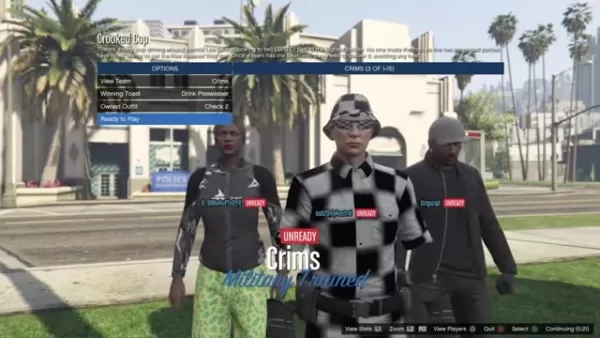
Grand Theft Auto Online gives players a huge range of customization tools to build a truly unique and personal character. One popular style involves creating partially invisible arms paired with a checkerboard-pattern outfit. This walkthrough provides a clear, step-by-step method to pull off this visual glitch, letting you carve out a distinctive look on the streets of Los Santos. The guide is crafted to be detailed and easy to follow, ensuring your avatar can hit the town in style.
Key Points
This glitch requires two characters on the same account: one male and one female.
It uses a transfer method that will erase all saved outfits on your male character.
Accessories can disrupt the process and must be taken off beforehand.
Specific clothing items need to be bought and equipped on the female character.
Precise timing is crucial during the PlayStation Home button sequence.
The method was tested and confirmed working on PlayStation 4 and 5.
Preparing for the Outfit Transfer Glitch
Character Requirements
First, you need two characters in your GTA Online account: a male character and a female character. This glitch uses both to transfer specific outfit parts. This setup is essential because the method relies on how the game handles clothing assets differently between genders.

You may need to create a second character if you don't have one, so check your account has room. Importantly, this process will overwrite every outfit on your male character. Be prepared to lose them all, and make absolutely sure the outfit your male character is wearing when you start is the one you want to keep.
Clothing Prerequisites
Before starting, you must gather specific clothing items on your female character to enable a successful transfer. You'll need to create two outfits.
These outfits contain the specific items needed to build the final Checkerboard Outfit this glitch is designed for. For the first outfit, gather:
Jeans: Black Cropped Jeans (found in the pants section)

Bustiers: Camo Bustier (found in the tops section)
High Heel Boots: Deluxe Midnight Combat (found in the shoes section)
Gloves: Light Woodland Tactical (found in the accessories section)
For the second outfit, you will need:
- Sports Pants: Spotted Muscle Pants (found in the pants section)
- Work Jackets: Peach Camo Closed Field (found in the tops section)
- Tucked T-Shirts: Blue Digital T-Shirt (found in the tops section)
- Casual Glasses: Copper Marbles (found in the accessories section)
- Canvas Hats: Gray Plaid Canvas Hat (found in the accessories section)
Meeting these requirements ensures the outfit can be properly assembled and transferred. Saving these outfits is recommended for convenience. Remember, the outfit your male character wears when you begin is the one that will be preserved, so choose it wisely.
Remove All Accessories
Before initiating the transfer, remove every accessory from your female character. This means hats, glasses, masks, earrings, and any other gear. Accessories can interfere with the glitch, causing unexpected issues. This cleanup step is vital for minimizing complications and smoothing the outfit merging process, giving you the best chance of a quick and successful result.
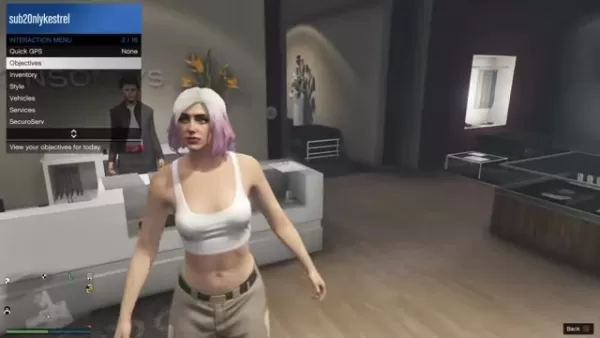
By stripping your female character of accessories, you focus the transfer purely on the core clothing items, preventing any conflicts with extra data. This helps guarantee a clean execution of the glitch.
Performing the GTA Online Outfit Transfer Glitch
Step 1: Swap to the Female Character
Start by opening the pause menu, going to the Online tab, and selecting 'Swap Character'. From there, switch to your female character and load into an online session.
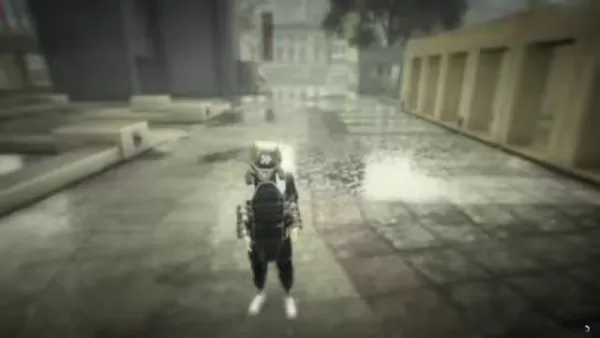
Double-check that all accessories are removed before swapping, as they can ruin the glitch. If it fails, you can simply restart from the beginning.
Step 2: Create The Required Outfits
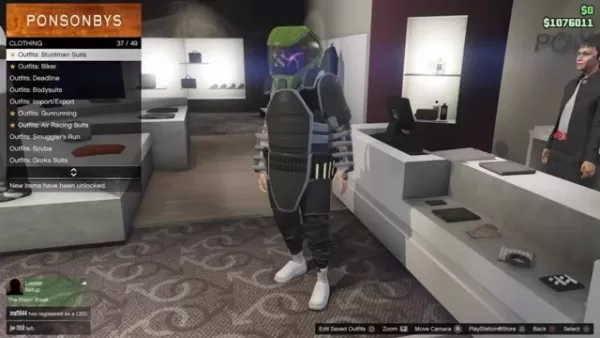
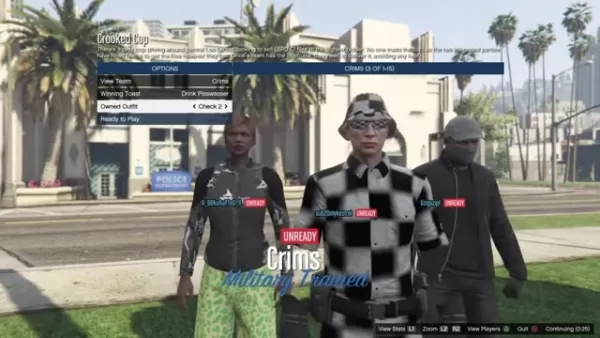
With your female character active, visit a clothing store like Ponsonbys. Create the two outfits needed to merge into the final Checkerboard Outfit with Partially Invisible Arms, using the items listed in the “Clothing Prerequisites” section. This step is essential for completing the glitch and securing your new look.

Step 3: Return to Story Mode
After saving the Checkerboard Outfit, open the pause menu and exit to Story Mode. This prepares the game's state for the next crucial phase of the glitch.
Step 4: Load into Invite-Only Session
From Story Mode, open the pause menu, go to Online, and choose to load into an Invite-Only Session. Hover over the 'Yes' confirmation prompt, but do not select it yet—proceed to the next step.
Step 5: Precise Timing with PlayStation Home Button
While hovering over 'Yes', quickly press the PlayStation Home button. Navigate to your Capture Gallery and select any video. You only need it to access the 'Trim' option. Open the options for the video and hover over the Trim setting.
Quickly return to GTA using a double-tap shortcut on the Home button, then immediately confirm loading into the online session. You'll see a black loading screen with a white spinning circle in the corner.
The moment this circle turns orange, double-tap the Home button to jump back to the video trim screen and press X on Trim. Then, rapidly mash the X button!
After spamming X, wait about 30 seconds while still in the trim screen. Then, return to GTA using the same shortcut. You should see an error message saying "Character 2 could not be loaded." This is a good sign the glitch is progressing.
Step 6: Load into GTA Online with Male Character
Accept the error message and any follow-up prompt. The game will now load you into an online session with your male character. You're almost done—just a few final steps remain to lock in the new outfit.

Step 7: Change Outfit
Once your male character loads in, open the pause menu, go to Online, and select 'Swap Character'. You should now be able to select and swap back to your male character—do so.
Step 8: Modify the outfit
Head to the nearest clothing store. The Checkerboard Outfit should now be applied. You can remove the earpiece from it. Also, verify that the original outfit you wanted to save on your male character is still intact!
Weighing the Outfit Glitch: Pros
and Cons
Pros
Creates Unique Outfits
Relatively Easy To Perform
Does Not Require A Friend
Cons
Overwrites Outfits
Timing Can Be Tricky
Potential Stability Issues
FAQ
What happens if I mess up the timing?
If your timing is off, the glitch likely won't work and the items won't transfer. Don't worry—you can simply restart the process from the beginning and try again.
Will I lose any progress or items during this glitch?
Yes. This transfer glitch will replace all saved outfits on your male character with those from your female character. To avoid losing a specific outfit, make sure your male character is wearing it before you switch to your female character at the start.
Does this glitch work on all platforms?
This method has been tested and confirmed to work on PlayStation 4 and PlayStation 5. Its effectiveness on other platforms like Xbox or PC may vary. On the tested consoles, the process is consistent and reliable when followed correctly.
Related Questions
Are there other glitches I can perform in GTA Online to customize my character?
GTA Online is home to numerous glitches that allow for advanced character customization. Many involve mixing and matching clothing assets that aren't normally combinable, often using transfer methods similar to this one. For more ways to personalize your character, search for other guides to fully explore the game's customization potential.
Related article
 Stripe to Acquire OpenRouter as AI Model Routing Gains Momentum
Stripe has agreed to acquire OpenRouter, an AI model-routing platform that gives developers access to hundreds of models through a single interface. The deal adds model selection and routing to Stripe’s existing work around AI usage and token-based b
Former OpenAI Researcher Barrett Zoph Returns to Google to Support Gemini Development
Barret Zoph, who previously abruptly left and joined OpenAI due to a disagreement with Thinking Machines Lab CEO Miriam Mularati, has once again changed employers. Alphabet's Google announced that Zoph will return as Vice President of Research, bring
How Recursive Intelligence Raised $335M at $4B Valuation in 4 Months
The co-founders of startup Ricursive Intelligence seemed destined to be co-founders.Anna Goldie, CEO, and Azalia Mirhoseini, CTO, are so well-known in the AI community that they were among those AI engineers who “got those weird emails from Zuckerber
Related Special Topic Recommendations
Design & Art
Stripe to Acquire OpenRouter as AI Model Routing Gains Momentum
Stripe has agreed to acquire OpenRouter, an AI model-routing platform that gives developers access to hundreds of models through a single interface. The deal adds model selection and routing to Stripe’s existing work around AI usage and token-based b
Former OpenAI Researcher Barrett Zoph Returns to Google to Support Gemini Development
Barret Zoph, who previously abruptly left and joined OpenAI due to a disagreement with Thinking Machines Lab CEO Miriam Mularati, has once again changed employers. Alphabet's Google announced that Zoph will return as Vice President of Research, bring
How Recursive Intelligence Raised $335M at $4B Valuation in 4 Months
The co-founders of startup Ricursive Intelligence seemed destined to be co-founders.Anna Goldie, CEO, and Azalia Mirhoseini, CTO, are so well-known in the AI community that they were among those AI engineers who “got those weird emails from Zuckerber
Related Special Topic Recommendations
Design & Art
 Top AI Illustration Tools: Create Editorial Scenes and Cover Art Faster
2026 Latest Top-rated AI Illustration Tools: Our curated list features the best powerfully designed tools for creating stunning editorial scenes and eye-catching cover art quickly. Each option has gone through rigorous real-world tests, offering a free vs paid comparison to help you find the perfect match for your workflow. Try these must-try solutions today to unlock your AI edge and boost your creative productivity. Explore now at XIX.AI.
 10 tools
 xix.ai
Education and Learning
Top AI Tutors for Exam Prep: Practice Math, Science, and English
xix.ai
Education and Learning
Top AI Tutors for Exam Prep: Practice Math, Science, and English
2026 Latest Top-Rated Best AI Tutors for Exam Prep are here on XIX.AI! Our curated list features powerful game-changing tools that offer free vs paid comparison, real-world tests, and weekly updated rankings. They help boost your writing efficiency, simplify complex topic learning, and unlock your academic potential. Explore now to Discover your perfect exam prep tool and Start creating today to Unlock your AI edge!
10 tools
xix.ai
Finance
AI Budget Planning Tools for Personal Money Management
2026 Latest Best Top-Rated AI Budget Planning Tools for Personal Money Management are here on XIX.AI! This curated collection features powerful, game-changing solutions that help you conduct real-world tests, understand spending habits, and create personalized plans to boost productivity. Enjoy a free vs paid comparison along with detailed rankings. Must-try tools designed to simplify money management and unlock your AI edge. Explore now!
11 tools
xix.ai
Health & Wellness
AI Sleep Tracking Assistants: Improve Recovery with Better Bedtime Habits
2026 Latest Best Top-Rated AI Sleep Tracking Assistants curated for ultimate recovery. This fully updated weekly guide features powerful tools that deliver real-world tests, free vs paid comparison, and detailed rankings to help you find the must-try solution that boosts sleep quality and supports better bedtime habits. Explore now at XIX.AI to Unlock your AI edge.
10 tools
xix.ai
Data Analysis
AI SQL Copilots for Product and Revenue Analytics
2026 Latest Best Top-Rated AI SQL Copilots for Product and Revenue Analytics! XIX.AI has curated a powerful, game-changing collection of must-try tools that undergo real-world tests through weekly updated rankings. These tools help users boost productivity significantly by accelerating data analysis, streamlining complex queries, and generating accurate insights to drive smarter business decisions. Explore now to Discover your perfect tool for unlocking your AI edge!
14 tools
xix.ai
Education and Learning
Best AI Homework Helpers That Teach: Learn Concepts, Not Just Answers
2026 Latest Best Top-Rated AI Homework Helpers That Teach Core Concepts Not Just Answers Powerful Tools for Students Must-Try Curated List Weekly Updated Free vs Paid Comparison Real-World Tests Accurate Rankings to Help You Unlock Your Full Learning Potential Explore now to Discover your perfect tool for smarter studying.
10 tools
xix.ai

 Comments (1)
0/500
Comments (1)
0/500
![JoseJackson]()
Wait, GTA Online 2025? 😂 I thought Rockstar was still fixing the same bugs from 2015. Anyway, the checkerboard glitch sounds like a nightmare for my GPU but a dream for my aesthetic. Does it actually work on next-gen consoles or just PC? 🎮 #GTAOnline #GlitchHunter
Grand Theft Auto Online gives players a huge range of customization tools to build a truly unique and personal character. One popular style involves creating partially invisible arms paired with a checkerboard-pattern outfit. This walkthrough provides a clear, step-by-step method to pull off this visual glitch, letting you carve out a distinctive look on the streets of Los Santos. The guide is crafted to be detailed and easy to follow, ensuring your avatar can hit the town in style.
Key Points
This glitch requires two characters on the same account: one male and one female.
It uses a transfer method that will erase all saved outfits on your male character.
Accessories can disrupt the process and must be taken off beforehand.
Specific clothing items need to be bought and equipped on the female character.
Precise timing is crucial during the PlayStation Home button sequence.
The method was tested and confirmed working on PlayStation 4 and 5.
Preparing for the Outfit Transfer Glitch
Character Requirements
First, you need two characters in your GTA Online account: a male character and a female character. This glitch uses both to transfer specific outfit parts. This setup is essential because the method relies on how the game handles clothing assets differently between genders.
You may need to create a second character if you don't have one, so check your account has room. Importantly, this process will overwrite every outfit on your male character. Be prepared to lose them all, and make absolutely sure the outfit your male character is wearing when you start is the one you want to keep.
Clothing Prerequisites
Before starting, you must gather specific clothing items on your female character to enable a successful transfer. You'll need to create two outfits.
These outfits contain the specific items needed to build the final Checkerboard Outfit this glitch is designed for. For the first outfit, gather:
Jeans: Black Cropped Jeans (found in the pants section)
Bustiers: Camo Bustier (found in the tops section)
High Heel Boots: Deluxe Midnight Combat (found in the shoes section)
Gloves: Light Woodland Tactical (found in the accessories section)
For the second outfit, you will need:
- Sports Pants: Spotted Muscle Pants (found in the pants section)
- Work Jackets: Peach Camo Closed Field (found in the tops section)
- Tucked T-Shirts: Blue Digital T-Shirt (found in the tops section)
- Casual Glasses: Copper Marbles (found in the accessories section)
- Canvas Hats: Gray Plaid Canvas Hat (found in the accessories section)
Meeting these requirements ensures the outfit can be properly assembled and transferred. Saving these outfits is recommended for convenience. Remember, the outfit your male character wears when you begin is the one that will be preserved, so choose it wisely.
Remove All Accessories
Before initiating the transfer, remove every accessory from your female character. This means hats, glasses, masks, earrings, and any other gear. Accessories can interfere with the glitch, causing unexpected issues. This cleanup step is vital for minimizing complications and smoothing the outfit merging process, giving you the best chance of a quick and successful result.
By stripping your female character of accessories, you focus the transfer purely on the core clothing items, preventing any conflicts with extra data. This helps guarantee a clean execution of the glitch.
Performing the GTA Online Outfit Transfer Glitch
Step 1: Swap to the Female Character
Start by opening the pause menu, going to the Online tab, and selecting 'Swap Character'. From there, switch to your female character and load into an online session.
Double-check that all accessories are removed before swapping, as they can ruin the glitch. If it fails, you can simply restart from the beginning.
Step 2: Create The Required Outfits
With your female character active, visit a clothing store like Ponsonbys. Create the two outfits needed to merge into the final Checkerboard Outfit with Partially Invisible Arms, using the items listed in the “Clothing Prerequisites” section. This step is essential for completing the glitch and securing your new look.
Step 3: Return to Story Mode
After saving the Checkerboard Outfit, open the pause menu and exit to Story Mode. This prepares the game's state for the next crucial phase of the glitch.
Step 4: Load into Invite-Only Session
From Story Mode, open the pause menu, go to Online, and choose to load into an Invite-Only Session. Hover over the 'Yes' confirmation prompt, but do not select it yet—proceed to the next step.
Step 5: Precise Timing with PlayStation Home Button
While hovering over 'Yes', quickly press the PlayStation Home button. Navigate to your Capture Gallery and select any video. You only need it to access the 'Trim' option. Open the options for the video and hover over the Trim setting.
Quickly return to GTA using a double-tap shortcut on the Home button, then immediately confirm loading into the online session. You'll see a black loading screen with a white spinning circle in the corner.
The moment this circle turns orange, double-tap the Home button to jump back to the video trim screen and press X on Trim. Then, rapidly mash the X button!
After spamming X, wait about 30 seconds while still in the trim screen. Then, return to GTA using the same shortcut. You should see an error message saying "Character 2 could not be loaded." This is a good sign the glitch is progressing.
Step 6: Load into GTA Online with Male Character
Accept the error message and any follow-up prompt. The game will now load you into an online session with your male character. You're almost done—just a few final steps remain to lock in the new outfit.
Step 7: Change Outfit
Once your male character loads in, open the pause menu, go to Online, and select 'Swap Character'. You should now be able to select and swap back to your male character—do so.
Step 8: Modify the outfit
Head to the nearest clothing store. The Checkerboard Outfit should now be applied. You can remove the earpiece from it. Also, verify that the original outfit you wanted to save on your male character is still intact!
Weighing the Outfit Glitch: Pros
and Cons
Pros
Creates Unique Outfits
Relatively Easy To Perform
Does Not Require A Friend
Cons
Overwrites Outfits
Timing Can Be Tricky
Potential Stability Issues
FAQ
What happens if I mess up the timing?
If your timing is off, the glitch likely won't work and the items won't transfer. Don't worry—you can simply restart the process from the beginning and try again.
Will I lose any progress or items during this glitch?
Yes. This transfer glitch will replace all saved outfits on your male character with those from your female character. To avoid losing a specific outfit, make sure your male character is wearing it before you switch to your female character at the start.
Does this glitch work on all platforms?
This method has been tested and confirmed to work on PlayStation 4 and PlayStation 5. Its effectiveness on other platforms like Xbox or PC may vary. On the tested consoles, the process is consistent and reliable when followed correctly.
Related Questions
Are there other glitches I can perform in GTA Online to customize my character?
GTA Online is home to numerous glitches that allow for advanced character customization. Many involve mixing and matching clothing assets that aren't normally combinable, often using transfer methods similar to this one. For more ways to personalize your character, search for other guides to fully explore the game's customization potential.








 Stripe to Acquire OpenRouter as AI Model Routing Gains Momentum
Stripe has agreed to acquire OpenRouter, an AI model-routing platform that gives developers access to hundreds of models through a single interface. The deal adds model selection and routing to Stripe’s existing work around AI usage and token-based b
Stripe to Acquire OpenRouter as AI Model Routing Gains Momentum
Stripe has agreed to acquire OpenRouter, an AI model-routing platform that gives developers access to hundreds of models through a single interface. The deal adds model selection and routing to Stripe’s existing work around AI usage and token-based b
 Former OpenAI Researcher Barrett Zoph Returns to Google to Support Gemini Development
Barret Zoph, who previously abruptly left and joined OpenAI due to a disagreement with Thinking Machines Lab CEO Miriam Mularati, has once again changed employers. Alphabet's Google announced that Zoph will return as Vice President of Research, bring
Former OpenAI Researcher Barrett Zoph Returns to Google to Support Gemini Development
Barret Zoph, who previously abruptly left and joined OpenAI due to a disagreement with Thinking Machines Lab CEO Miriam Mularati, has once again changed employers. Alphabet's Google announced that Zoph will return as Vice President of Research, bring
 How Recursive Intelligence Raised $335M at $4B Valuation in 4 Months
The co-founders of startup Ricursive Intelligence seemed destined to be co-founders.Anna Goldie, CEO, and Azalia Mirhoseini, CTO, are so well-known in the AI community that they were among those AI engineers who “got those weird emails from Zuckerber
How Recursive Intelligence Raised $335M at $4B Valuation in 4 Months
The co-founders of startup Ricursive Intelligence seemed destined to be co-founders.Anna Goldie, CEO, and Azalia Mirhoseini, CTO, are so well-known in the AI community that they were among those AI engineers who “got those weird emails from Zuckerber

2026 Latest Top-rated AI Illustration Tools: Our curated list features the best powerfully designed tools for creating stunning editorial scenes and eye-catching cover art quickly. Each option has gone through rigorous real-world tests, offering a free vs paid comparison to help you find the perfect match for your workflow. Try these must-try solutions today to unlock your AI edge and boost your creative productivity. Explore now at XIX.AI.
10 tools
xix.ai

2026 Latest Top-Rated Best AI Tutors for Exam Prep are here on XIX.AI! Our curated list features powerful game-changing tools that offer free vs paid comparison, real-world tests, and weekly updated rankings. They help boost your writing efficiency, simplify complex topic learning, and unlock your academic potential. Explore now to Discover your perfect exam prep tool and Start creating today to Unlock your AI edge!
10 tools
xix.ai

2026 Latest Best Top-Rated AI Budget Planning Tools for Personal Money Management are here on XIX.AI! This curated collection features powerful, game-changing solutions that help you conduct real-world tests, understand spending habits, and create personalized plans to boost productivity. Enjoy a free vs paid comparison along with detailed rankings. Must-try tools designed to simplify money management and unlock your AI edge. Explore now!
11 tools
xix.ai

2026 Latest Best Top-Rated AI Sleep Tracking Assistants curated for ultimate recovery. This fully updated weekly guide features powerful tools that deliver real-world tests, free vs paid comparison, and detailed rankings to help you find the must-try solution that boosts sleep quality and supports better bedtime habits. Explore now at XIX.AI to Unlock your AI edge.
10 tools
xix.ai

2026 Latest Best Top-Rated AI SQL Copilots for Product and Revenue Analytics! XIX.AI has curated a powerful, game-changing collection of must-try tools that undergo real-world tests through weekly updated rankings. These tools help users boost productivity significantly by accelerating data analysis, streamlining complex queries, and generating accurate insights to drive smarter business decisions. Explore now to Discover your perfect tool for unlocking your AI edge!
14 tools
xix.ai

2026 Latest Best Top-Rated AI Homework Helpers That Teach Core Concepts Not Just Answers Powerful Tools for Students Must-Try Curated List Weekly Updated Free vs Paid Comparison Real-World Tests Accurate Rankings to Help You Unlock Your Full Learning Potential Explore now to Discover your perfect tool for smarter studying.
10 tools
xix.ai

Wait, GTA Online 2025? 😂 I thought Rockstar was still fixing the same bugs from 2015. Anyway, the checkerboard glitch sounds like a nightmare for my GPU but a dream for my aesthetic. Does it actually work on next-gen consoles or just PC? 🎮 #GTAOnline #GlitchHunter












