


 Home
HomeFarming Simulator 25 GPS Steering Assist: How to use it for precise farming?
Master the GPS steering assist in Farming Simulator 25 to dramatically boost your farm's productivity. This detailed guide will show you how to use this tool for precise, efficient work in all types of farming. Learn to perfect basic fieldwork and manage complex tasks like baling and windrow collection with automated guidance.
Key Points
Find out how to turn on and switch to steering assist mode in Farming Simulator 25.
Learn to customize essential settings like working width, headland passes, and side offset.
See how to apply GPS steering for more productive harvesting and baling.
Solve common problems, including the 'No field detected for preview' error.
Learn about the many uses for GPS steering beyond simple plowing and planting.
Unlocking Steering Assist in Farming Simulator 25
What is Steering Assist and Why Use It?
Steering assist, also known as GPS guidance, is a powerful feature in Farming Simulator 25 that automates vehicle steering during fieldwork. While similar to hiring an AI worker, it gives you more direct control, letting you drive the vehicle while it maintains perfectly straight, consistent paths. This technology boosts efficiency, cuts down on overlap, and saves fuel, revolutionizing large-scale farm management.
The key advantages of using steering assist are:
- Superior Accuracy: Create flawless straight lines for seeding, tilling, and harvesting.
- Minimal Overlap: Save time, fuel, and resources by eliminating duplicate passes over the same ground.
- Greater Efficiency: Accomplish more work in less time with automated steering support.
- Broad Utility: Effective for numerous tasks, from initial soil work to specialized harvesting methods.
- Full Control: You remain in charge of the vehicle while the system handles the steering.
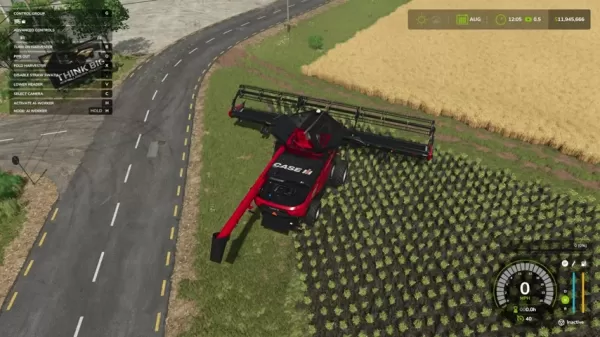
It is exceptionally helpful for operations like baling, running a forage wagon, and collecting windrows.
Activating and Configuring Steering Assist
To turn on steering assist, complete these steps:
Open the AI Settings Menu: Press and hold the 'H' key to bring up the AI settings menu. This key is shown on the left side of your screen as the 'mode AI worker' button.
Select Steering Assist Mode: Inside the AI settings menu, you'll find two mode choices: 'AI Worker' and 'Steering Assist'. Choose 'Steering Assist'.
Confirm Your Choice: Click 'OK' at the bottom of the menu to activate the mode. Your vehicle is now ready for steering assist.
With steering assist active, you can fine-tune several settings for optimal results:
- Working Width: This defines the width of your attached tool, like a seeder or cultivator. The system often sets a width automatically, but you may need to input it manually for certain equipment.
- Number of Headlands: Set how many perimeter passes the system should make around the field's edge. Headlands are worked at a right angle to the main field direction. This setting ensures complete coverage; for example, choosing '3 headlands' directs the system to guide you around the field boundary three times before starting the main passes.
- Work Direction: Selecting 'Automatic' lets the system calculate the most efficient driving pattern, which is recommended for most jobs.
- Side Offset: Use this to tweak your vehicle's position relative to the guidance line, helpful if your implement is slightly off-center or you wish to leave a narrow strip untouched.
- Show Lines: Turn this on or off to display the projected guidance lines on the field, which help you visualize the path. This is enabled by default.
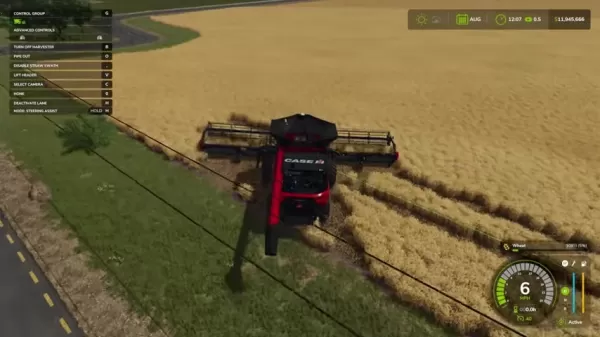
It is crucial to drive close enough to the field so that its preview appears on the right side of your screen in this menu. If it doesn't show, move a bit closer to the field edge.
Troubleshooting Common Steering Assist Issues
Fixing 'No Field Detected for Preview' Error
A frequent problem is the "No field detected for preview" message. This usually happens when your vehicle is too far from the field for the system to identify it. To fix it:
- Reposition your vehicle: Ensure your vehicle is parked right at the edge of the field you plan to work. Sometimes a slight adjustment is all that's needed.
- Restart the game: If moving closer doesn't work, try restarting the game, as this can clear temporary loading glitches.
- Check for Updates: Make sure your game is updated to the latest version, as patches often resolve known software bugs.
Step-by-Step Guide to GPS Steering
Engaging Steering Assist
After configuring your settings, follow these steps to start using the system:
Position Your Vehicle: Line up your vehicle at your chosen starting point on the field. Lower your implement into the working position.
Activate the Guidance Lane: Press the 'H' key to activate the lane. The system will now take over the steering, following the pre-calculated path.
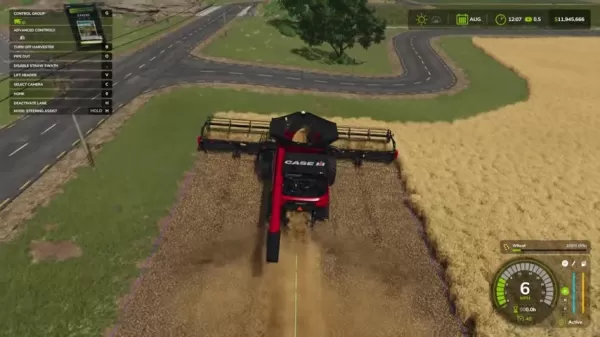
Set Cruise Control: Use cruise control (usually the '3' key) to lock in your preferred working speed.
Supervise the Operation: Keep an eye on your vehicle's progress, ensuring it stays on track and your equipment is working properly.
Handling Turns and Obstacles
The steering assist system is built to manage end-of-row turns and adapt to path changes.
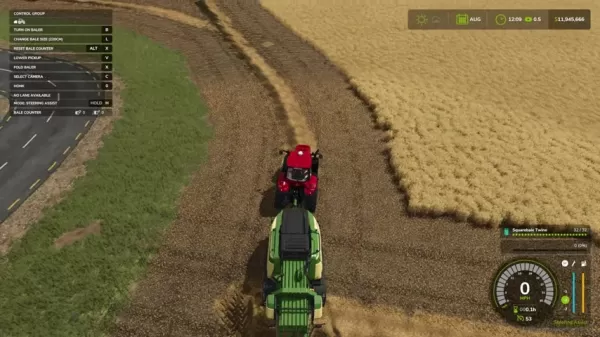
Here’s how to deal with these scenarios:
- Automatic Turns: When you reach the end of a pass, the system will automatically execute a turn to line up for the next row. Allow it to complete the maneuver.
- Taking Manual Control: If you need to avoid an obstacle or make an unplanned detour, simply steer the vehicle yourself. The steering assist will disengage as soon as you turn the wheel.
- Resuming Guidance: Once you're past the obstacle or have finished the turn, press 'H' again to re-engage steering assist. The system will guide you back onto the correct path.
Optimizing Baling with Steering Assist
Steering assist can transform your baling workflow:
- Harvesting and Creating Windrows: First, harvest the field using steering assist, which will leave behind neat windrows of material.
- Set Up the Baler: Configure the baler for steering assist. Crucially, set the working width to match your harvester's width.
- Start the Baling Process: Activate the guidance lane and begin driving. Center the baler on the windrow to ensure it collects all material, automating the entire baling operation.
Frequently Asked Questions
Can I use steering assist for all types of fieldwork?
Absolutely. Steering assist is highly adaptable and works for seeding, cultivating, harvesting, fertilizing, and other tasks. It will function for any job as long as you configure the settings correctly for your equipment.
What happens if I need to take manual control of the vehicle?
Just turn the steering wheel. The system will disengage automatically when it detects manual input. To resume automated guidance, press “H” again once you're ready.
How do I make sure I’m getting the most accurate results?
For the best accuracy, double-check that all implement settings are correct. Pay close attention to the working width, number of headlands, and work direction settings.
Related Questions
How does steering assist compare to AI workers in Farming Simulator 25?
Steering assist and AI workers provide different automation options. AI workers take over completely, driving and operating implements independently for a fee. Steering assist, which is free to use, automates only the steering while you remain in control of driving the vehicle and operating the equipment.
Related article
 Swedish AI Startup Lovable Eyes $13.2 Billion Valuation After Major Funding Round
As AI-driven coding tools gain traction, Swedish startup Lovable has secured a major funding round. The company aims to raise $3 billion, potentially boosting its valuation to $13.2 billion—double the $6.6 billion recorded last December. Menlo Ventur
Google Tests Remy AI Agent for Gemini as Focus Shifts to User Control
According to Business Insider, Google is testing Remy, a new AI personal agent for Gemini. This tool aims to execute tasks on behalf of users, streamlining both professional workflows and daily routines.Currently, Remy is undergoing testing in an int
How to fix Core Web Vitals for better SEO rankings
Streamline Report Card Comments with AI ToolsIntroductionAI Tools for Generating Report Card CommentsMagic SchoolAlmanac AIChat GPTUsing Magic School to Generate Report Card CommentsLogging into Magic SchoolSelecting the Report Card Comments ToolCust
Related Special Topic Recommendations
writing
Swedish AI Startup Lovable Eyes $13.2 Billion Valuation After Major Funding Round
As AI-driven coding tools gain traction, Swedish startup Lovable has secured a major funding round. The company aims to raise $3 billion, potentially boosting its valuation to $13.2 billion—double the $6.6 billion recorded last December. Menlo Ventur
Google Tests Remy AI Agent for Gemini as Focus Shifts to User Control
According to Business Insider, Google is testing Remy, a new AI personal agent for Gemini. This tool aims to execute tasks on behalf of users, streamlining both professional workflows and daily routines.Currently, Remy is undergoing testing in an int
How to fix Core Web Vitals for better SEO rankings
Streamline Report Card Comments with AI ToolsIntroductionAI Tools for Generating Report Card CommentsMagic SchoolAlmanac AIChat GPTUsing Magic School to Generate Report Card CommentsLogging into Magic SchoolSelecting the Report Card Comments ToolCust
Related Special Topic Recommendations
writing
 Best AI Outline Generators for Long-Form SEO Articles
2026 Latest Best Top-Rated AI Outline Generators for Long-Form SEO Articles, meticulously curated by XIX.AI. These powerful tools offer game-changing assistance in creating high-quality content quickly, boosting writing efficiency significantly. Get a free vs paid comparison along with real-world tests and detailed rankings to help you find the must-try option that suits your needs. Explore now to unlock your AI edge.
 8 tools
 xix.ai
Education and Learning
AI Study Tools for Homework and Exam Prep
xix.ai
Education and Learning
AI Study Tools for Homework and Exam Prep
2026 Latest Best AI Study Tools for Homework and Exam Prep! XIX.AI curates a top-rated list of powerful, game-changing tools that help students boost productivity, streamline homework completion, and ace exams through real-world tests. Get a free vs paid comparison, detailed rankings, and must-try options to unlock your AI edge. Explore now!
10 tools
xix.ai
Music composition
AI Vocal Demo Tools for Songwriters, Hooks, Toplines, and Multilingual Draft Sessions
2026 Latest Best AI Vocal Demo Tools for Songwriters, Hook Creators, and Multi-Language Content Teams! XIX.AI has curated a top-rated list of powerful game-changing tools that go through rigorous real-world tests. You’ll find detailed free vs paid comparison data, comprehensive rankings, and must-try options to help you boost writing efficiency and unlock your creative potential. Explore now to discover your perfect tool for all your content needs!
9 tools
xix.ai
Business
Best AI Competitive Research Tools for Small Businesses
2026 Latest Best Top-rated AI Competitive Research Tools for Small Businesses! XIX.AI has curated a highly powerful game-changing collection, updated weekly with rigorous real-world tests and detailed rankings. You can find a comprehensive free vs paid comparison to help you identify the must-try tools that boost your productivity and give you a competitive edge. Explore now to discover your perfect tool!
9 tools
xix.ai
Image editing
Photoshop AI Retouch Tools for Ecommerce Apparel, Skin Cleanup, and Color Consistency
2026 Latest Best Photoshop AI retouch tools for ecommerce apparel, skin cleanup, and color consistency! This top-rated curated list features powerful game-changing solutions that help you boost writing efficiency, streamline content creation, and achieve perfect visual results effortlessly. Each tool has undergone real-world tests through weekly updated rankings, complete with free vs paid comparison details. Backed by XIX.AI, it’s the must-try guide for anyone aiming to unlock your AI edge. Explore now!
10 tools
xix.ai
Prompt
Best AI Prompt Libraries for ChatGPT Workflows
2026 Latest Best Top-Rated AI Prompt Libraries for optimizing all types of ChatGPT workflows. XIX.AI has curated a powerful, game-changing collection that goes through rigorous real-world tests to ensure top performance. You can find detailed free vs paid comparisons and expert rankings to help you choose the must-try tools that boost your productivity and unlock your AI edge. Explore now!
11 tools
xix.ai

 Comments (1)
0/500
Comments (1)
0/500
![RogerPerez]()
이 기사 읽으면서 우리 동네 농부 아저씨들이 GPS 보정하는 모습 생각났어요. 요즘 트랙터에 스마트폰 고정해놓고 논갈이하는 모습 보면 진짜 기술 발전이 무섭네요. 농사 게임에 이런 기능까지 구현됐다고? 다음 업데이트에 드론 농약 살포 모드도 추가해주세요 ㅋㅋ
Master the GPS steering assist in Farming Simulator 25 to dramatically boost your farm's productivity. This detailed guide will show you how to use this tool for precise, efficient work in all types of farming. Learn to perfect basic fieldwork and manage complex tasks like baling and windrow collection with automated guidance.
Key Points
Find out how to turn on and switch to steering assist mode in Farming Simulator 25.
Learn to customize essential settings like working width, headland passes, and side offset.
See how to apply GPS steering for more productive harvesting and baling.
Solve common problems, including the 'No field detected for preview' error.
Learn about the many uses for GPS steering beyond simple plowing and planting.
Unlocking Steering Assist in Farming Simulator 25
What is Steering Assist and Why Use It?
Steering assist, also known as GPS guidance, is a powerful feature in Farming Simulator 25 that automates vehicle steering during fieldwork. While similar to hiring an AI worker, it gives you more direct control, letting you drive the vehicle while it maintains perfectly straight, consistent paths. This technology boosts efficiency, cuts down on overlap, and saves fuel, revolutionizing large-scale farm management.
The key advantages of using steering assist are:
- Superior Accuracy: Create flawless straight lines for seeding, tilling, and harvesting.
- Minimal Overlap: Save time, fuel, and resources by eliminating duplicate passes over the same ground.
- Greater Efficiency: Accomplish more work in less time with automated steering support.
- Broad Utility: Effective for numerous tasks, from initial soil work to specialized harvesting methods.
- Full Control: You remain in charge of the vehicle while the system handles the steering.
It is exceptionally helpful for operations like baling, running a forage wagon, and collecting windrows.
Activating and Configuring Steering Assist
To turn on steering assist, complete these steps:
Open the AI Settings Menu: Press and hold the 'H' key to bring up the AI settings menu. This key is shown on the left side of your screen as the 'mode AI worker' button.
Select Steering Assist Mode: Inside the AI settings menu, you'll find two mode choices: 'AI Worker' and 'Steering Assist'. Choose 'Steering Assist'.
Confirm Your Choice: Click 'OK' at the bottom of the menu to activate the mode. Your vehicle is now ready for steering assist.
With steering assist active, you can fine-tune several settings for optimal results:
- Working Width: This defines the width of your attached tool, like a seeder or cultivator. The system often sets a width automatically, but you may need to input it manually for certain equipment.
- Number of Headlands: Set how many perimeter passes the system should make around the field's edge. Headlands are worked at a right angle to the main field direction. This setting ensures complete coverage; for example, choosing '3 headlands' directs the system to guide you around the field boundary three times before starting the main passes.
- Work Direction: Selecting 'Automatic' lets the system calculate the most efficient driving pattern, which is recommended for most jobs.
- Side Offset: Use this to tweak your vehicle's position relative to the guidance line, helpful if your implement is slightly off-center or you wish to leave a narrow strip untouched.
- Show Lines: Turn this on or off to display the projected guidance lines on the field, which help you visualize the path. This is enabled by default.
It is crucial to drive close enough to the field so that its preview appears on the right side of your screen in this menu. If it doesn't show, move a bit closer to the field edge.
Troubleshooting Common Steering Assist Issues
Fixing 'No Field Detected for Preview' Error
A frequent problem is the "No field detected for preview" message. This usually happens when your vehicle is too far from the field for the system to identify it. To fix it:
- Reposition your vehicle: Ensure your vehicle is parked right at the edge of the field you plan to work. Sometimes a slight adjustment is all that's needed.
- Restart the game: If moving closer doesn't work, try restarting the game, as this can clear temporary loading glitches.
- Check for Updates: Make sure your game is updated to the latest version, as patches often resolve known software bugs.
Step-by-Step Guide to GPS Steering
Engaging Steering Assist
After configuring your settings, follow these steps to start using the system:
Position Your Vehicle: Line up your vehicle at your chosen starting point on the field. Lower your implement into the working position.
Activate the Guidance Lane: Press the 'H' key to activate the lane. The system will now take over the steering, following the pre-calculated path.
Set Cruise Control: Use cruise control (usually the '3' key) to lock in your preferred working speed.
Supervise the Operation: Keep an eye on your vehicle's progress, ensuring it stays on track and your equipment is working properly.
Handling Turns and Obstacles
The steering assist system is built to manage end-of-row turns and adapt to path changes.
Here’s how to deal with these scenarios:
- Automatic Turns: When you reach the end of a pass, the system will automatically execute a turn to line up for the next row. Allow it to complete the maneuver.
- Taking Manual Control: If you need to avoid an obstacle or make an unplanned detour, simply steer the vehicle yourself. The steering assist will disengage as soon as you turn the wheel.
- Resuming Guidance: Once you're past the obstacle or have finished the turn, press 'H' again to re-engage steering assist. The system will guide you back onto the correct path.
Optimizing Baling with Steering Assist
Steering assist can transform your baling workflow:
- Harvesting and Creating Windrows: First, harvest the field using steering assist, which will leave behind neat windrows of material.
- Set Up the Baler: Configure the baler for steering assist. Crucially, set the working width to match your harvester's width.
- Start the Baling Process: Activate the guidance lane and begin driving. Center the baler on the windrow to ensure it collects all material, automating the entire baling operation.
Frequently Asked Questions
Can I use steering assist for all types of fieldwork?
Absolutely. Steering assist is highly adaptable and works for seeding, cultivating, harvesting, fertilizing, and other tasks. It will function for any job as long as you configure the settings correctly for your equipment.
What happens if I need to take manual control of the vehicle?
Just turn the steering wheel. The system will disengage automatically when it detects manual input. To resume automated guidance, press “H” again once you're ready.
How do I make sure I’m getting the most accurate results?
For the best accuracy, double-check that all implement settings are correct. Pay close attention to the working width, number of headlands, and work direction settings.
Related Questions
How does steering assist compare to AI workers in Farming Simulator 25?
Steering assist and AI workers provide different automation options. AI workers take over completely, driving and operating implements independently for a fee. Steering assist, which is free to use, automates only the steering while you remain in control of driving the vehicle and operating the equipment.








 Swedish AI Startup Lovable Eyes $13.2 Billion Valuation After Major Funding Round
As AI-driven coding tools gain traction, Swedish startup Lovable has secured a major funding round. The company aims to raise $3 billion, potentially boosting its valuation to $13.2 billion—double the $6.6 billion recorded last December. Menlo Ventur
Google Tests Remy AI Agent for Gemini as Focus Shifts to User Control
According to Business Insider, Google is testing Remy, a new AI personal agent for Gemini. This tool aims to execute tasks on behalf of users, streamlining both professional workflows and daily routines.Currently, Remy is undergoing testing in an int
Swedish AI Startup Lovable Eyes $13.2 Billion Valuation After Major Funding Round
As AI-driven coding tools gain traction, Swedish startup Lovable has secured a major funding round. The company aims to raise $3 billion, potentially boosting its valuation to $13.2 billion—double the $6.6 billion recorded last December. Menlo Ventur
Google Tests Remy AI Agent for Gemini as Focus Shifts to User Control
According to Business Insider, Google is testing Remy, a new AI personal agent for Gemini. This tool aims to execute tasks on behalf of users, streamlining both professional workflows and daily routines.Currently, Remy is undergoing testing in an int
 How to fix Core Web Vitals for better SEO rankings
Streamline Report Card Comments with AI ToolsIntroductionAI Tools for Generating Report Card CommentsMagic SchoolAlmanac AIChat GPTUsing Magic School to Generate Report Card CommentsLogging into Magic SchoolSelecting the Report Card Comments ToolCust
How to fix Core Web Vitals for better SEO rankings
Streamline Report Card Comments with AI ToolsIntroductionAI Tools for Generating Report Card CommentsMagic SchoolAlmanac AIChat GPTUsing Magic School to Generate Report Card CommentsLogging into Magic SchoolSelecting the Report Card Comments ToolCust

2026 Latest Best Top-Rated AI Outline Generators for Long-Form SEO Articles, meticulously curated by XIX.AI. These powerful tools offer game-changing assistance in creating high-quality content quickly, boosting writing efficiency significantly. Get a free vs paid comparison along with real-world tests and detailed rankings to help you find the must-try option that suits your needs. Explore now to unlock your AI edge.
8 tools
xix.ai

2026 Latest Best AI Study Tools for Homework and Exam Prep! XIX.AI curates a top-rated list of powerful, game-changing tools that help students boost productivity, streamline homework completion, and ace exams through real-world tests. Get a free vs paid comparison, detailed rankings, and must-try options to unlock your AI edge. Explore now!
10 tools
xix.ai

2026 Latest Best AI Vocal Demo Tools for Songwriters, Hook Creators, and Multi-Language Content Teams! XIX.AI has curated a top-rated list of powerful game-changing tools that go through rigorous real-world tests. You’ll find detailed free vs paid comparison data, comprehensive rankings, and must-try options to help you boost writing efficiency and unlock your creative potential. Explore now to discover your perfect tool for all your content needs!
9 tools
xix.ai

2026 Latest Best Top-rated AI Competitive Research Tools for Small Businesses! XIX.AI has curated a highly powerful game-changing collection, updated weekly with rigorous real-world tests and detailed rankings. You can find a comprehensive free vs paid comparison to help you identify the must-try tools that boost your productivity and give you a competitive edge. Explore now to discover your perfect tool!
9 tools
xix.ai

2026 Latest Best Photoshop AI retouch tools for ecommerce apparel, skin cleanup, and color consistency! This top-rated curated list features powerful game-changing solutions that help you boost writing efficiency, streamline content creation, and achieve perfect visual results effortlessly. Each tool has undergone real-world tests through weekly updated rankings, complete with free vs paid comparison details. Backed by XIX.AI, it’s the must-try guide for anyone aiming to unlock your AI edge. Explore now!
10 tools
xix.ai
2026 Latest Best Top-Rated AI Prompt Libraries for optimizing all types of ChatGPT workflows. XIX.AI has curated a powerful, game-changing collection that goes through rigorous real-world tests to ensure top performance. You can find detailed free vs paid comparisons and expert rankings to help you choose the must-try tools that boost your productivity and unlock your AI edge. Explore now!
11 tools
xix.ai

이 기사 읽으면서 우리 동네 농부 아저씨들이 GPS 보정하는 모습 생각났어요. 요즘 트랙터에 스마트폰 고정해놓고 논갈이하는 모습 보면 진짜 기술 발전이 무섭네요. 농사 게임에 이런 기능까지 구현됐다고? 다음 업데이트에 드론 농약 살포 모드도 추가해주세요 ㅋㅋ












