


 Home
HomeAdobe Firefly AI Guide: Master Thumbnail Design
In today's digital world, eye-catching thumbnails are vital for grabbing viewers' attention. Traditional thumbnail creation can be slow and demands design skills, but AI tools like Adobe Firefly now let anyone craft professional-looking thumbnails quickly and simply. This guide shows you how to use Adobe Firefly's AI features to boost your content and capture your audience's interest.
Key Points
Adobe Firefly uses AI to produce professional-grade thumbnails.
Its Generative Fill feature lets you edit existing images with ease.
You can generate brand-new images from scratch using text descriptions.
The tool works on both desktop computers and mobile devices.
For a refined finish, you can polish thumbnails further with Lightroom.
Introduction to AI-Powered Thumbnail Creation
The Power of AI in Visual Content Creation
Artificial intelligence has transformed content creation, bringing remarkable speed and accessibility. Now, anyone can design engaging thumbnails, even without a design background. Leading tools like Adobe Firefly

empower users to turn creative ideas into reality with minimal effort.
Why are Thumbnails So Important?
A thumbnail is often the first impression your content makes on potential viewers. A well-crafted thumbnail can greatly improve click-through rates and audience growth. It visually signals the value of your content. In busy online spaces, standing out is key, and AI gives you the tools to do exactly that.
Adobe Firefly: A Revolutionary Tool
Adobe Firefly provides a suite of features that streamline and enhance thumbnail design. From generating images from text prompts to editing existing pictures, it offers the flexibility to achieve your desired look. Its AI-driven approach ensures your thumbnails are both visually attractive and optimized for viewer engagement.
Understanding Adobe Firefly and Its Capabilities
Adobe Firefly distinguishes itself with an intuitive interface and powerful capabilities, making it a versatile solution for thumbnail creation. This section explores Adobe Firefly in depth and how its AI technology elevates your thumbnail design process.
Key Features of Adobe Firefly:
Text to Image Generation: Turn your ideas into visuals using simple text prompts.
Generative Fill: Effortlessly remove, add, or change elements within any picture.
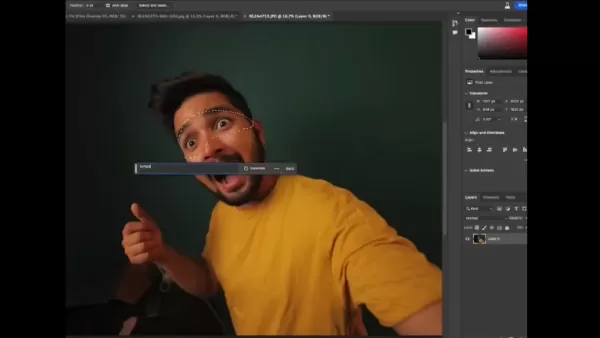
User-Friendly Interface: Its intuitive design is perfect for beginners to start creating immediately.
Accessibility: Use Firefly on desktop or mobile for creativity wherever you are.
How Adobe Firefly Empowers Creators:
With Adobe Firefly, you can design thumbnails that reflect your brand and captivate your audience. Whether you're an experienced designer or just starting, this tool levels the playing field, helping you produce compelling visuals. It encourages experimentation, allowing you to hone your skills and perfect your style.
Step-by-Step Guide to Creating Thumbnails with Adobe Firefly
Accessing and Navigating Adobe Firefly
Getting started with Adobe Firefly is straightforward. Follow these steps to access the tool and get to know its interface.
Visit the Adobe Firefly Website: Go to the official Adobe Firefly website.
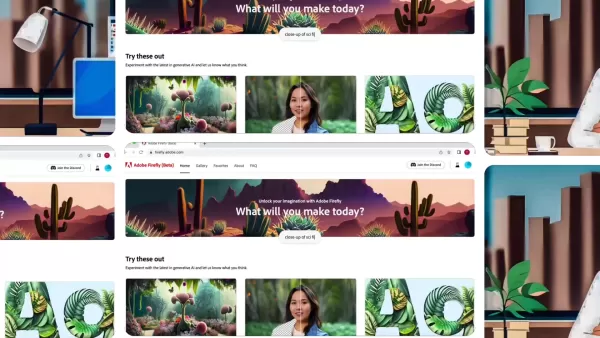
Sign Up or Log In: Create a new account or sign in with your existing Adobe ID.
Explore the Interface: Get familiar with the available tools and features, such as Text to Image, Generative Fill, and Text Effects.
The website layout is easy to navigate, helping you find the right tools quickly. The homepage gives a clear summary of all features, with options to generate images, fill sections, or extend images in just one click.
Using the Generative Fill Feature
The Generative Fill feature is a robust tool for modifying existing images. Here’s how to use it:
- Upload an Image: Click on the Generative Fill option
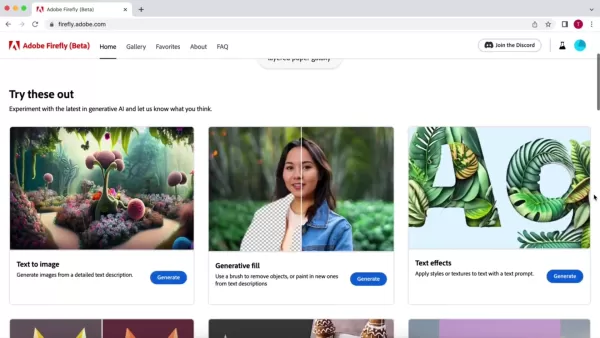
and upload the image you wish to edit.
- Select the Area: Use the brush tool to mark the specific area you want to alter. You can adjust the brush size for more precision.
- Enter a Text Prompt: Describe what you want to add or replace in the selected area. For example, to change a shirt's color, type a prompt like 'green shirt'.
- Generate: Click the generate button, and Adobe Firefly will produce several variations based on your prompt. Select the one that best matches your vision.
Tips for Writing Effective Prompts:
- Use specific and detailed descriptions.
- Keep your language clear and concise.
- Try different prompts to see which yields the best results.
Creating a Thumbnail from Scratch with Text to Image
Adobe Firefly lets you create entirely new images from a text description. Here’s the process:
Select Text to Image: Choose the Text to Image option on the homepage.
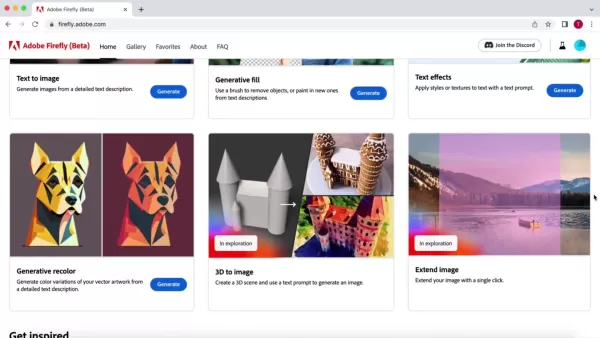
Enter Your Prompt: Describe the image you want the AI to create. The AI will use your text to generate the visual content.
Generate: Click the generate button, and Adobe Firefly will offer several image options based on your prompt. Pick the one that aligns with your vision.
Customize: Refine your image by tweaking settings like aspect ratio, style, and lighting. Generate more variations until you find the perfect thumbnail.
Examples of Effective Prompts:
- 'A giant floating golden dollar sign inside a maze with an exclamation point'
- 'A surprised person looking at the camera in a maze'
- 'A person holding a flashlight in a dark maze'
Enhancing Your Thumbnail with Lightroom
To make your thumbnail even more striking, consider using Adobe Lightroom for post-processing. Lightroom can improve colors, adjust lighting, and add stylistic effects for a polished final product.
Steps to Enhance with Lightroom:
- Import Your Thumbnail: Open your thumbnail image in Adobe Lightroom.
- Adjust Exposure and Contrast: Fine-tune the overall brightness and contrast to make the image stand out.
- Enhance Colors: Use Lightroom's color adjustment tools to make hues more vibrant and appealing.
- Add Effects: Consider applying effects like sharpening or a subtle vignette to give your thumbnail a distinctive look.
- Export: Save your enhanced thumbnail in a high-resolution format for the best quality.
Adobe Firefly: Pros and Cons
Pros
AI-powered generation delivers high-quality results.
An intuitive interface makes it easy for beginners to use.
The text-to-image feature offers great creative freedom.
Generative Fill enables seamless image editing.
Mobile access supports creation on the go.
Cons
Requires an Adobe account to use.
Output quality depends heavily on how well you write your text prompts.
May need extra editing in tools like Lightroom for a fully polished look.
Language options are currently limited.
FAQ
Is Adobe Firefly free to use?
Adobe Firefly is currently in beta and offers a free tier with a limited number of credits. Full access and additional features may require a paid subscription.
Can I use Adobe Firefly on my mobile device?
Yes, Adobe Firefly is accessible on both desktop computers and mobile devices, so you can design thumbnails wherever you are.
What type of prompts work best with Adobe Firefly?
Clear and specific prompts typically produce the best outcomes. Use descriptive, concise language to guide the AI effectively.
Do I need design experience to use Adobe Firefly?
No, Adobe Firefly is built to be user-friendly for everyone, including those with no prior design experience. Its intuitive interface and AI-powered features make it accessible to beginners.
Can I use the generated images for commercial purposes?
Licensing terms for images created with Adobe Firefly can vary. You should review the current licensing agreement to confirm the rules for commercial use.
Related Questions
What other tools can I use to enhance my thumbnails?
Besides Adobe Lightroom, other useful tools for enhancing thumbnails include: Canva: A popular graphic design platform with numerous templates and editing features. Figma: A collaborative design tool offering advanced editing capabilities. Photoshop: Adobe's premier image editing software, providing extensive control and customization. GIMP: A free, open-source image editor with features similar to Photoshop.
How can I optimize my thumbnails for different platforms?
Optimizing thumbnails for various platforms involves adhering to their recommended dimensions and file sizes. Here are some general guidelines: YouTube: 1280x720 pixels (16:9 aspect ratio). Facebook: 1200x630 pixels. Instagram: 1080x1080 pixels for square thumbnails, 1080x1350 pixels for portrait thumbnails. Twitter: 1200x675 pixels. Ensure your thumbnails are clear, readable, and visually appealing on smaller screens. Test them on different devices to guarantee they display correctly.
What makes a good thumbnail?
A good thumbnail captures attention and encourages viewers to click. Key elements include: High-Quality Images: Use sharp, clear, and visually appealing pictures. Compelling Text: Add concise, readable text that summarizes your content and sparks curiosity. Consistent Branding: Maintain consistent colors, fonts, and styles to strengthen your brand identity. Eye-Catching Visuals: Incorporate elements like bright colors, strong shapes, and engaging facial expressions. Relevance: Make sure your thumbnail accurately represents the content of your video.
Related article
 Stripe to Acquire OpenRouter as AI Model Routing Gains Momentum
Stripe has agreed to acquire OpenRouter, an AI model-routing platform that gives developers access to hundreds of models through a single interface. The deal adds model selection and routing to Stripe’s existing work around AI usage and token-based b
Former OpenAI Researcher Barrett Zoph Returns to Google to Support Gemini Development
Barret Zoph, who previously abruptly left and joined OpenAI due to a disagreement with Thinking Machines Lab CEO Miriam Mularati, has once again changed employers. Alphabet's Google announced that Zoph will return as Vice President of Research, bring
How Recursive Intelligence Raised $335M at $4B Valuation in 4 Months
The co-founders of startup Ricursive Intelligence seemed destined to be co-founders.Anna Goldie, CEO, and Azalia Mirhoseini, CTO, are so well-known in the AI community that they were among those AI engineers who “got those weird emails from Zuckerber
Related Special Topic Recommendations
Design & Art
Stripe to Acquire OpenRouter as AI Model Routing Gains Momentum
Stripe has agreed to acquire OpenRouter, an AI model-routing platform that gives developers access to hundreds of models through a single interface. The deal adds model selection and routing to Stripe’s existing work around AI usage and token-based b
Former OpenAI Researcher Barrett Zoph Returns to Google to Support Gemini Development
Barret Zoph, who previously abruptly left and joined OpenAI due to a disagreement with Thinking Machines Lab CEO Miriam Mularati, has once again changed employers. Alphabet's Google announced that Zoph will return as Vice President of Research, bring
How Recursive Intelligence Raised $335M at $4B Valuation in 4 Months
The co-founders of startup Ricursive Intelligence seemed destined to be co-founders.Anna Goldie, CEO, and Azalia Mirhoseini, CTO, are so well-known in the AI community that they were among those AI engineers who “got those weird emails from Zuckerber
Related Special Topic Recommendations
Design & Art
 Top AI Illustration Tools: Create Editorial Scenes and Cover Art Faster
2026 Latest Top-rated AI Illustration Tools: Our curated list features the best powerfully designed tools for creating stunning editorial scenes and eye-catching cover art quickly. Each option has gone through rigorous real-world tests, offering a free vs paid comparison to help you find the perfect match for your workflow. Try these must-try solutions today to unlock your AI edge and boost your creative productivity. Explore now at XIX.AI.
 10 tools
 xix.ai
Education and Learning
Top AI Tutors for Exam Prep: Practice Math, Science, and English
xix.ai
Education and Learning
Top AI Tutors for Exam Prep: Practice Math, Science, and English
2026 Latest Top-Rated Best AI Tutors for Exam Prep are here on XIX.AI! Our curated list features powerful game-changing tools that offer free vs paid comparison, real-world tests, and weekly updated rankings. They help boost your writing efficiency, simplify complex topic learning, and unlock your academic potential. Explore now to Discover your perfect exam prep tool and Start creating today to Unlock your AI edge!
10 tools
xix.ai
Finance
AI Budget Planning Tools for Personal Money Management
2026 Latest Best Top-Rated AI Budget Planning Tools for Personal Money Management are here on XIX.AI! This curated collection features powerful, game-changing solutions that help you conduct real-world tests, understand spending habits, and create personalized plans to boost productivity. Enjoy a free vs paid comparison along with detailed rankings. Must-try tools designed to simplify money management and unlock your AI edge. Explore now!
11 tools
xix.ai
Health & Wellness
AI Sleep Tracking Assistants: Improve Recovery with Better Bedtime Habits
2026 Latest Best Top-Rated AI Sleep Tracking Assistants curated for ultimate recovery. This fully updated weekly guide features powerful tools that deliver real-world tests, free vs paid comparison, and detailed rankings to help you find the must-try solution that boosts sleep quality and supports better bedtime habits. Explore now at XIX.AI to Unlock your AI edge.
10 tools
xix.ai
Data Analysis
AI SQL Copilots for Product and Revenue Analytics
2026 Latest Best Top-Rated AI SQL Copilots for Product and Revenue Analytics! XIX.AI has curated a powerful, game-changing collection of must-try tools that undergo real-world tests through weekly updated rankings. These tools help users boost productivity significantly by accelerating data analysis, streamlining complex queries, and generating accurate insights to drive smarter business decisions. Explore now to Discover your perfect tool for unlocking your AI edge!
14 tools
xix.ai
Education and Learning
Best AI Homework Helpers That Teach: Learn Concepts, Not Just Answers
2026 Latest Best Top-Rated AI Homework Helpers That Teach Core Concepts Not Just Answers Powerful Tools for Students Must-Try Curated List Weekly Updated Free vs Paid Comparison Real-World Tests Accurate Rankings to Help You Unlock Your Full Learning Potential Explore now to Discover your perfect tool for smarter studying.
10 tools
xix.ai

 Comments (1)
0/500
Comments (1)
0/500
![ThomasHernández]()
Honestly, I'm a bit torn. On one hand, this makes graphic design so accessible, which is awesome for small creators. On the other, it feels like another step towards homogenizing visual content online. Will everything start looking the same? 🤔 Still, the speed is undeniable. Might give it a try for my next video.
In today's digital world, eye-catching thumbnails are vital for grabbing viewers' attention. Traditional thumbnail creation can be slow and demands design skills, but AI tools like Adobe Firefly now let anyone craft professional-looking thumbnails quickly and simply. This guide shows you how to use Adobe Firefly's AI features to boost your content and capture your audience's interest.
Key Points
Adobe Firefly uses AI to produce professional-grade thumbnails.
Its Generative Fill feature lets you edit existing images with ease.
You can generate brand-new images from scratch using text descriptions.
The tool works on both desktop computers and mobile devices.
For a refined finish, you can polish thumbnails further with Lightroom.
Introduction to AI-Powered Thumbnail Creation
The Power of AI in Visual Content Creation
Artificial intelligence has transformed content creation, bringing remarkable speed and accessibility. Now, anyone can design engaging thumbnails, even without a design background. Leading tools like Adobe Firefly
empower users to turn creative ideas into reality with minimal effort.
Why are Thumbnails So Important?
A thumbnail is often the first impression your content makes on potential viewers. A well-crafted thumbnail can greatly improve click-through rates and audience growth. It visually signals the value of your content. In busy online spaces, standing out is key, and AI gives you the tools to do exactly that.
Adobe Firefly: A Revolutionary Tool
Adobe Firefly provides a suite of features that streamline and enhance thumbnail design. From generating images from text prompts to editing existing pictures, it offers the flexibility to achieve your desired look. Its AI-driven approach ensures your thumbnails are both visually attractive and optimized for viewer engagement.
Understanding Adobe Firefly and Its Capabilities
Adobe Firefly distinguishes itself with an intuitive interface and powerful capabilities, making it a versatile solution for thumbnail creation. This section explores Adobe Firefly in depth and how its AI technology elevates your thumbnail design process.
Key Features of Adobe Firefly:
Text to Image Generation: Turn your ideas into visuals using simple text prompts.
Generative Fill: Effortlessly remove, add, or change elements within any picture.
User-Friendly Interface: Its intuitive design is perfect for beginners to start creating immediately.
Accessibility: Use Firefly on desktop or mobile for creativity wherever you are.
How Adobe Firefly Empowers Creators:
With Adobe Firefly, you can design thumbnails that reflect your brand and captivate your audience. Whether you're an experienced designer or just starting, this tool levels the playing field, helping you produce compelling visuals. It encourages experimentation, allowing you to hone your skills and perfect your style.
Step-by-Step Guide to Creating Thumbnails with Adobe Firefly
Accessing and Navigating Adobe Firefly
Getting started with Adobe Firefly is straightforward. Follow these steps to access the tool and get to know its interface.
Visit the Adobe Firefly Website: Go to the official Adobe Firefly website.
Sign Up or Log In: Create a new account or sign in with your existing Adobe ID.
Explore the Interface: Get familiar with the available tools and features, such as Text to Image, Generative Fill, and Text Effects.
The website layout is easy to navigate, helping you find the right tools quickly. The homepage gives a clear summary of all features, with options to generate images, fill sections, or extend images in just one click.
Using the Generative Fill Feature
The Generative Fill feature is a robust tool for modifying existing images. Here’s how to use it:
- Upload an Image: Click on the Generative Fill option
and upload the image you wish to edit.
- Select the Area: Use the brush tool to mark the specific area you want to alter. You can adjust the brush size for more precision.
- Enter a Text Prompt: Describe what you want to add or replace in the selected area. For example, to change a shirt's color, type a prompt like 'green shirt'.
- Generate: Click the generate button, and Adobe Firefly will produce several variations based on your prompt. Select the one that best matches your vision.
Tips for Writing Effective Prompts:
- Use specific and detailed descriptions.
- Keep your language clear and concise.
- Try different prompts to see which yields the best results.
Creating a Thumbnail from Scratch with Text to Image
Adobe Firefly lets you create entirely new images from a text description. Here’s the process:
Select Text to Image: Choose the Text to Image option on the homepage.
Enter Your Prompt: Describe the image you want the AI to create. The AI will use your text to generate the visual content.
Generate: Click the generate button, and Adobe Firefly will offer several image options based on your prompt. Pick the one that aligns with your vision.
Customize: Refine your image by tweaking settings like aspect ratio, style, and lighting. Generate more variations until you find the perfect thumbnail.
Examples of Effective Prompts:
- 'A giant floating golden dollar sign inside a maze with an exclamation point'
- 'A surprised person looking at the camera in a maze'
- 'A person holding a flashlight in a dark maze'
Enhancing Your Thumbnail with Lightroom
To make your thumbnail even more striking, consider using Adobe Lightroom for post-processing. Lightroom can improve colors, adjust lighting, and add stylistic effects for a polished final product.
Steps to Enhance with Lightroom:
- Import Your Thumbnail: Open your thumbnail image in Adobe Lightroom.
- Adjust Exposure and Contrast: Fine-tune the overall brightness and contrast to make the image stand out.
- Enhance Colors: Use Lightroom's color adjustment tools to make hues more vibrant and appealing.
- Add Effects: Consider applying effects like sharpening or a subtle vignette to give your thumbnail a distinctive look.
- Export: Save your enhanced thumbnail in a high-resolution format for the best quality.
Adobe Firefly: Pros and Cons
Pros
AI-powered generation delivers high-quality results.
An intuitive interface makes it easy for beginners to use.
The text-to-image feature offers great creative freedom.
Generative Fill enables seamless image editing.
Mobile access supports creation on the go.
Cons
Requires an Adobe account to use.
Output quality depends heavily on how well you write your text prompts.
May need extra editing in tools like Lightroom for a fully polished look.
Language options are currently limited.
FAQ
Is Adobe Firefly free to use?
Adobe Firefly is currently in beta and offers a free tier with a limited number of credits. Full access and additional features may require a paid subscription.
Can I use Adobe Firefly on my mobile device?
Yes, Adobe Firefly is accessible on both desktop computers and mobile devices, so you can design thumbnails wherever you are.
What type of prompts work best with Adobe Firefly?
Clear and specific prompts typically produce the best outcomes. Use descriptive, concise language to guide the AI effectively.
Do I need design experience to use Adobe Firefly?
No, Adobe Firefly is built to be user-friendly for everyone, including those with no prior design experience. Its intuitive interface and AI-powered features make it accessible to beginners.
Can I use the generated images for commercial purposes?
Licensing terms for images created with Adobe Firefly can vary. You should review the current licensing agreement to confirm the rules for commercial use.
Related Questions
What other tools can I use to enhance my thumbnails?
Besides Adobe Lightroom, other useful tools for enhancing thumbnails include: Canva: A popular graphic design platform with numerous templates and editing features. Figma: A collaborative design tool offering advanced editing capabilities. Photoshop: Adobe's premier image editing software, providing extensive control and customization. GIMP: A free, open-source image editor with features similar to Photoshop.
How can I optimize my thumbnails for different platforms?
Optimizing thumbnails for various platforms involves adhering to their recommended dimensions and file sizes. Here are some general guidelines: YouTube: 1280x720 pixels (16:9 aspect ratio). Facebook: 1200x630 pixels. Instagram: 1080x1080 pixels for square thumbnails, 1080x1350 pixels for portrait thumbnails. Twitter: 1200x675 pixels. Ensure your thumbnails are clear, readable, and visually appealing on smaller screens. Test them on different devices to guarantee they display correctly.
What makes a good thumbnail?
A good thumbnail captures attention and encourages viewers to click. Key elements include: High-Quality Images: Use sharp, clear, and visually appealing pictures. Compelling Text: Add concise, readable text that summarizes your content and sparks curiosity. Consistent Branding: Maintain consistent colors, fonts, and styles to strengthen your brand identity. Eye-Catching Visuals: Incorporate elements like bright colors, strong shapes, and engaging facial expressions. Relevance: Make sure your thumbnail accurately represents the content of your video.








 Stripe to Acquire OpenRouter as AI Model Routing Gains Momentum
Stripe has agreed to acquire OpenRouter, an AI model-routing platform that gives developers access to hundreds of models through a single interface. The deal adds model selection and routing to Stripe’s existing work around AI usage and token-based b
Stripe to Acquire OpenRouter as AI Model Routing Gains Momentum
Stripe has agreed to acquire OpenRouter, an AI model-routing platform that gives developers access to hundreds of models through a single interface. The deal adds model selection and routing to Stripe’s existing work around AI usage and token-based b
 Former OpenAI Researcher Barrett Zoph Returns to Google to Support Gemini Development
Barret Zoph, who previously abruptly left and joined OpenAI due to a disagreement with Thinking Machines Lab CEO Miriam Mularati, has once again changed employers. Alphabet's Google announced that Zoph will return as Vice President of Research, bring
Former OpenAI Researcher Barrett Zoph Returns to Google to Support Gemini Development
Barret Zoph, who previously abruptly left and joined OpenAI due to a disagreement with Thinking Machines Lab CEO Miriam Mularati, has once again changed employers. Alphabet's Google announced that Zoph will return as Vice President of Research, bring
 How Recursive Intelligence Raised $335M at $4B Valuation in 4 Months
The co-founders of startup Ricursive Intelligence seemed destined to be co-founders.Anna Goldie, CEO, and Azalia Mirhoseini, CTO, are so well-known in the AI community that they were among those AI engineers who “got those weird emails from Zuckerber
How Recursive Intelligence Raised $335M at $4B Valuation in 4 Months
The co-founders of startup Ricursive Intelligence seemed destined to be co-founders.Anna Goldie, CEO, and Azalia Mirhoseini, CTO, are so well-known in the AI community that they were among those AI engineers who “got those weird emails from Zuckerber
2026 Latest Top-rated AI Illustration Tools: Our curated list features the best powerfully designed tools for creating stunning editorial scenes and eye-catching cover art quickly. Each option has gone through rigorous real-world tests, offering a free vs paid comparison to help you find the perfect match for your workflow. Try these must-try solutions today to unlock your AI edge and boost your creative productivity. Explore now at XIX.AI.
10 tools
xix.ai

2026 Latest Top-Rated Best AI Tutors for Exam Prep are here on XIX.AI! Our curated list features powerful game-changing tools that offer free vs paid comparison, real-world tests, and weekly updated rankings. They help boost your writing efficiency, simplify complex topic learning, and unlock your academic potential. Explore now to Discover your perfect exam prep tool and Start creating today to Unlock your AI edge!
10 tools
xix.ai

2026 Latest Best Top-Rated AI Budget Planning Tools for Personal Money Management are here on XIX.AI! This curated collection features powerful, game-changing solutions that help you conduct real-world tests, understand spending habits, and create personalized plans to boost productivity. Enjoy a free vs paid comparison along with detailed rankings. Must-try tools designed to simplify money management and unlock your AI edge. Explore now!
11 tools
xix.ai

2026 Latest Best Top-Rated AI Sleep Tracking Assistants curated for ultimate recovery. This fully updated weekly guide features powerful tools that deliver real-world tests, free vs paid comparison, and detailed rankings to help you find the must-try solution that boosts sleep quality and supports better bedtime habits. Explore now at XIX.AI to Unlock your AI edge.
10 tools
xix.ai

2026 Latest Best Top-Rated AI SQL Copilots for Product and Revenue Analytics! XIX.AI has curated a powerful, game-changing collection of must-try tools that undergo real-world tests through weekly updated rankings. These tools help users boost productivity significantly by accelerating data analysis, streamlining complex queries, and generating accurate insights to drive smarter business decisions. Explore now to Discover your perfect tool for unlocking your AI edge!
14 tools
xix.ai

2026 Latest Best Top-Rated AI Homework Helpers That Teach Core Concepts Not Just Answers Powerful Tools for Students Must-Try Curated List Weekly Updated Free vs Paid Comparison Real-World Tests Accurate Rankings to Help You Unlock Your Full Learning Potential Explore now to Discover your perfect tool for smarter studying.
10 tools
xix.ai

Honestly, I'm a bit torn. On one hand, this makes graphic design so accessible, which is awesome for small creators. On the other, it feels like another step towards homogenizing visual content online. Will everything start looking the same? 🤔 Still, the speed is undeniable. Might give it a try for my next video.












