


 Home
HomeStep-by-Step Guide: Create Republic Day Images Using AI
Creating personalized Republic Day images is now incredibly simple with artificial intelligence. This step-by-step tutorial shows you how to craft custom visuals for the occasion using AI platforms, with a focus on Leonardo AI for generation and PicsArt for refining image quality. You don't need any professional editing expertise — just follow the straightforward instructions to produce impressive, tailored results. Learn how to make remarkable Republic Day graphics using AI technology.
Key Points
Create custom Republic Day images in seconds using AI tools.
Add personal details like names to make the images your own.
Utilize Leonardo AI for generating images and PicsArt for enhancing their clarity.
No advanced skills are necessary; the process is straightforward and accessible.
Craft a range of visuals for sharing on social media or for personal use.
Generating Republic Day Images with Leonardo AI
What is Leonardo AI?
Leonardo AI is a robust AI-powered platform that generates impressive visuals from simple text descriptions. It's especially beneficial for individuals without a background in design, as it streamlines the creative workflow. The tool is capable of producing diverse imagery, from lifelike portraits to abstract compositions, making it ideal for quick visual prototyping.
The platform stands out for several reasons:
- User-Friendly Interface: Navigating Leonardo AI is intuitive and straightforward.
- Rapid Generation: Produce images in moments, far quicker than conventional design techniques.
- Adjustable Outputs: Modify your text prompts to achieve the exact look you want.
- Budget-Friendly Access: A free tier with daily credits lets you explore and create without upfront costs.
Let's explore how to use Leonardo AI to design your personalized Republic Day images. This guide will help you create them efficiently.
Step-by-Step Guide to Using Leonardo AI for Republic Day Images
Follow these instructions to design your customized Republic Day visuals:
Step 1: Accessing Leonardo AI
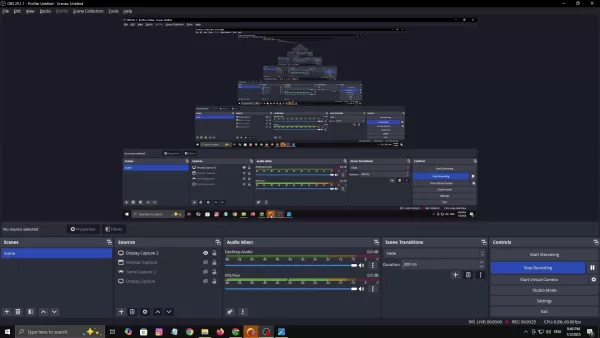
- Launch your preferred web browser. Any modern browser will work.
- Enter "leonardo ai" into the address bar and press Enter.
- Select the top search result, which should direct you to the official Leonardo AI website.
Step 2: Creating an Account or Logging In
- New users should click "Create an Account" or "Get Started." Signing up with a Google account is often the fastest method.
- Existing users can log in directly with their username and password.
Step 3: Navigating to the Image Creation Tool
- After logging in, you'll land on the Leonardo AI dashboard.
- Locate the "AI Tools" menu on the left side and select "Image Creation."
Step 4: Entering the Prompt
- Find the text input box where you describe the image you wish to generate.
- Paste the recommended prompt into this field. An effective example is:
Generate a Realistic 30 years old man, Wearing White T shirt blue jeans sneakers and the name “RAJAN” is written on his t-shirt and the boy is standing on the road with holding a national flag of India , and behind him is the Red Fort Delhi. And written on sky “Happy Republic Day” Create Realistic image high qualityNote: This prompt is carefully crafted for optimal results in this specific style. The full prompt is available for use below this article.
Step 5: Customizing the Prompt
- Adapt the prompt to match your preferences. You can adjust the age, clothing, or the name displayed.
- To change the name, simply replace “RAJAN” with your chosen text. This personalizes the image.
- Modify the age by editing the number, such as changing
30 years to your desired age. For a child's image, use an age between 8 and 15.Example: Changing "KARMIJI" to "John" - To switch from a man to a boy, edit the phrase "30 years old man" to "20 years old boy."
Step 6: Adjusting Settings
- Verify that the settings on the left are properly configured. You can change the image size by selecting "more" in the Image Dimensions area.
- Choose Phoenix 1.0 from the Model/Preset dropdown to improve image quality.
Step 7: Generating the Image
- Click the "Generate" button. Leonardo AI will now interpret your prompt and create the image.
- Wait a few seconds for the AI to complete the process. The resulting images will appear below the prompt box.
Step 8: Reviewing and Selecting the Image
- Examine the generated options. If you're not happy with the initial results, refine your prompt and generate again until you find a suitable image.
- Click on your preferred image to select it.
Step 9: Downloading the Image
- After selecting an image, click the download icon (typically a downward arrow) to save it to your device.
By following these steps, you can effortlessly create personalized Republic Day images featuring names and other custom elements using Leonardo AI.
Additional Tips for Creating Stunning Republic Day Images
Vary Your Prompts
Test different prompts to generate a broader selection of images. For example, specify various poses, backgrounds, or clothing styles. The more diverse your prompts, the more unique your collection will be. Consider incorporating elements like:
- Traditional Indian clothing.
- Symbolic motifs such as the Ashoka Chakra.
- Different iconic Indian landmarks.
This approach will help you build a standout portfolio of Republic Day visuals.
Utilize Different AI Models
Leonardo AI provides multiple AI models, each with unique specializations. Test different models to identify which produces the best outcome for your project. Some models may generate more realistic images, while others might be better for artistic interpretations. Experimenting with various models helps you align the output with your creative objectives.
You might try models optimized for:
- Lifelike human portraits.
- Scenic landscapes.
- Abstract creative works.
This exploration enables you to diversify your Republic Day image styles and discover unique aesthetics.
Improving Image Quality with PicsArt
Why Use PicsArt?
Although Leonardo AI excels at generating images, sometimes the output can benefit from quality refinement. PicsArt's AI Image Enhancer sharpens details and increases resolution, giving your visuals a more professional finish. This is particularly valuable if you intend to print the images or display them in high definition.
- Upscaling: Boosts the image resolution for greater clarity.
- Sharpening: Brings out fine details and reduces softness.
- Noise Reduction: Cleans up digital artifacts for a smoother appearance.
The improved Republic Day images are more visually striking.
Step-by-Step Guide to Enhancing Image Quality with PicsArt
Follow these steps to refine your Leonardo AI-generated Republic Day image using PicsArt:
Step 1: Accessing PicsArt Image Enhancer
- Open your web browser.
- Type "picsart image enhancer" into the address bar and press Enter.
- Click the first search result to open the PicsArt AI Image Enhancer tool.
Step 2: Uploading the Image
- On the PicsArt site, you'll see an option to upload your file. Click the "Browse Files" button.
- Select the Republic Day image saved from Leonardo AI and click "Open."
Step 3: Enhancing the Image
- PicsArt will automatically process and improve the image. Allow a few moments for the AI to complete the enhancement.
Step 4: Downloading the Enhanced Image
- Once processing is complete, a side-by-side comparison of the original and enhanced versions will appear. If you're pleased with the outcome, click the "Download" button.
- Select your preferred download quality. Pro members have access to HD enhancement settings.
Step 5: Enjoying Your High-Quality Image
- Your polished Republic Day image is now ready for sharing on social media, sending as greetings, or any other use.
By leveraging Leonardo AI for creation and PicsArt's AI Image Enhancer for refinement, you can produce professional-grade visuals with ease. Happy Republic Day!
Pros and Cons of Using AI for Image Generation
Pros
Speed: Produce images in seconds, saving considerable time.
Cost-Effective: Free options are available, making the technology widely accessible.
Ease of Use: No specialized editing knowledge is required.
Customization: Tailor prompts to produce images that reflect your personal style.
Cons
Inconsistent Quality: Output can vary based on the AI model and prompt clarity.
Licensing Restrictions: Commercial usage might be limited by the platform's terms of service.
AI Dependency: Creative control is partially handed over to the AI's interpretation.
Frequently Asked Questions
Is Leonardo AI free to use?
Yes, Leonardo AI provides a free plan that includes daily credits for generating images. Paid subscriptions offer more features and higher limits, but the free tier is perfect for initial experimentation. You can create these Republic Day images using the free plan.
Do I need advanced editing skills to use Leonardo AI and PicsArt?
No, both Leonardo AI and PicsArt are built for ease of use, with clear interfaces that anyone can operate. Just follow the detailed guides provided, and you'll be creating beautiful Republic Day images quickly.
Can I use these images for commercial purposes?
Usage rights for images created with Leonardo AI depend on your subscription level and the platform's terms. Always check the licensing agreements to confirm whether commercial use is permitted. This ensures you use your Republic Day images appropriately and in compliance with platform policies.
Related Questions
What other AI tools can I use for image generation?
Beyond Leonardo AI, several other AI tools are available for image creation. Popular choices include:DALL-E 2: Recognized for generating highly intricate and imaginative images from text.Midjourney: Favored for its artistic and dreamlike visual styles.DeepArt.io: Uses AI to apply artistic styles to your photos.Each platform offers distinct features, so exploring them can help you find the best match for your requirements. Experiment with these alternatives to expand your Republic Day image collection.
How can I optimize my prompts for better results?
Crafting effective prompts is crucial for generating high-quality AI images. Consider these strategies for improvement:Provide Specific Details: Include comprehensive information about the subject, environment, style, and atmosphere.Use Relevant Keywords: Integrate descriptive terms that clearly convey your vision.Iterate and Experiment: Test different wordings and combinations to see what yields the best outcome.Apply Descriptive Modifiers: Specify aspects like color palette, lighting conditions, and composition.Using these techniques will help you refine your prompts and create even more impactful Republic Day visuals.
Related article
 Stripe to Acquire OpenRouter as AI Model Routing Gains Momentum
Stripe has agreed to acquire OpenRouter, an AI model-routing platform that gives developers access to hundreds of models through a single interface. The deal adds model selection and routing to Stripe’s existing work around AI usage and token-based b
Former OpenAI Researcher Barrett Zoph Returns to Google to Support Gemini Development
Barret Zoph, who previously abruptly left and joined OpenAI due to a disagreement with Thinking Machines Lab CEO Miriam Mularati, has once again changed employers. Alphabet's Google announced that Zoph will return as Vice President of Research, bring
How Recursive Intelligence Raised $335M at $4B Valuation in 4 Months
The co-founders of startup Ricursive Intelligence seemed destined to be co-founders.Anna Goldie, CEO, and Azalia Mirhoseini, CTO, are so well-known in the AI community that they were among those AI engineers who “got those weird emails from Zuckerber
Related Special Topic Recommendations
Design & Art
Stripe to Acquire OpenRouter as AI Model Routing Gains Momentum
Stripe has agreed to acquire OpenRouter, an AI model-routing platform that gives developers access to hundreds of models through a single interface. The deal adds model selection and routing to Stripe’s existing work around AI usage and token-based b
Former OpenAI Researcher Barrett Zoph Returns to Google to Support Gemini Development
Barret Zoph, who previously abruptly left and joined OpenAI due to a disagreement with Thinking Machines Lab CEO Miriam Mularati, has once again changed employers. Alphabet's Google announced that Zoph will return as Vice President of Research, bring
How Recursive Intelligence Raised $335M at $4B Valuation in 4 Months
The co-founders of startup Ricursive Intelligence seemed destined to be co-founders.Anna Goldie, CEO, and Azalia Mirhoseini, CTO, are so well-known in the AI community that they were among those AI engineers who “got those weird emails from Zuckerber
Related Special Topic Recommendations
Design & Art
 Top AI Illustration Tools: Create Editorial Scenes and Cover Art Faster
2026 Latest Top-rated AI Illustration Tools: Our curated list features the best powerfully designed tools for creating stunning editorial scenes and eye-catching cover art quickly. Each option has gone through rigorous real-world tests, offering a free vs paid comparison to help you find the perfect match for your workflow. Try these must-try solutions today to unlock your AI edge and boost your creative productivity. Explore now at XIX.AI.
 10 tools
 xix.ai
Education and Learning
Top AI Tutors for Exam Prep: Practice Math, Science, and English
xix.ai
Education and Learning
Top AI Tutors for Exam Prep: Practice Math, Science, and English
2026 Latest Top-Rated Best AI Tutors for Exam Prep are here on XIX.AI! Our curated list features powerful game-changing tools that offer free vs paid comparison, real-world tests, and weekly updated rankings. They help boost your writing efficiency, simplify complex topic learning, and unlock your academic potential. Explore now to Discover your perfect exam prep tool and Start creating today to Unlock your AI edge!
10 tools
xix.ai
Finance
AI Budget Planning Tools for Personal Money Management
2026 Latest Best Top-Rated AI Budget Planning Tools for Personal Money Management are here on XIX.AI! This curated collection features powerful, game-changing solutions that help you conduct real-world tests, understand spending habits, and create personalized plans to boost productivity. Enjoy a free vs paid comparison along with detailed rankings. Must-try tools designed to simplify money management and unlock your AI edge. Explore now!
11 tools
xix.ai
Health & Wellness
AI Sleep Tracking Assistants: Improve Recovery with Better Bedtime Habits
2026 Latest Best Top-Rated AI Sleep Tracking Assistants curated for ultimate recovery. This fully updated weekly guide features powerful tools that deliver real-world tests, free vs paid comparison, and detailed rankings to help you find the must-try solution that boosts sleep quality and supports better bedtime habits. Explore now at XIX.AI to Unlock your AI edge.
10 tools
xix.ai
Data Analysis
AI SQL Copilots for Product and Revenue Analytics
2026 Latest Best Top-Rated AI SQL Copilots for Product and Revenue Analytics! XIX.AI has curated a powerful, game-changing collection of must-try tools that undergo real-world tests through weekly updated rankings. These tools help users boost productivity significantly by accelerating data analysis, streamlining complex queries, and generating accurate insights to drive smarter business decisions. Explore now to Discover your perfect tool for unlocking your AI edge!
14 tools
xix.ai
Education and Learning
Best AI Homework Helpers That Teach: Learn Concepts, Not Just Answers
2026 Latest Best Top-Rated AI Homework Helpers That Teach Core Concepts Not Just Answers Powerful Tools for Students Must-Try Curated List Weekly Updated Free vs Paid Comparison Real-World Tests Accurate Rankings to Help You Unlock Your Full Learning Potential Explore now to Discover your perfect tool for smarter studying.
10 tools
xix.ai

 Comments (1)
0/500
Comments (1)
0/500
![ArthurCarter]()
Honestly, another AI tutorial for creating flag images? I mean, cool that you can do it, but isn't it faster to just grab a template? Still, the step-by-step approach is nice for absolute beginners who want to feel like a tech wizard 😂
Creating personalized Republic Day images is now incredibly simple with artificial intelligence. This step-by-step tutorial shows you how to craft custom visuals for the occasion using AI platforms, with a focus on Leonardo AI for generation and PicsArt for refining image quality. You don't need any professional editing expertise — just follow the straightforward instructions to produce impressive, tailored results. Learn how to make remarkable Republic Day graphics using AI technology.
Key Points
Create custom Republic Day images in seconds using AI tools.
Add personal details like names to make the images your own.
Utilize Leonardo AI for generating images and PicsArt for enhancing their clarity.
No advanced skills are necessary; the process is straightforward and accessible.
Craft a range of visuals for sharing on social media or for personal use.
Generating Republic Day Images with Leonardo AI
What is Leonardo AI?
Leonardo AI is a robust AI-powered platform that generates impressive visuals from simple text descriptions. It's especially beneficial for individuals without a background in design, as it streamlines the creative workflow. The tool is capable of producing diverse imagery, from lifelike portraits to abstract compositions, making it ideal for quick visual prototyping.
The platform stands out for several reasons:
- User-Friendly Interface: Navigating Leonardo AI is intuitive and straightforward.
- Rapid Generation: Produce images in moments, far quicker than conventional design techniques.
- Adjustable Outputs: Modify your text prompts to achieve the exact look you want.
- Budget-Friendly Access: A free tier with daily credits lets you explore and create without upfront costs.
Let's explore how to use Leonardo AI to design your personalized Republic Day images. This guide will help you create them efficiently.
Step-by-Step Guide to Using Leonardo AI for Republic Day Images
Follow these instructions to design your customized Republic Day visuals:
Step 1: Accessing Leonardo AI
- Launch your preferred web browser. Any modern browser will work.
- Enter "leonardo ai" into the address bar and press Enter.
- Select the top search result, which should direct you to the official Leonardo AI website.
Step 2: Creating an Account or Logging In
- New users should click "Create an Account" or "Get Started." Signing up with a Google account is often the fastest method.
- Existing users can log in directly with their username and password.
Step 3: Navigating to the Image Creation Tool
- After logging in, you'll land on the Leonardo AI dashboard.
- Locate the "AI Tools" menu on the left side and select "Image Creation."
Step 4: Entering the Prompt
- Find the text input box where you describe the image you wish to generate.
- Paste the recommended prompt into this field. An effective example is:
Generate a Realistic 30 years old man, Wearing White T shirt blue jeans sneakers and the name “RAJAN” is written on his t-shirt and the boy is standing on the road with holding a national flag of India , and behind him is the Red Fort Delhi. And written on sky “Happy Republic Day” Create Realistic image high qualityNote: This prompt is carefully crafted for optimal results in this specific style. The full prompt is available for use below this article.
Step 5: Customizing the Prompt
- Adapt the prompt to match your preferences. You can adjust the age, clothing, or the name displayed.
- To change the name, simply replace “RAJAN” with your chosen text. This personalizes the image.
- Modify the age by editing the number, such as changing
30 yearsto your desired age. For a child's image, use an age between 8 and 15.Example: Changing "KARMIJI" to "John" - To switch from a man to a boy, edit the phrase "30 years old man" to "20 years old boy."
Step 6: Adjusting Settings
- Verify that the settings on the left are properly configured. You can change the image size by selecting "more" in the Image Dimensions area.
- Choose Phoenix 1.0 from the Model/Preset dropdown to improve image quality.
Step 7: Generating the Image
- Click the "Generate" button. Leonardo AI will now interpret your prompt and create the image.
- Wait a few seconds for the AI to complete the process. The resulting images will appear below the prompt box.
Step 8: Reviewing and Selecting the Image
- Examine the generated options. If you're not happy with the initial results, refine your prompt and generate again until you find a suitable image.
- Click on your preferred image to select it.
Step 9: Downloading the Image
- After selecting an image, click the download icon (typically a downward arrow) to save it to your device.
By following these steps, you can effortlessly create personalized Republic Day images featuring names and other custom elements using Leonardo AI.
Additional Tips for Creating Stunning Republic Day Images
Vary Your Prompts
Test different prompts to generate a broader selection of images. For example, specify various poses, backgrounds, or clothing styles. The more diverse your prompts, the more unique your collection will be. Consider incorporating elements like:
- Traditional Indian clothing.
- Symbolic motifs such as the Ashoka Chakra.
- Different iconic Indian landmarks.
This approach will help you build a standout portfolio of Republic Day visuals.
Utilize Different AI Models
Leonardo AI provides multiple AI models, each with unique specializations. Test different models to identify which produces the best outcome for your project. Some models may generate more realistic images, while others might be better for artistic interpretations. Experimenting with various models helps you align the output with your creative objectives.
You might try models optimized for:
- Lifelike human portraits.
- Scenic landscapes.
- Abstract creative works.
This exploration enables you to diversify your Republic Day image styles and discover unique aesthetics.
Improving Image Quality with PicsArt
Why Use PicsArt?
Although Leonardo AI excels at generating images, sometimes the output can benefit from quality refinement. PicsArt's AI Image Enhancer sharpens details and increases resolution, giving your visuals a more professional finish. This is particularly valuable if you intend to print the images or display them in high definition.
- Upscaling: Boosts the image resolution for greater clarity.
- Sharpening: Brings out fine details and reduces softness.
- Noise Reduction: Cleans up digital artifacts for a smoother appearance.
The improved Republic Day images are more visually striking.
Step-by-Step Guide to Enhancing Image Quality with PicsArt
Follow these steps to refine your Leonardo AI-generated Republic Day image using PicsArt:
Step 1: Accessing PicsArt Image Enhancer
- Open your web browser.
- Type "picsart image enhancer" into the address bar and press Enter.
- Click the first search result to open the PicsArt AI Image Enhancer tool.
Step 2: Uploading the Image
- On the PicsArt site, you'll see an option to upload your file. Click the "Browse Files" button.
- Select the Republic Day image saved from Leonardo AI and click "Open."
Step 3: Enhancing the Image
- PicsArt will automatically process and improve the image. Allow a few moments for the AI to complete the enhancement.
Step 4: Downloading the Enhanced Image
- Once processing is complete, a side-by-side comparison of the original and enhanced versions will appear. If you're pleased with the outcome, click the "Download" button.
- Select your preferred download quality. Pro members have access to HD enhancement settings.
Step 5: Enjoying Your High-Quality Image
- Your polished Republic Day image is now ready for sharing on social media, sending as greetings, or any other use.
By leveraging Leonardo AI for creation and PicsArt's AI Image Enhancer for refinement, you can produce professional-grade visuals with ease. Happy Republic Day!
Pros and Cons of Using AI for Image Generation
Pros
Speed: Produce images in seconds, saving considerable time.
Cost-Effective: Free options are available, making the technology widely accessible.
Ease of Use: No specialized editing knowledge is required.
Customization: Tailor prompts to produce images that reflect your personal style.
Cons
Inconsistent Quality: Output can vary based on the AI model and prompt clarity.
Licensing Restrictions: Commercial usage might be limited by the platform's terms of service.
AI Dependency: Creative control is partially handed over to the AI's interpretation.
Frequently Asked Questions
Is Leonardo AI free to use?
Yes, Leonardo AI provides a free plan that includes daily credits for generating images. Paid subscriptions offer more features and higher limits, but the free tier is perfect for initial experimentation. You can create these Republic Day images using the free plan.
Do I need advanced editing skills to use Leonardo AI and PicsArt?
No, both Leonardo AI and PicsArt are built for ease of use, with clear interfaces that anyone can operate. Just follow the detailed guides provided, and you'll be creating beautiful Republic Day images quickly.
Can I use these images for commercial purposes?
Usage rights for images created with Leonardo AI depend on your subscription level and the platform's terms. Always check the licensing agreements to confirm whether commercial use is permitted. This ensures you use your Republic Day images appropriately and in compliance with platform policies.
Related Questions
What other AI tools can I use for image generation?
Beyond Leonardo AI, several other AI tools are available for image creation. Popular choices include:DALL-E 2: Recognized for generating highly intricate and imaginative images from text.Midjourney: Favored for its artistic and dreamlike visual styles.DeepArt.io: Uses AI to apply artistic styles to your photos.Each platform offers distinct features, so exploring them can help you find the best match for your requirements. Experiment with these alternatives to expand your Republic Day image collection.
How can I optimize my prompts for better results?
Crafting effective prompts is crucial for generating high-quality AI images. Consider these strategies for improvement:Provide Specific Details: Include comprehensive information about the subject, environment, style, and atmosphere.Use Relevant Keywords: Integrate descriptive terms that clearly convey your vision.Iterate and Experiment: Test different wordings and combinations to see what yields the best outcome.Apply Descriptive Modifiers: Specify aspects like color palette, lighting conditions, and composition.Using these techniques will help you refine your prompts and create even more impactful Republic Day visuals.








 Stripe to Acquire OpenRouter as AI Model Routing Gains Momentum
Stripe has agreed to acquire OpenRouter, an AI model-routing platform that gives developers access to hundreds of models through a single interface. The deal adds model selection and routing to Stripe’s existing work around AI usage and token-based b
Stripe to Acquire OpenRouter as AI Model Routing Gains Momentum
Stripe has agreed to acquire OpenRouter, an AI model-routing platform that gives developers access to hundreds of models through a single interface. The deal adds model selection and routing to Stripe’s existing work around AI usage and token-based b
 Former OpenAI Researcher Barrett Zoph Returns to Google to Support Gemini Development
Barret Zoph, who previously abruptly left and joined OpenAI due to a disagreement with Thinking Machines Lab CEO Miriam Mularati, has once again changed employers. Alphabet's Google announced that Zoph will return as Vice President of Research, bring
Former OpenAI Researcher Barrett Zoph Returns to Google to Support Gemini Development
Barret Zoph, who previously abruptly left and joined OpenAI due to a disagreement with Thinking Machines Lab CEO Miriam Mularati, has once again changed employers. Alphabet's Google announced that Zoph will return as Vice President of Research, bring
 How Recursive Intelligence Raised $335M at $4B Valuation in 4 Months
The co-founders of startup Ricursive Intelligence seemed destined to be co-founders.Anna Goldie, CEO, and Azalia Mirhoseini, CTO, are so well-known in the AI community that they were among those AI engineers who “got those weird emails from Zuckerber
How Recursive Intelligence Raised $335M at $4B Valuation in 4 Months
The co-founders of startup Ricursive Intelligence seemed destined to be co-founders.Anna Goldie, CEO, and Azalia Mirhoseini, CTO, are so well-known in the AI community that they were among those AI engineers who “got those weird emails from Zuckerber
2026 Latest Top-rated AI Illustration Tools: Our curated list features the best powerfully designed tools for creating stunning editorial scenes and eye-catching cover art quickly. Each option has gone through rigorous real-world tests, offering a free vs paid comparison to help you find the perfect match for your workflow. Try these must-try solutions today to unlock your AI edge and boost your creative productivity. Explore now at XIX.AI.
10 tools
xix.ai

2026 Latest Top-Rated Best AI Tutors for Exam Prep are here on XIX.AI! Our curated list features powerful game-changing tools that offer free vs paid comparison, real-world tests, and weekly updated rankings. They help boost your writing efficiency, simplify complex topic learning, and unlock your academic potential. Explore now to Discover your perfect exam prep tool and Start creating today to Unlock your AI edge!
10 tools
xix.ai
2026 Latest Best Top-Rated AI Budget Planning Tools for Personal Money Management are here on XIX.AI! This curated collection features powerful, game-changing solutions that help you conduct real-world tests, understand spending habits, and create personalized plans to boost productivity. Enjoy a free vs paid comparison along with detailed rankings. Must-try tools designed to simplify money management and unlock your AI edge. Explore now!
11 tools
xix.ai

2026 Latest Best Top-Rated AI Sleep Tracking Assistants curated for ultimate recovery. This fully updated weekly guide features powerful tools that deliver real-world tests, free vs paid comparison, and detailed rankings to help you find the must-try solution that boosts sleep quality and supports better bedtime habits. Explore now at XIX.AI to Unlock your AI edge.
10 tools
xix.ai

2026 Latest Best Top-Rated AI SQL Copilots for Product and Revenue Analytics! XIX.AI has curated a powerful, game-changing collection of must-try tools that undergo real-world tests through weekly updated rankings. These tools help users boost productivity significantly by accelerating data analysis, streamlining complex queries, and generating accurate insights to drive smarter business decisions. Explore now to Discover your perfect tool for unlocking your AI edge!
14 tools
xix.ai

2026 Latest Best Top-Rated AI Homework Helpers That Teach Core Concepts Not Just Answers Powerful Tools for Students Must-Try Curated List Weekly Updated Free vs Paid Comparison Real-World Tests Accurate Rankings to Help You Unlock Your Full Learning Potential Explore now to Discover your perfect tool for smarter studying.
10 tools
xix.ai

Honestly, another AI tutorial for creating flag images? I mean, cool that you can do it, but isn't it faster to just grab a template? Still, the step-by-step approach is nice for absolute beginners who want to feel like a tech wizard 😂












