


 Home
HomeComfyUI Workflow Creates Instant AI-Powered Stickers
AI has made creating personalized stickers simpler than ever. This guide walks you through the ComfyUI Instant Stickers workflow, a powerful tool for generating unique and expressive stickers in just a few steps. Whether your goal is to craft custom emotes, personalize digital spaces, or explore the creative potential of AI image generation, this workflow offers a straightforward and enjoyable solution.
Key Points
The ComfyUI Instant Stickers workflow generates stickers using AI technology.
It leverages the InstantID model for face analysis and style application.
You can customize sticker designs using text prompts and control models.
The process involves downloading, setting up, and loading required models within ComfyUI.
The AI creates stickers based on your image inputs and descriptive text prompts.
You can save and use the final stickers on various digital platforms.
Understanding the ComfyUI Instant Stickers Workflow
What are AI Stickers and Why Use Them?
AI stickers are digital images created by artificial intelligence algorithms. They provide a unique way to personalize online communication, express emotions, and add creative flair to digital content. AI-powered creation allows for a high degree of customization, enabling you to generate designs that align perfectly with your personal style. They offer a more expressive and personalized alternative to simple emojis, allowing you to create custom images, including stylized self-portraits or memes.
Overview of the ComfyUI Instant Stickers Workflow
The workflow simplifies AI sticker creation by integrating several key components:
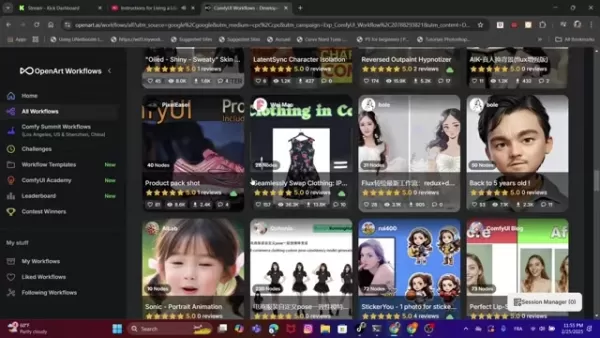
- OpenArt Workflows: A primary platform for discovering AI workflows and tutorials, including this one.
- ComfyUI: A powerful node-based interface for building and customizing AI image generation pipelines.
- InstantID: A specialized model for analyzing and stylizing faces within images.
- Control Models: These provide detailed control over the final sticker's artistic style, such as a watercolor effect.
This interconnected system transforms your existing photos into unique, stylized AI stickers with customizable expressions and effects.
Downloading and Installing the Instant Stickers Workflow
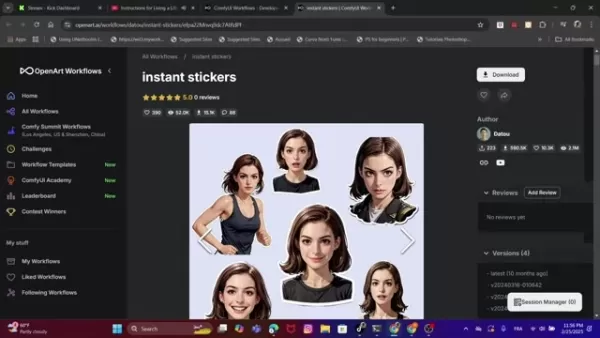
To begin, download the Instant Stickers workflow file from Openart.ai. The workflow is provided as a JSON file containing all necessary node configurations for ComfyUI.
- Visit OpenArt.ai.
- Locate the Instant Stickers Workflow.
- Click "Download" to save the JSON file to your computer.
After downloading, you will need to install the required model dependencies. The workflow creator usually provides links to sources like Civitai for this purpose.
Essential Components for AI Sticker Creation
Detailed Explanation of the Workflow Nodes
A look at the key nodes within the workflow:
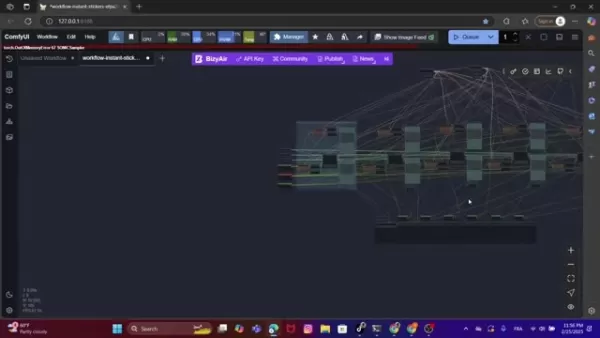
Understanding these nodes is essential for customizing your results.
- Load InstantID Model: Loads the core InstantID model file (e.g.,
ip-adapter.bin) for facial recognition. - InstantID Face Analysis: The central node for extracting and analyzing facial features and landmarks.
- Load Controller Model: Loads a ControlNet model to provide detailed guidance for style and composition.
- CR Text (x3): Input nodes for your text prompts, which guide the AI's style and subject generation.
- Text Concatenate: Combines multiple text strings into a single prompt.
- CLIP Text Encode (Prompt): Translates the combined text prompt into a format the AI model can process.
- Apply InstantID: Applies the facial analysis and style data to the generation process.
- KSampler (Efficient): The core generation node that iteratively refines the image based on all inputs.
- Scale Image to Total Pixels: Resizes the input image to an optimal resolution for processing.
- Save Image (x3): Nodes that save the final generated sticker outputs to your designated folder.
- Save Image: Saves the original input images for reference.
These nodes work together, with the connecting lines in ComfyUI representing the flow of data to produce the final sticker.
Obtaining Required Models and Configurations
You must download these models before running the workflow:
- InstantID Model: Download the recommended InstantID model (like the Stickers.Redmond model for SD XL) from the provided Civitai link.
- ComfyUI Models: Download any required Loras and place them in your ComfyUI models folder (e.g.,
ComfyUImodelsloras). - ControlNet Model: Download a ControlNet model, such as
control_v11fp_sdxl_scribble [ef155db5].pth, as used in the tutorial.
Creating Your Own AI Stickers: A Step-by-Step Guide
Setting up the workflow
Follow these steps to use the workflow:
- Open ComfyUI: Launch the ComfyUI interface on your computer, ensuring you have the necessary extensions installed.
- Load the workflow: Drag and drop the downloaded
workflow-instant-stickers.json file into the ComfyUI window. 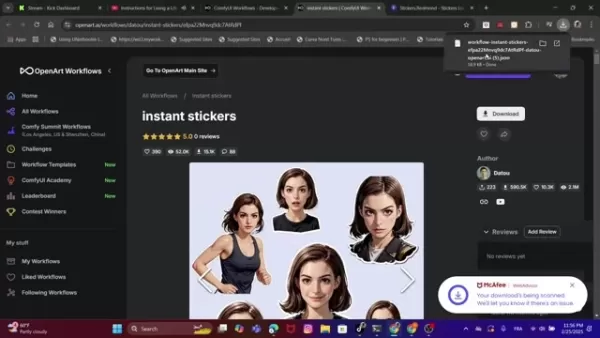
This action loads the complete node setup.
- Load Models: While some models load automatically, others may need manual loading. A red error on a node indicates a missing model; double-click the node to locate and load the correct file.
- Upload Images: Click on the image node to upload your source photos, such as headshots or full-body pictures.
- Add text: Double-click on the
CR text nodes to input your descriptive prompts and style instructions. - Queue: Click the "Queue" button to start the AI generation process.
Generating Different Stickers
You have full creative control. To experiment further:
- Experiment with images: Try different source images, including animals, objects, or landscapes—virtually anything can be turned into a sticker.
- Change the prompt instructions: Modify the text in the
CR text nodes to alter the attributes, mood, and artistic effects applied to your image. Don't be afraid to experiment.
Pricing
OpenArt.ai Pricing
OpenArt.ai operates as a sharing platform for AI models and workflows. It typically follows a freemium model:
Tier Description Price Free Basic access to models and workflows for initial experimentation. Free Paid Plans Enhanced access, faster processing, and advanced platform features. Varies
ComfyUI Pricing
ComfyUI is open-source and free software. Potential costs relate only to your computing setup:
- Local Setup: Free to use, but requires your own hardware and covers electricity costs.
- Cloud-Based Solutions: Costs vary based on the cloud provider and the computing resources you use.
Pros and Cons of Using ComfyUI Instant Stickers
Pros
High Customization: Offers detailed control over every aspect of sticker design.
AI-Powered Style Transfer: Uses advanced models to create unique artistic aesthetics.
Streamlined Process: Simplifies a complex creation process into a manageable workflow.
Free Core Tools: Both ComfyUI and the InstantID model are free to use.
Cons
Requires Initial Setup: Involves downloading and correctly placing several model files.
Learning Curve: The node-based interface can be unfamiliar to new users.
Key Features of the ComfyUI Instant Stickers Workflow
Why This Workflow Stands Out
This workflow offers several advantages for AI sticker creation:
- User-Friendly Interface: ComfyUI's visual node system makes complex AI processes more accessible.
- AI-Powered Transformation: Leverages InstantID to creatively stylize your existing photos.
- Customizable Prompts: Text prompts give you direct influence over the design, allowing for immense creative variety.
- Community-Driven Resources: Integrated with platforms like OpenArt, providing access to a wide ecosystem of models and shared workflows.
Explore the Unlimited Use Cases
Unleash the Power of AI Stickers
The applications for this workflow are diverse:
- Personalized Emotes: Create custom emotes for streaming platforms (Twitch, Discord) and social media that reflect your personal brand.
- Digital Personalization: Enhance digital notebooks, presentations, and documents with unique, expressive stickers.
- Creative Exploration: Experiment with artistic styles and concepts to push the boundaries of AI-generated art.
- Marketing Materials: Incorporate distinctive AI stickers into marketing campaigns for a personalized and memorable touch.
Frequently Asked Questions
What is ComfyUI?
ComfyUI is a node-based visual programming tool designed for creating and executing complex workflows, particularly for AI image generation. Its interface allows users to connect different nodes representing AI models and functions, offering detailed control over the creation process.
Do I need a powerful computer to run this workflow?
Resource requirements depend on image complexity, model size, and desired output resolution. While basic generation may work on mid-range systems, high-resolution outputs or complex models will benefit significantly from a powerful GPU. Running ComfyUI on a cloud service is a viable alternative.
Can I use my own images with this workflow?
Absolutely. A primary function of this workflow is to transform your existing photos into stickers. You can use any image you own as the base for personalization.
Related Questions
What other AI workflows can I use with ComfyUI?
ComfyUI supports a vast ecosystem of workflows for different creative and technical tasks. Some common examples include:Advanced Image Editing: Perform tasks like inpainting, outpainting, and detailed style transfer through customizable nodes.Video Generation and Editing: Create and manipulate video content using AI-powered workflows.Model Training: Train specialized models, such as LoRAs, to apply specific styles or characteristics to generated images. Platforms like OpenArt host many community-created workflows you can download and try.
Related article
 Stripe to Acquire OpenRouter as AI Model Routing Gains Momentum
Stripe has agreed to acquire OpenRouter, an AI model-routing platform that gives developers access to hundreds of models through a single interface. The deal adds model selection and routing to Stripe’s existing work around AI usage and token-based b
Former OpenAI Researcher Barrett Zoph Returns to Google to Support Gemini Development
Barret Zoph, who previously abruptly left and joined OpenAI due to a disagreement with Thinking Machines Lab CEO Miriam Mularati, has once again changed employers. Alphabet's Google announced that Zoph will return as Vice President of Research, bring
How Recursive Intelligence Raised $335M at $4B Valuation in 4 Months
The co-founders of startup Ricursive Intelligence seemed destined to be co-founders.Anna Goldie, CEO, and Azalia Mirhoseini, CTO, are so well-known in the AI community that they were among those AI engineers who “got those weird emails from Zuckerber
Related Special Topic Recommendations
Design & Art
Stripe to Acquire OpenRouter as AI Model Routing Gains Momentum
Stripe has agreed to acquire OpenRouter, an AI model-routing platform that gives developers access to hundreds of models through a single interface. The deal adds model selection and routing to Stripe’s existing work around AI usage and token-based b
Former OpenAI Researcher Barrett Zoph Returns to Google to Support Gemini Development
Barret Zoph, who previously abruptly left and joined OpenAI due to a disagreement with Thinking Machines Lab CEO Miriam Mularati, has once again changed employers. Alphabet's Google announced that Zoph will return as Vice President of Research, bring
How Recursive Intelligence Raised $335M at $4B Valuation in 4 Months
The co-founders of startup Ricursive Intelligence seemed destined to be co-founders.Anna Goldie, CEO, and Azalia Mirhoseini, CTO, are so well-known in the AI community that they were among those AI engineers who “got those weird emails from Zuckerber
Related Special Topic Recommendations
Design & Art
 Top AI Illustration Tools: Create Editorial Scenes and Cover Art Faster
2026 Latest Top-rated AI Illustration Tools: Our curated list features the best powerfully designed tools for creating stunning editorial scenes and eye-catching cover art quickly. Each option has gone through rigorous real-world tests, offering a free vs paid comparison to help you find the perfect match for your workflow. Try these must-try solutions today to unlock your AI edge and boost your creative productivity. Explore now at XIX.AI.
 10 tools
 xix.ai
Education and Learning
Top AI Tutors for Exam Prep: Practice Math, Science, and English
xix.ai
Education and Learning
Top AI Tutors for Exam Prep: Practice Math, Science, and English
2026 Latest Top-Rated Best AI Tutors for Exam Prep are here on XIX.AI! Our curated list features powerful game-changing tools that offer free vs paid comparison, real-world tests, and weekly updated rankings. They help boost your writing efficiency, simplify complex topic learning, and unlock your academic potential. Explore now to Discover your perfect exam prep tool and Start creating today to Unlock your AI edge!
10 tools
xix.ai
Finance
AI Budget Planning Tools for Personal Money Management
2026 Latest Best Top-Rated AI Budget Planning Tools for Personal Money Management are here on XIX.AI! This curated collection features powerful, game-changing solutions that help you conduct real-world tests, understand spending habits, and create personalized plans to boost productivity. Enjoy a free vs paid comparison along with detailed rankings. Must-try tools designed to simplify money management and unlock your AI edge. Explore now!
11 tools
xix.ai
Health & Wellness
AI Sleep Tracking Assistants: Improve Recovery with Better Bedtime Habits
2026 Latest Best Top-Rated AI Sleep Tracking Assistants curated for ultimate recovery. This fully updated weekly guide features powerful tools that deliver real-world tests, free vs paid comparison, and detailed rankings to help you find the must-try solution that boosts sleep quality and supports better bedtime habits. Explore now at XIX.AI to Unlock your AI edge.
10 tools
xix.ai
Data Analysis
AI SQL Copilots for Product and Revenue Analytics
2026 Latest Best Top-Rated AI SQL Copilots for Product and Revenue Analytics! XIX.AI has curated a powerful, game-changing collection of must-try tools that undergo real-world tests through weekly updated rankings. These tools help users boost productivity significantly by accelerating data analysis, streamlining complex queries, and generating accurate insights to drive smarter business decisions. Explore now to Discover your perfect tool for unlocking your AI edge!
14 tools
xix.ai
Education and Learning
Best AI Homework Helpers That Teach: Learn Concepts, Not Just Answers
2026 Latest Best Top-Rated AI Homework Helpers That Teach Core Concepts Not Just Answers Powerful Tools for Students Must-Try Curated List Weekly Updated Free vs Paid Comparison Real-World Tests Accurate Rankings to Help You Unlock Your Full Learning Potential Explore now to Discover your perfect tool for smarter studying.
10 tools
xix.ai

 Comments (0)
0/500
Comments (0)
0/500
AI has made creating personalized stickers simpler than ever. This guide walks you through the ComfyUI Instant Stickers workflow, a powerful tool for generating unique and expressive stickers in just a few steps. Whether your goal is to craft custom emotes, personalize digital spaces, or explore the creative potential of AI image generation, this workflow offers a straightforward and enjoyable solution.
Key Points
The ComfyUI Instant Stickers workflow generates stickers using AI technology.
It leverages the InstantID model for face analysis and style application.
You can customize sticker designs using text prompts and control models.
The process involves downloading, setting up, and loading required models within ComfyUI.
The AI creates stickers based on your image inputs and descriptive text prompts.
You can save and use the final stickers on various digital platforms.
Understanding the ComfyUI Instant Stickers Workflow
What are AI Stickers and Why Use Them?
AI stickers are digital images created by artificial intelligence algorithms. They provide a unique way to personalize online communication, express emotions, and add creative flair to digital content. AI-powered creation allows for a high degree of customization, enabling you to generate designs that align perfectly with your personal style. They offer a more expressive and personalized alternative to simple emojis, allowing you to create custom images, including stylized self-portraits or memes.
Overview of the ComfyUI Instant Stickers Workflow
The workflow simplifies AI sticker creation by integrating several key components:
- OpenArt Workflows: A primary platform for discovering AI workflows and tutorials, including this one.
- ComfyUI: A powerful node-based interface for building and customizing AI image generation pipelines.
- InstantID: A specialized model for analyzing and stylizing faces within images.
- Control Models: These provide detailed control over the final sticker's artistic style, such as a watercolor effect.
This interconnected system transforms your existing photos into unique, stylized AI stickers with customizable expressions and effects.
Downloading and Installing the Instant Stickers Workflow
To begin, download the Instant Stickers workflow file from Openart.ai. The workflow is provided as a JSON file containing all necessary node configurations for ComfyUI.
- Visit OpenArt.ai.
- Locate the Instant Stickers Workflow.
- Click "Download" to save the JSON file to your computer.
After downloading, you will need to install the required model dependencies. The workflow creator usually provides links to sources like Civitai for this purpose.
Essential Components for AI Sticker Creation
Detailed Explanation of the Workflow Nodes
A look at the key nodes within the workflow:
Understanding these nodes is essential for customizing your results.
- Load InstantID Model: Loads the core InstantID model file (e.g.,
ip-adapter.bin) for facial recognition. - InstantID Face Analysis: The central node for extracting and analyzing facial features and landmarks.
- Load Controller Model: Loads a ControlNet model to provide detailed guidance for style and composition.
- CR Text (x3): Input nodes for your text prompts, which guide the AI's style and subject generation.
- Text Concatenate: Combines multiple text strings into a single prompt.
- CLIP Text Encode (Prompt): Translates the combined text prompt into a format the AI model can process.
- Apply InstantID: Applies the facial analysis and style data to the generation process.
- KSampler (Efficient): The core generation node that iteratively refines the image based on all inputs.
- Scale Image to Total Pixels: Resizes the input image to an optimal resolution for processing.
- Save Image (x3): Nodes that save the final generated sticker outputs to your designated folder.
- Save Image: Saves the original input images for reference.
These nodes work together, with the connecting lines in ComfyUI representing the flow of data to produce the final sticker.
Obtaining Required Models and Configurations
You must download these models before running the workflow:
- InstantID Model: Download the recommended InstantID model (like the Stickers.Redmond model for SD XL) from the provided Civitai link.
- ComfyUI Models: Download any required Loras and place them in your ComfyUI models folder (e.g.,
ComfyUImodelsloras). - ControlNet Model: Download a ControlNet model, such as
control_v11fp_sdxl_scribble [ef155db5].pth, as used in the tutorial.
Creating Your Own AI Stickers: A Step-by-Step Guide
Setting up the workflow
Follow these steps to use the workflow:
- Open ComfyUI: Launch the ComfyUI interface on your computer, ensuring you have the necessary extensions installed.
- Load the workflow: Drag and drop the downloaded
workflow-instant-stickers.jsonfile into the ComfyUI window.This action loads the complete node setup.
- Load Models: While some models load automatically, others may need manual loading. A red error on a node indicates a missing model; double-click the node to locate and load the correct file.
- Upload Images: Click on the image node to upload your source photos, such as headshots or full-body pictures.
- Add text: Double-click on the
CR textnodes to input your descriptive prompts and style instructions. - Queue: Click the "Queue" button to start the AI generation process.
Generating Different Stickers
You have full creative control. To experiment further:
- Experiment with images: Try different source images, including animals, objects, or landscapes—virtually anything can be turned into a sticker.
- Change the prompt instructions: Modify the text in the
CR textnodes to alter the attributes, mood, and artistic effects applied to your image. Don't be afraid to experiment.
Pricing
OpenArt.ai Pricing
OpenArt.ai operates as a sharing platform for AI models and workflows. It typically follows a freemium model:
| Tier | Description | Price |
|---|---|---|
| Free | Basic access to models and workflows for initial experimentation. | Free |
| Paid Plans | Enhanced access, faster processing, and advanced platform features. | Varies |
ComfyUI Pricing
ComfyUI is open-source and free software. Potential costs relate only to your computing setup:
- Local Setup: Free to use, but requires your own hardware and covers electricity costs.
- Cloud-Based Solutions: Costs vary based on the cloud provider and the computing resources you use.
Pros and Cons of Using ComfyUI Instant Stickers
Pros
High Customization: Offers detailed control over every aspect of sticker design.
AI-Powered Style Transfer: Uses advanced models to create unique artistic aesthetics.
Streamlined Process: Simplifies a complex creation process into a manageable workflow.
Free Core Tools: Both ComfyUI and the InstantID model are free to use.
Cons
Requires Initial Setup: Involves downloading and correctly placing several model files.
Learning Curve: The node-based interface can be unfamiliar to new users.
Key Features of the ComfyUI Instant Stickers Workflow
Why This Workflow Stands Out
This workflow offers several advantages for AI sticker creation:
- User-Friendly Interface: ComfyUI's visual node system makes complex AI processes more accessible.
- AI-Powered Transformation: Leverages InstantID to creatively stylize your existing photos.
- Customizable Prompts: Text prompts give you direct influence over the design, allowing for immense creative variety.
- Community-Driven Resources: Integrated with platforms like OpenArt, providing access to a wide ecosystem of models and shared workflows.
Explore the Unlimited Use Cases
Unleash the Power of AI Stickers
The applications for this workflow are diverse:
- Personalized Emotes: Create custom emotes for streaming platforms (Twitch, Discord) and social media that reflect your personal brand.
- Digital Personalization: Enhance digital notebooks, presentations, and documents with unique, expressive stickers.
- Creative Exploration: Experiment with artistic styles and concepts to push the boundaries of AI-generated art.
- Marketing Materials: Incorporate distinctive AI stickers into marketing campaigns for a personalized and memorable touch.
Frequently Asked Questions
What is ComfyUI?
ComfyUI is a node-based visual programming tool designed for creating and executing complex workflows, particularly for AI image generation. Its interface allows users to connect different nodes representing AI models and functions, offering detailed control over the creation process.
Do I need a powerful computer to run this workflow?
Resource requirements depend on image complexity, model size, and desired output resolution. While basic generation may work on mid-range systems, high-resolution outputs or complex models will benefit significantly from a powerful GPU. Running ComfyUI on a cloud service is a viable alternative.
Can I use my own images with this workflow?
Absolutely. A primary function of this workflow is to transform your existing photos into stickers. You can use any image you own as the base for personalization.
Related Questions
What other AI workflows can I use with ComfyUI?
ComfyUI supports a vast ecosystem of workflows for different creative and technical tasks. Some common examples include:Advanced Image Editing: Perform tasks like inpainting, outpainting, and detailed style transfer through customizable nodes.Video Generation and Editing: Create and manipulate video content using AI-powered workflows.Model Training: Train specialized models, such as LoRAs, to apply specific styles or characteristics to generated images. Platforms like OpenArt host many community-created workflows you can download and try.








 Stripe to Acquire OpenRouter as AI Model Routing Gains Momentum
Stripe has agreed to acquire OpenRouter, an AI model-routing platform that gives developers access to hundreds of models through a single interface. The deal adds model selection and routing to Stripe’s existing work around AI usage and token-based b
Stripe to Acquire OpenRouter as AI Model Routing Gains Momentum
Stripe has agreed to acquire OpenRouter, an AI model-routing platform that gives developers access to hundreds of models through a single interface. The deal adds model selection and routing to Stripe’s existing work around AI usage and token-based b
 Former OpenAI Researcher Barrett Zoph Returns to Google to Support Gemini Development
Barret Zoph, who previously abruptly left and joined OpenAI due to a disagreement with Thinking Machines Lab CEO Miriam Mularati, has once again changed employers. Alphabet's Google announced that Zoph will return as Vice President of Research, bring
Former OpenAI Researcher Barrett Zoph Returns to Google to Support Gemini Development
Barret Zoph, who previously abruptly left and joined OpenAI due to a disagreement with Thinking Machines Lab CEO Miriam Mularati, has once again changed employers. Alphabet's Google announced that Zoph will return as Vice President of Research, bring
 How Recursive Intelligence Raised $335M at $4B Valuation in 4 Months
The co-founders of startup Ricursive Intelligence seemed destined to be co-founders.Anna Goldie, CEO, and Azalia Mirhoseini, CTO, are so well-known in the AI community that they were among those AI engineers who “got those weird emails from Zuckerber
How Recursive Intelligence Raised $335M at $4B Valuation in 4 Months
The co-founders of startup Ricursive Intelligence seemed destined to be co-founders.Anna Goldie, CEO, and Azalia Mirhoseini, CTO, are so well-known in the AI community that they were among those AI engineers who “got those weird emails from Zuckerber
2026 Latest Top-rated AI Illustration Tools: Our curated list features the best powerfully designed tools for creating stunning editorial scenes and eye-catching cover art quickly. Each option has gone through rigorous real-world tests, offering a free vs paid comparison to help you find the perfect match for your workflow. Try these must-try solutions today to unlock your AI edge and boost your creative productivity. Explore now at XIX.AI.
10 tools
xix.ai

2026 Latest Top-Rated Best AI Tutors for Exam Prep are here on XIX.AI! Our curated list features powerful game-changing tools that offer free vs paid comparison, real-world tests, and weekly updated rankings. They help boost your writing efficiency, simplify complex topic learning, and unlock your academic potential. Explore now to Discover your perfect exam prep tool and Start creating today to Unlock your AI edge!
10 tools
xix.ai
2026 Latest Best Top-Rated AI Budget Planning Tools for Personal Money Management are here on XIX.AI! This curated collection features powerful, game-changing solutions that help you conduct real-world tests, understand spending habits, and create personalized plans to boost productivity. Enjoy a free vs paid comparison along with detailed rankings. Must-try tools designed to simplify money management and unlock your AI edge. Explore now!
11 tools
xix.ai

2026 Latest Best Top-Rated AI Sleep Tracking Assistants curated for ultimate recovery. This fully updated weekly guide features powerful tools that deliver real-world tests, free vs paid comparison, and detailed rankings to help you find the must-try solution that boosts sleep quality and supports better bedtime habits. Explore now at XIX.AI to Unlock your AI edge.
10 tools
xix.ai
2026 Latest Best Top-Rated AI SQL Copilots for Product and Revenue Analytics! XIX.AI has curated a powerful, game-changing collection of must-try tools that undergo real-world tests through weekly updated rankings. These tools help users boost productivity significantly by accelerating data analysis, streamlining complex queries, and generating accurate insights to drive smarter business decisions. Explore now to Discover your perfect tool for unlocking your AI edge!
14 tools
xix.ai

2026 Latest Best Top-Rated AI Homework Helpers That Teach Core Concepts Not Just Answers Powerful Tools for Students Must-Try Curated List Weekly Updated Free vs Paid Comparison Real-World Tests Accurate Rankings to Help You Unlock Your Full Learning Potential Explore now to Discover your perfect tool for smarter studying.
10 tools
xix.ai












