


 Home
HomeRead to Me



Helps TikTok sellers, brands, MCNs, and TAPs discover winning products and find creators.

HelpLook is an AI-powered all-in-one knowledge base tool that helps businesses quickly build knowledge bases, help centers, and...

Your AI Workspace

302.AI is an enterprise-grade AI resource platform with pay-as-you-go pricing, API access to a full range of AI models, and ready-to-use online applications.

剧火AI — AI Screenwriter + Director, a One-Person Short Drama Studio In one sentence, what is it?
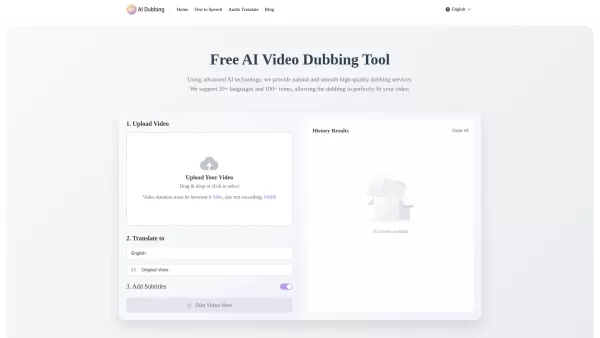
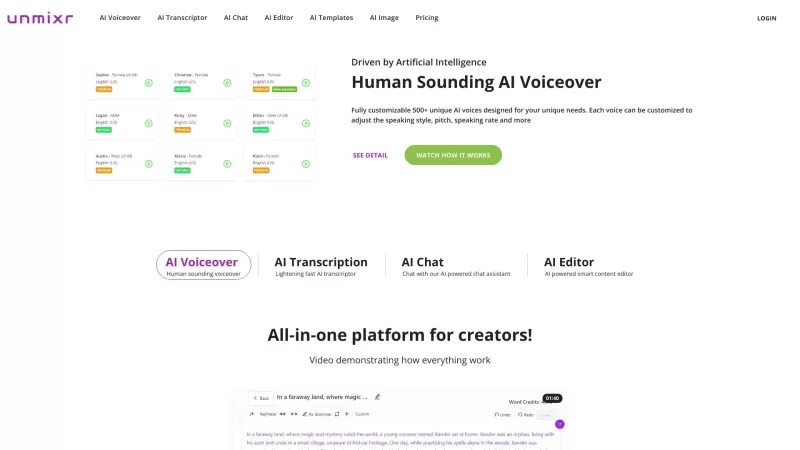
What is AI Dubbing?AI Dubbing is a free online tool that translates videos into various languages, generates speech from text scripts, and delivers precise lip synchronization through advanced AI. It provides natural and fluid high-quality voiceovers
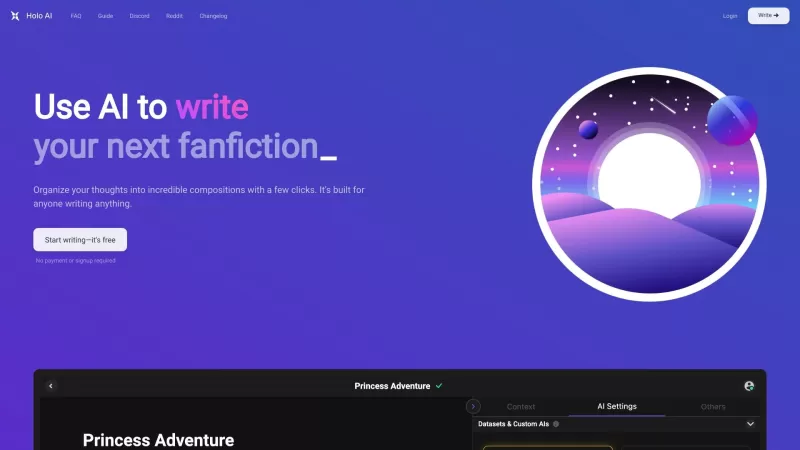
Ever wondered what Holo AI is all about? Well, let me break it down for you. Holo AI is this fantastic AI-powered platform that's all about letting your creativity soar. It's like having a personal assistant that helps you craft novels, whip up short stor
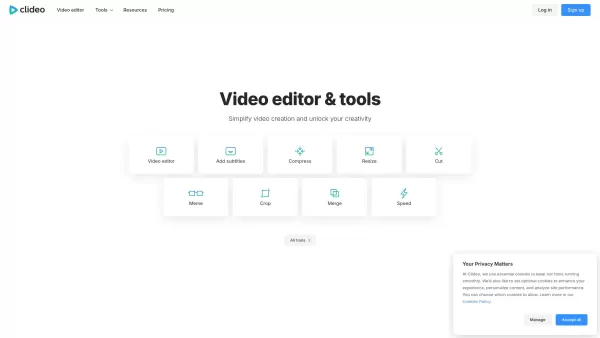
What is Clideo?Clideo is a versatile online editing suite that makes professional-grade video and image editing accessible to everyone. With an intuitive interface and robust features, it empowers users to create polished content without requiring te
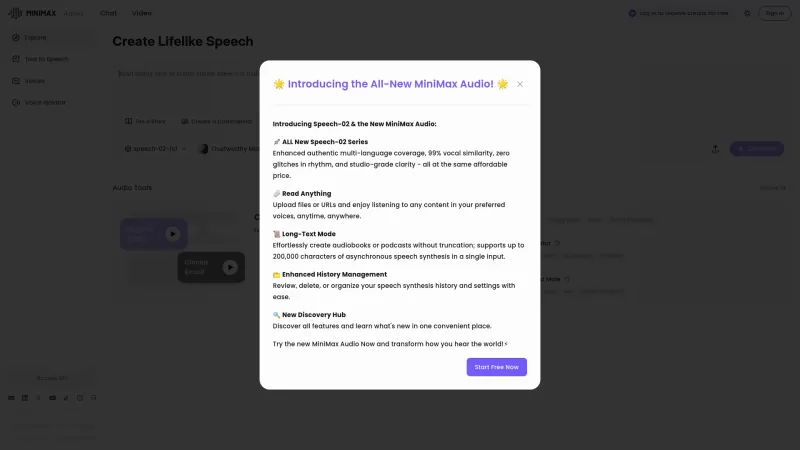
If you're into the world of audio technology, you've got to check out MiniMax Audio. This gem offers ultra-realistic AI voice synthesis that'll blow your mind. Imagine converting your text or URLs into natural-sounding speech in over 30 languages. It's pe
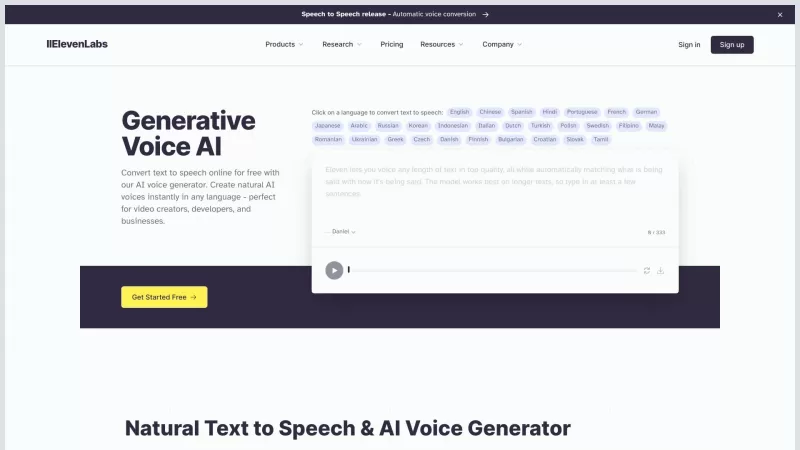
ElevenLabs is your go-to platform for transforming text into speech with an AI voice generator that's nothing short of revolutionary. Whether you're a video creator, developer, or just someone who loves to hear stories come to life, ElevenLabs has got you
Read to Me Product Information
What Is Read to Me?
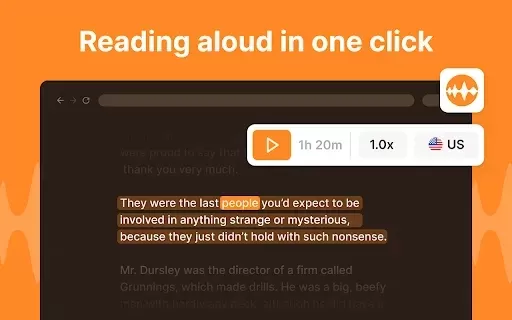
Read to Me is a robust text-to-speech extension for Google Chrome, enabling users to effortlessly listen to written content. Whether you're browsing websites, reading articles, or studying online, this tool transforms text into audio. It supports multiple languages and offers customizable voice pitch and reading speed settings to suit individual preferences. This extension is ideal for anyone looking to improve comprehension or for users with reading difficulties.
Who Uses Read to Me?
- Students
- Professionals
- Individuals with reading difficulties
- Language learners
- Educators
How to Use Read to Me
- Step 1: Install the Read to Me extension from the Chrome Web Store.
- Step 2: Navigate to any webpage containing text.
- Step 3: Click the Read to Me icon in the toolbar.
- Step 4: Select the text you want read aloud or choose to read the entire page.
- Step 5: Adjust voice settings if needed and press play.
Platform
- Chrome
Read to Me's Core Features & Benefits
Core Features
- Multiple language support
- Customizable voice pitch
- Adjustable reading speed
Benefits
- Enhances comprehension
- Facilitates learning
- Makes reading accessible for everyone
Read to Me's Main Use Cases & Applications
- Reading online articles
- Language learning and practice
- Supporting individuals with reading disabilities
- Studying and reviewing educational material
Read to Me FAQs
How Do I Install Read to Me?
Go to the Chrome Web Store and click the 'Add to Chrome' button for Read to Me.
Can I Use Read to Me on Any Website?
Yes, it works on any webpage with text.
Is There a Cost to Use Read to Me?
The extension is free to install and use.
Can I Change the Voice and Speed of the Reading?
Yes, you can customize pitch and speed settings in the options menu.
Does Read to Me Support Multiple Languages?
Yes, it offers various language options.
Is There a Mobile Version of Read to Me?
No, it is currently available only as a Chrome extension.
How Do I Select Text for Reading?
Simply highlight the text on the webpage before activating the extension.
Does It Read PDFs and Documents?
It reads content from web pages but may not support PDF documents directly.
Can It Help with Learning a New Language?
Absolutely! You can listen to text in different languages for practice.
How Do I Uninstall the Extension?
Right-click the Read to Me icon and select 'Remove from Chrome'.
Read to Me Company Information
Read to Me Screenshot


2026 Latest Top-rated AI Illustration Tools: Our curated list features the best powerfully designed tools for creating stunning editorial scenes and eye-catching cover art quickly. Each option has gone through rigorous real-world tests, offering a free vs paid comparison to help you find the perfect match for your workflow. Try these must-try solutions today to unlock your AI edge and boost your creative productivity. Explore now at XIX.AI.
 10 tools
 xix.ai

2026 Latest Top-Rated Best AI Tutors for Exam Prep are here on XIX.AI! Our curated list features powerful game-changing tools that offer free vs paid comparison, real-world tests, and weekly updated rankings. They help boost your writing efficiency, simplify complex topic learning, and unlock your academic potential. Explore now to Discover your perfect exam prep tool and Start creating today to Unlock your AI edge!
10 tools
xix.ai

2026 Latest Best Top-Rated AI Budget Planning Tools for Personal Money Management are here on XIX.AI! This curated collection features powerful, game-changing solutions that help you conduct real-world tests, understand spending habits, and create personalized plans to boost productivity. Enjoy a free vs paid comparison along with detailed rankings. Must-try tools designed to simplify money management and unlock your AI edge. Explore now!
11 tools
xix.ai

2026 Latest Best Top-Rated AI Sleep Tracking Assistants curated for ultimate recovery. This fully updated weekly guide features powerful tools that deliver real-world tests, free vs paid comparison, and detailed rankings to help you find the must-try solution that boosts sleep quality and supports better bedtime habits. Explore now at XIX.AI to Unlock your AI edge.
10 tools
xix.ai

2026 Latest Best Top-Rated AI SQL Copilots for Product and Revenue Analytics! XIX.AI has curated a powerful, game-changing collection of must-try tools that undergo real-world tests through weekly updated rankings. These tools help users boost productivity significantly by accelerating data analysis, streamlining complex queries, and generating accurate insights to drive smarter business decisions. Explore now to Discover your perfect tool for unlocking your AI edge!
14 tools
xix.ai

2026 Latest Best Top-Rated AI Homework Helpers That Teach Core Concepts Not Just Answers Powerful Tools for Students Must-Try Curated List Weekly Updated Free vs Paid Comparison Real-World Tests Accurate Rankings to Help You Unlock Your Full Learning Potential Explore now to Discover your perfect tool for smarter studying.
10 tools
xix.ai


