


 Home
HomeAsk_me - Chrome Extension
AI for Google Meet Answers | Chrome Extension



Helps TikTok sellers, brands, MCNs, and TAPs discover winning products and find creators.

HelpLook is an AI-powered all-in-one knowledge base tool that helps businesses quickly build knowledge bases, help centers, and...

Your AI Workspace

302.AI is an enterprise-grade AI resource platform with pay-as-you-go pricing, API access to a full range of AI models, and ready-to-use online applications.

剧火AI — AI Screenwriter + Director, a One-Person Short Drama Studio In one sentence, what is it?

Ever heard of Grok? It's this nifty AI assistant from xAI that's all about giving you the straight scoop. And the best part? It's totally free! Grok isn't just your average AI; it's packed with cool features like real-time search, image generation, and tr

Ever wondered what Qwen AI is all about? Well, let me introduce you to this gem from Alibaba Cloud. Qwen AI is not your average language model; it's a powerhouse designed to be your go-to buddy for everything from whipping up text to coding, and even reco
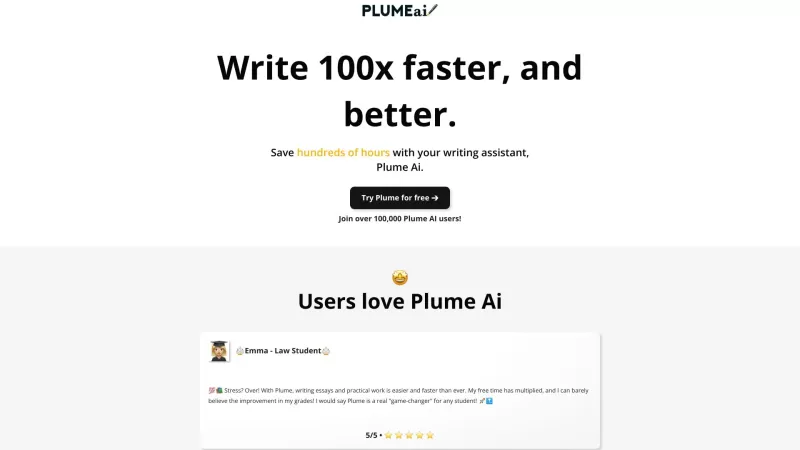
Discover Plume AI: Your Ultimate Academic Writing AssistantAre you tired of struggling with your academic writing? Well, say hello to Plume AI, the innovative AI assistant that's here to revolutionize the way you write! Designed with students in mind, Plume AI harnesses the power of cutting-edge art

Ever wished for a trusty sidekick to help you navigate the digital world with ease? Enter Sider, your personal AI companion designed to seamlessly blend into your daily routine. Starting off as a handy Chrome/Edge extension, Sider transforms your browsing
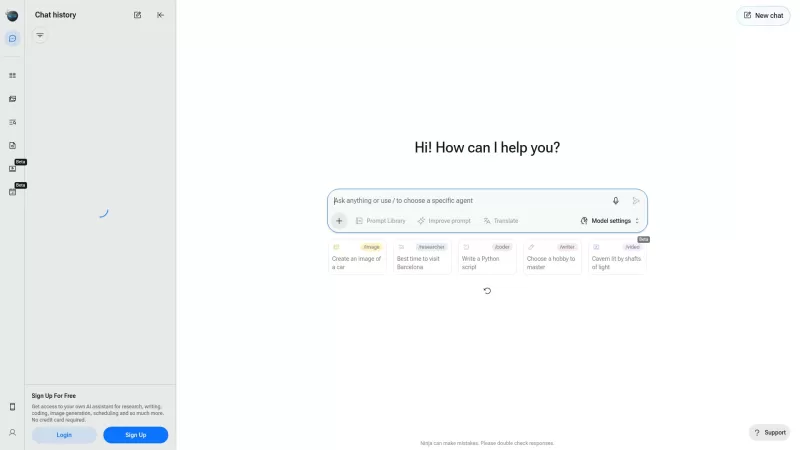
Ever wondered what Ninja AI is all about? Well, let me tell you, it's like having a Swiss Army knife for your digital needs! Ninja AI isn't just another AI tool; it's a powerhouse that brings together over 24 top-notch Large Language Models (LLMs) to help
Ask_me - Chrome Extension Product Information
What is the Ask_me AI Chrome Extension?
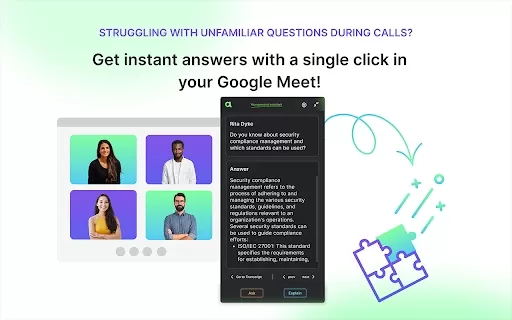
The Ask_me Chrome extension delivers immediate answers and explanations directly within your Google Meet calls. It captures speech, converts it to text, and leverages OpenAI's ChatGPT-4 technology to provide answers to queries or clarify unfamiliar subjects. This tool is built to boost productivity and effectiveness in diverse settings, including job interviews, team collaborations, and virtual classrooms.
How to Use the Ask_me AI Chrome Extension
1. Install the Ask_me Chrome extension. 2. Enter a Google Meet session. 3. The extension will automatically record and transcribe the conversation in real time. 4. To get information, simply highlight a message from the transcript and select 'Ask' for a quick answer or 'Explain' for a more detailed breakdown.
Ask_me AI Chrome Extension's Core Features
Real-time Google Meet call transcription
Speaker identification with timestamps
On-demand answers and explanations using OpenAI's ChatGPT-4
Privacy-first design: Your data is neither stored nor used for model training
Ask_me AI Chrome Extension's Use Cases
Receiving instant answers in job interviews
Grasping difficult concepts during online classes
Clarifying project requirements in team meetings
Responding to customer inquiries on sales calls
FAQ from Ask_me
How does Ask_me ensure privacy?
What languages does Ask_me support?
Is Ask_me free?
Ask_me - Chrome Extension Screenshot
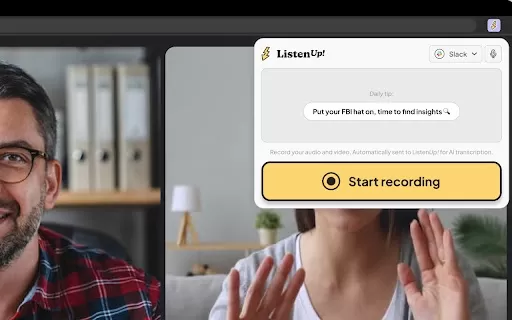
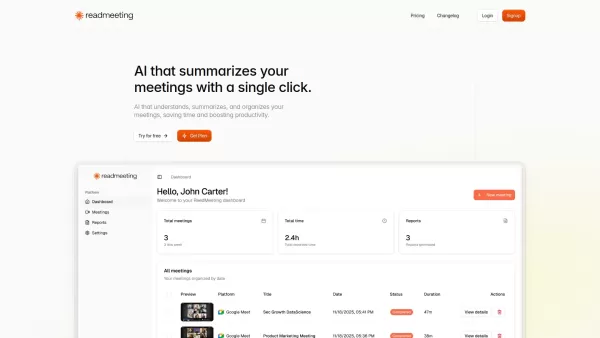
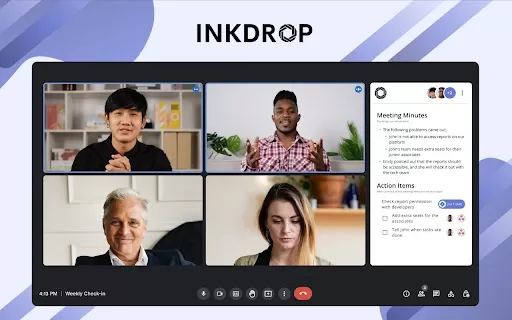

2026 Latest Best AI Agenda Builders page features a curated list of top-rated tools that make planning weekly team syncs effortless. These powerful solutions help you create organized, efficient agendas in just minutes, saving valuable time and boosting productivity. XIX.AI ensures all entries go through rigorous real-world tests before inclusion. Get a free vs paid comparison and discover the must-try options that deliver game-changing results. Explore now to find your perfect tool for smoother workflows!
 15 tools
 xix.ai

2026 Latest Best Top-Rated AI Business Plan Tools for Startups! XIX.AI curates a powerful, game-changing collection of must-try tools that go through real-world tests and rigorous weekly updated rankings. These top solutions help startups draft flawless plans, boost productivity, and unlock their full AI edge. Explore now to discover your perfect tool!
9 tools
xix.ai

2026 Latest Best Top-rated AI Persona Builder Tools for Audience Research are here on XIX.AI! This curated list features powerful, game-changing tools that help you conduct real-world tests and create accurate audience profiles through detailed free vs paid comparison. You’ll discover the must-try options that boost writing efficiency and unlock your AI edge in marketing strategies. Explore now to find your perfect tool!
9 tools
xix.ai
2026 Latest Best Top-rated AI Demo Video Tools for SaaS Product Marketing, carefully curated by XIX.AI. These powerful game-changing solutions help marketers create high-quality video content fast, boost writing efficiency, and streamline marketing workflows. Enjoy a free vs paid comparison along with real-world tests and updated rankings weekly. Explore now to Discover your perfect tool for boosting SaaS sales!
9 tools
xix.ai
2026 Latest Best Top-rated AI Prompt Testing Tools for Better Output Quality! XIX.AI has curated a powerful, game-changing collection of highly efficient tools that undergo rigorous real-world tests to ensure consistent top-tier results. You’ll find detailed free vs paid comparison insights, comprehensive rankings, and expert guidance to help you identify the must-try solutions that boost your workflow significantly. Explore now to unlock your AI edge!
11 tools
xix.ai

2026 Latest Best Top-rated AI Customer Insight Tools for Product Positioning! XIX.AI has curated a powerful, game-changing collection that goes through real-world tests and weekly updated rankings. It helps you uncover customer needs quickly to boost writing efficiency, create optimal SEO content, and craft perfect social media messages without wasting time. Explore now to Discover your perfect tool and Unlock your AI edge.
10 tools
xix.ai


